Form Builder
The Form Builder lets administrators organize form fields, reorder tabs, and control field visibility across all add/edit forms in the CRM.
Access it from Settings → Form Builder (this is the primary admin landing page).
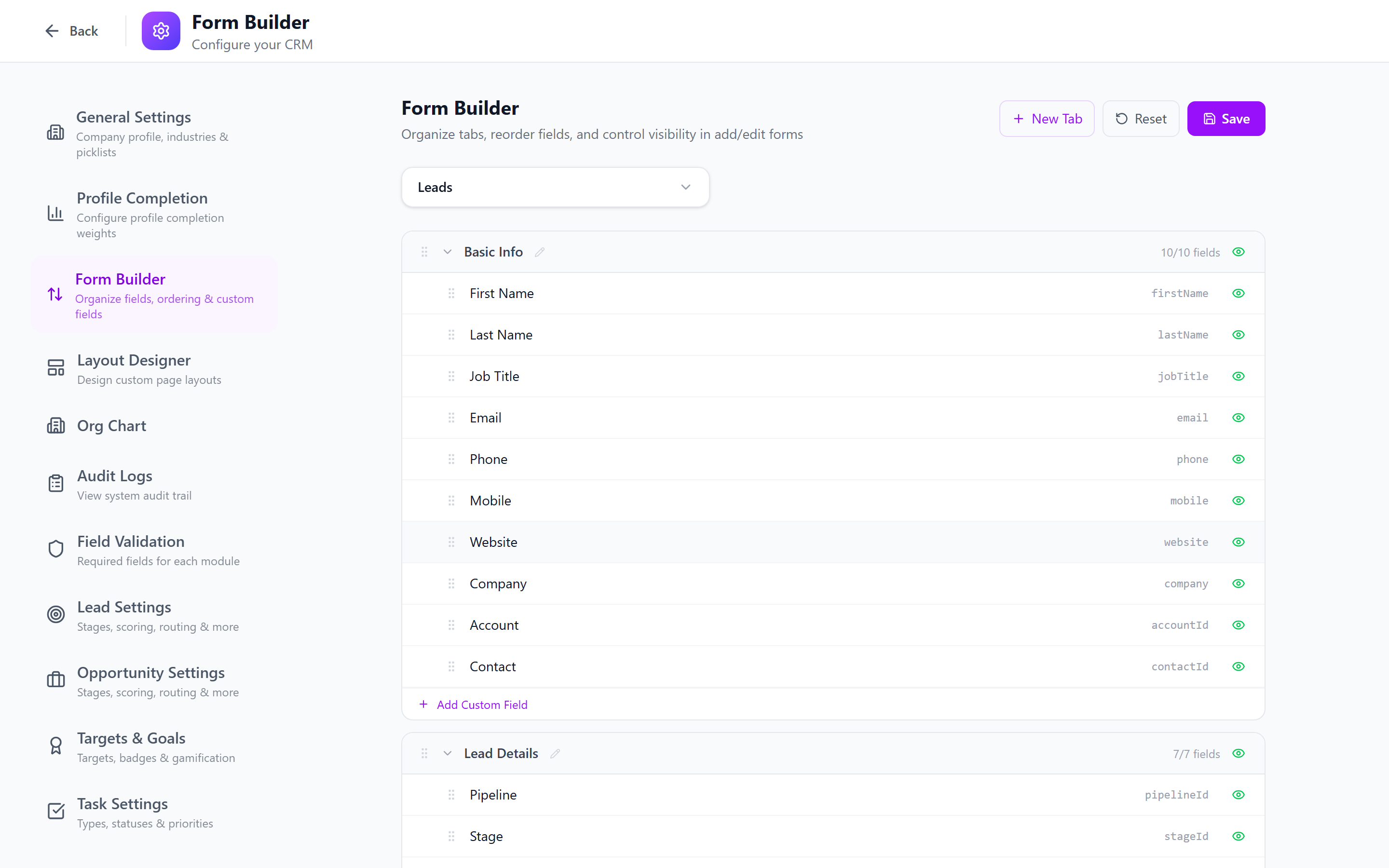
Selecting a Module
Use the module dropdown to switch between:
- Leads
- Contacts
- Accounts
- Opportunities
Each module has its own independent field configuration.
Tab Structure
Fields are organized into tabs. Each module comes with default tabs:
Leads
| Tab | Fields |
|---|---|
| Basic Info | First Name, Last Name, Email, Phone, Company, Job Title, Website, Account, Contact, Mobile |
| Lead Details | Pipeline, Stage, Priority, Source, Industry, Owner, Team |
| Address | Country, Address Line 1, Address Line 2, City, State, Postal Code |
| Communication | Do Not Contact, Do Not Email, Do Not Call |
| Other | Tags |
Contacts
| Tab | Fields |
|---|---|
| Basic Info | First Name, Last Name, Email, Phone, Mobile, Job Title, Department, Account |
| Contact Details | Emails, Phones, Fax, Website |
| Address | Street, City, State, Postal Code, Country |
| Social Profiles | LinkedIn, Twitter, Facebook |
| Other | Source, Description, Tags |
Accounts
| Tab | Fields |
|---|---|
| Basic Info | Name, Classification (B2B/B2C), Industry, Website, Account Type, Company Size, Annual Revenue |
| Contact Details | Email, Phone, Fax, Emails, Phones |
| Addresses | Billing & Shipping addresses |
| Social | LinkedIn, Twitter, Facebook |
| Other | Description, Tags |
Opportunities
| Tab | Fields |
|---|---|
| Basic Info | Name, Account, Primary Contact, Pipeline, Stage, Priority, Source, Type |
| Deal Details | Amount, Currency, Probability, Close Date, Forecast Category, Next Step, Competitor, Owner, Team |
| Other | Description, Tags |
Managing Fields
Reorder Fields
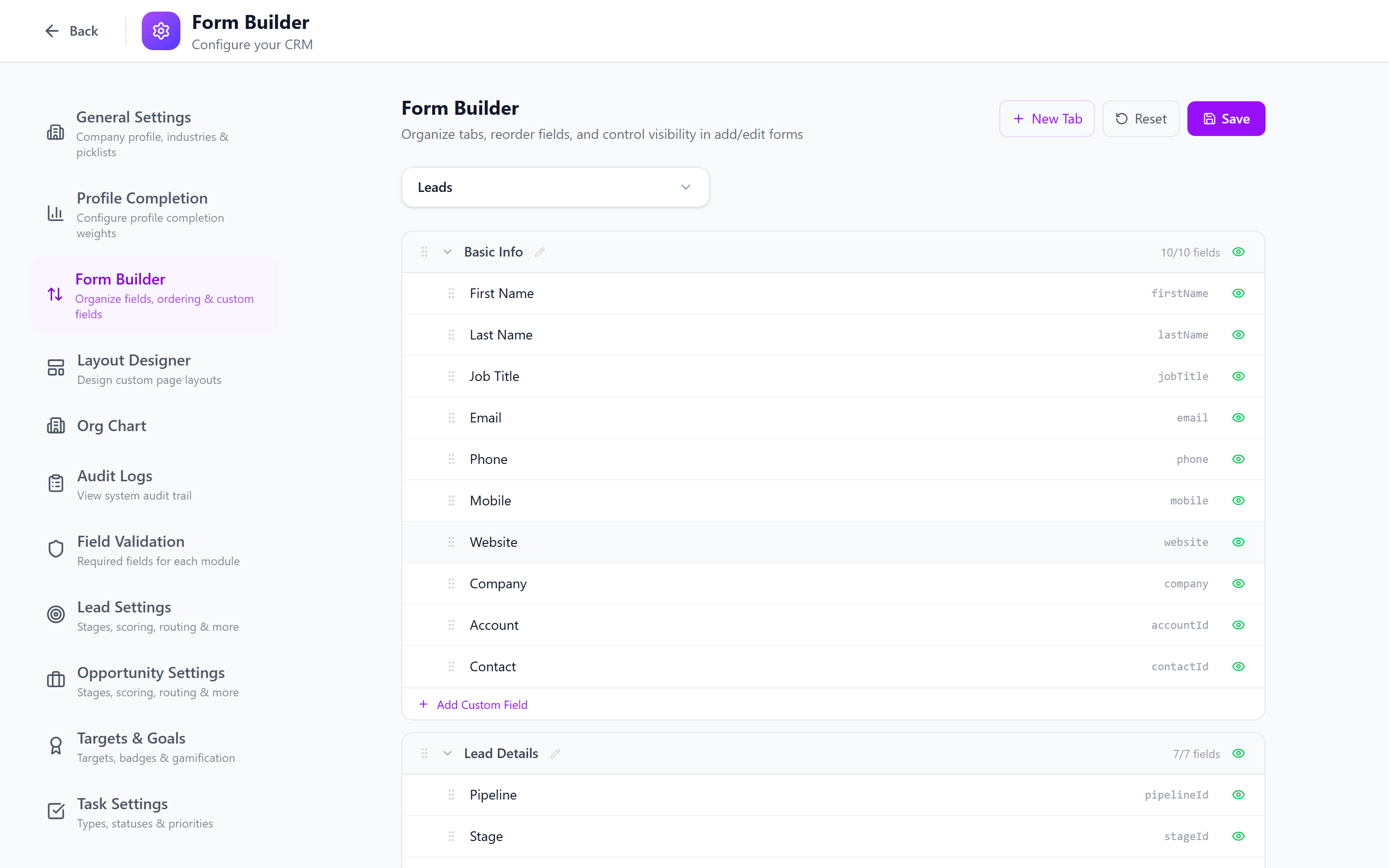
Drag fields up or down within a tab using the grip handle on the left.
Toggle Visibility
Click the eye icon next to any field to hide it from the form. Hidden fields:
- Won't appear on the add/edit form
- Data is still stored if previously entered
- Can be made visible again at any time
Reorder Tabs
Drag entire tabs to change their display order on the form.
Rename Tabs
Click the pencil icon next to a tab name to rename it.
Hide Tabs
Toggle an entire tab's visibility to hide all its fields at once.
Custom Fields
Custom fields created in Custom Fields settings automatically appear here. You can:
- Toggle their visibility
- Drag-reorder them within their tab — custom fields now respect the same grip-handle drag-reorder as system fields, so a long list of custom fields can be grouped logically inside a tab.
- Delete them (removes the custom field entirely)
Use the Form Builder to organize your forms for different workflows. For example, hide advanced fields that sales reps don't need, keeping forms clean and fast.
Reset to Defaults
Click Reset to restore the original tab order, field order, and visibility for the selected module.
Resetting will undo all customizations for that module. This cannot be undone.
Engagement Form Builder
The Engagement Form Builder (Engagement > Forms) lets you create web forms that capture data and trigger CRM actions.
Form Types
| Type | Description |
|---|---|
| Standard | Collect data and execute CRM actions (create leads, contacts, accounts) |
| Meeting Booking | Let visitors book meetings directly on your calendar |
| Landing Page | Full-page form with SEO metadata and custom branding |
Creating a Form
- Navigate to Engagement > Forms.
- Click New Form or New Booking Page.
- Enter form name and description.
- Use the drag-and-drop builder to add fields.
Field Types
The field palette includes:
| Type | Description |
|---|---|
| Text | Single-line text input |
| Email with validation | |
| Phone | Phone number input with E.164 validation + intl country picker — store all phones in +CCNNNNNNN format. |
| Number | Numeric input |
| Text Area | Multi-line text |
| Dropdown | Select from predefined options |
| Lookup | Dropdown backed by a system-managed list (industries, countries, lead sources). Options stay in sync with the lists configured under admin — change the master list once and every form picks it up. |
| Radio | Single choice from options |
| Checkbox | Boolean toggle |
| Date | Date picker |
| File Upload | File attachment |
| Heading | Section heading (non-input) |
| Paragraph | Descriptive text (non-input) |
| Divider | Visual separator (non-input) |
Field Width (Multi-Column Rows)
Each field has a Width setting that controls how much of the row it occupies. Adjacent non-full fields are automatically packed into the same row — no manual row containers needed.
| Width | Fraction | Per Row |
|---|---|---|
| Full Width | 1/1 | 1 field |
| Two Thirds | 2/3 | pairs with a 1/3 |
| Half Width | 1/2 | 2 fields |
| One Third | 1/3 | 3 fields |
| Quarter | 1/4 | 4 fields |
Example: Set First Name → Half, Last Name → Half — they render side-by-side on the same row. Set Country → Third, City → Third, Postal Code → Third — three fields in one row.
On mobile screens (< 768px), half/third/two-thirds fields collapse to full width automatically; quarter fields show two per row. Heading, Paragraph, and Divider always span the full row regardless of the Width setting.
Submit Actions
Configure what happens when a form is submitted. Actions execute in order, and each action can use data from previous ones (e.g., create a contact first, then create a lead linked to that contact).
Create Lead
Maps form fields to CRM lead fields. Automatically:
- Resolves the default pipeline and first stage
- Assigns the default qualification framework (BANT/CHAMP)
- Sets the default priority
- Formats phone numbers to E.164 international format
- Fires the
lead_createdworkflow trigger
Create Contact
Maps form fields to CRM contact fields. If a previous "Create Account" action ran, the contact is automatically linked to that account.
Create Account
Creates a new account with type "prospect" from form data.
Webhook
Sends the form submission data to an external URL via HTTP POST.
- Payload includes:
formId,formName,data,submittedAt - Response status and body are logged in submission results
Send Email to Submitter
Sends a confirmation email to the submitter.
- Uses the email field mapped in the form
- Supports
{{field_name}}placeholders in subject and body - Sender control — pick a specific sender account (custom SMTP, SendGrid, AWS SES) so the email shows the right
From:address. Falls back to the tenant default if not set.
Add to Email List
Subscribes the submitter to a marketing list at MailerLite or Mailchimp.
- Provider + List picker — when multiple providers are connected, lists are tagged with their provider so you can disambiguate.
- The submitter's email is added with
firstName/lastNameif those fields are mapped.
Field Mapping
Each CRM action has a field mapping section. Map form fields to CRM fields:
- Select an action type (e.g., Create Lead).
- For each CRM field, select the corresponding form field from the dropdown.
- Fields left as "-- skip --" are not mapped.
Custom Fields: Custom fields from the CRM appear in a separate "Custom Fields" section with a cf_ prefix. They are stored in the lead's custom_fields JSONB column.
reCAPTCHA Protection
Enable Google reCAPTCHA v3 to prevent spam submissions:
- Go to the Settings tab of your form.
- Toggle Require CAPTCHA.
- Ensure
RECAPTCHA_SECRET_KEYis configured on the server.
Submissions with a score below 0.5 are rejected.
Embedding Forms
Forms can be embedded on external websites or submitted programmatically. From the form builder, click Embed in the top bar to open the Share & Integrate modal.
Embed on a Website
- iFrame — drop the form directly into a page
- JavaScript snippet — load the form dynamically into a target div
- Popup modal — trigger the form from a button click
Submit via API
The same modal exposes the public submission endpoint with copy-ready snippets in cURL, JavaScript, PHP, Python, and Flutter (Dart). No authentication is required — the URL is POST /api/forms/public/:tenantSlug/:token/submit, and the request body is a JSON object keyed by each field's name.
Sample bodies are auto-generated from the form's fields so you can test immediately. Custom fields use the cf_ prefix. See the Forms API reference for the full payload contract.
Submission Tracking
Every submission is recorded with:
- Form data and metadata
- Action results (success/error per action)
- IP address and user agent
- Timestamp
View submissions under the form's Submissions tab with filtering by date range and action status.
Booking Forms — Actions Tab
The Actions tab is now exposed on meeting_booking forms — when a slot is booked, the same Create Lead / Create Contact / Send Email / Webhook / Add to Email List chain runs as on a standard form. The new lead/contact's owner defaults to the booking host for the slot, but a workflow assign_owner on the lead_created / contact_created trigger can override that if you want a different routing.
Form Recipient Routing
A new Recipient setting on the form lets you decide who receives the in-app notification when a submission lands — the form creator, a specific user, the lead/contact owner that was just created, or "every active admin". Useful when a form is owned by a marketing user but the leads should ping a specific SDR.
Phone Number Formatting
Phone numbers submitted through forms are automatically formatted to E.164 international format:
- Tries parsing the raw input directly
- Falls back to the mapped country code field
- Falls back to the tenant's base country from company settings
- If all fail, stores the raw input as-is