Roles & Permissions
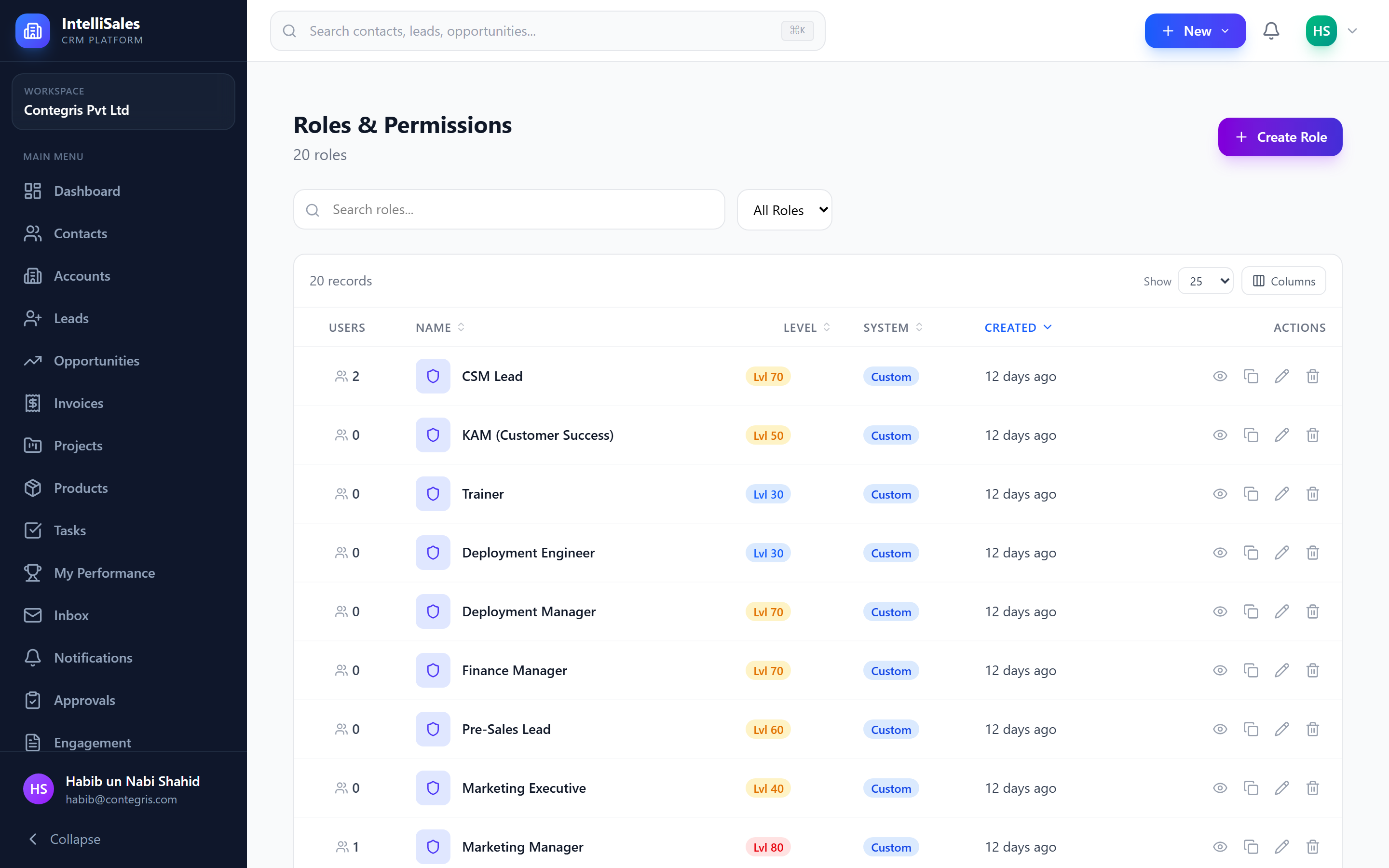
IntelliSales CRM uses a comprehensive Role-Based Access Control (RBAC) system with three layers: Module Permissions, Record Scope, and Field Permissions. This chapter covers the first layer — module-level permissions and role management.
RBAC Overview
The permission system has three distinct layers:
| Layer | Controls | Configured In |
|---|---|---|
| Module Permissions | What actions a user can perform per module (view, create, edit, delete, export, import, invite) | This page |
| Record Access | Which records a user can see (own, team, department, reporting line, all) | Record Access settings |
| Field Permissions | Which fields are visible, read-only, or editable per role | Field Permissions settings |
The Permission Matrix
The matrix covers 18 modules and 7 actions:
Modules
contacts · accounts · leads · opportunities · deals · tasks · projects · reports · users · roles · settings · admin · targets · gamification · notifications · forms · email
Actions
| Action | Description |
|---|---|
| view | See records in lists and detail pages |
| create | Create new records |
| edit | Modify existing records |
| delete | Soft-delete records |
| export | Export data to CSV/Excel |
| import | Bulk import data |
| invite | Send invitations (users module only) |
System Roles
Three built-in roles are provided out of the box and cannot be deleted:
| Role | Level | Description |
|---|---|---|
| Admin | 100 | Full access to all modules and admin panel. Can manage users, roles, and all settings. |
| Manager | 50 | Can view, create, and edit across most modules. Can see team/department records. Cannot access admin settings. |
| User | 10 | Standard access. Typically limited to own records. Can create and edit within assigned modules. |
System roles cannot be deleted or renamed, but their permissions can be modified. Be cautious when editing system roles — changes affect all users assigned to that role.
admin vs settings — Granting Settings Access to Non-Sysadmins
The admin and settings modules are separate. Each has its own view and edit actions. You don't need to make someone a sysadmin (level 100) just to let them tune lead settings or write workflows.
How @AdminOnly() endpoints resolve
Every endpoint behind @AdminOnly() is now HTTP-method-aware:
| Method | Required permission (any one) |
|---|---|
GET | admin.view, admin.edit, settings.view, or settings.edit |
POST / PUT / PATCH / DELETE | admin.edit or settings.edit |
Sysadmin (role === 'admin' or roleLevel ≥ 100) always bypasses both checks.
This means a role at level 80 ("Head of Customer Success", "Sales Ops Lead") with admin.edit = true can hit every previously-blocked endpoint: general settings, lead/opp settings, CS settings, email templates, approval rules, workflows, API keys, module-settings field-validation, and users/:id/reset-password.
Permissions live in the JWT payload. Users with active sessions must re-login to pick up a permission change.
Sidebar gates per-module, not per-section
The sidebar's Administration section now shows each link based on its own module permission, not a single isAdmin flag:
| Sidebar item | Visible when |
|---|---|
| Users / Departments / Teams | users.view |
| Roles | roles.view |
| Settings | settings.view OR admin.view |
The section header is rendered if any of its items are visible. The same gating applies to the Header user-menu "Settings" link.
View-only mode
A user with settings.view = true and no edit permission (and no admin.edit, and not sysadmin) lands in view-only mode:
- An amber banner at the top of every settings page explains the view-only state and points to the
settings.editpermission. - The
<Outlet>is wrapped in<fieldset disabled>, so every native<button>,<input>,<select>, and<textarea>on every settings page is disabled by the browser. No per-page changes were required.
Trade-off you should know about: in-page tab switchers, filter dropdowns, and search inputs inside settings pages are also disabled for view-only users (they're plain native elements too). Acceptable because a view-only user is mostly browsing.
Creating Custom Roles
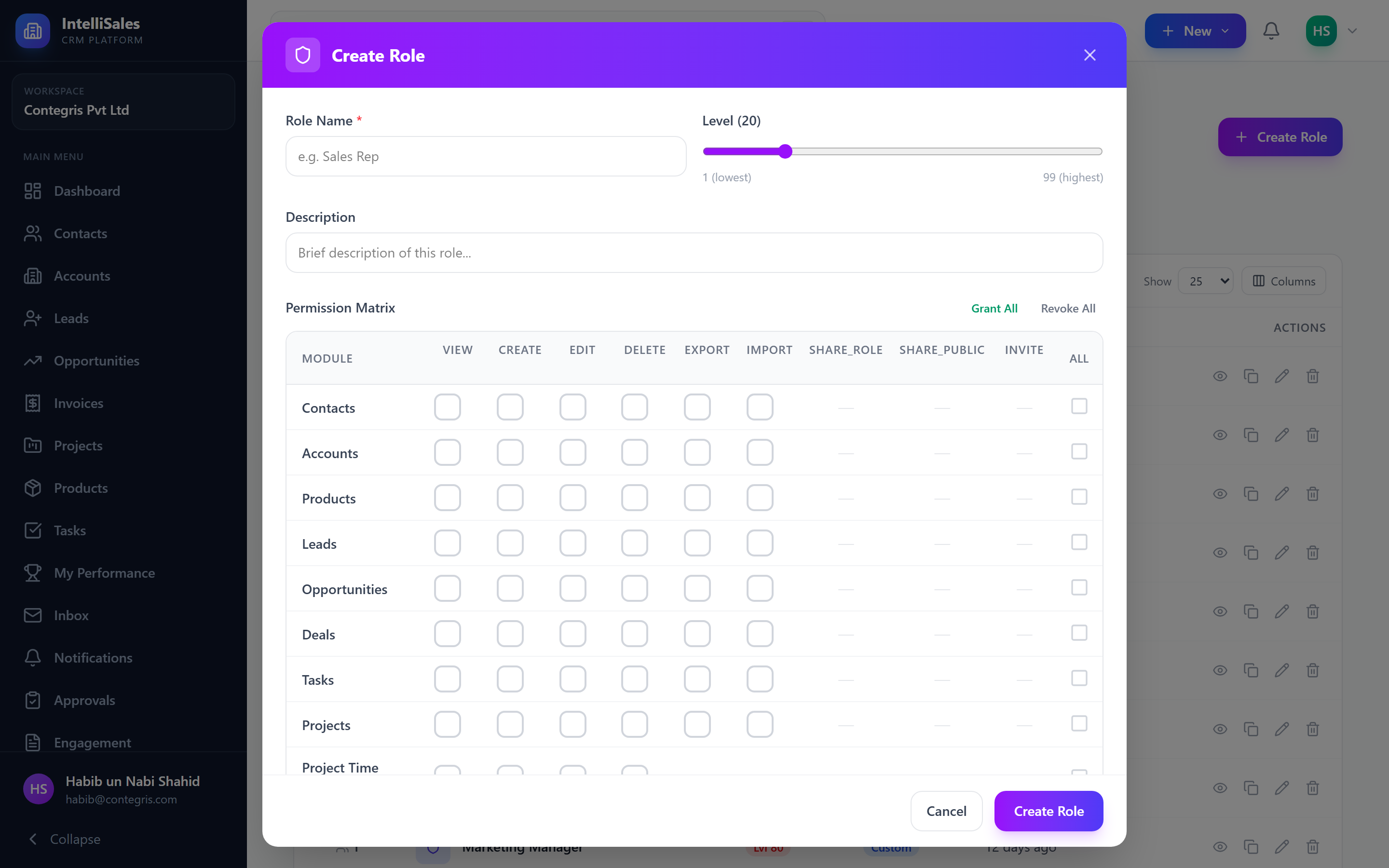
- Navigate to Admin > Roles.
- Click Add Role.
- Fill in the form:
- Name (required) — e.g., "Sales Rep", "Marketing Coordinator", "Support Agent"
- Description (optional) — explain the role's purpose
- Level (required) — a number between 0 and 100 that determines hierarchy
- Configure the permission matrix — toggle each action on/off for each module.
- Click Create Role.
Role Level Hierarchy
The role level is a numeric value (0-100) that determines authority ranking:
- Higher levels can manage users with lower levels.
- Level 100 is reserved for admin-equivalent roles.
- A user with level 50 cannot modify users at level 50 or above.
- Use levels like 10, 20, 30, 50 to create clear tiers.
Role level is separate from permissions. A level-50 role with only contacts.view permission can see contacts but cannot do much else — the level only affects who can manage whom.
Cloning Existing Roles
To create a new role based on an existing one:
- Open the role you want to clone.
- Click Clone Role.
- A new role form opens pre-populated with all the same permissions.
- Change the name and adjust permissions as needed.
- Click Create Role.
Cloning is the fastest way to create variations. For example, clone "Sales Rep" to create "Senior Sales Rep" with additional export permissions.
Editing Role Permissions
- Open the role from the roles list.
- Use the permission grid — rows are modules, columns are actions.
- Click checkboxes to toggle permissions on/off.
- Click Save Changes.
The grid provides a clear visual overview:
Module          | View | Create | Edit | Delete | Export | Import | Invite
----------------|------|--------|------|--------|--------|--------|-------
Contacts        |  ✓   |   ✓    |  ✓   |   ✗    |   ✓    |   ✗    |   -
Leads           |  ✓   |   ✓    |  ✓   |   ✗    |   ✓    |   ✓    |   -
Opportunities   |  ✓   |   ✓    |  ✓   |   ✗    |   ✗    |   ✗    |   -
Tasks           |  ✓   |   ✓    |  ✓   |   ✓    |   ✗    |   ✗    |   -
Users           |  ✓   |   ✗    |  ✗   |   ✗    |   ✗    |   ✗    |   ✗
Module Permissions Explained
| Module | Key Permissions |
|---|---|
| contacts | Access to contact records |
| accounts | Access to company/organization records |
| leads | Access to lead pipeline |
| opportunities | Access to opportunity pipeline |
| deals | Access to closed deals |
| tasks | Access to task management |
| projects | Access to project management |
| reports | Access to report builder and viewing |
| users | User management (admin area); invite permission for sending invitations |
| roles | Role configuration (typically admin only) |
| settings | General settings access |
| admin | Admin panel access |
| targets | Target/quota management |
| gamification | Badges and leaderboard access |
| notifications | Notification preferences |
| forms | Form builder access |
| Email integration features |
Best Practices for Role Design
- Start with the principle of least privilege — give each role only the permissions it needs.
- Use descriptive names — "Inside Sales Rep" is better than "Role 4".
- Create role tiers — establish clear levels (Rep: 10, Senior Rep: 20, Manager: 50, Director: 70, Admin: 100).
- Clone and modify — do not build complex roles from scratch.
- Document your roles — maintain an internal wiki page explaining each role's purpose and permissions.
- Review quarterly — permissions requirements change as the business evolves.
- Test before deploying — create a test user with the new role and verify access before rolling it out.
- Giving all users the
adminmodule permission — this grants access to the entire admin panel. - Setting all roles to level 100 — this makes everyone an admin-equivalent.
- Forgetting to set
viewpermission — a user withcreatebut notviewcan create records but cannot see them afterward.
Next: Record Access — Control which records each role can see.