Getting Started with IntelliSales CRM Administration
Welcome to the IntelliSales CRM Admin Manual. This guide covers every configuration surface available to system administrators, from user management and role-based access control through to workflow automation, integrations, and audit compliance.
Who Is This Guide For?
This manual is written for:
- System Administrators — users with the
adminrole (roleLevel = 100) who are responsible for configuring and maintaining the CRM platform. - Power Users — experienced users who have been granted administrative privileges to manage specific areas such as pipelines, custom fields, or team structures.
You must have a user account with roleLevel >= 100 (Admin) to access the admin panel. If you cannot see the admin menu, contact your organization's primary administrator to elevate your role.
Admin Role Requirements
IntelliSales CRM uses a role-level hierarchy where higher numbers indicate broader authority:
| Role | Level | Admin Access |
|---|---|---|
| User | 10 | No |
| Manager | 50 | No |
| Admin | 100 | Full |
Only users at level 100 or above can access the /admin routes. The system enforces this through the @AdminOnly() guard on all admin endpoints.
Accessing the Admin Panel
- Log in to IntelliSales CRM with your admin credentials.
- Click the gear icon or Admin link in the left sidebar.
- You will be taken to the Admin Panel, which contains its own sidebar navigation organized by category.
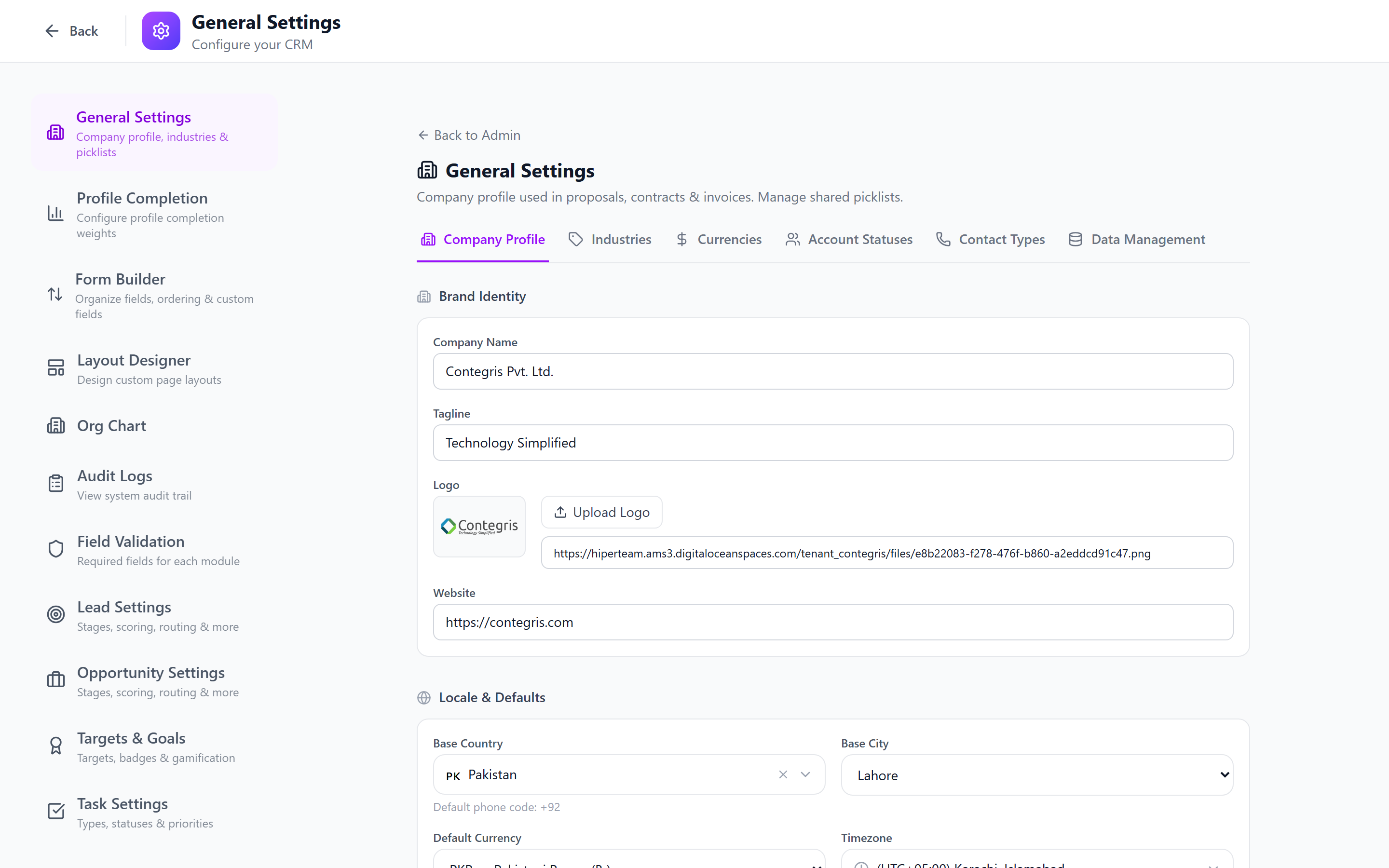
Bookmark /admin in your browser for quick access. The admin panel is also accessible via the keyboard shortcut displayed in the sidebar tooltip.
Admin Responsibilities Overview
As an administrator, you are responsible for:
| Area | What You Configure |
|---|---|
| People | Users, departments, teams, org chart, invitations |
| Access Control | Roles, module permissions, record scoping, field permissions |
| Data Model | Custom fields, field validation, page layouts, custom tabs |
| Sales Process | Pipelines, stages, priorities, scoring, routing, qualification |
| Automation | Workflows, approval rules, notification templates |
| Integrations | Xero, Google Calendar, email, Zapier, API keys |
| Data Operations | Import/export, batch jobs, audit logs |
| General | Company settings, currency, timezone, session policies |
Recommended Setup Sequence
If you are setting up IntelliSales CRM for the first time, follow this order:
- Roles & Permissions — Define who can do what.
- Departments — Create your organizational structure.
- Teams — Set up cross-functional teams.
- Users — Create and invite users.
- Custom Fields — Tailor the data model to your business.
- Layout Designer — Arrange field layouts.
- Pipelines & Stages — Configure your sales process.
- Notifications — Set up communication channels.
- Integrations — Connect external tools.
Changing roles or permissions after users have started working can disrupt their access. Plan your RBAC model before onboarding users whenever possible.
Getting Help
- This Manual — Covers all admin features in detail.
- User Manual — For end-user guidance on daily CRM operations.
- Technical Manual — For developers and DevOps engineers.
- Support — Contact your IntelliSales CRM account manager or submit a ticket through the support portal.
Next: Admin Panel Overview — Learn how the admin interface is organized.