Scheduling & Booking Pages
Create booking pages that let prospects and clients schedule meetings directly on your calendar — with automatic Google Calendar sync and Google Meet link generation.
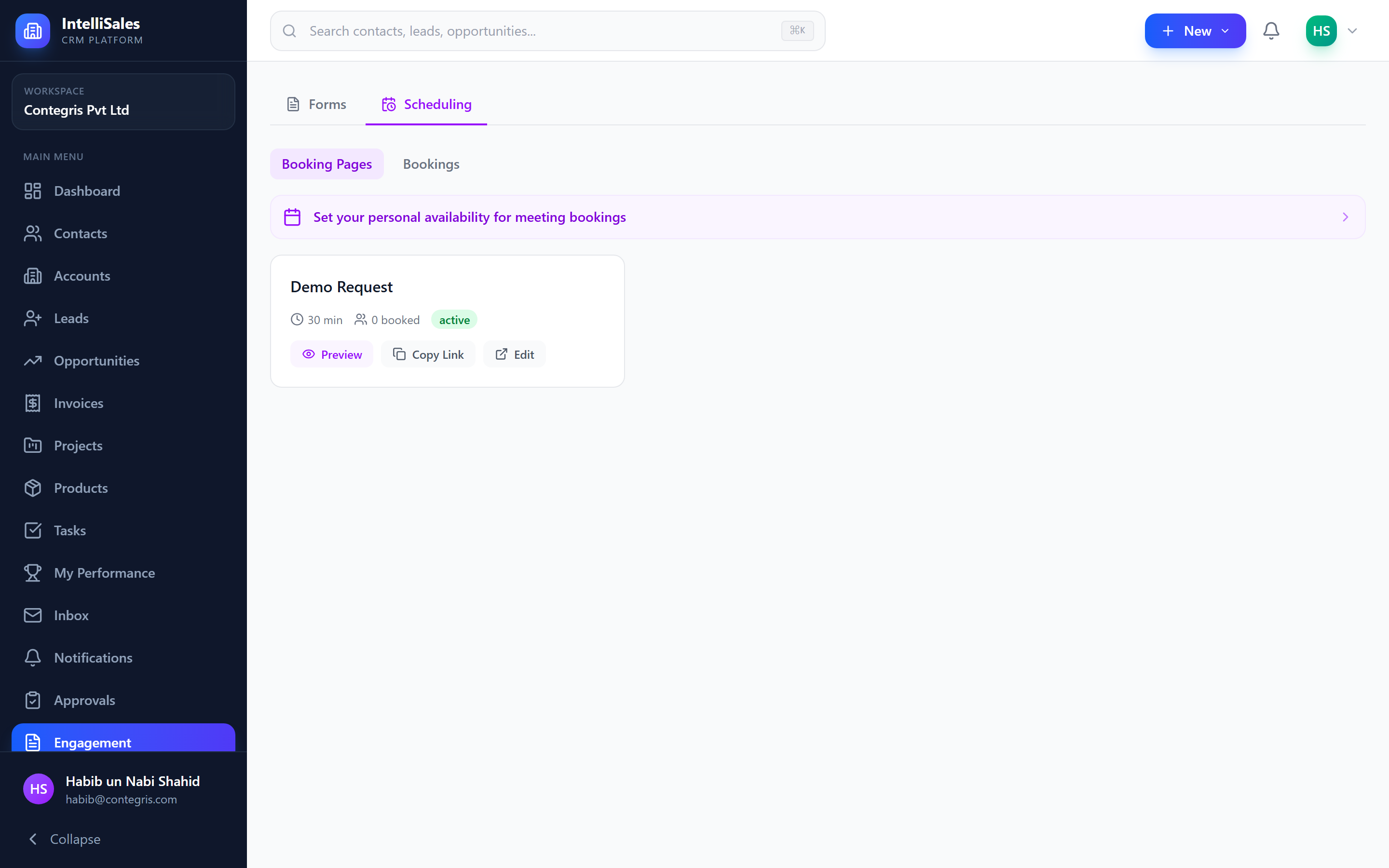
Creating a Booking Page
- Go to Engagement → Forms
- Click New Booking Page
- Configure the Meeting tab in the form builder
Meeting Configuration
Duration & Buffers
| Setting | Description | Options |
|---|---|---|
| Duration | Meeting length | 15, 20, 30, 45, 60, 90, 120 minutes |
| Buffer Before | Gap before meeting | Minutes |
| Buffer After | Gap after meeting | Minutes |
| Max Days Ahead | How far in advance people can book | Days |
| Minimum Notice | Earliest someone can book | Hours from now |
Location
| Type | Description |
|---|---|
| Video Call | Google Meet link auto-generated |
| Phone Call | Display your phone number |
| In Person | Show a physical address |
| Custom | Any text (e.g., Zoom link) |
CRM Integration
After a booking is made, automatically:
- Create Lead — New lead from booking details
- Create Contact — New contact from booking details
- None — No CRM record created
A task is always created and linked to the lead/contact for follow-up.
Confirmation
- Confirmation Message — Shown after successful booking
- Redirect URL — Redirect instead of showing confirmation
Timezone
Select the timezone for your availability. All slots are displayed in the visitor's local timezone.
Availability Modes
| Mode | Description |
|---|---|
| Custom | Set availability per booking page |
| User | Use your personal availability (shared across all booking pages) |
| Team | Distribute bookings across team members with load balancing |
Setting Custom Availability
For each day of the week:
- Toggle the day active or inactive
- Set start time and end time
- Multiple time windows per day supported
Example:
- Monday: 9:00 AM -- 12:00 PM, 1:00 PM -- 5:00 PM
- Saturday--Sunday: Inactive
Personal Availability
Set your default availability from Engagement → Scheduling → Personal Availability. This is shared across all booking pages that use "User" availability mode.
Team Mode
When team mode is enabled:
- Select team members who participate
- Bookings are distributed using load balancing — the member with the fewest bookings this month gets the next one
- Each member's personal availability is respected
The Booking Experience (Public)
Your booking page URL:
https://yourdomain.com/book/{tenant-slug}/{token}
Step 1: Select a Date
A calendar view showing available dates. Unavailable dates are grayed out.

Step 2: Select a Time
Available time slots for the selected date. Slots respect:
- Your availability windows
- Buffer times before/after meetings
- Already-booked slots
- Minimum notice requirement
Step 3: Enter Details
- Name (required)
- Email (required)
- Phone (optional)
- Notes (optional)
- Any custom form fields you've added
Step 4: Confirmation
Success message with booking details and a cancellation link.
Booking Statuses
| Status | Description |
|---|---|
| Confirmed | Meeting is scheduled |
| Cancelled | Cancelled by invitee or host |
| Rescheduled | Time changed |
| No Show | Invitee did not attend |
Managing Bookings
Go to Engagement → Scheduling and switch to the Bookings tab:
- View all bookings in a table
- Filter by status
- See invitee name, email, date/time, form name, and status
- Paginated list
Google Calendar Integration
When a booking is confirmed:
- A calendar event is created in the host's Google Calendar
- A Google Meet link is generated (for video call location)
- An invitation is sent to the invitee's email
- The event syncs bi-directionally
The host must have Google Calendar connected. Go to your profile settings to connect your Google account.
Cancellation
Invitees receive a cancellation link in their confirmation. The cancellation page:
- Shows booking details
- Asks for an optional cancellation reason
- Confirms the cancellation
- Notifies the host