Approval Rules
Approval rules ensure that important actions go through a review process before being finalized. The approval system supports multiple entity types, various trigger events, multi-step sequential chains, optional conditions, and priority ordering.
Navigate to Admin > Approval Rules.
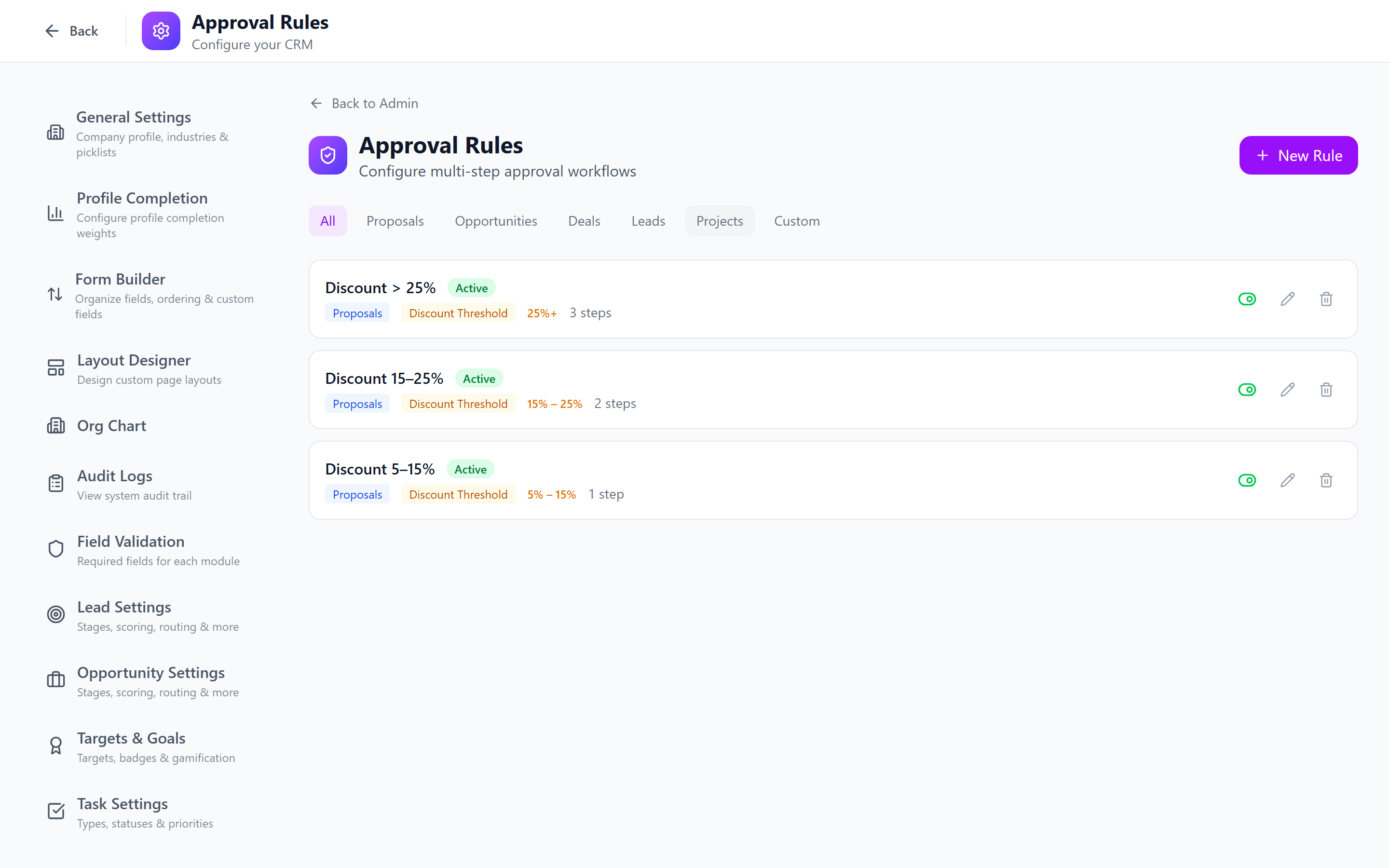
Approval System Overview
An approval rule consists of:
- Entity Type — which type of record the rule applies to
- Trigger Event — what action initiates the approval request
- Conditions (optional) — additional filters to narrow when the rule fires
- Approval Chain — one or more steps defining who must approve and in what order
- Priority — determines which rule takes precedence when multiple rules match
- Active/Inactive toggle — whether the rule is currently enforced
Supported Entity Types
| Entity Type | Description |
|---|---|
| proposals | Proposal documents requiring review before sending |
| opportunities | Opportunity records (e.g., discount approval, close approval) |
| deals | Deal records requiring sign-off |
| leads | Lead records (e.g., qualification approval) |
| projects | Project records (e.g., budget approval, completion sign-off) |
| custom | Custom entity type for flexible use cases |
Trigger Events
Trigger events define what action causes the approval process to start.
| Trigger Event | Description | Typical Use |
|---|---|---|
| publish | A record is published or submitted | Proposals sent to clients |
| close_won | A deal or opportunity is marked as won | Final review before closing |
| discount_threshold | A discount exceeds a configured percentage | Manager approval for large discounts |
| manual | A user explicitly requests approval | Ad-hoc review requests |
| project_created | A new project is created | Budget and scope approval |
| project_completed | A project is marked as complete | Deliverable sign-off |
| budget_exceeded | A project or deal exceeds its budget | Financial oversight |
Creating an Approval Rule
Step 1: Basic Information
- Click Create Approval Rule.
- Fill in:
- Name (required) — a descriptive name, e.g., "High Discount Approval", "Proposal Review"
- Entity Type — select from the supported entity types above
- Trigger Event — select the event that initiates this rule
- Priority — a number determining evaluation order (lower numbers are evaluated first)
- Active — toggle whether the rule is currently enforced
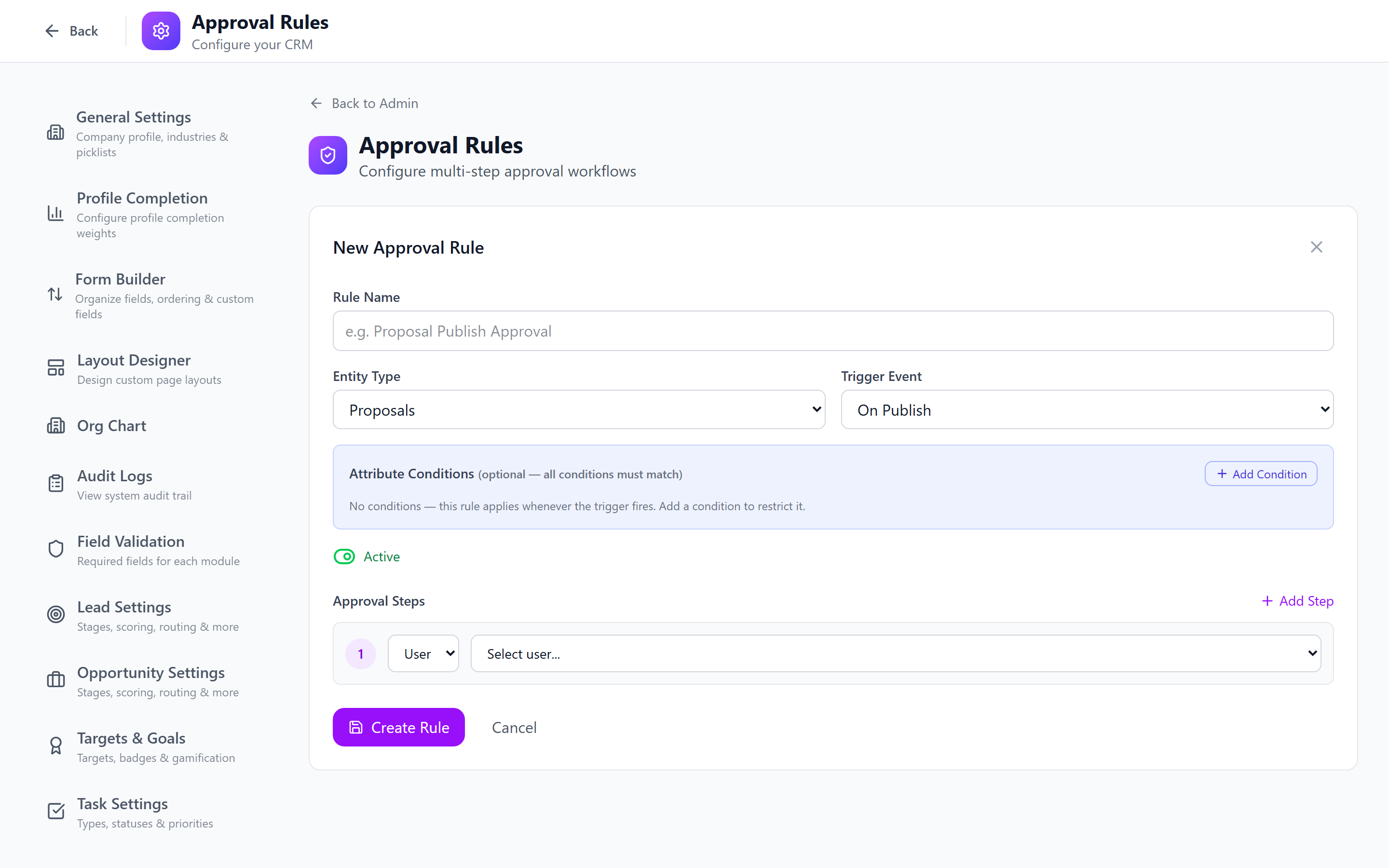
Step 2: Conditions (Optional)
Conditions let you narrow when a rule fires beyond just the trigger event. For example, you may want the rule to fire only when the discount exceeds a specific threshold, or only for opportunities above a certain amount.
Conditions are generic per trigger event — the same condition-group builder used in Workflows — so you get the full operator set (equals, not_equals, contains, greater_than, in, changed_to, etc.) plus nested AND/OR groups.
The field picker is now dynamic — it reads from the entity schema for the chosen entity type instead of a hardcoded list, so any custom field you add to the entity is immediately selectable as a condition attribute.
Conditions are optional. If no conditions are set, the rule fires every time the trigger event occurs for the selected entity type.
Use conditions to avoid unnecessary approval requests. A rule that fires on every opportunity close would slow down your team. Instead, add a condition like "discount > 20%" to target only the cases that need oversight.
Tiered Discount Rules
For discount_threshold triggers on proposals and opportunities you can build tiered rules with a min/max discount range — different chains for different bands of risk.
| Tier | Min discount | Max discount | Chain |
|---|---|---|---|
| Light | 5% | 10% | Sales Manager only |
| Medium | 10% | 25% | Sales Manager → Finance Director |
| Heavy | 25% | — | Sales Manager → Finance Director → VP Sales |
Pick a rule by setting both Min Discount % and Max Discount % on it (leave Max blank to mean "and above"). The system picks the rule whose band contains the discount on the entity at trigger time, so a 22% discount lands in the Medium chain without you having to chain rules.
Step 3: Approval Chain (Steps)
The approval chain defines who must approve and in what order. Steps are processed sequentially — the next approver is only notified after the previous step is approved.
For each step, configure:
| Field | Description |
|---|---|
| Step Order | The sequence number (1, 2, 3...). Steps are processed in ascending order. |
| Approver Type | Either user (a specific person) or role (any user with that role can approve) |
| Approver | The specific user or role selected as the approver |
Adding Steps
- In the approval rule form, scroll to the Approval Steps section.
- Click Add Step.
- Select the Approver Type: User or Role.
- Select the specific User or Role from the dropdown.
- The step order is assigned automatically but can be reordered.
- Add additional steps as needed.
Sequential Processing
Step 1 (Role: Sales Manager) → approves →
Step 2 (User: Finance Director) → approves →
Step 3 (Role: VP Sales) → approves → APPROVED
If any approver rejects, the chain stops and the request is marked as Rejected.
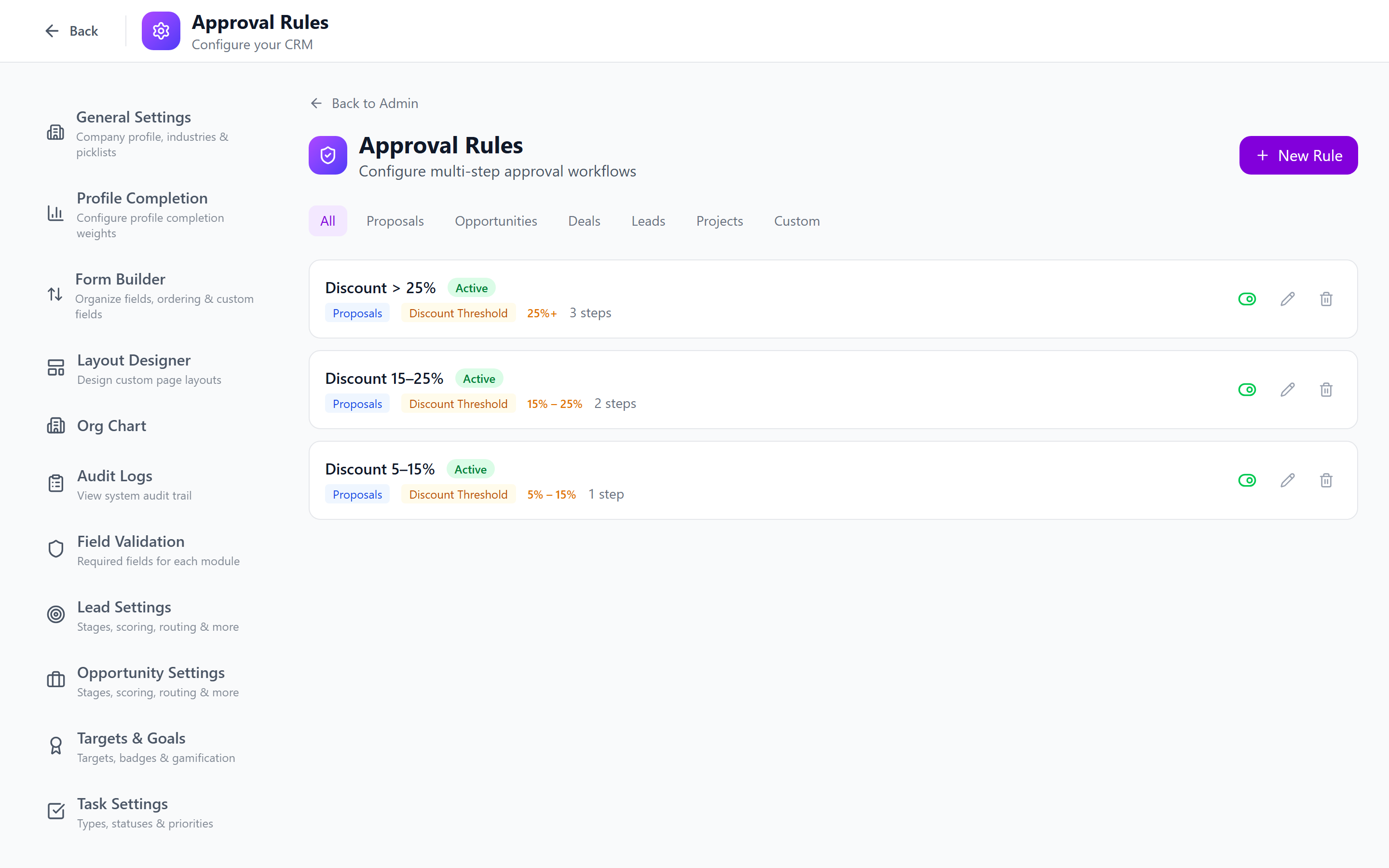
Step 4: Save
Click Save to create the rule. It takes effect immediately if marked as Active.
Priority Ordering
When multiple approval rules match the same event (e.g., two rules both trigger on close_won for opportunities), the system evaluates them by priority number:
- Lower priority numbers are evaluated first
- All matching active rules are applied — if multiple rules match, the record must pass all of them
- Use priority to control which rule's chain runs first
If you have overlapping rules, ensure the priority ordering makes sense. For example, a "High Discount" rule (priority 1) should run before a "Standard Close" rule (priority 5) so the more restrictive check happens first.
Active / Inactive Toggle
Each rule has an Active toggle:
- Active — the rule is enforced and will trigger when conditions are met
- Inactive — the rule is saved but does not trigger; useful for temporarily disabling a rule without deleting it
Toggle the status from the rules list page or from within the rule editor.
Example: Manager Approval for High Discount
Scenario: Require manager approval when an opportunity is closed as won with a discount greater than 20%.
| Setting | Value |
|---|---|
| Name | High Discount Approval |
| Entity Type | opportunities |
| Trigger Event | close_won |
| Priority | 1 |
| Active | Yes |
| Condition | Discount % > 20 |
Approval Steps:
| Step | Approver Type | Approver |
|---|---|---|
| 1 | Role | Sales Manager |
| 2 | User | VP of Sales |
Flow:
- A sales rep closes an opportunity as "Won" with a 25% discount.
- The system detects the
close_wontrigger and evaluates conditions. - Since discount (25%) > 20%, the rule matches.
- Step 1: The Sales Manager is notified and must approve or reject.
- If approved, Step 2: The VP of Sales is notified.
- If the VP approves, the opportunity is officially closed as won.
- If either approver rejects, the close is blocked and the rep is notified.
Monitoring Approvals
Approval Queue
The approval queue shows all pending, approved, and rejected requests:
- Navigate to the Approval Queue tab.
- Filter by:
- Status — Pending, Approved, Rejected
- Rule — which approval rule triggered the request
- Date range — when the request was initiated
- Requester — who initiated the request
- Click on a request to view details, chain progress, and comments.
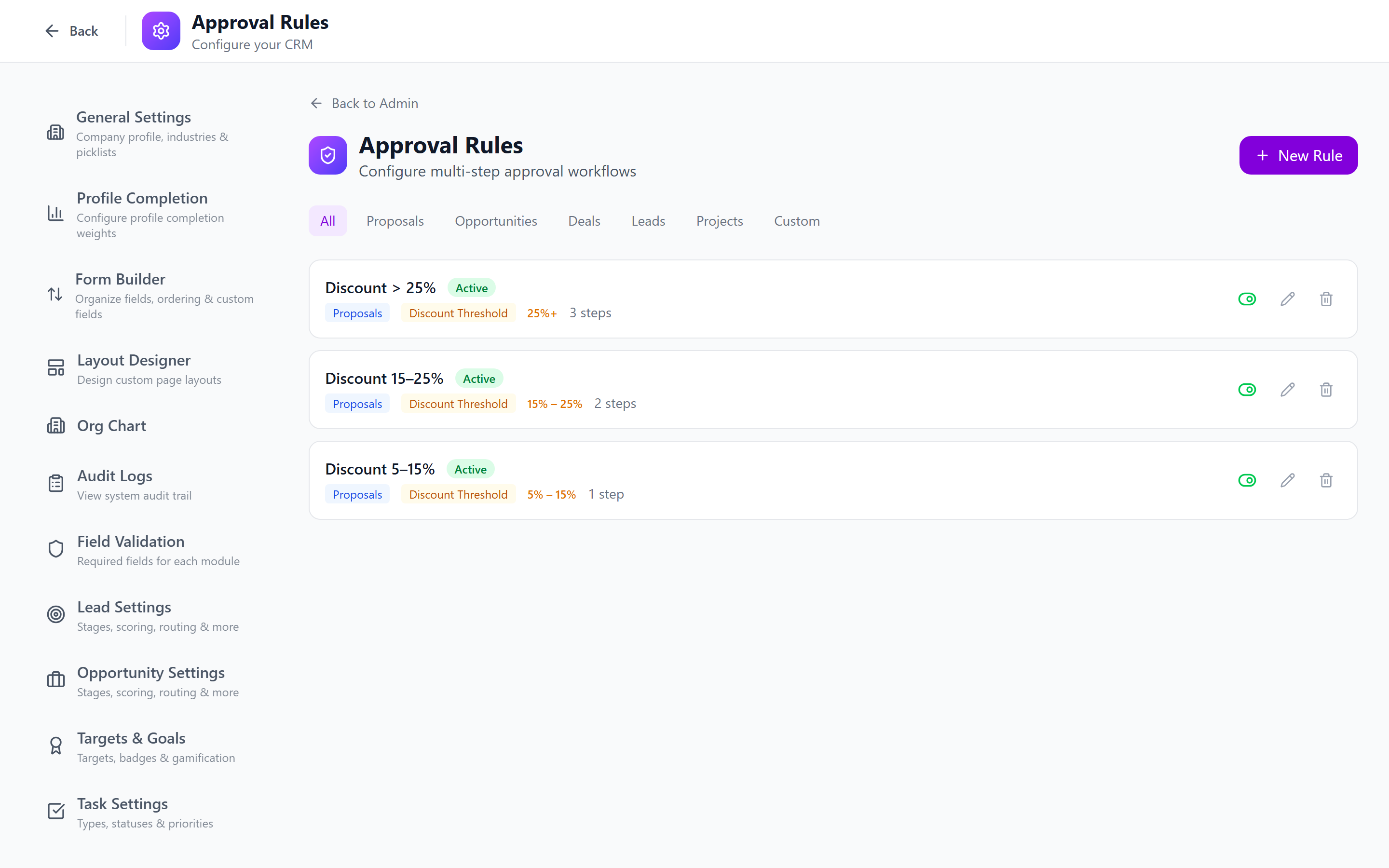
Approval Comments
When approving or rejecting, users can add comments explaining their decision:
- Comments are visible to the requester and all approvers.
- Comments are stored in the audit log.
- Rejection comments are especially important — they tell the requester what needs to change.
Admins can see all approval requests. Regular users see only requests they submitted or need to approve.
Best Practices
- Keep chains short — 2-3 approval steps is usually sufficient. Longer chains slow down business.
- Use roles over specific users — assigning a role (e.g., "Sales Manager") instead of a specific user prevents bottlenecks when someone is unavailable.
- Set meaningful priorities — if you have multiple rules on the same entity type, use priority numbers to ensure the correct evaluation order.
- Use conditions to reduce noise — a rule without conditions fires on every trigger event, which can overwhelm approvers.
- Document thresholds — communicate to the team what triggers approval (e.g., "Any discount above 20% requires manager approval").
- Review inactive rules periodically — clean up rules that are no longer needed instead of leaving them inactive indefinitely.
- Test before activating — create a rule as inactive, verify the configuration, then toggle it to active.
Next: Integrations Overview — Connect IntelliSales CRM to external systems.