Department Management
Departments represent the organizational divisions of your company (Sales, Marketing, Engineering, etc.). They form a hierarchy that drives record access scoping, reporting structures, and team assignments.
Department Management Overview
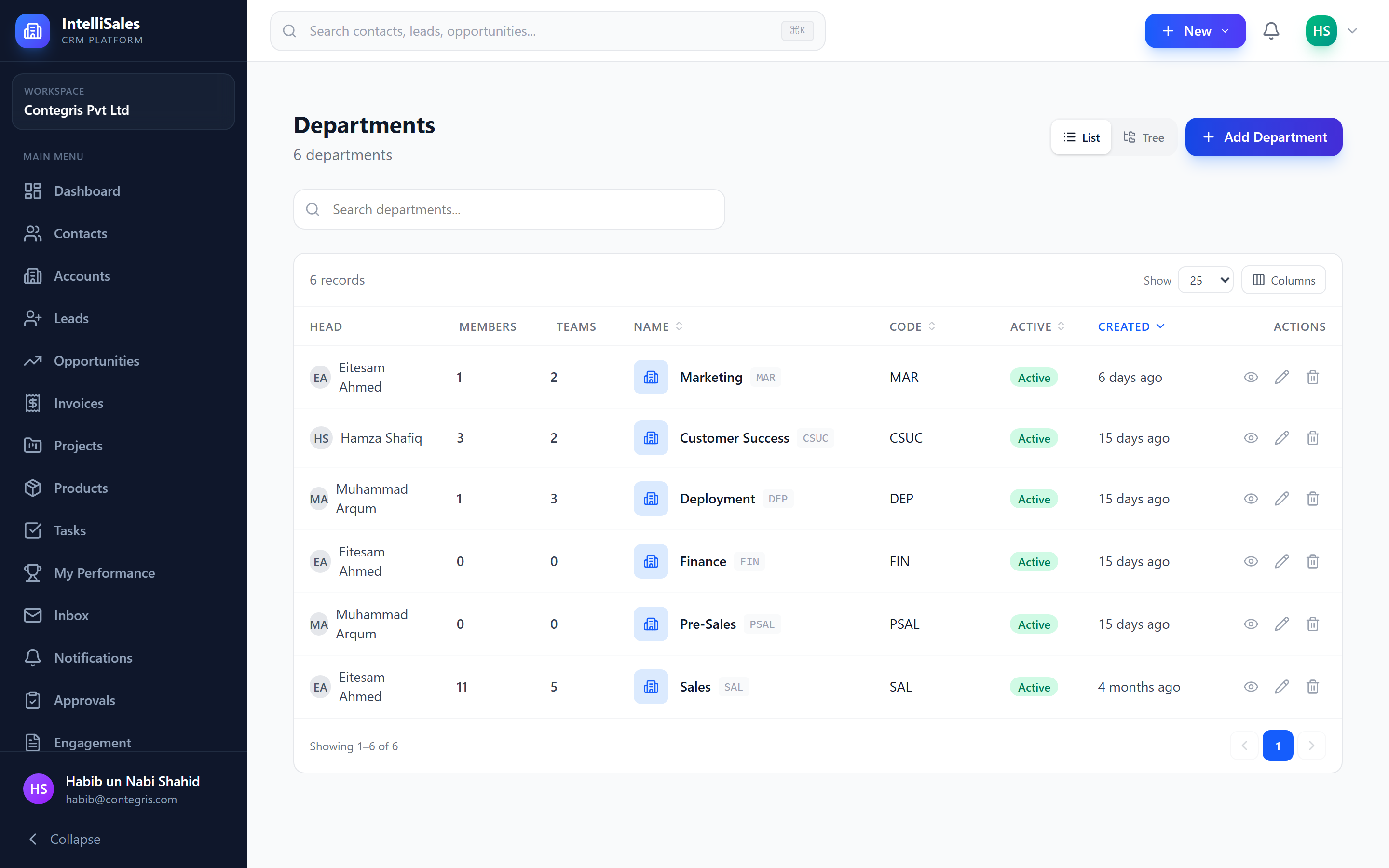
Navigate to Admin > Departments to view and manage your department structure.
List View vs. Hierarchy View
The Departments page offers two display modes:
- List View — A flat table showing all departments with their parent, manager, member count, and budget. Best for quick editing.
- Hierarchy View — A tree visualization showing the parent-child relationships. Best for understanding structure.
Toggle between views using the view switcher in the top-right corner.
Creating a Department
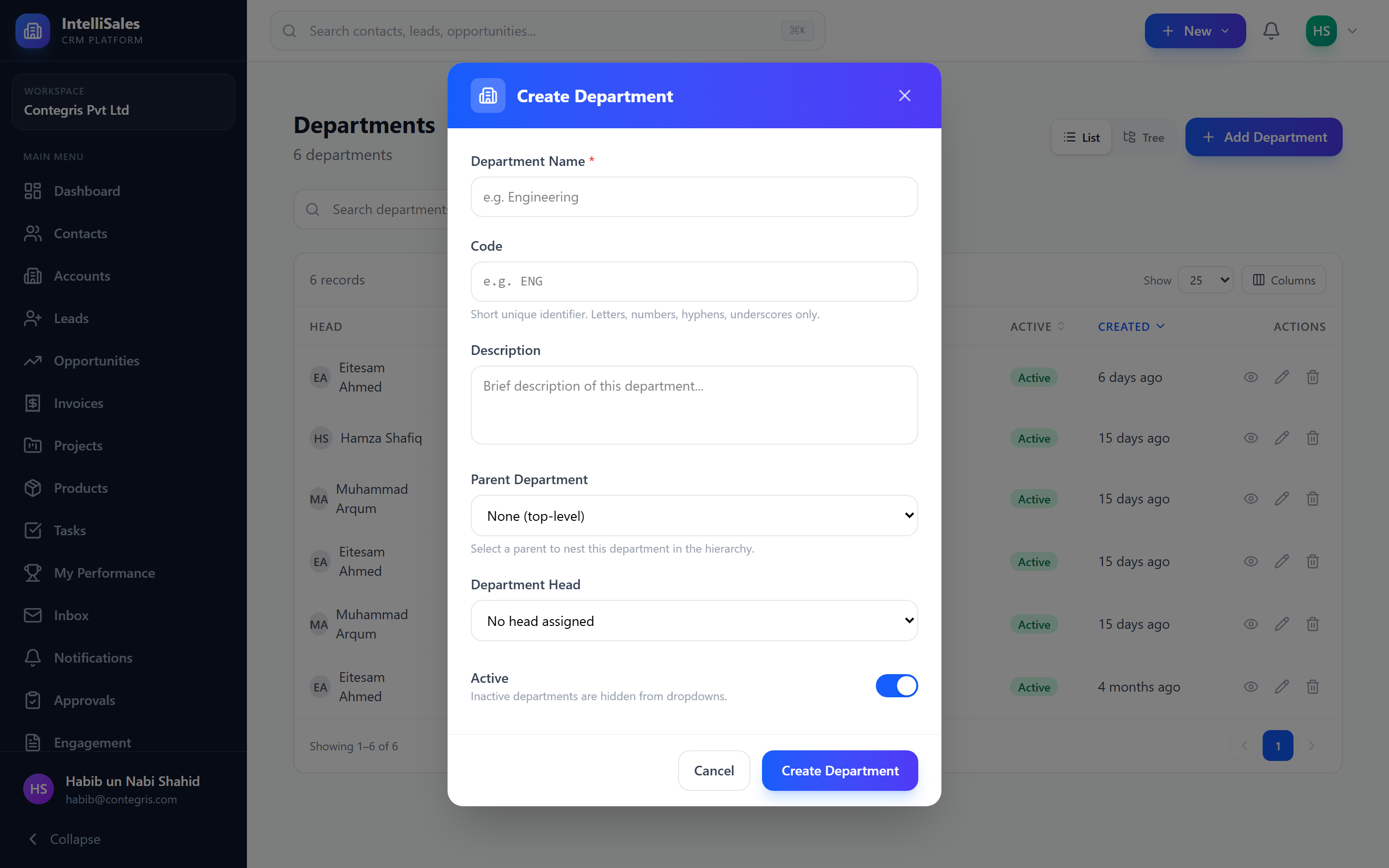
- Click Add Department.
- Fill in the form:
- Name (required) — e.g., "Sales", "Customer Success", "Engineering"
- Description (optional) — purpose and scope of the department
- Parent Department (optional) — select a parent to create a sub-department
- Manager (optional) — the department head (must be an existing user)
- Budget (optional) — departmental budget allocation
- Click Create.
Start by creating top-level departments (Sales, Marketing, Operations), then add sub-departments (Inside Sales, Field Sales, Sales Operations) as children.
Editing Departments
- Click on a department name in the list or hierarchy.
- Modify any field: name, description, parent, manager, or budget.
- Click Save Changes.
Changing a department's parent will move it (and all its sub-departments) under the new parent in the hierarchy. This also affects department-scoped record access for all users in the moved department.
Deleting Departments
- Click the Delete button on a department.
- Confirm the deletion.
A department can only be deleted if it has no users assigned and no sub-departments. You must reassign all users and delete or move sub-departments first. This prevents orphaned records and broken access scoping.
Parent-Child Hierarchy
Departments support unlimited nesting:
Company
├── Sales
│   ├── Inside Sales
│   ├── Field Sales
│   └── Sales Operations
├── Marketing
│   ├── Content Marketing
│   └── Demand Generation
└── Engineering
    ├── Frontend
    └── Backend
Sub-departments inherit visibility from their parent in the context of department-scoped record access. A user with "Department" scope in the parent department can see records from all sub-departments.
Department to User Assignment
Users are assigned to departments through their user profile. Each user belongs to exactly one department (their primary department).
To move a user between departments:
- Open the user's profile from Admin > Users.
- Change the Department field.
- Save.
Impact on Record Access Scoping
Departments are a key component of the Record Access system:
| Scope Level | What It Means |
|---|---|
| Own | User sees only their own records |
| Team | User sees records from their team members |
| Department | User sees records from everyone in their department and sub-departments |
| All | User sees all records across the tenant |
When you reorganize departments (moving users or restructuring the hierarchy), record access changes take effect on the users' next JWT refresh. Advise affected users to log out and back in if they report access issues after a reorganization.
Best Practices
- Mirror your real org structure — departments should reflect your actual reporting hierarchy.
- Keep it shallow — 2-3 levels of nesting is usually sufficient. Deep hierarchies are harder to manage.
- Assign managers — department managers are used for escalation paths and approval routing.
- Plan before creating — sketch your department tree on paper before creating it in the system. Restructuring later requires moving users.
- Use teams for cross-functional groups — if people from multiple departments collaborate, use Teams instead of creating hybrid departments.
Next: Teams — Set up cross-functional teams within and across departments.