Integrations Overview
IntelliSales CRM connects to external business tools to synchronize data, automate workflows, and eliminate manual data entry. This chapter provides an overview of all available integrations and how to manage them.
Navigate to Admin > Integrations.
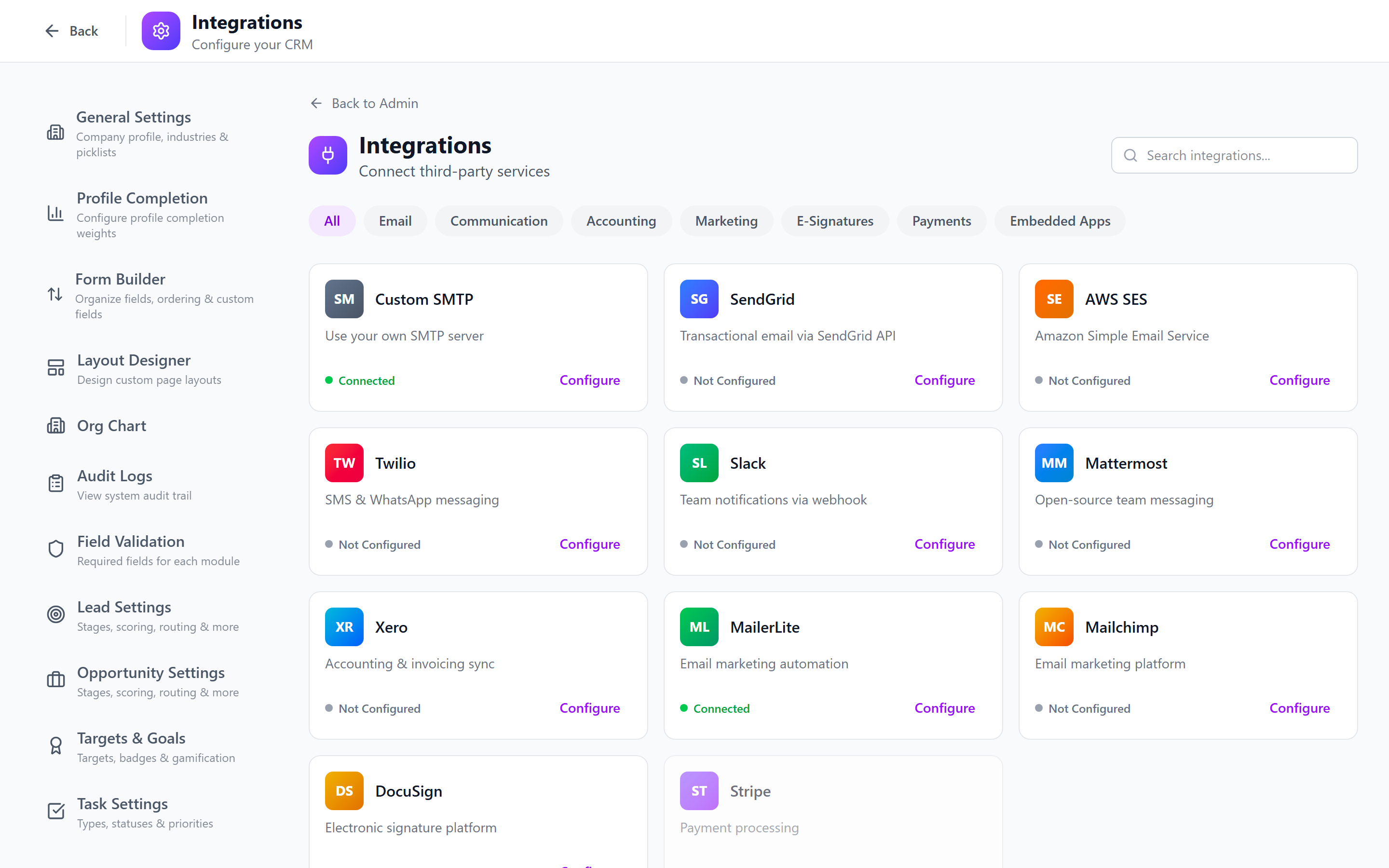
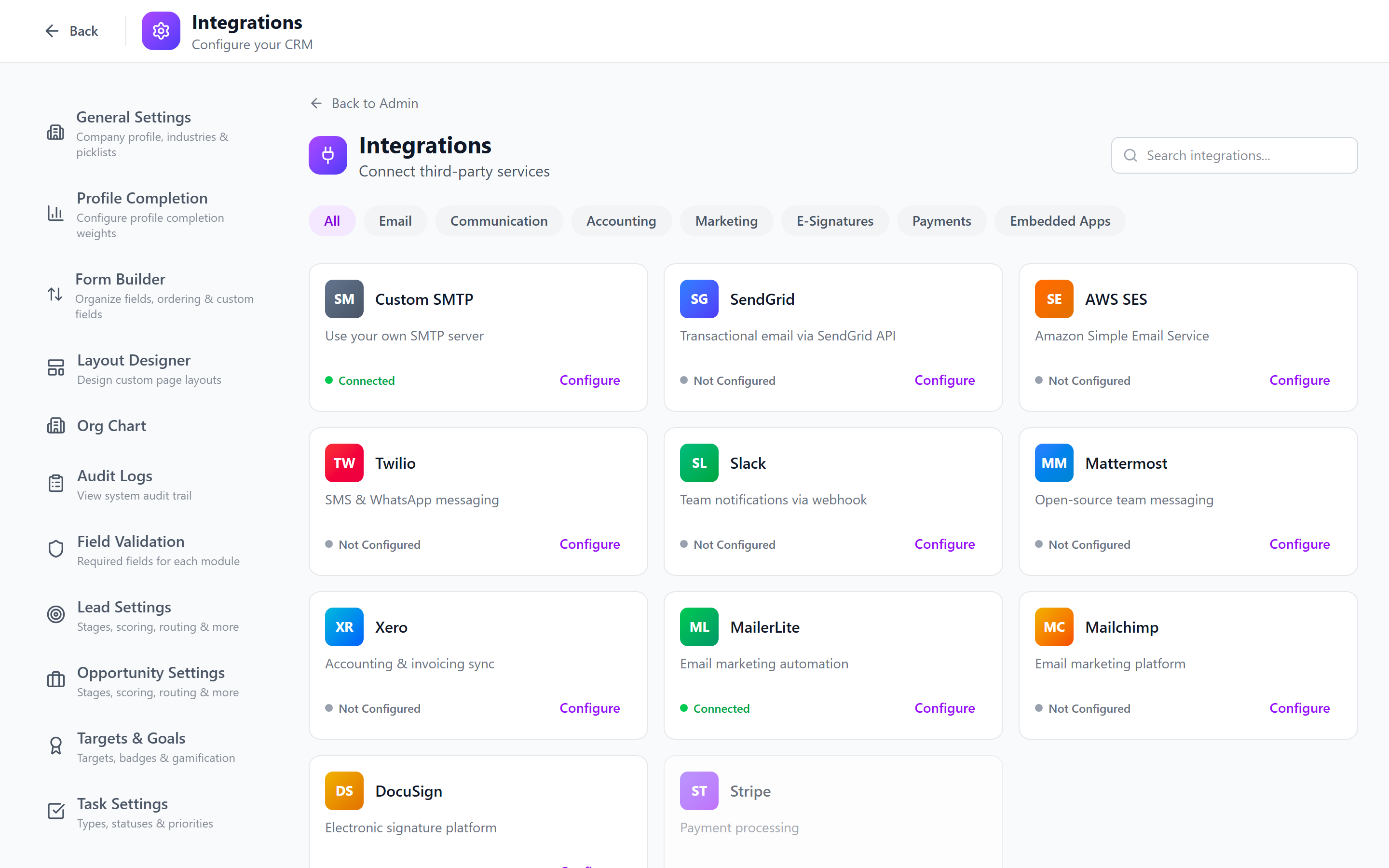
Integration Status Dashboard
The integrations page shows a card for each available integration with its current status:
| Status | Meaning |
|---|---|
| Connected | Integration is active and syncing |
| Disconnected | Credentials are configured but the connection is inactive |
| Not Configured | No credentials have been provided |
| Error | Connection is failing (check health details) |
Supported Integrations
| Integration | Category | Sync Direction | Details |
|---|---|---|---|
| Xero | Accounting | Bi-directional | Xero Integration |
| Google Calendar | Calendar | Bi-directional | Google Calendar |
| Gmail | Bi-directional | Email Integration | |
| Outlook | Bi-directional | Email Integration | |
| Zapier | Automation | Outbound triggers + inbound actions | Webhook-based |
| DocuSign | Document Signing | Bi-directional | Send and track signatures |
| Twilio | Communications | Outbound | SMS and voice (see Notification Settings) |
| SendGrid | Email Delivery | Outbound | Transactional email delivery |
| Stripe | Payments | Bi-directional | Payment processing and subscription tracking |
| Slack | Messaging | Outbound | CRM event notifications to Slack channels |
| MailerLite | Email Marketing | Bi-directional | Email Marketing |
| Mailchimp | Email Marketing | Bi-directional | Email Marketing |
Integration Health Monitoring
Each connected integration shows health metrics:
- Last Sync Time — when data was last synchronized
- Sync Frequency — how often syncs occur (e.g., every 15 minutes)
- Records Synced — count of records synced in the last 24 hours
- Error Count — number of sync errors in the last 24 hours
- Uptime — percentage of time the integration has been healthy
If an integration shows a high error count, investigate immediately. Common causes include expired tokens, API rate limits, and changed credentials. See the specific integration chapter for troubleshooting guidance.
General Configuration Approach
All integrations follow a similar setup pattern:
- Navigate to Admin > Integrations and click on the integration card.
- Authenticate — provide API keys, OAuth credentials, or initiate an OAuth consent flow.
- Configure — set sync direction, frequency, and field mappings.
- Test — run a test sync to verify the connection.
- Activate — enable the integration for production use.
- Monitor — check the health dashboard periodically.
Zapier Integration
Zapier enables connections to 5,000+ applications without custom development.
Outbound Triggers (CRM to Zapier)
IntelliSales CRM can send events to Zapier when:
- A record is created, updated, or deleted
- A deal stage changes
- A task is completed
Inbound Actions (Zapier to CRM)
Zapier can trigger actions in IntelliSales CRM:
- Create a contact or lead
- Update a record
- Create a task
Configuration
- Click on the Zapier integration card.
- Copy your API webhook URL and authentication token.
- In Zapier, create a new Zap using "Webhooks by Zapier" or search for "IntelliSales CRM".
- Paste the webhook URL and token.
- Configure the trigger event and action.
Start with simple Zaps (e.g., "When a form is submitted in Typeform, create a lead in IntelliSales CRM"). Add complexity as you gain confidence with the integration.
Best Practices
- Connect one integration at a time — verify each works before adding the next.
- Start with read-only — begin with one-way sync (CRM reading external data) before enabling write-back.
- Monitor sync health weekly — catch issues before they become data integrity problems.
- Review field mappings after schema changes — if you add custom fields, update integration mappings.
- Keep credentials secure — rotate API keys and OAuth tokens on a regular schedule.
- Document your integration architecture — maintain a diagram showing data flow between systems.
Next: Xero Integration — Connect your accounting system.