Targets & Quotas
The Targets system enables you to set measurable performance goals and track progress across your organization. Targets can be assigned to individuals, teams, or departments and cascade from organizational goals down to individual quotas.
Navigate to Admin > Targets.
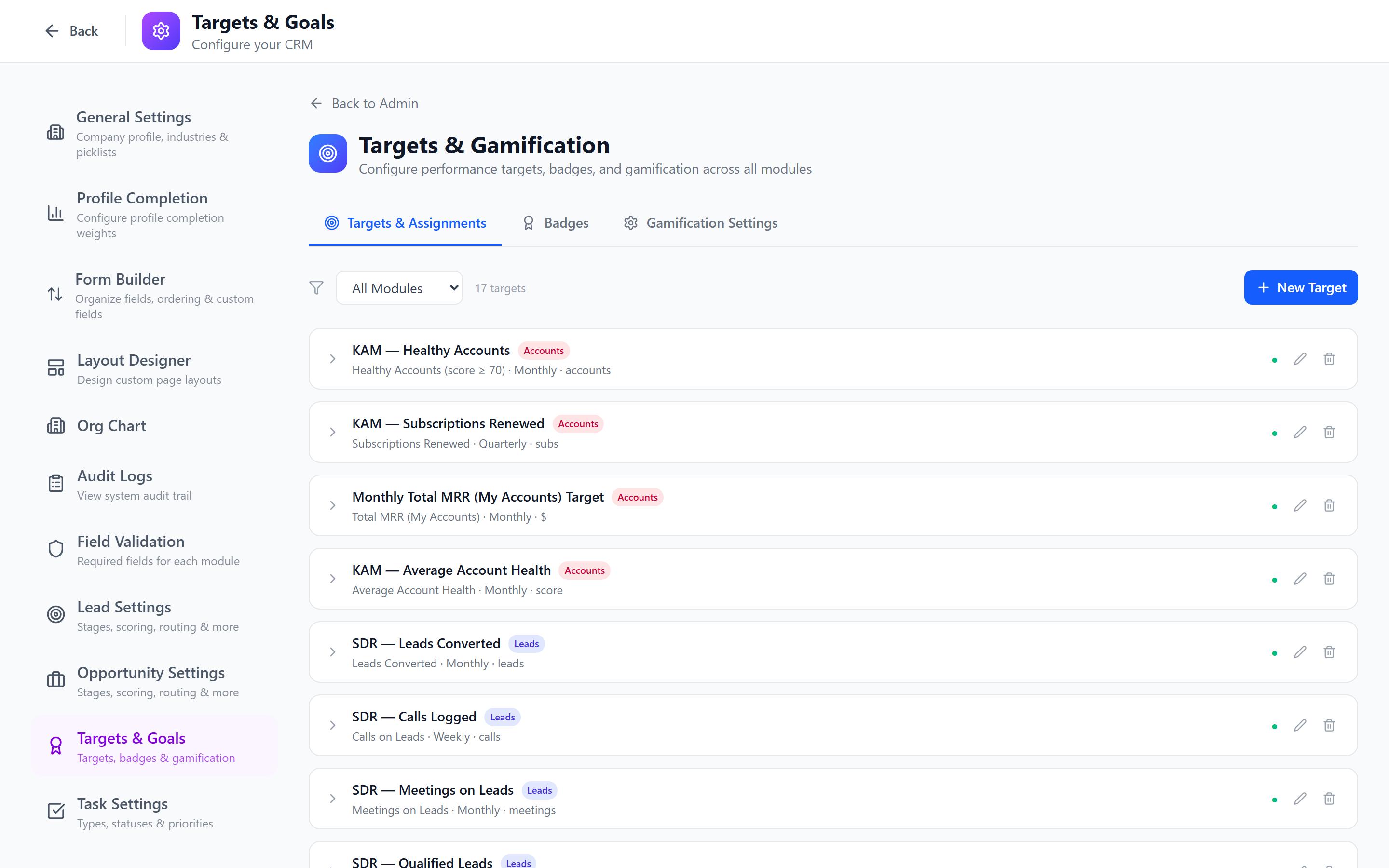
Targets Overview
A target defines:
- What to measure (metric)
- How much to achieve (target value)
- Over what period (monthly, quarterly, annual)
- By whom (individual, team, department, or organization)
Metrics Registry
Metrics are the measurable values that targets track. Available metrics vary by module:
| Metric | Module | Description |
|---|---|---|
| Revenue | Opportunities/Deals | Total closed-won revenue |
| Deal Count | Opportunities/Deals | Number of deals closed |
| Pipeline Value | Opportunities | Total value in active pipeline |
| Leads Generated | Leads | Number of new leads created |
| Leads Qualified | Leads | Number of leads moved to qualified stage |
| Tasks Completed | Tasks | Number of tasks marked complete |
| Calls Made | Tasks | Number of call-type tasks completed |
| Meetings Held | Tasks | Number of meeting-type tasks completed |
| Active Accounts (KAM) | Accounts | Number of accounts owned with health ≥ "At Risk". |
| MRR Retained (KAM) | Subscriptions | MRR on subscriptions still active at period end. |
| QBRs Completed (KAM) | Customer Success | QBRs marked complete within the configured cadence. |
| Expansion ARR (KAM) | Opportunities | Closed-won opportunities tagged expansion / cross-sell. |
Metrics are computed in real time from actual CRM data. When a deal closes, the revenue target progress updates automatically.
Creating Targets
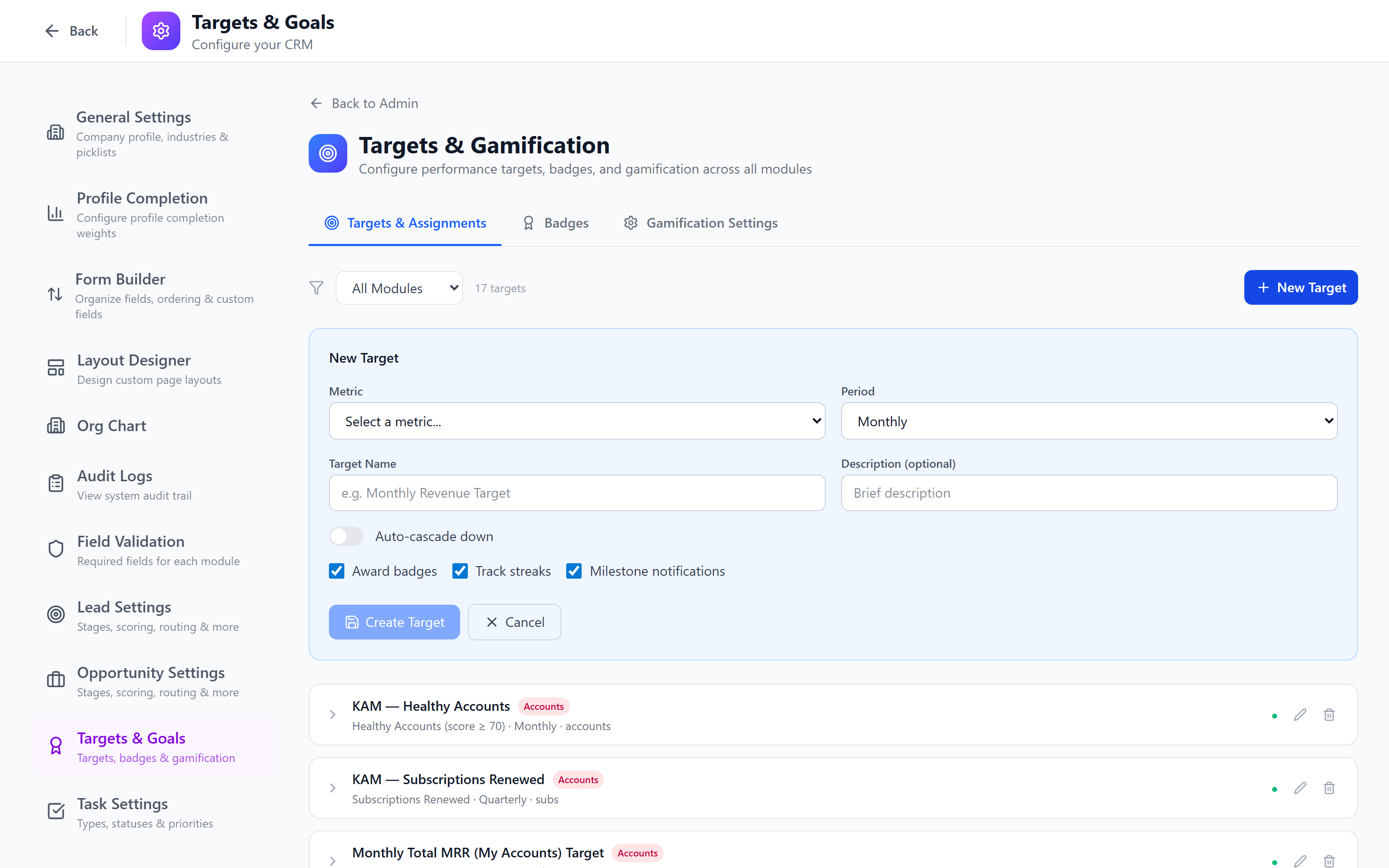
- Click Create Target.
- Configure:
- Name (required) — e.g., "Q1 Revenue Target", "Monthly Deals Quota"
- Metric (required) — select from the metrics registry
- Target Value (required) — the goal to achieve (e.g., $500,000 or 25 deals)
- Duration — dropdown with
1 month,1 quarter,1 half-year,1 year,custom. Replaces the older raw-period-count input where you had to know that "12" meant months and not weeks. - Start Date — when the target period begins
- Description (optional) — context about the target
- Click Save.
Role-Scope Templates
Instead of building a target from scratch each quarter, you can save a target as a role-scope template — "AE Quota — quarterly", "KAM expansion — annual", "SDR meetings — monthly". The template stores the metric, duration, value, and any cascade pattern.
Templates are persistent and auto-expand on user lifecycle events — when a user is hired into the role, transferred, or has a role change, the system auto-creates a target assignment for them from every active template that matches their new role. When a user is deactivated, their template-created assignments are cleaned up.
This means you set up your targets once per role, and they keep pace with team changes without manual intervention.
Attribution Mode
Targets used to always credit the current owner of the entity at compute time. That broke SDR→AE handoffs: the SDR who qualified a lead lost the credit the moment the AE took ownership for the demo and the close.
Each target now has an Attribution block with four modes:
| Mode | Credits | Requires |
|---|---|---|
| Current owner (default) | The entity's owner_id at compute time. Unchanged behaviour. | — |
| Stage owner | Whoever owned the entity when it entered the configured stage (via record_stage_assignments). | A stage pick. |
| Stage mover | Whoever moved the entity into the configured stage (via lead_stage_history / opportunity_stage_history). | A stage pick. |
| Creator | created_by on the entity. | — |
The Attribution block appears in the target edit form. Pick a mode from the dropdown; for stage_owner and stage_mover, an additional Stage picker shows up. Save validation requires the stage to be set when those modes are picked.
Activity-based metrics (lead_*, opp_*, calls completed, meetings held, tasks completed) always credit the performed_by user — attribution mode applies only to record-level metrics like leads_converted / revenue / pipeline_value where ownership is ambiguous over the entity's lifetime.
Example — "Qualified Leads by SDR"
The canonical SDR→AE handoff target:
| Setting | Value |
|---|---|
| Metric | leads_converted |
| Attribution mode | Stage owner |
| Stage | Demo |
| Period | Monthly |
Each converted lead is attributed to whoever owned it when it entered the Demo stage — typically the SDR who qualified it, before the handoff to the AE. The AE still gets credit on the AE-targeted revenue / closed-won targets attributed by current_owner.
Target Assignments
Targets are assigned at different levels of the organization, creating a hierarchy:
Organization Target: $2M revenue (Annual)
├── Sales Department: $1.5M
│   ├── Enterprise Team: $1M
│   │   ├── Rep A: $400K
│   │   ├── Rep B: $350K
│   │   └── Rep C: $250K
│   └── SMB Team: $500K
│       ├── Rep D: $250K
│       └── Rep E: $250K
└── Partnerships Department: $500K
    └── Partner Manager: $500K
Assigning to Individuals
- Open a target.
- Click Add Assignment.
- Select Individual and choose the user.
- Enter the individual target value.
- Save.
Assigning to Teams
- Select Team and choose the team.
- Enter the team target value.
- Save.
Assigning to Departments
- Select Department and choose the department.
- Enter the department target value.
- Save.
Cascading Targets
Cascading automatically distributes a parent target down to its children (departments, teams, or individuals).
- Open a target with assignments.
- Click Cascade.
- Choose the distribution method:
- Equal — divide evenly among assignees
- Weighted — distribute based on historical performance or custom weights
- Manual — set each child target individually
- Confirm the cascade.
Start with the organizational target and cascade down. Adjust individual targets after cascading to account for experience levels, territories, and ramp-up periods for new hires.
Generating Period Assignments
For recurring targets (monthly quotas), use the Generate Periods feature:
- Open an annual or quarterly target.
- Click Generate Periods.
- Select how to distribute across months/quarters:
- Equal — same amount each period
- Custom — adjust per period (e.g., lower targets in December, higher in Q4)
- Confirm.
This creates individual period assignments that can be tracked independently.
Progress Tracking
Target progress is computed in real time by querying actual CRM data:
- Current value — the actual metric value achieved so far
- Target value — the goal
- Percentage — current / target
- Pace — whether the assignee is ahead or behind schedule (based on time elapsed in the period)
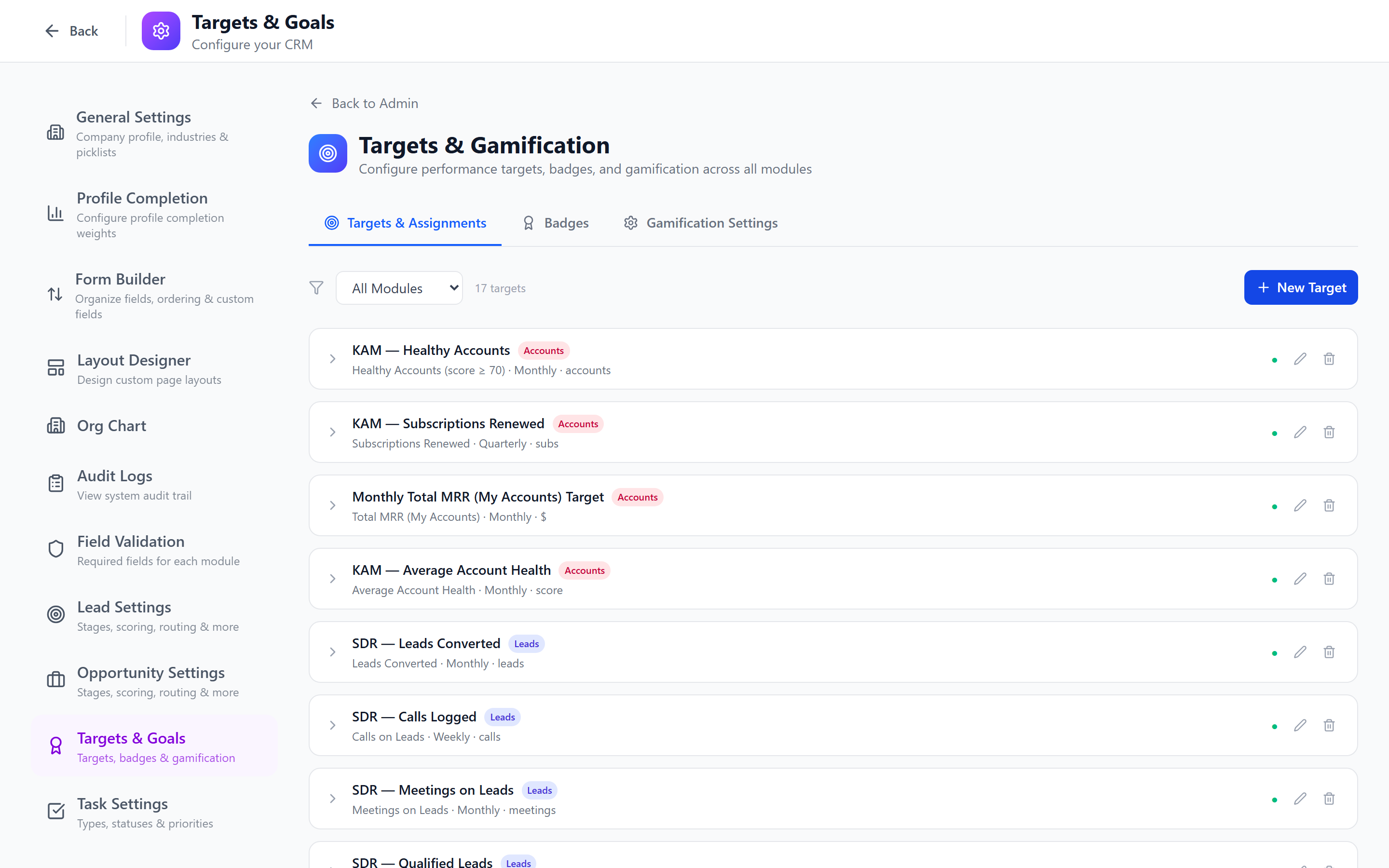
Progress is calculated automatically. There is no manual entry — the system counts closed deals, pipeline value, tasks completed, etc., directly from the CRM data.
Target Leaderboard Configuration
The leaderboard ranks users by their target achievement:
- Navigate to the Leaderboard tab.
- Configure:
- Metric to rank — which target metric to display
- Period — current month, quarter, or year
- Scope — all users, by department, or by team
- Display count — top 5, 10, or 20
The leaderboard is visible on the dashboard and can be configured per team or department.
Best Practices
- Set achievable targets — targets that are too aggressive demotivate. Aim for 70-80% of reps hitting quota.
- Use cascading wisely — top-down cascading ensures alignment, but allow managers to adjust individual targets.
- Review monthly — compare progress against targets and adjust if market conditions change.
- Combine with gamification — badges for hitting milestones (50%, 100%, 150% of target) add motivation.
- Consider ramp-up — new hires should have reduced targets for their first 1-2 quarters.
- Track leading indicators — activity targets (calls, meetings) are leading indicators; revenue is lagging. Track both.
Next: Gamification & Badges — Motivate your team with achievements and leaderboards.