Workflow Builder
The Workflow Builder lets you automate repetitive work — assignments, follow-ups, notifications, list sync, integrations — without code. Each workflow follows the same shape:
TRIGGER (When…) → FILTERS (If…) → ACTIONS (Then…)
A scheduler also fires cron-based Scheduled workflows for dormancy and clean-up jobs that aren't tied to a single record event.
Navigate to Admin → Workflows.
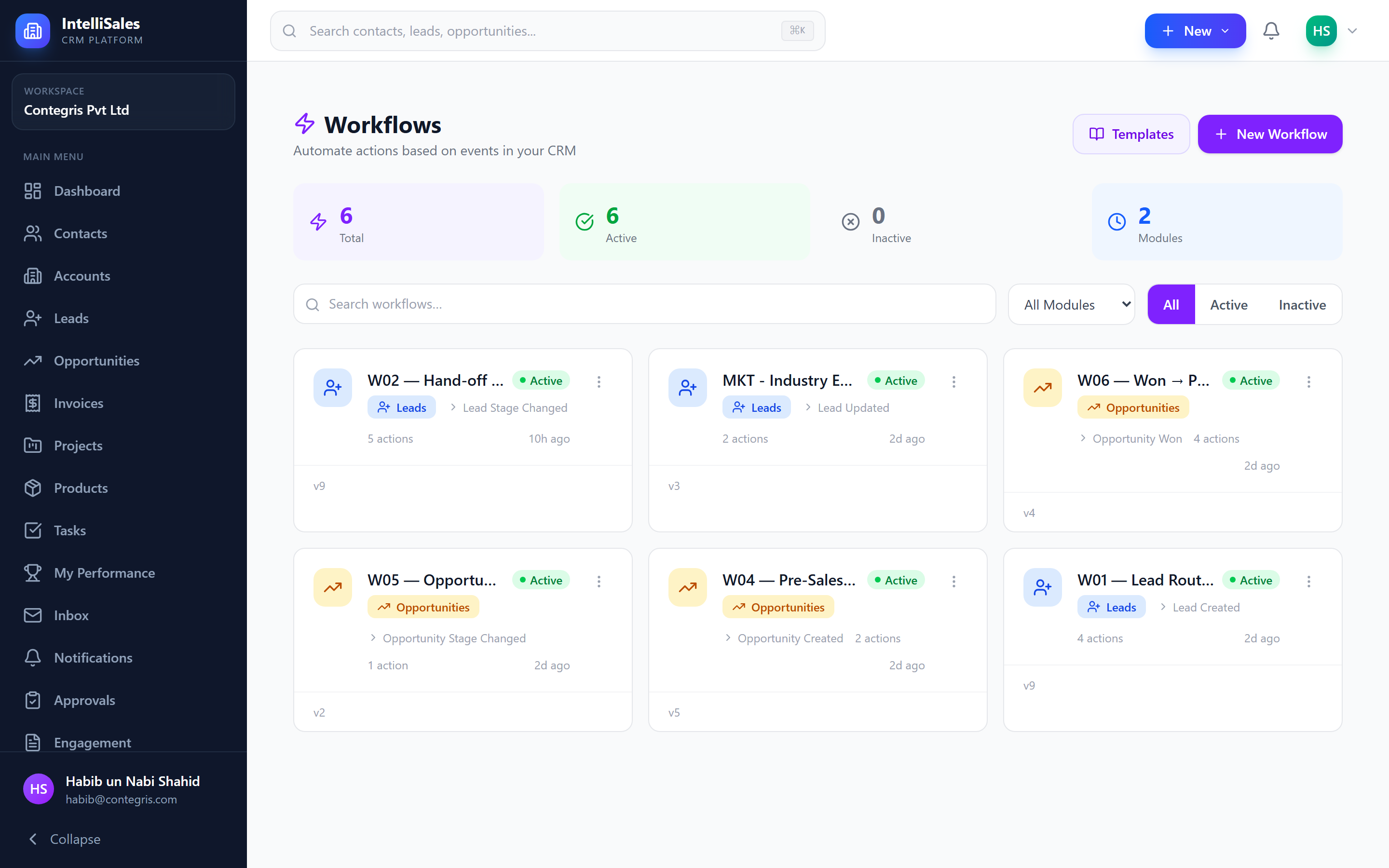
1. How a Workflow Runs
- An entity service (leads, opportunities, etc.) fires a trigger event with the current entity, previous values, and any meta context.
- The runner loads every active workflow matching
triggerModule+triggerTypeand evaluates its trigger filters (the "If" condition group). - For each workflow that passes, a
workflow_runsrow is inserted and actions execute in order. - Each action records a
workflow_run_stepsrow. If a step fails, the runner continues to the next action and the run is markedcompleted_with_errorsinstead of aborting the whole chain. - The runs page shows every step, its config snapshot, the payload going in, and the filter evaluation tree — so you can see exactly which condition matched and which value was used.
- running — actions are still firing.
- completed — every step succeeded.
- completed_with_errors — one or more steps failed; downstream steps still ran.
- failed — the run never started (rare; usually a missing-table or schema-load problem).
2. Creating a Workflow
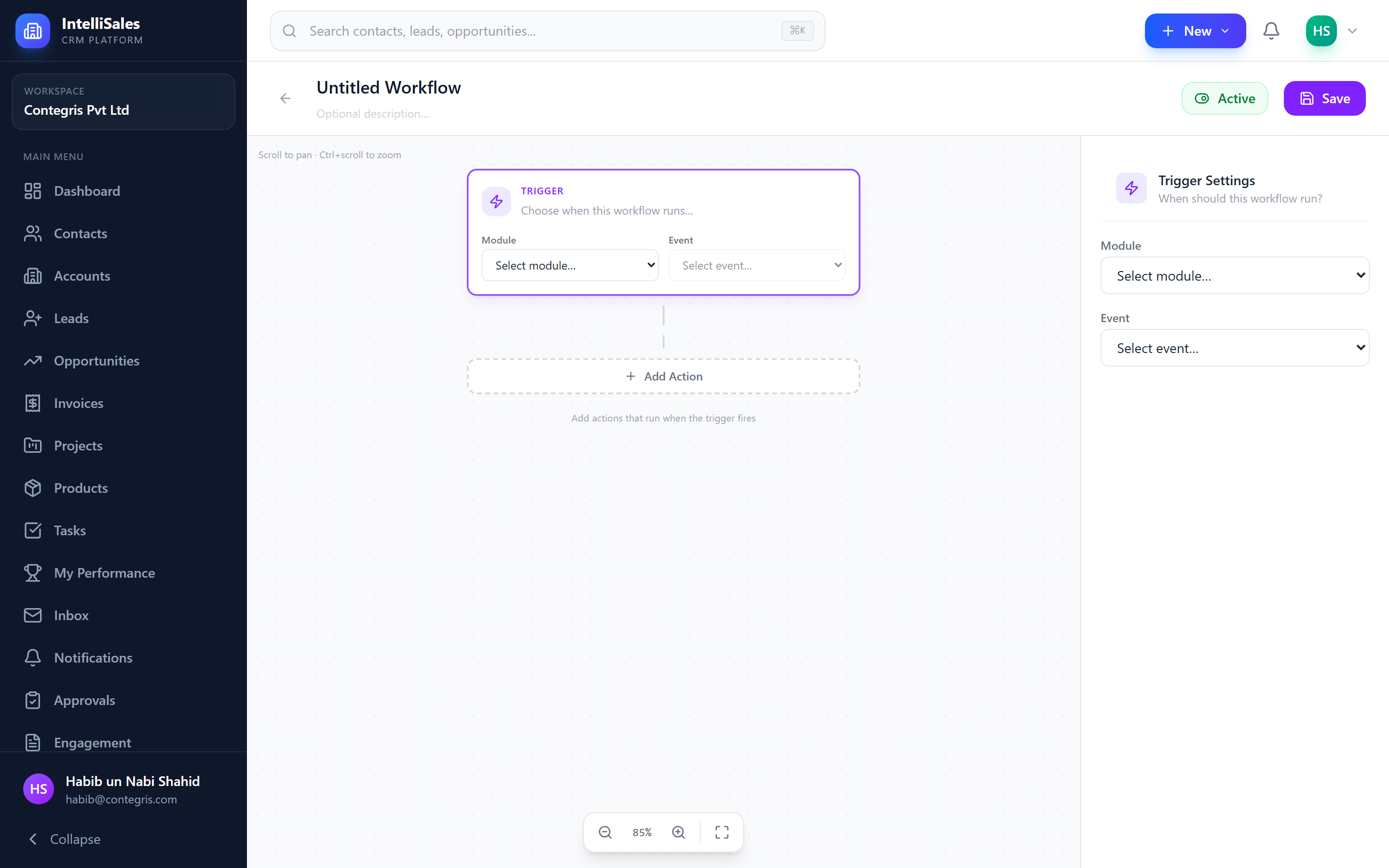
- Click Create Workflow.
- Enter a name — e.g., "Auto-assign Enterprise Leads".
- Add an optional description to help teammates understand intent.
- The visual builder opens with three sections: Trigger, Filters, Actions.
3. Triggers
A workflow has exactly one trigger. Trigger events come from two places:
- Entity events — fired by the CRM the moment something happens (create, update, stage change, etc.).
- Scheduled — a cron sweep that scans the entity table on a schedule.
3.1 Entity Event Triggers
| Module | Event | Fires When | Includes previousValues |
|---|---|---|---|
| leads | lead_created | A lead is created via UI, API, form, or import (when import opt-in is on). | — |
lead_updated | Any lead field changes. | yes | |
lead_assigned | owner_id changes. | yes | |
lead_stage_changed | stage_id changes (via change-stage endpoint or update). | yes | |
lead_score_changed | The rule-based scorer recomputes and the value changes. | yes | |
lead_qualification_score_changed | The qualification framework score recomputes and the value changes. Independent from lead_score_changed. | yes | |
lead_converted | The lead is converted into a contact/account/opportunity. | — | |
| contacts | contact_created / contact_updated / contact_assigned | Create / update / owner change. | update + assign |
| accounts | account_created / account_updated / account_assigned | Create / update / owner change. | update + assign |
| opportunities | opportunity_created | Opportunity created. | — |
opportunity_updated | Any field changes. | yes | |
opportunity_assigned | Owner changes. | yes | |
opportunity_stage_changed | Stage changes (also fires on Won / Lost). | yes | |
opportunity_won | Stage moves to a Won terminal stage. | yes | |
opportunity_lost | Stage moves to a Lost terminal stage. | yes | |
| tasks | task_created / task_updated / task_assigned / task_completed | Standard lifecycle events. | update / assign / completed |
task_expired | The hourly task-expiry cron flips a task to expired because its due date passed. | — | |
| projects | project_created / project_updated / project_assigned / project_status_changed | Standard lifecycle events. | update / assign / status |
| subscriptions | subscription_created | A Customer 360 subscription is created. | — |
The runner passes a uniform payload to every action:
{
  triggerModule,        // 'leads', 'opportunities', etc.
  triggerType,          // 'lead_stage_changed', ...
  entityId,             // UUID
  entity,               // raw DB row (snake_case)
  customFields,         // entity.custom_fields JSONB
  previousValues,       // pre-update values for changed-_ operators
  meta,                 // { scheduled?, workflowId?, retriedFromRunId?, ... }
}
previousValues is normalised in both key forms — stageId and stage_id both resolve — so filters work regardless of how you typed the field name.
3.2 Scheduled Trigger (Cron)
Use Scheduled when you need to run a workflow on a clock rather than in response to a record change — re-engagement, dormancy detection, stale-opportunity cleanup, daily digests.
Configure:
| Field | Example | Notes |
|---|---|---|
| Cron expression | 0 9 * * * | Standard 5-field cron. Use Validate to preview the next 5 fire times. |
| Timezone | Asia/Karachi | Defaults to UTC. Cron is evaluated in this timezone. |
| Entity scan — Module | leads | The table the sweeper scans. |
| Entity scan — Filter | Condition group | Same builder as trigger filters; compiled to a SQL WHERE clause. |
| Entity scan — Limit | 1000 | Safety cap per run, hard-capped at 5000. |
A background sweeper runs once per minute, finds every active scheduled workflow whose schedule_next_run_at has passed, runs the entity scan, and fires the workflow once per matched row.
After each scan the workflow records schedule_last_run_at, schedule_last_match_count, and schedule_next_run_at. If the scan errored, schedule_last_error captures the message.
Preview matches (dry run)
Open the workflow → Schedule → Preview matches. The endpoint runs the scan WHERE clause and returns the row count plus a sample (default 20 rows) so you can verify the filter before activating.
Run now
Schedule → Run now fires the workflow immediately for testing without waiting for the next cron tick. Returns the matched/fired counts.
Scheduled-only filter operators
The scheduled scan compiles filters to SQL, so on top of the standard operators it adds:
| Operator | SQL | Use case |
|---|---|---|
older_than_days | column < NOW() - INTERVAL 'N days' | "Last activity older than 20 days." |
within_last_days | column >= NOW() - INTERVAL 'N days' | "Created in the last 7 days." |
is_null / is_not_null | column nullability | Pair with last_activity_at to find "never touched" rows. |
Allowed scan columns
To keep the scheduler safe (no SQL injection via field names, no scanning by columns we don't want indexed) each module has an allowlist. If a filter references a column that isn't on the list it is silently dropped from the WHERE clause — preview the matches and you'll see the row count widen if a filter quietly disappeared.
| Module | Common scannable columns |
|---|---|
| leads | source, industry, country, city, state, score, qualification_score, status, stage_id, pipeline_id, owner_id, team_id, priority_id, last_activity_at, next_activity_at, created_at, updated_at, sla_breached, sla_escalated, escalated_at |
| contacts | account_id, owner_id, lifecycle_stage, mailing_country, mailing_city, created_at, updated_at |
| accounts | industry, account_type, lifecycle_stage, owner_id, employees, annual_revenue, status, billing_country, billing_city, created_at, updated_at |
| opportunities | amount, currency, stage_id, pipeline_id, priority_id, close_date, probability, owner_id, type, source, team_id, account_id, contact_id, created_at, updated_at |
| tasks | status_id, priority_id, task_type_id, due_date, assigned_to, owner_id, completed_at, related_entity_type, related_entity_id |
| projects | status_id, priority_id, start_date, end_date, budget, owner_id, health, account_id, opportunity_id, template_id |
Custom fields are always scannable via JSONB extraction.
Starter templates
Three pre-built scheduled templates ship with the system. Click Templates on the workflows list to install one — it's installed paused so you can review and activate.
| Template | Schedule | Module | Filter | What it does |
|---|---|---|---|---|
| Dormant Lead Re-engagement | Daily 09:00 UTC | leads | lastActivityAt older_than_days 20 | Notifies the owner + creates a re-engagement task due in 2 days. |
| Dormant Account Detection | Mondays 08:00 UTC | accounts | lastActivityAt older_than_days 90 | Notifies the owner, emails the owner, and creates a check-in task due in 7 days. |
| Stale Opportunity Detection | Daily 10:00 UTC | opportunities | lastActivityAt older_than_days 30 | Notifies the owner + creates a "make a decision" task due in 3 days. |
4. Trigger Filters (the "If")
Filters control which records the workflow applies to. The runner evaluates the trigger filter group before creating a run; if it doesn't match, the workflow is silently skipped.
4.1 Field types
| Type | Resolves from | Example |
|---|---|---|
| system | The entity column (camelCase or snake_case — both work). | stageId, amount, country |
| custom | entity.custom_fields JSONB. | cf_lead_score, cf_account_tier |
| meta | The trigger meta envelope. | scheduled, workflowId, retriedFromRunId |
4.2 Groups and match modes
Conditions live in a group. Each group has a match mode:
- all — every item must be true (AND).
- any — at least one item must be true (OR).
Groups can nest, so you can express:
(source = "Website" AND amount > 50000)
OR
(source = "Referral" AND priority = "High")
An empty group is treated as "always match" — useful as a no-op trigger filter on scheduled workflows, where the entity scan already filtered the rows.
4.3 The complete operator list
Every operator below is supported when the workflow runs on an event. Operators marked (scheduled too) are also compiled into SQL by the cron scheduler.
Text & equality
| Operator | True when | Notes |
|---|---|---|
equals (scheduled too) | value(field) === value | Case-insensitive on event runs. |
not_equals (scheduled too) | value(field) !== value | Case-insensitive on event runs. |
contains (scheduled too) | value(field).includes(value) | Substring; case-insensitive. |
not_contains | !value(field).includes(value) | Event-time only. |
starts_with (scheduled too) | value(field).startsWith(value) | Case-insensitive. |
is_empty (scheduled too) | Field is null or empty string. | |
is_not_empty (scheduled too) | Field has any non-empty value. |
Numeric
| Operator | True when |
|---|---|
greater_than (scheduled too) | parseFloat(field) > value |
less_than (scheduled too) | parseFloat(field) < value |
greater_or_equal (scheduled too) | parseFloat(field) >= value |
less_or_equal (scheduled too) | parseFloat(field) <= value |
Set membership
| Operator | True when | Notes |
|---|---|---|
in (scheduled too) | Value array contains field. | Use for "Source in [Website, Referral, Partner]". |
not_in (scheduled too) | Value array does not contain field. |
Change detection (event-time only)
These compare the new value to previousValues and only make sense on _updated, _stage_changed, _assigned, _score_changed:
| Operator | True when |
|---|---|
changed_to | Field is now value and it wasn't before. |
changed_from | Field was value before and it isn't now. |
any_change | Field's new value differs from the previous one. |
Date deltas (scheduled scans only)
| Operator | SQL |
|---|---|
older_than_days | column < NOW() - INTERVAL 'N days' |
within_last_days | column >= NOW() - INTERVAL 'N days' |
4.4 The filter evaluation breakdown
Every run stores a filter_evaluation tree so the runs page can show you exactly which condition matched and which value was seen. Each node records:
field,fieldType,operator,expected(the configured value)resolved(the value pulled from the entity at run time)previous(the value frompreviousValues, when relevant)matched(true / false)
This is the fastest way to debug "why didn't my workflow fire?".
5. Actions (the "Then")
Actions execute top-to-bottom. Each action returns a result that's persisted, and some return a payloadMerge that updates the in-memory entity so later actions see the new state (e.g., assign_owner writes the new owner, and the next create_task with assignedTo: 'owner' picks it up).
You can chain branches and routers around any action for conditional flows.
5.1 assign_owner
Resolve a user using a routing algorithm and write owner_id to the entity.
| Config | Value |
|---|---|
poolMode | users (default) — pick specific users · team — every member of teamIds[] · all_active — every active user in the tenant |
pool[] | List of user IDs (when poolMode = users). |
teamIds[] | List of team IDs (when poolMode = team). Legacy single teamId is also accepted. |
algorithm | round_robin · weighted · load_based · territory · skill_match · sticky |
weights[] | { userId, weight } pairs for weighted. |
skipIfOwnerSet | If true, do nothing when the record already has an owner. Prevents accidental reassignment on _updated triggers. |
keepPreviousOwnerAsMember | Default true. The previous owner is added as a "Previous Owner" read-only member of the record so they don't lose visibility. |
Pool exclusion (leads): any user with exclude_from_lead_assignment = true (set on the user record) is dropped from the pool — even when you've chosen all_active or a team. This lets you keep a manager or finance user inside a team without ever having a lead routed to them.
Routing algorithms
| Algorithm | How it picks | State |
|---|---|---|
round_robin | Looks up the last assigned user in workflow_assignment_log and picks the next in the pool. Survives restarts. | workflow_assignment_log (per action) |
weighted | Random selection weighted by configured weights[]; unweighted users count as 1. | Stateless |
load_based | The user in the pool with the fewest open records in the trigger module's table. Users at 0 open records are seeded so the very first lead doesn't always go to the same person. | Stateless |
territory | Matches entity.country_code/country then city against each user's territory_tags[]. Falls back to the first user in the pool if nothing matches. | Stateless |
skill_match | Matches entity.industry against each user's skill_tags[]. Case-insensitive. Falls back to the first user in the pool. | Stateless |
sticky | If the entity has a linked account (or contact) whose owner is in the pool, that owner wins. Falls back to the first user in the pool. | Stateless |
Round Robin is what most teams want. The log gives you an auditable trail of "who got which lead" you can use to defend fairness disputes.
5.2 create_task
Insert a follow-up task linked to the trigger entity. Also mirrored to Google Calendar if the assignee has a sync connection (fire-and-forget — a Google outage never fails the workflow).
| Config | Resolves to |
|---|---|
title (interpolated) | Task title — falls back to "Follow up". |
description (interpolated) | Task body. |
assignedTo | owner (default — re-reads from DB if not yet in payload) · trigger_user · specific (uses specificUserId) · stage_owner (most recent record_stage_assignments row, else stage's configured owner, else record owner) |
taskTypeId | Falls back to the default task type. |
statusId | Falls back to the first open active status by sort order. |
priorityId | Falls back to the default priority. |
dueOffsetDays | Days from now for the due date. |
startOffsetDays | Days from now for the start date. |
estimatedMinutes | Stored as-is. |
tags | String (comma-separated) or array; stored as a Postgres TEXT[]. |
If the INSERT fails (usually a missing FK), the error column on the run step captures the resolved values that were attempted, not just the SQL message — so you can see immediately whether the bad value was statusId, priorityId, the assignee, etc.
5.3 update_field
Patch a single field on the trigger entity (or a related entity).
| Config | Notes |
|---|---|
entity | The module to update; defaults to the trigger module. |
fieldKey | camelCase OK — converted to snake_case for system fields. |
fieldType | system (top-level column, allowlisted) or custom (JSONB merge into custom_fields). |
value | Static value or {{trigger.fieldName}} template. The action sniffs the field type so booleans, numbers, dates and arrays are written correctly. |
Allowlist: system updates are restricted to safe columns per module. Anything off-list is rejected (the step records skipped: true with a reason) — this prevents a stray workflow from corrupting created_at, tenant_id, soft-delete flags, etc., or from being used as an SQL-injection vector via a crafted fieldKey.
Per-module writable system columns (high-level):
| Module | Writable columns |
|---|---|
| leads | first_name, last_name, email, phone, mobile, company, job_title, website, industry, city, state, postal_code, country, source, source_details, tags, priority_id, stage_id, pipeline_id, owner_id, score, qualification_score, qualification, notes, next_activity_at |
| contacts | first_name, last_name, email, phone, mobile, job_title, department, account_id, owner_id, mailing address fields, tags, description, lifecycle_stage |
| accounts | name, website, industry, phone, email, employees, annual_revenue, account_type, owner_id, billing address fields, tags, description, lifecycle_stage |
| opportunities | name, amount, currency, stage_id, pipeline_id, priority_id, close_date, probability, owner_id, type, source, tags, description, next_step, lost_reason |
| tasks | title, description, task_type_id, status_id, priority_id, due_date, start_date, assigned_to, owner_id, estimated_minutes, tags, completed_at |
| projects | name, description, status_id, priority_id, start_date, end_date, budget, owner_id, health, tags |
5.4 add_tag
Append a tag to the entity's tags[]. Idempotent — re-running won't duplicate.
| Config | Notes |
|---|---|
tag | The tag string. |
5.5 send_notification
Create in-app notifications for one or more users.
to mode | Resolves to |
|---|---|
owner | The record's owner_id. |
trigger_user | payload.userId or the entity's created_by. |
manager | The owner's manager_id from the users table. |
specific | config.specificUserId. |
team | Every active member of config.teamId. |
multiple_users | Every ID in config.userIds[]. |
role | Every active user in config.roleId. |
all_admins | Every active user whose role has level >= 100. |
title and message are interpolated. The action returns { sentTo, recipientIds } so you can see exactly who was reached.
5.6 send_email
Send an email through the tenant's configured ESP (system default, custom SMTP, SendGrid, or AWS SES). Set senderProvider on the action to override which sender account the runner picks (otherwise it uses the tenant default).
to mode | Resolves to |
|---|---|
record_email (default) | The entity's email column. |
owner_email | The record owner's email. |
manager_email | The owner's manager's email. |
assigned_user_email | entity.assignedTo / assigned_to's email. |
account_email | The linked account's email. |
contact_email / primary_contact_email | The linked contact's email. For opportunities, the primary opportunity contact (by opportunity_contacts.is_primary); for accounts, the first contact by creation date. |
trigger_user_email | The user who initiated the trigger. |
specific | config.toEmail, interpolated — so you can target any field with {{trigger.fieldName}}. |
Other config: subject, body (HTML), cc, bcc, replyTo — all interpolated. The email template picker can pre-fill subject + body from the Email Templates module.
5.7 send_whatsapp / send_sms
Send via the tenant's Twilio config.
to mode | Resolves to |
|---|---|
record_phone | entity.mobile or entity.phone. |
owner_phone | The owner user's mobile/phone. |
specific | config.toPhone, interpolated. |
message is interpolated. If no phone resolves the step is skipped, not failed.
5.8 webhook
Make an outbound HTTP call. Useful for posting to Slack, kicking off external pipelines, or talking to ERP systems with no native integration.
| Config | Notes |
|---|---|
url | Target URL. |
method | GET, POST, PUT, DELETE, etc. |
bodyType | json (default) · form-data · raw · none. |
bodyJson | When bodyType: json — a JSON string, interpolated. Defaults to the entire payload. |
formData[] | { key, value, enabled? } rows when bodyType: form-data. |
bodyRaw | Raw body string when bodyType: raw. |
headers[] | { key, value, enabled? } rows. Content-Type is auto-set for json/form-data if not provided. |
params[] | { key, value, enabled? } rows appended as query string; existing ? is respected. |
verifySsl | false to skip TLS verification (only use for self-signed dev endpoints). |
timeoutSeconds | Default 30. The request aborts via AbortSignal.timeout. |
Returns { statusCode, ok, responseBody } — responseBody is truncated to 500 chars so a huge response doesn't blow up the run record.
5.9 wait
Pause before the next action.
| Config | Notes |
|---|---|
hours / minutes | Total wait. Currently synchronous and capped at 5 seconds — anything longer is silently skipped. Long-running waits will move to the Bull queue in a future release. |
5.10 branch
Two-lane Yes / No split. Children of this action are stored with parent_action_id = branch.id and branch = 'yes' | 'no'.
| Config | Notes |
|---|---|
condition | A condition group (same operators as trigger filters). |
The runner picks the lane, then executes its actions in order. Branches can be nested.
5.11 router
A switch statement with N labelled paths plus an implicit default.
| Config | Notes |
|---|---|
paths[] | Ordered list of { id, name?, condition }. First match wins — top to bottom. A path with an empty condition group always matches, useful as a catch-all before the default. |
If no path matches, the children stored under branch = 'default' run. The result records matchedPathId, matchedPathName, and totalPaths so the runs page can show which lane fired.
5.12 create_opportunity
Insert an opportunity linked to the trigger entity's account/owner.
| Config | Notes |
|---|---|
name | Falls back to "{{firstName}} {{lastName}} Opportunity" for leads. |
5.13 create_project
Insert a project, optionally seeded from a template.
| Config | Notes |
|---|---|
name (interpolated) | Falls back to "{{entity.name}} Project". |
description (interpolated) | Optional. |
templateId | If set, copies the template's phases and tasks (with subtasks) into the new project. |
If the trigger module is opportunities, the entity's ID is written to projects.opportunity_id automatically — that's how the "create project from won opportunity" pattern works.
5.14 create_account
Insert an account and fire account_created so any downstream account workflows pick it up.
| Config | Notes |
|---|---|
name | Interpolated; falls back to entity.company or entity.name. Skips if no name resolves. |
accountType | Defaults to prospect. |
accountClassification | Defaults to business. |
industry / website / email / phone | All interpolated; default to the trigger entity's values. |
ownerSource | owner (default, from entity) · trigger_user · specific (with specificOwnerId). |
Exposes payloadMerge.account_id so a follow-up create_contact can link to the just-created account.
5.15 create_contact
Insert a contact and fire contact_created.
| Config | Notes |
|---|---|
firstName / lastName / email / phone / mobile / jobTitle | All interpolated; default to the trigger entity. Skips if no name resolves. |
accountSource | trigger_entity (default) · just_created (uses the account_id merged in by a previous create_account) · specific (with specificAccountId). |
contactRole | Defaults to "Primary Contact" — written into contact_accounts.role. |
ownerSource | Same options as create_account. |
5.16 convert_lead
Run the standard lead conversion flow (the same one the Convert button on a lead uses). Only fires on leads triggers.
| Config | Maps to convert DTO |
|---|---|
contactAction | create_new (default) or link_existing (uses existingContactId). |
accountAction | create_new, link_existing (uses existingAccountId), or skip. |
accountName (interpolated) | When creating a new account. |
createOpportunity | Default true. |
opportunityName (interpolated) | |
opportunityAmount | Parsed as a number. |
pipelineId / opportunityStageId | Target pipeline + stage for the new opportunity. |
newOwnerId / teamId | Override the inherited owner. |
If the lead is already converted, the action records { skipped, reason } rather than failing.
5.17 add_to_email_list / remove_from_email_list
Sync the entity's contacts to a marketing list at MailerLite, Mailchimp, or any configured ESP.
| Config | Notes |
|---|---|
provider | mailerlite, mailchimp, etc. The chooser also tags lists with their provider so admins can pick the right list when multiple providers are connected. |
listId / listName | Identifier on the provider. |
contactSelector | primary · all · owner — which contacts on the entity get synced. |
Returns the number added/removed plus the total resolved. Per-contact failures are logged and don't fail the step.
6. Variable Interpolation
Anywhere a config field is marked interpolated, you can embed {{trigger.fieldName}} placeholders and they'll be replaced with values from the entity at run time.
Subject: New deal: {{trigger.name}} — {{trigger.amount}}
Body:    Hi {{trigger.primaryContactName}}, your account manager is {{trigger.ownerName}}.
Resolution order:
entity[snake_case form of fieldName]entity[fieldName]customFields[fieldName]- Empty string if none of the above resolve.
Both {{trigger.firstName}} and {{trigger.first_name}} work.
7. Run History, Debugging, and Retry
Open a workflow → Runs tab.
Each run row shows status, trigger record, duration, and the filter evaluation tree. Click into a run to see every step with:
- the config that was used (
configSnapshot— captured before the action ran), - the payload going in (
payloadIn— same snapshot used by retry), - the result the action returned, or the exact error message.
7.1 Retry
| Mode | Button | What happens |
|---|---|---|
| Whole run | Retry run | A new run is created with the original trigger payload and all actions re-execute from the top. |
| From a step | Retry from this step | A new run is created with the failed step's payload_in snapshot — preserving any payloadMerge from earlier steps — and execution resumes at that action. The original run is linked via meta.retriedFromRunId. |
configSnapshot is captured per-step, but retries re-resolve from the live workflow_actions table. That means if you fix a broken step's config and click retry, the new run uses the new config — usually what you want.
7.2 Common causes of failure
create_taskFK error — the resolvedstatusId,taskTypeId, orpriorityIddoesn't exist. Check the error message: it includes the full resolved context, not just the SQL message.update_fieldskipped — the field isn't on the allowlist for that module. Move the value into a custom field, or add the column to the allowlist (engineering change).assign_ownerreturns "No user resolved" — the configured pool is empty after applying the leads exclusion list or because team membership changed.send_emailskipped — no email resolved (e.g.,account_emailmode but the linked account has no email). Tryrecord_emailorspecific.
8. Best Practices
- Start with
_createdtriggers. They fire once per record and are easier to reason about than_updated. - Use
skipIfOwnerSeton_updatedassigns. Without it, every field edit can re-trigger ownership reassignment. - Use
changed_to/changed_fromon update triggers to fire only on the specific transition you care about — not on every edit to that field. - Validate scheduled crons before activating. The Validate Cron endpoint returns the next 5 fire times so you can sanity-check the cadence.
- Use Preview matches. Confirm the scheduled scan returns the rows you expect before the first sweep fires hundreds of actions.
- Install scheduled templates paused. They install with
isActive = falseso you can review and adjust before turning them on. - Watch for loops. A workflow that updates a field then triggers itself on
_updatedis the most common foot-gun. Add a guard condition (field !== newValue) or usechanged_to. - Name descriptively. "Auto-assign high-value SMB leads to East team" beats "Workflow 5".
_updatedtriggers without filters — fires on every edit. Always pair withchanged_to,any_change, or a value filter.- Webhook URL typos — failed webhooks still return a status code; the step is marked failed but the rest of the run continues. Watch the Runs tab.
- Assigning tasks to deactivated users — the task is created but no one sees it. The assignment-log table makes this visible.
- Scheduled scan with no filter — the workflow fires on every active row of the module on every cron tick. Always combine the cron with an entity filter (or a hard
limit).
Next: Approval Rules — multi-step approval chains used by proposals, projects, and contracts.