Admin Panel Overview
The Admin Panel is your central command center for configuring every aspect of IntelliSales CRM. This chapter provides a map of the interface so you can find any setting quickly.
Accessing the Admin Panel
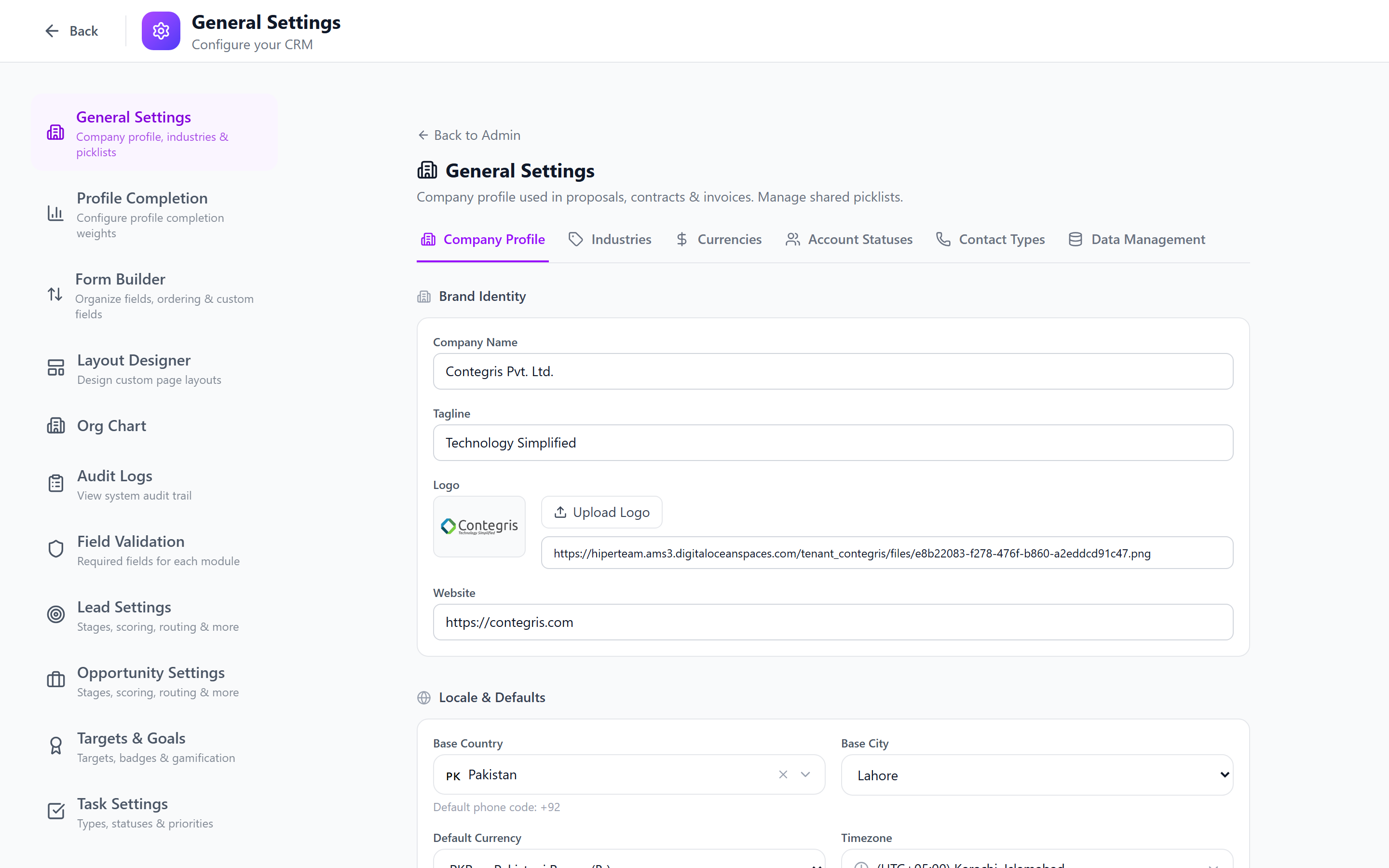
Click the Admin (gear) icon in the main application sidebar. The admin panel opens with its own dedicated sidebar navigation on the left and a content area on the right.
Admin Sidebar Menu Structure
The admin sidebar is organized into logical groups:
People & Organization
| Menu Item | Path | Description |
|---|---|---|
| Users | /admin/users | Manage user accounts, invitations, deactivation |
| Departments | /admin/departments | Organizational hierarchy |
| Teams | /admin/teams | Cross-functional team management |
| Roles & Permissions | /admin/roles | RBAC configuration |
Data Customization
| Menu Item | Path | Description |
|---|---|---|
| Custom Fields | /admin/custom-fields | Add fields to any module |
| Field Validation | /admin/field-validation | Validation rules per field |
| Layout Designer | /admin/layout-designer | Layout and form builder |
Module Settings
| Menu Item | Path | Description |
|---|---|---|
| Lead Settings | /admin/lead-settings | Pipelines, scoring, routing, qualification |
| Opportunity Settings | /admin/opportunity-settings | Stages, types, close reasons, forecasting |
| Task Settings | /admin/task-settings | Types, statuses, priorities |
| Project Settings | /admin/project-settings | Templates, phases, statuses |
| Target Settings | /admin/targets | Performance targets and assignments |
Automation & Notifications
| Menu Item | Path | Description |
|---|---|---|
| Workflows | /admin/workflows | Visual automation builder |
| Approval Rules | /admin/approval-rules | Approval chains and escalation |
| Notification Settings | /admin/notification-settings | Channels, templates, DND |
Integrations & Data
| Menu Item | Path | Description |
|---|---|---|
| Integrations | /admin/integrations | Xero, Google Calendar, email, Zapier |
| Import/Export | /admin/batch-jobs | Bulk data operations and job history |
| API Keys | /admin/api-keys | Third-party access tokens |
System
| Menu Item | Path | Description |
|---|---|---|
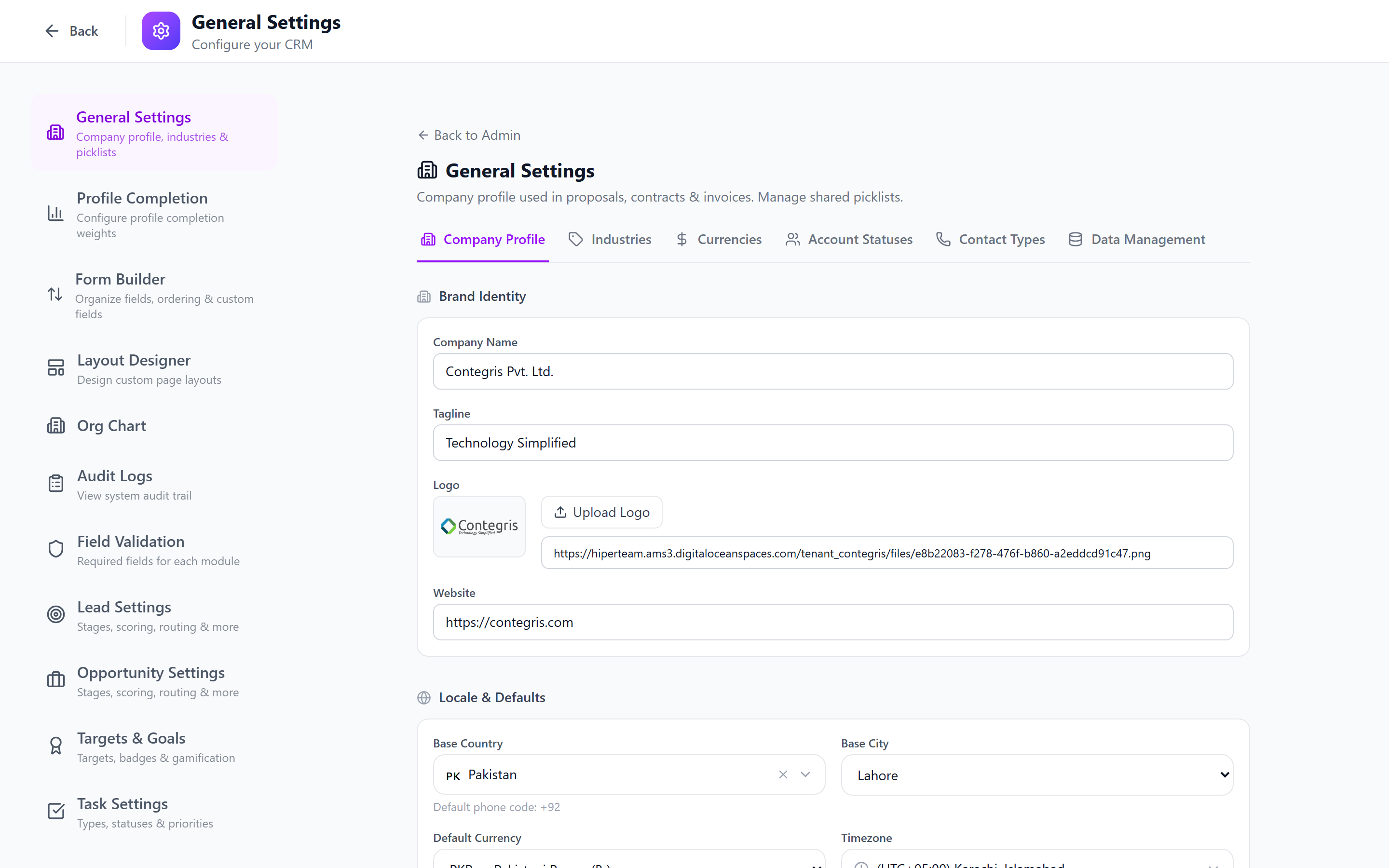
| General Settings | /admin/general-settings | Company info, timezone, currency |
| Audit Logs | /admin/audit-logs | Change history and compliance |
| Gamification | /admin/gamification | Badges, achievements, leaderboards |
Customer Success
| Menu Item | Path | Description |
|---|---|---|
| Customer Success | /admin/cs-settings | Health score weights, product recommendations, upcoming renewals |
Quick Reference: What Settings Are Where
Use this table when you know what you want to configure but are not sure where to find it.
| I want to... | Go to |
|---|---|
| Add a new user | Users |
| Change what a role can see/do | Roles & Permissions |
| Add a dropdown field to Leads | Custom Fields |
| Make a field required | Field Validation |
| Rearrange fields on a detail page | Layout Designer |
| Create a new sales pipeline | Pipelines & Stages |
| Set up lead scoring | Lead Settings |
| Configure email notifications | Notification Settings |
| Connect to Xero | Xero Integration |
| Bulk import contacts | Import/Export |
| Review who changed a record | Audit Logs |
| Set company timezone | General Settings |
| Configure health score weights | Customer Success Settings |
| Set up upsell recommendations | Customer Success Settings |
| View upcoming renewals | Customer Success Settings |
Best Practices for Admin Setup Sequence
When setting up a new IntelliSales CRM instance, follow this order to avoid dependency issues:
1. Roles & Permissions   ← Define access before creating users
2. Departments           ← Build org structure
3. Teams                 ← Cross-functional groupings
4. Users & Invitations   ← Onboard people with correct roles
5. Custom Fields         ← Extend the data model
6. Field Validation      ← Enforce data quality
7. Layout Designer       ← Arrange layouts
8. Pipelines & Stages    ← Define sales processes
9. Lead/Opp Settings     ← Scoring, routing, qualification
10. Notifications        ← Configure channels
11. Workflows            ← Automate repetitive tasks
12. Integrations         ← Connect external systems
Do not invite users before roles and departments are configured. Users will inherit their role's permissions at login time, and changing roles later may cause confusion or access issues.
Admin Panel Navigation Tips
- Breadcrumbs are displayed at the top of each admin page for context.
- Tab interfaces are used within settings pages (e.g., Lead Settings has 7 tabs). Click tabs to switch between sub-sections without leaving the page.
- Save buttons appear at the bottom of forms. Changes are not auto-saved unless explicitly noted.
- Toast notifications confirm successful saves or report errors at the top-right corner.
Next: User Management — Start managing your team.