Notification Settings
The notification system delivers timely alerts to users through multiple channels. As an admin, you configure which channels are available, how they connect to external services, which events trigger notifications, and customize notification templates.
Navigate to Admin > Notification Settings.
Notification Channels
IntelliSales CRM supports five notification channels:
| Channel | Provider | Setup Required |
|---|---|---|
| In-App | Built-in | None — always available |
| SMTP | SMTP server configuration | |
| Browser Push | Web Push (VAPID) | VAPID key generation |
| SMS | Twilio | Twilio account credentials |
| Twilio | Twilio account credentials |
In-App Notifications
In-app notifications are delivered instantly through WebSocket and appear in the notification bell icon in the application header. No external configuration is needed.
- Notifications appear as a dropdown list.
- Unread count is shown as a badge on the bell icon.
- Users can mark notifications as read or dismiss them.
- Notification history is preserved and searchable.
Email (SMTP) Configuration
- Select the Email channel tab.
- Configure the SMTP server:
| Setting | Description | Example |
|---|---|---|
| SMTP Host | Mail server hostname | smtp.gmail.com, smtp.office365.com |
| SMTP Port | Server port | 587 (TLS) or 465 (SSL) |
| Username | SMTP authentication username | notifications@yourcompany.com |
| Password | SMTP authentication password | Encrypted at rest |
| TLS / SSL | Encryption mode | TLS (recommended) |
| From Address | Sender email address | notifications@yourcompany.com |
| From Name | Sender display name | IntelliSales CRM |
- Click Test Connection to verify the SMTP settings are correct.
- Click Send Test Email to send a test message to your own address and confirm delivery.
- Click Save.
Store SMTP credentials securely. The password is encrypted at rest but visible to admin users on this settings page. Use a dedicated service account for SMTP, not a personal email account.
Common SMTP Configurations
| Provider | Host | Port | Notes |
|---|---|---|---|
| Gmail | smtp.gmail.com | 587 | Requires App Password (not regular password) |
| Microsoft 365 | smtp.office365.com | 587 | Requires OAuth or App Password |
| Amazon SES | email-smtp.{region}.amazonaws.com | 587 | Use IAM SMTP credentials |
| SendGrid | smtp.sendgrid.net | 587 | Use API key as password |
Browser Push (VAPID) Configuration
Browser push notifications appear as native OS notifications even when the CRM tab is not active.
- Select the Browser Push channel tab.
- Click Generate VAPID Keys to create a public/private key pair.
- The public key is shared with browsers to establish the push subscription.
- The private key is stored securely on the server and never exposed to clients.
- Once keys are generated, they are displayed on the page. The private key is masked.
- Click Save.
Once configured, users are prompted to allow notifications in their browser when they next log in. Users can also manage their subscription:
- Subscribe — opt in to browser push notifications
- Unsubscribe — opt out (stops all browser push for that user)
Browser push is excellent for time-sensitive alerts because it reaches users even when they are in another application. Encourage your team to accept the browser permission prompt.
VAPID keys are generated once per tenant. If you regenerate keys, all existing browser subscriptions will be invalidated and users will need to re-subscribe.
SMS via Twilio Configuration
- Select the SMS channel tab.
- Configure Twilio credentials:
| Setting | Description | Where to Find |
|---|---|---|
| Account SID | Your Twilio account identifier | Twilio Console Dashboard |
| Auth Token | Your Twilio authentication token | Twilio Console Dashboard |
| From Number | Your Twilio phone number | Twilio Console > Phone Numbers |
- Enter the credentials in the form.
- Click Test SMS to send a test message to a phone number you specify.
- Click Save.
Twilio charges per SMS message. Monitor your Twilio usage dashboard to control costs. Consider limiting SMS notifications to high-priority events (e.g., deal closed, urgent task assigned).
WhatsApp via Twilio Configuration
WhatsApp notifications are also delivered through Twilio's WhatsApp Business API.
- Select the WhatsApp channel tab.
- Configure Twilio credentials (same account as SMS, or a separate one):
| Setting | Description | Where to Find |
|---|---|---|
| Account SID | Your Twilio account identifier | Twilio Console Dashboard |
| Auth Token | Your Twilio authentication token | Twilio Console Dashboard |
| From Number | Your Twilio WhatsApp-enabled number | Twilio Console > Messaging > WhatsApp |
- Enter the credentials in the form.
- Click Test WhatsApp to send a test message.
- Click Save.
WhatsApp via Twilio requires a Twilio-approved WhatsApp sender. You must complete Twilio's WhatsApp onboarding process before this channel will work. Template messages must be pre-approved by WhatsApp before they can be used for outbound notifications.
Channel Enable/Disable
Each channel can be toggled on or off independently:
- Click the toggle switch next to the channel name.
- Disabled channels stop delivering notifications immediately.
- Pending notifications for disabled channels are queued and delivered when the channel is re-enabled.
Preferences Matrix
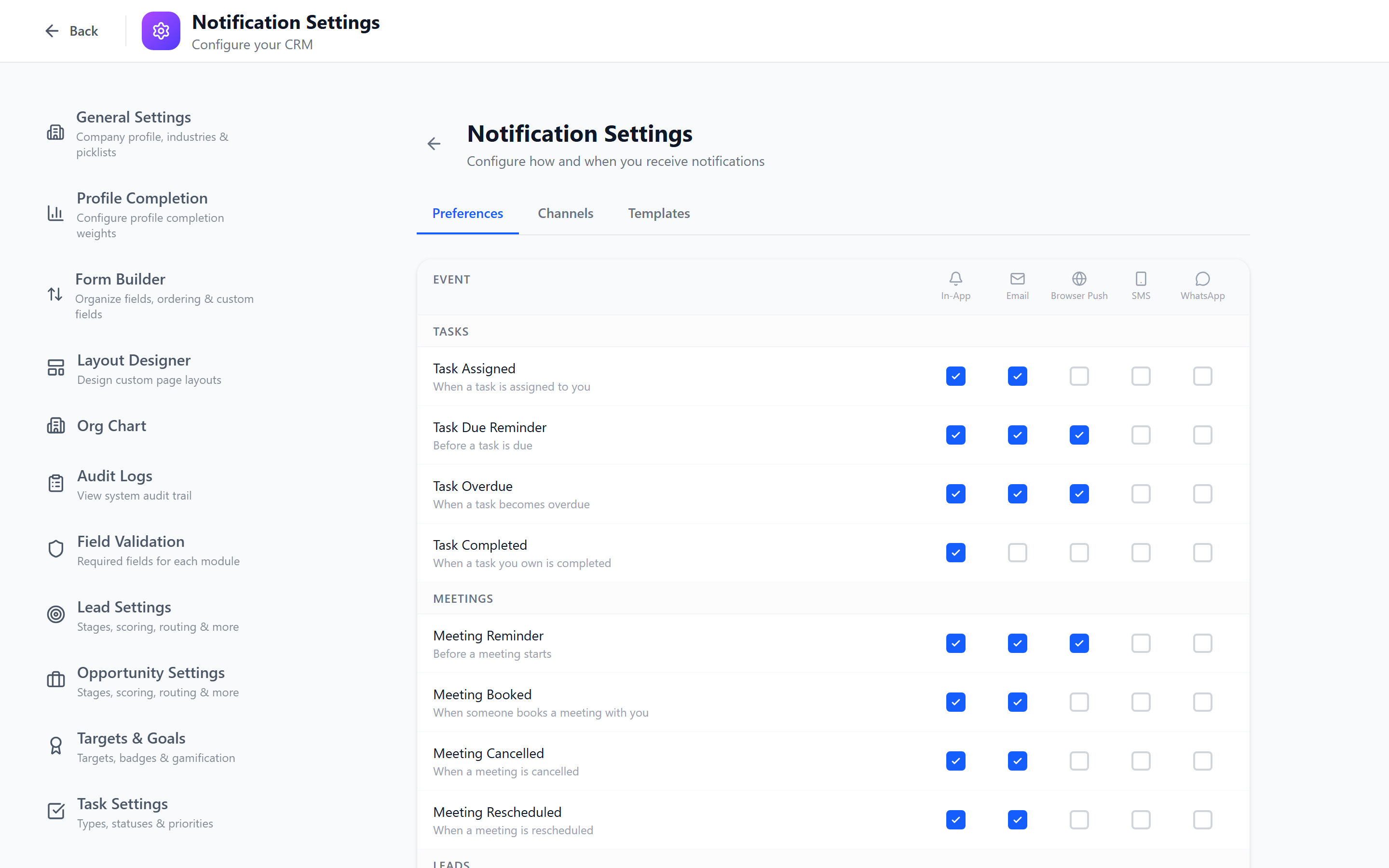
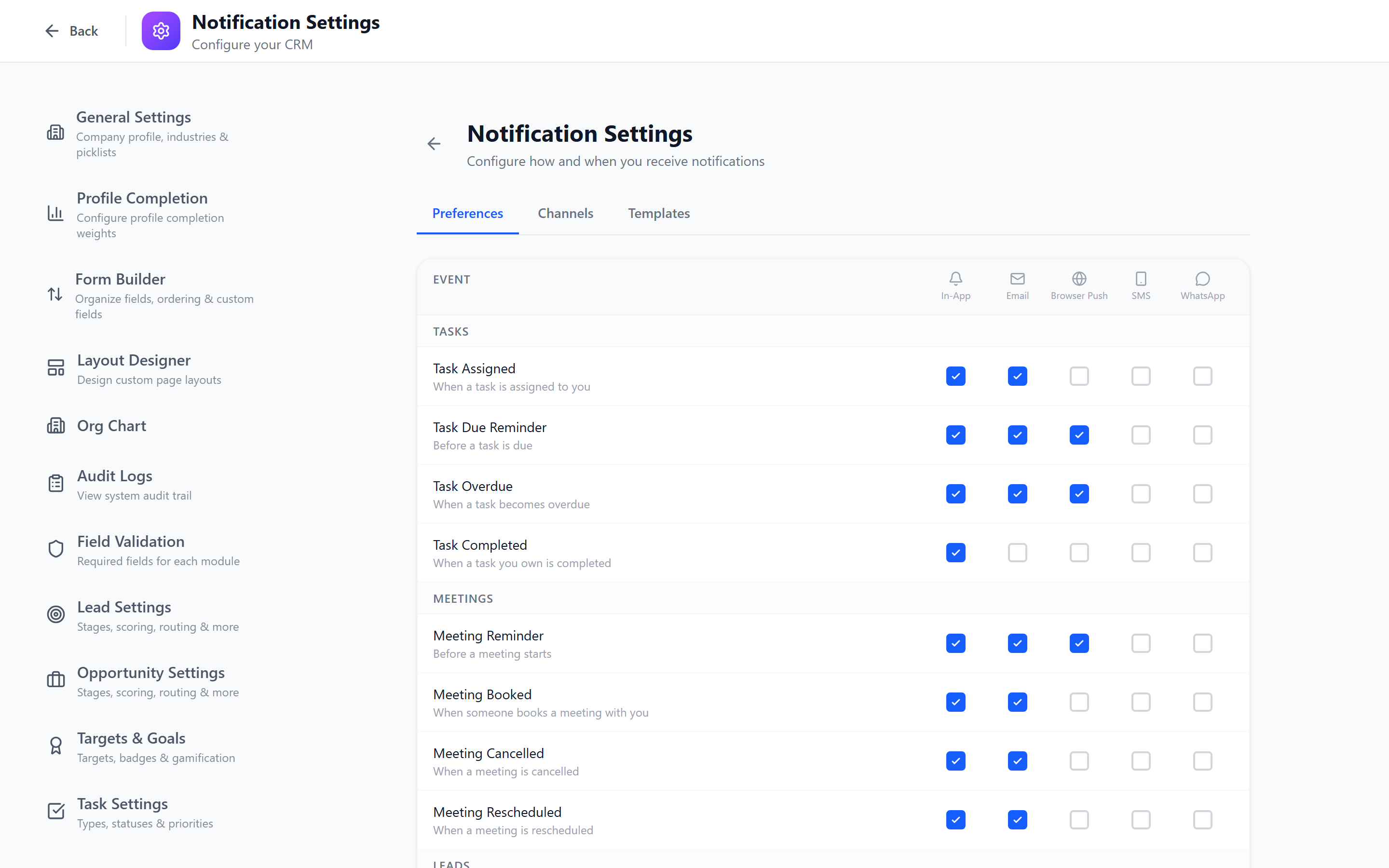
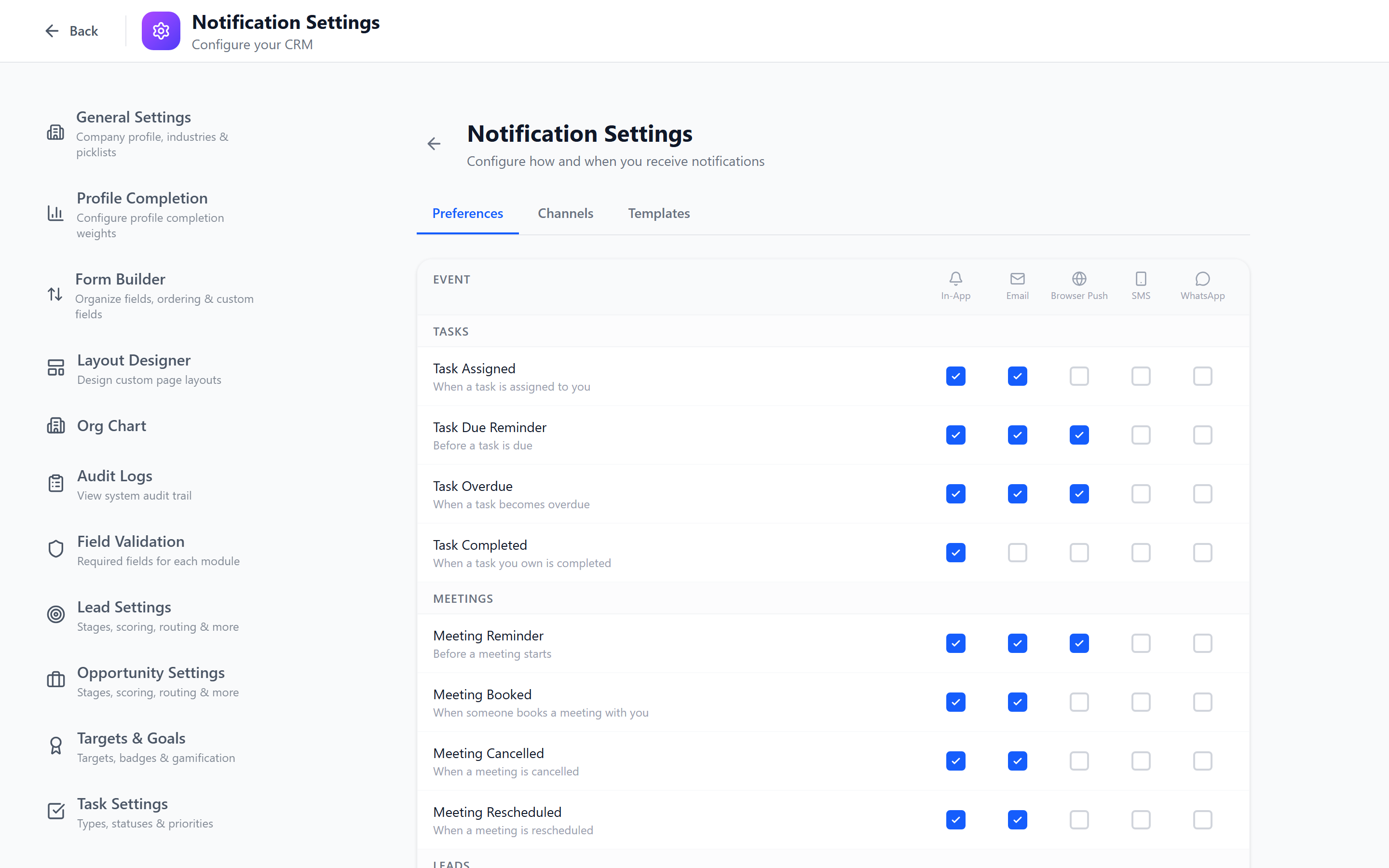
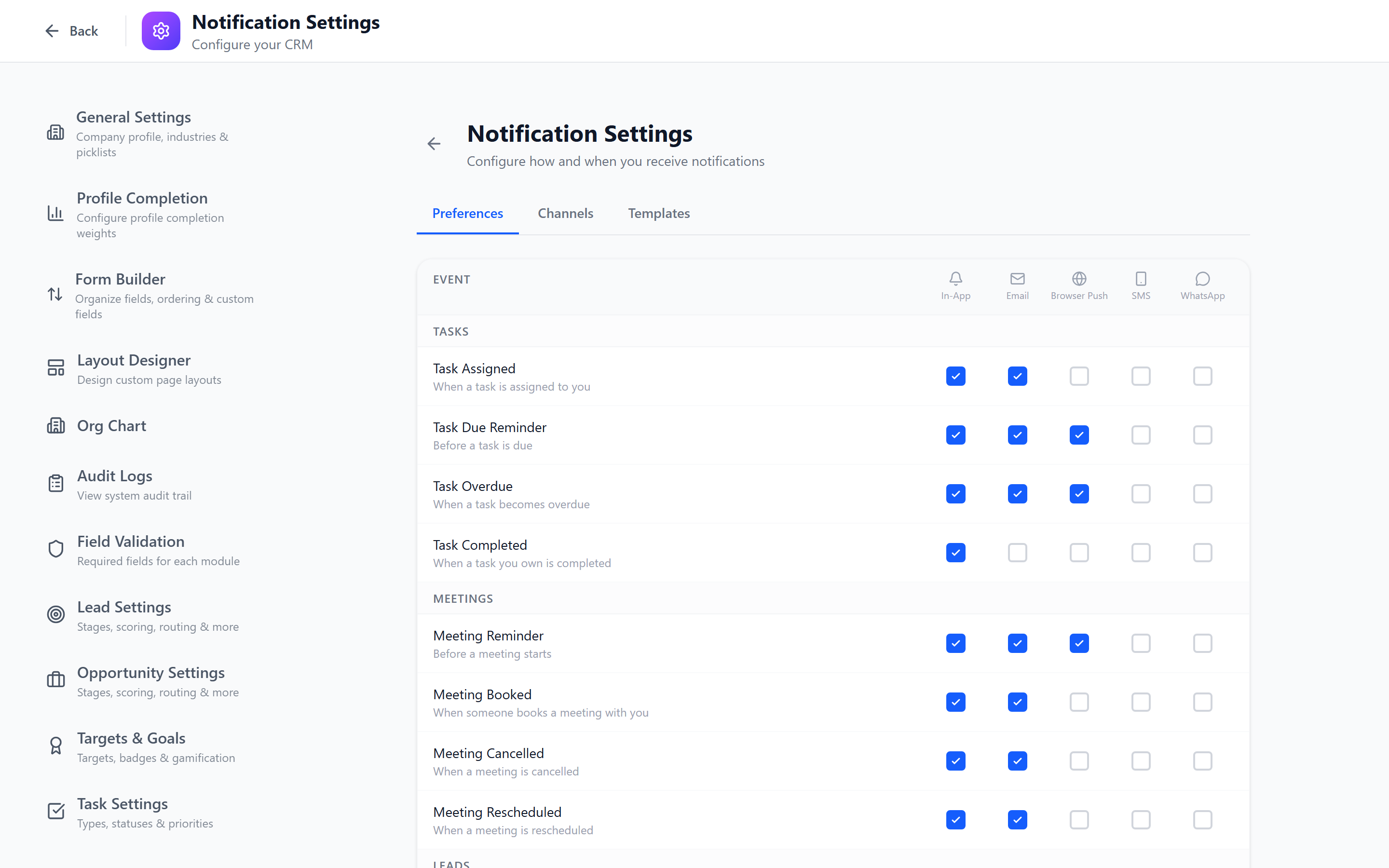
The Preferences tab provides a matrix view where you configure which events are delivered through which channels.
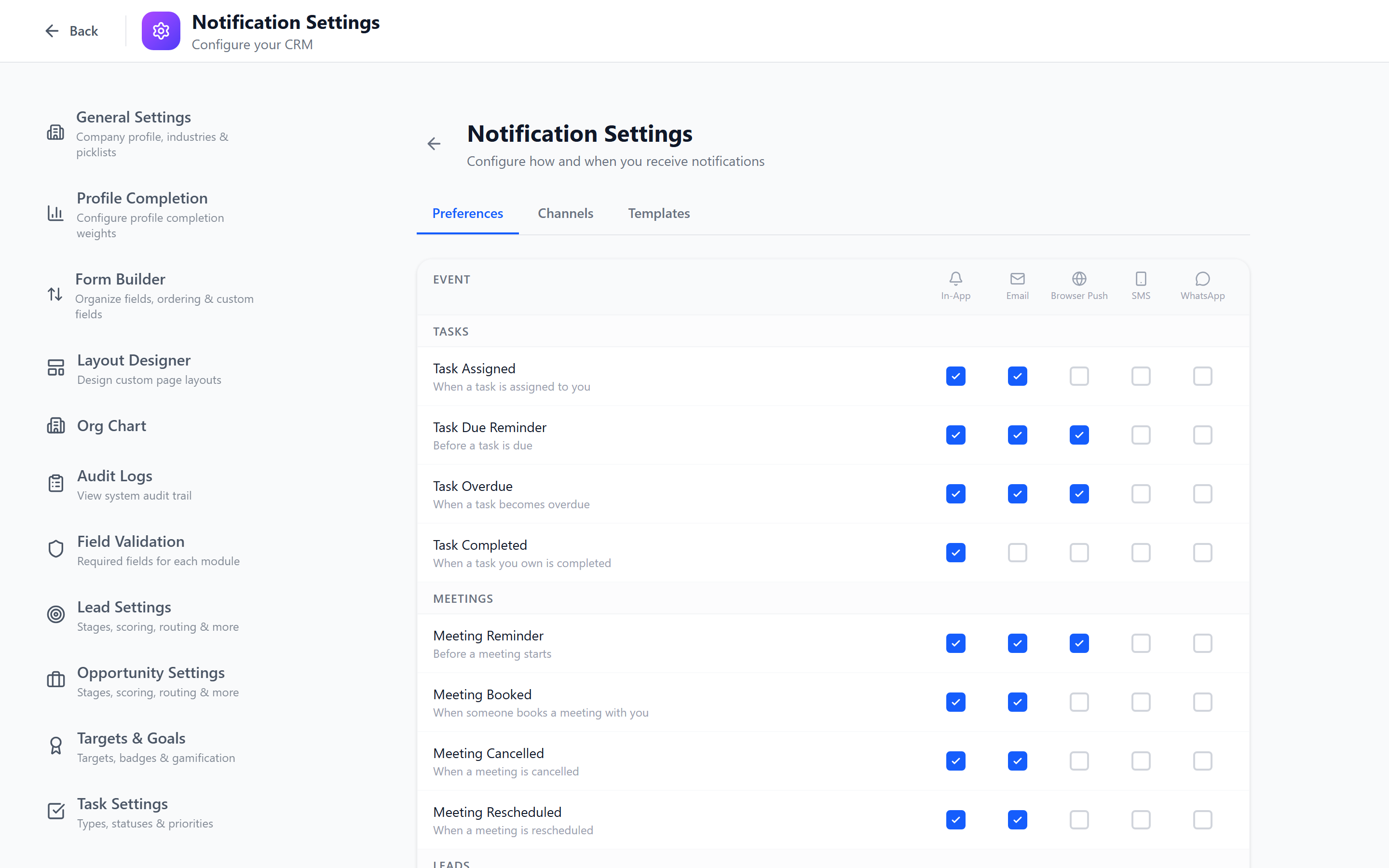
Matrix Layout
- Rows — Event types, grouped by module
- Columns — Notification channels (In-App, Email, Browser Push, SMS, WhatsApp)
Each cell is a checkbox. Check a cell to enable that channel for that event.
Event Types by Module
Tasks
| Event | Description |
|---|---|
task_assigned | A task is assigned to a user |
task_due_soon | A task is due within 24 hours |
task_overdue | A task has passed its due date |
Leads
| Event | Description |
|---|---|
lead_assigned | A lead is assigned to a user |
lead_stage_change | A lead moves to a new pipeline stage |
Opportunities / Deals
| Event | Description |
|---|---|
deal_stage_change | A deal/opportunity changes stage |
deal_closed_won | A deal is marked as won |
deal_closed_lost | A deal is marked as lost |
Collaboration
| Event | Description |
|---|---|
note_added | A note is added to a record |
mention | A user is @mentioned in a note or comment |
Approvals
| Event | Description |
|---|---|
approval_requested | An approval is requested from a user |
approval_completed | An approval decision is made |
Targets
| Event | Description |
|---|---|
target_milestone | A target reaches 50%, 75%, or 100% |
System
| Event | Description |
|---|---|
import_completed | A batch import job finishes |
Default Routing Example
| Event | In-App | Browser Push | SMS | ||
|---|---|---|---|---|---|
| task_assigned | Yes | Yes | Yes | No | No |
| task_overdue | Yes | Yes | Yes | No | No |
| deal_closed_won | Yes | Yes | Yes | Yes | No |
| mention | Yes | Yes | Yes | No | No |
| approval_requested | Yes | Yes | Yes | No | No |
| import_completed | Yes | No | No | No | No |
Set sensible defaults in the matrix, then let users customize their own preferences. The admin-configured defaults apply to new users and serve as the baseline.
Templates
The Templates tab lets you customize the content of notification messages for each channel and event type.
Template Variables
Templates support dynamic variables that are replaced with actual values at send time:
| Variable | Description |
|---|---|
{{user.name}} | The recipient's name |
{{record.name}} | The record name/title |
{{record.type}} | The record type (Lead, Opportunity, etc.) |
{{actor.name}} | The person who performed the action |
{{stage.name}} | The pipeline stage name |
{{link}} | A direct link to the record in the CRM |
Editing a Template
- Select the event type from the list.
- Select the channel (each channel can have its own template).
- Edit the template content:
- Subject (email only) — the email subject line
- Body — the notification message body
- Use the variable picker to insert dynamic values.
- Click Preview to see a sample rendering.
- Click Save.
Channel-Specific Formatting
| Channel | Format | Notes |
|---|---|---|
| In-App | Plain text, short | Keep under 200 characters |
| HTML | Full formatting, images, links | |
| Browser Push | Plain text | Title (under 50 chars) + body (under 200 chars) |
| SMS | Plain text | Keep under 160 characters to avoid multi-part messages |
| WhatsApp template format | Must use pre-approved templates |
Do Not Disturb Settings
Configure quiet hours when notifications are suppressed:
- Select the DND tab.
- Set:
- DND Start Time — e.g., 20:00 (8 PM)
- DND End Time — e.g., 08:00 (8 AM)
- DND Days — e.g., Saturday and Sunday
- Override for urgent — whether high-priority notifications bypass DND
- Save.
DND settings configured here are the organization default. Individual users can adjust their own DND hours in their notification preferences, but cannot exceed the admin-set boundaries.
Best Practices
- Enable in-app and email first — these are the most reliable and lowest-cost channels.
- Reserve SMS and WhatsApp for critical events — these have per-message costs and can be intrusive.
- Test every channel — always send a test notification after configuring a new channel.
- Set sensible DND hours — respect your team's work-life balance.
- Review the preferences matrix quarterly — too many notifications cause alert fatigue. Only notify for actionable events.
- Customize templates — default messages work, but branded, context-rich templates improve engagement.
- Monitor delivery — check notification logs for failed deliveries and troubleshoot connectivity issues.
Next: Notification Templates — Customize notification message content in detail.