Pipelines & Stages
Pipelines are the backbone of your sales process in IntelliSales CRM. They define the journey a record takes from initial contact to close. The pipeline system is shared between Leads, Opportunities, and other pipeline-enabled modules.
Pipeline System Overview
A pipeline is a sequence of stages that represent the steps in a process:
New Lead → Contacted → Qualified → Proposal → Negotiation → Closed Won / Closed Lost
Key concepts:
- Pipelines are containers for stages. You can have multiple pipelines (e.g., "Inbound Sales", "Enterprise Sales", "Partner Channel").
- Stages are the individual steps within a pipeline.
- Stage fields are fields that must be filled before a record can advance to the next stage.
- Stage ownership controls who is responsible at each stage and which fields are visible.
- The system is shared — the same pipeline tables support Leads, Opportunities, Deals, and Projects through a
modulecolumn.
The pipeline system uses a module column to distinguish between pipeline types. When you configure pipelines for Leads, the API calls use module=leads. For Opportunities, it uses module=opportunities. Future modules like Deals (module=deals) and Projects (module=projects) use the same underlying architecture. This means pipeline management endpoints are reused across modules — there is no duplication.
Shared Pipeline Architecture
All pipeline data lives in three shared tables:
| Table | Purpose |
|---|---|
| pipelines | Pipeline definitions with a module column |
| pipeline_stages | Stage definitions linked to a pipeline |
| pipeline_stage_fields | Required fields per stage |
The module column on each pipeline record determines which CRM module it belongs to. Currently supported modules:
- leads — Lead qualification and nurturing pipelines
- opportunities — Sales opportunity pipelines
- deals (planned) — Deal execution pipelines
- projects (planned) — Project lifecycle pipelines
Because the architecture is shared, all pipeline management endpoints work for any module. For example:
GET /lead-settings/pipelines?module=leadsreturns lead pipelinesGET /lead-settings/pipelines?module=opportunitiesreturns opportunity pipelinesGET /lead-settings/stages?module=opportunities&pipelineId=xxxreturns stages for a specific opportunity pipeline
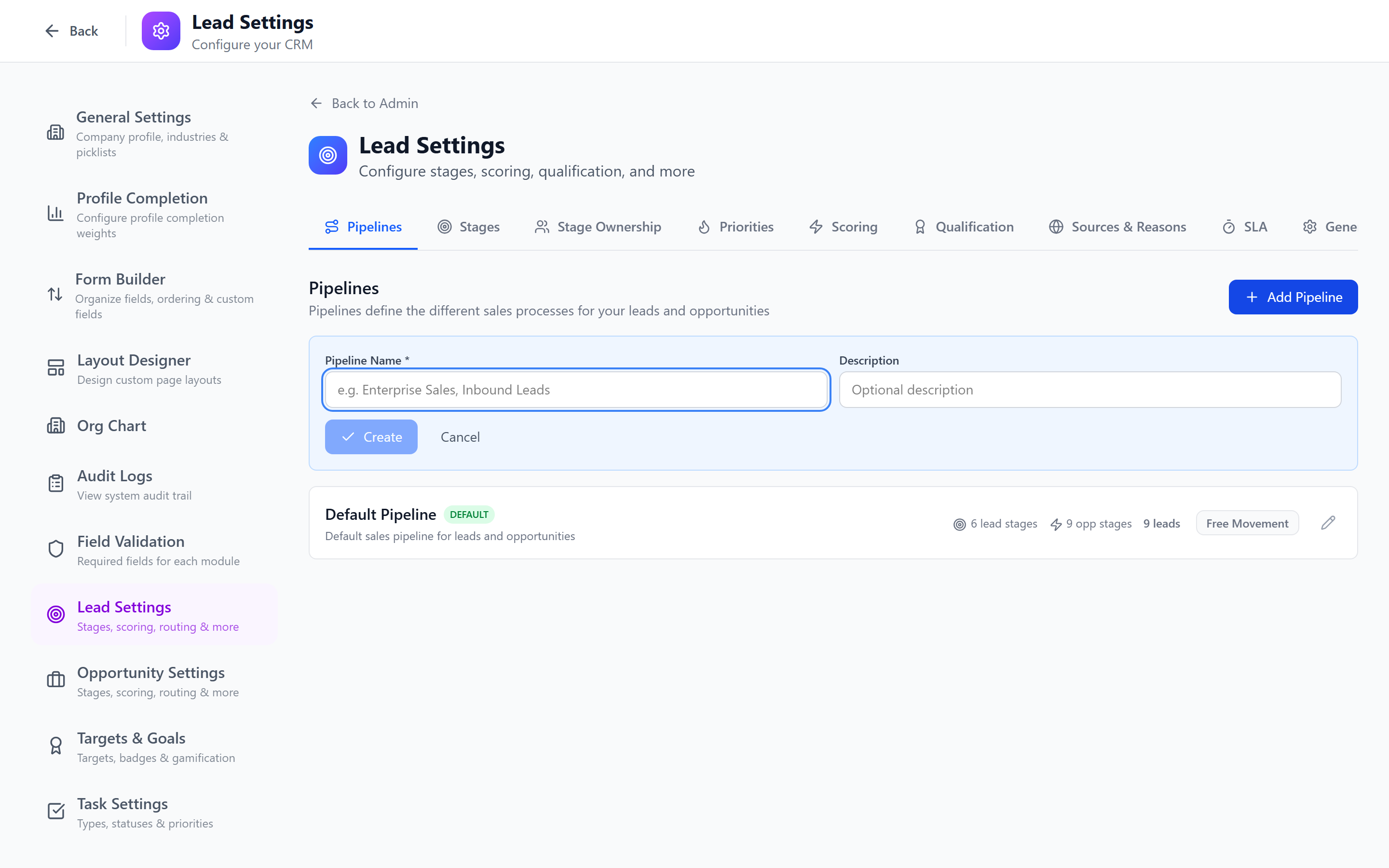
Creating Pipelines
- Navigate to the relevant settings page:
- Admin > Lead Settings > Pipelines tab for lead pipelines
- Admin > Opportunity Settings > Pipelines tab for opportunity pipelines
- Click Create Pipeline.
- Enter the pipeline name (e.g., "Standard Sales Process", "Enterprise Deal Flow").
- Optionally, set it as the default pipeline for the module.
- Click Save.
Setting the Default Pipeline
One pipeline per module can be marked as the default. When users create a new record, the default pipeline is pre-selected.
- Open the pipeline you want to set as default.
- Toggle the Default switch on.
- The previous default is automatically unset.
Keep one pipeline as default for the common sales flow. Create additional pipelines only for distinct processes (e.g., a separate pipeline for partner-sourced deals with different stages).
Stage Movement Mode
Each pipeline has a stage movement setting that controls how records move between stages:
| Mode | Behavior |
|---|---|
| Free Movement (default) | Records can jump to any stage in any order |
| Sequential | Records can only move to the immediately next or previous stage — skipping stages is blocked |
Configuring Stage Movement
- Open the Pipelines tab in Lead Settings or Opportunity Settings.
- Find the pipeline you want to configure.
- Click the Free Movement / Sequential toggle button on the pipeline row.
- The setting takes effect immediately for all new stage changes.
How Sequential Mode Works
- Kanban drag-and-drop: dropping a card more than one column away is silently rejected
- Stage journey bar: non-adjacent stages are dimmed and unclickable, with a tooltip explaining the restriction
- API enforcement: the
changeStageendpoint returns a400 Bad Requesterror if a non-adjacent stage is targeted
Use Sequential mode for compliance-heavy processes where every stage must be visited (e.g., regulated onboarding flows). Use Free Movement for flexible sales processes where reps need to skip stages based on context.
Managing Stages
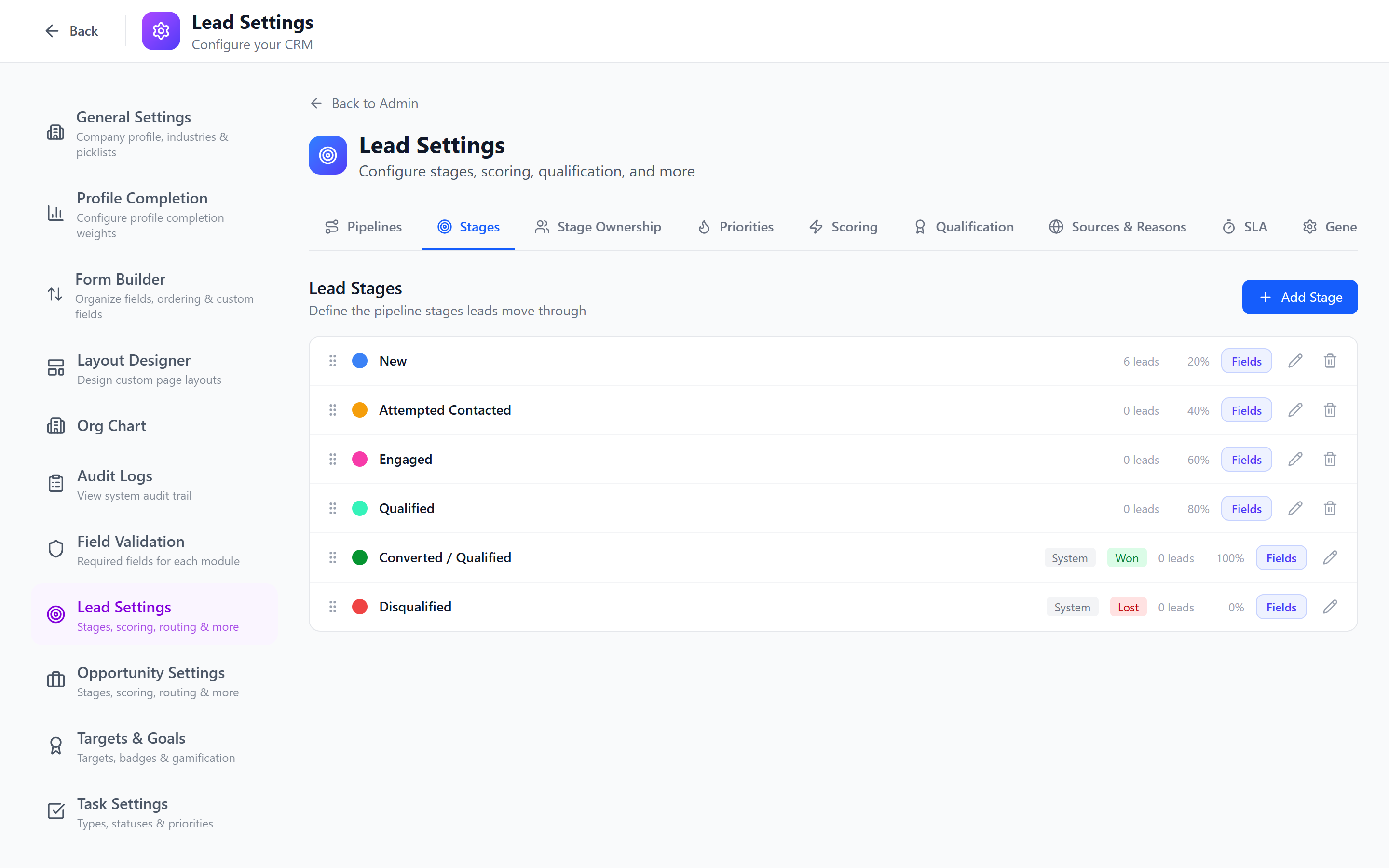
Creating a Stage
- Open a pipeline.
- Click Add Stage.
- Configure the stage:
- Name (required) — e.g., "Discovery", "Proposal Sent", "Negotiation"
- Color — visual indicator on kanban boards and pipeline views
- Order — position in the pipeline sequence
- Probability (optional) — win probability percentage (used for forecasting)
- Description (optional) — guidance for sales reps on what happens at this stage
- Click Save.
Reordering Stages
Drag and drop stages to change their order. The order determines the left-to-right (or top-to-bottom) display on kanban boards and pipeline views.
Editing a Stage
Click on a stage name to open its settings. You can modify the name, color, probability, and description.
Deleting a Stage
- Click the Delete button on a stage.
- If records exist at this stage, you will be prompted to select a destination stage to move them to.
- Confirm the deletion.
Deleting a stage with active records requires you to reassign those records. Ensure the destination stage makes sense for the records being moved. This action is logged in the audit trail.
Stage Fields (Required Before Advancing)
Stage fields enforce that specific information is collected before a record can move to the next stage. This ensures data quality throughout the pipeline.
Configuring Stage Fields
- Open a stage's settings.
- Switch to the Required Fields tab.
- Click Add Required Field.
- Select fields from the module's field list (standard and custom).
- For each field, optionally set:
- Required — the field must have a value
- Validation rule — additional validation specific to this stage
- Save.
Example: Stage Field Requirements
| Stage | Required Fields |
|---|---|
| Discovery | Contact name, Company, Phone or Email |
| Qualification | Budget, Timeline, Decision Maker |
| Proposal | Proposal document (file upload), Amount |
| Negotiation | Discount %, Contract terms |
| Closed Won | Signed contract, Close date, Final amount |
If a user tries to move a record to a stage with required fields that are not filled, the system will block the move and display a form to collect the missing information.
Stage Ownership
Stage ownership lets you assign responsibility for each stage to a specific user, team, or role. When a record moves to a stage with an owner configured, the system can automatically assign or notify the appropriate person or group.
Configuring Stage Ownership
- Open a stage's settings.
- Switch to the Ownership tab (or navigate to Admin > Stage Ownership).
- Select the owner type:
- User — a specific user is responsible for records at this stage
- Team — a team is responsible (any team member can act)
- Role — any user with the specified role is responsible
- Select the specific user, team, or role.
- Save.
Stage Owner Types
| Owner Type | Behavior |
|---|---|
| User | The specified user is assigned as the stage owner. They receive notifications when records enter this stage. |
| Team | The specified team is notified. Any team member can take ownership of individual records. |
| Role | Any user with the specified role can act as the stage owner. |
Field Visibility per Stage
In addition to ownership, you can control which fields are visible at each stage. This keeps forms focused by showing only the fields relevant to the current stage.
- Open a stage's settings.
- Switch to the Field Visibility tab.
- Toggle visibility for each field.
- Save.
Fields hidden at a stage are not shown on the record form when the record is at that stage. The data is preserved — it simply is not displayed.
Use field visibility to simplify forms at early stages. For example, at the "New Lead" stage, you might only show basic contact fields. At "Negotiation", you show pricing and contract fields.
Record Stage Assignments
When a record moves to a stage with ownership configured, an assignment record is created in the record_stage_assignments table. This provides a full history of who was responsible for a record at each stage and when.
Pipeline Best Practices
- Keep pipelines to 5-8 stages — too many stages slow down the process; too few do not capture the nuance.
- Define clear entry criteria — use stage fields to enforce what information is needed at each step.
- Use probability for forecasting — set realistic probabilities (e.g., Discovery: 10%, Proposal: 40%, Negotiation: 70%, Closed Won: 100%).
- Create separate pipelines for distinct processes — do not force-fit different sales motions into one pipeline.
- Configure stage ownership — assign owners to stages where handoffs occur (e.g., from SDR to Account Executive at the Qualification stage).
- Use field visibility — keep early-stage forms simple and progressively reveal fields as the record advances.
- Review pipeline metrics monthly — look for bottleneck stages where deals stall.
- Train your team — ensure everyone understands what each stage means and when to advance.
Pipeline changes (adding/removing stages, changing order) affect all existing records in that pipeline. Communicate changes to your team before implementing them.
Next: Stage Ownership — Assign ownership and field visibility per stage.