Custom Fields
Custom fields let you extend the data model of any module to capture information specific to your business. Every custom field you create appears on create/edit forms, detail pages, list views, reports, and exports.
Custom Fields Overview
Navigate to Admin > Custom Fields to manage custom fields.
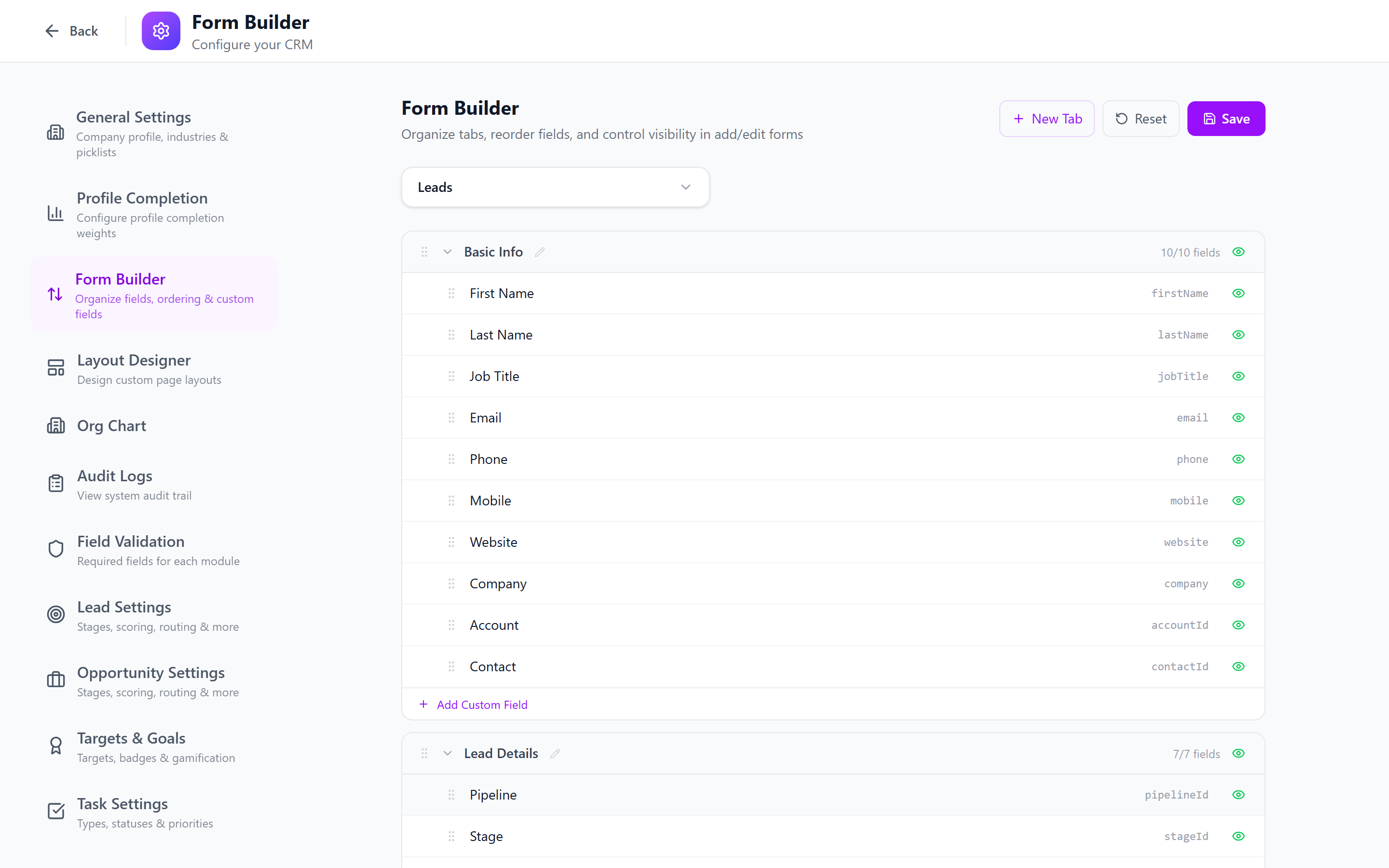
The page shows a module selector at the top and the list of custom fields for the selected module below.
Available Modules
Custom fields can be added to the following modules:
- Contacts
- Accounts
- Leads
- Opportunities
- Tasks
- Projects
Standard (built-in) fields cannot be deleted through the Custom Fields page, but their visibility and validation can be controlled through Layout Designer and Field Validation.
Field Types
| Type | Description | Example Use |
|---|---|---|
| Text | Single-line text input | Company registration number |
| Number | Numeric input (integer or decimal) | Employee count |
| Date | Date picker | Contract renewal date |
| Select | Single-choice dropdown | Industry vertical |
| Multi-select | Multiple-choice dropdown | Product interests |
| Checkbox | Boolean toggle | NDA signed (yes/no) |
| Textarea | Multi-line text input | Special requirements |
| Rich Text | Formatted text with HTML editor | Detailed description |
| File | File upload attachment | Signed contract PDF |
| Link | URL input with validation | Company website |
| Phone | Phone number with formatting | Secondary phone |
| Email address with validation | Billing email | |
| Currency | Numeric with currency symbol | Budget amount |
Creating a Custom Field
- Select the module from the dropdown.
- Click Add Field.
- Fill in the field configuration:
- Field Name (required) — the display label, e.g., "Contract Renewal Date"
- API Key (auto-generated) — the internal identifier, e.g.,
contract_renewal_date. Can be customized before saving. - Type (required) — select from the types listed above
- Required — toggle whether this field must be filled on every record
- Help Text (optional) — tooltip text shown next to the field
- Placeholder (optional) — ghost text inside the input
- Default Value (optional) — pre-populated value for new records
- Click Save Field.

The API Key cannot be changed after the field is created. Choose a clear, descriptive key using snake_case format.
Select and Multi-select Options
For Select and Multi-select fields, you must configure the available options:
- After selecting the field type as Select or Multi-select, an Options section appears.
- Click Add Option to add each choice.
- Enter the option label (what users see) and value (stored in the database).
- Drag options to reorder them.
- Set a default option if desired.
- Click Save.
You can add, remove, or reorder options after creation. Existing records that used a removed option will retain their value but the option will no longer be selectable on new records.
Field Ordering and Grouping
Custom fields appear in the order defined on this page. To change the order:
- Drag and drop fields using the grip handle on the left of each field row.
- The new order is saved automatically.
Fields can also be assigned to groups (sections) which are managed in the Custom Tabs & Groups page.
Toggling Field Active Status
Rather than deleting a field, you can deactivate it:
- Click the toggle switch next to the field.
- Inactive fields are hidden from all forms and views but their data is preserved.
- Reactivate the field at any time to restore it.
Deactivating a field does not delete any data. All values stored for that field are preserved and will reappear when the field is reactivated.
Deleting Custom Fields
- Click the Delete icon next to the field.
- Confirm the deletion in the dialog.
Deleting a custom field permanently removes the field definition and all stored values across every record. This action cannot be undone. Consider deactivating instead.
Bulk Operations
The custom fields page supports bulk actions:
- Bulk activate/deactivate — select multiple fields and toggle their status.
- Bulk reorder — drag multiple fields at once using multi-select mode.
Impact on Forms, Tables, and Reports
| Surface | Behavior |
|---|---|
| Create/Edit forms | Custom fields appear in the configured order, respecting page designer layout and field permissions. |
| Detail pages | Custom fields display in their assigned section/group. |
| List view columns | Custom fields are available as optional columns in the table column picker. |
| Reports | Custom fields can be used as report filters, group-by dimensions, and display columns. |
| Exports | Custom fields are included in CSV/Excel exports (unless hidden by field permissions). |
| Imports | Custom fields appear as mappable columns during import. |
Best Practices
- Plan before creating — sketch out all the fields you need before adding them. Renaming and retyping later is limited.
- Use consistent naming — follow a convention like "Prefix: Field Name" for related fields (e.g., "Billing: Address", "Billing: City").
- Set appropriate types — use Email type for emails (gets validation), Currency for money (gets formatting), Date for dates (gets picker).
- Add help text — short descriptions help users understand what to enter, especially for non-obvious fields.
- Limit required fields — every required field is friction on the create form. Only require fields that are truly essential.
- Review periodically — deactivate fields that are no longer used rather than leaving them to clutter forms.
Next: Field Validation — Add validation rules to enforce data quality.