General Settings
General Settings control organization-wide configurations that affect all users — company identity, locale preferences, security policies, and data classification options.
Navigate to Admin > General Settings.
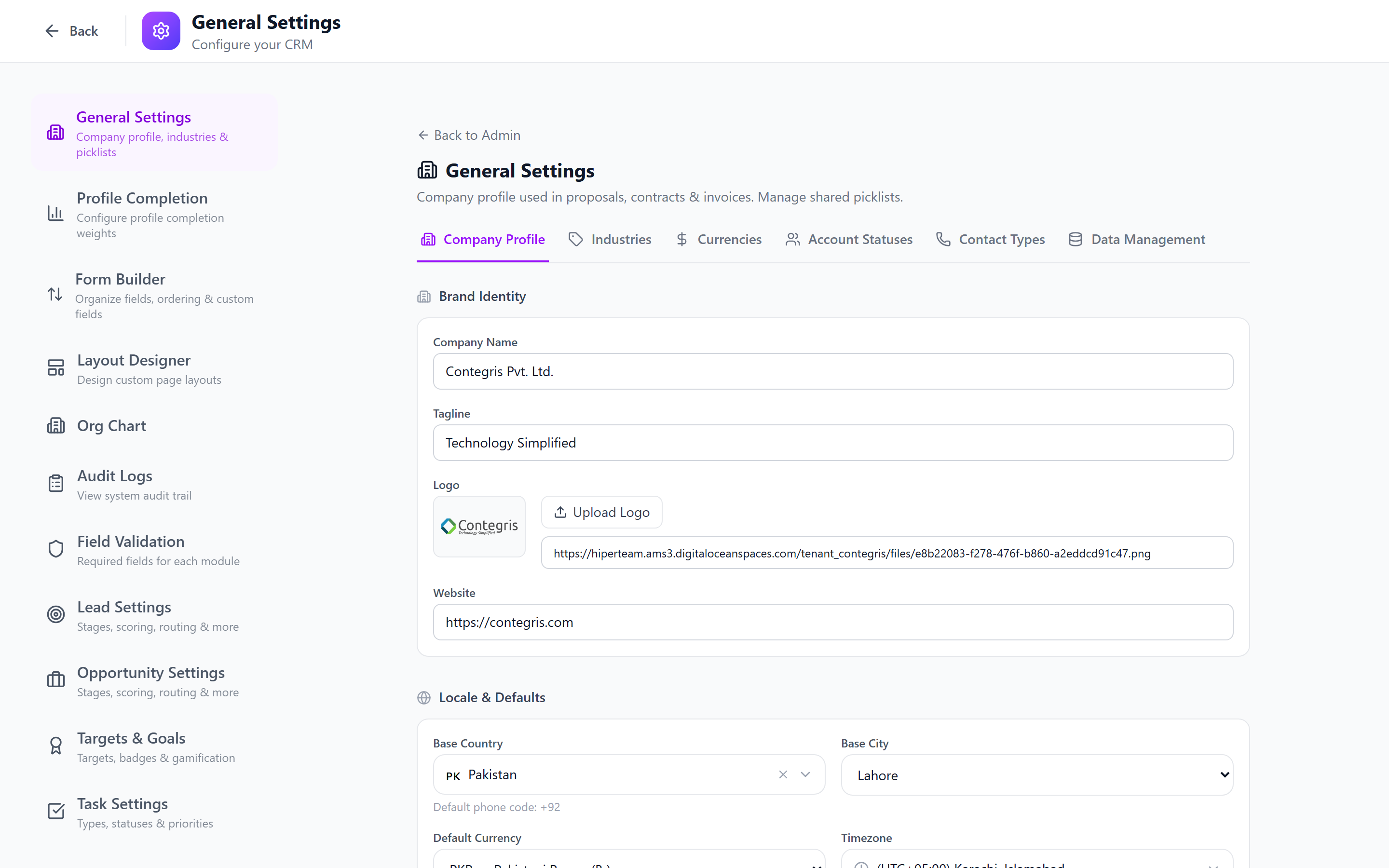
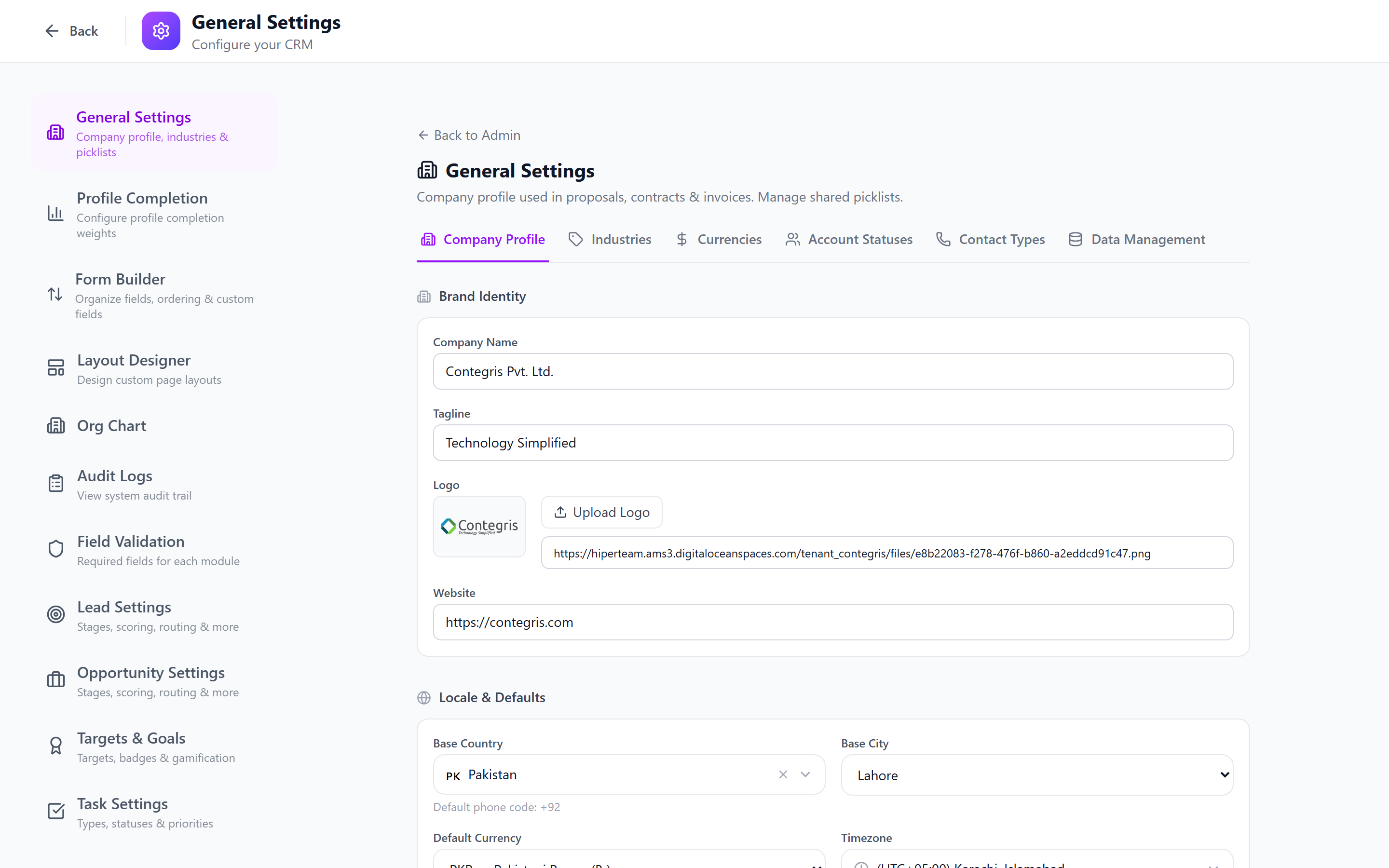
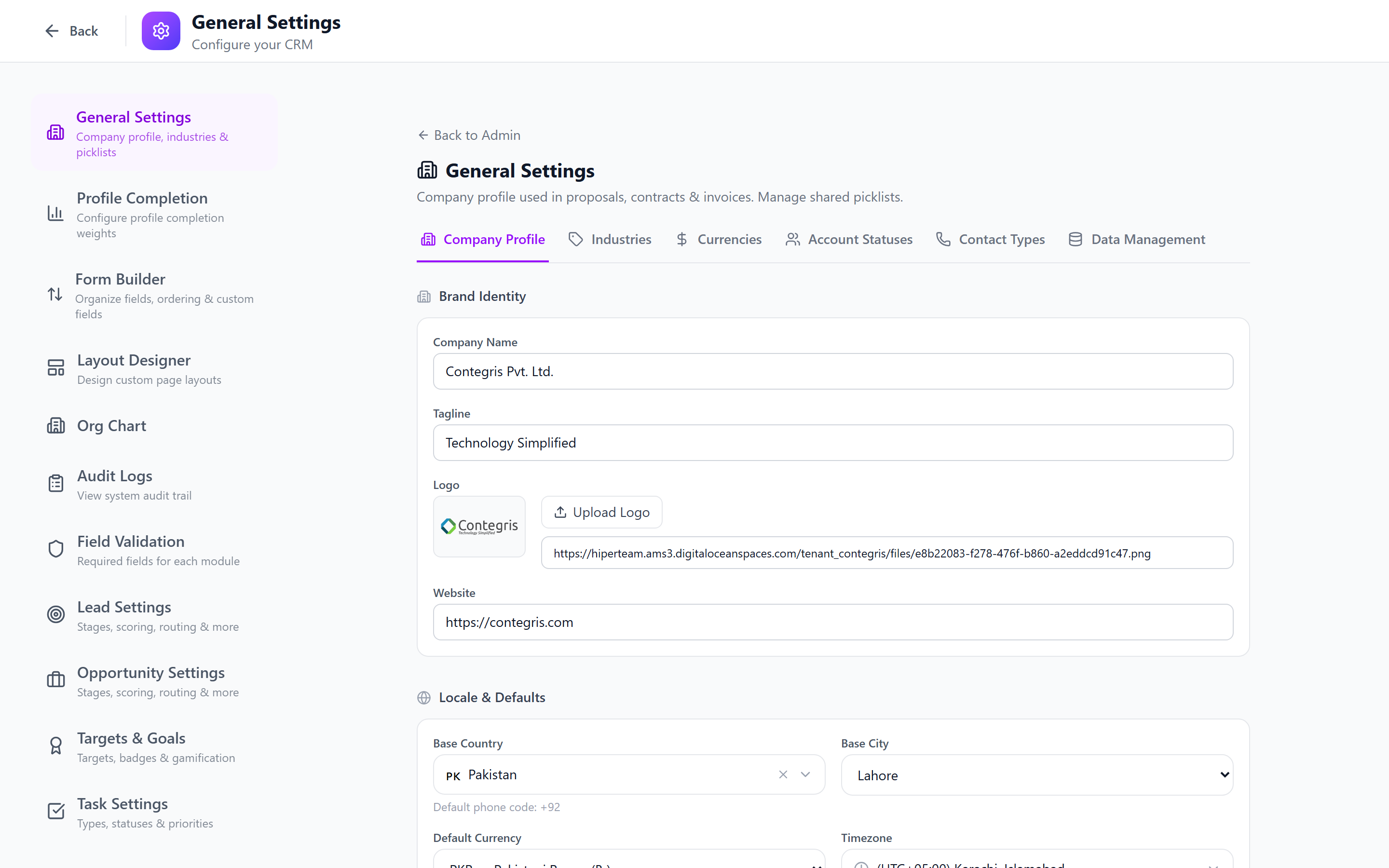
Company Settings
Company Name
The company name appears in:
- The application header
- Email notifications and templates
- Exported documents and reports
- The login page
- Enter your Company Name.
- Click Save.
Company Logo
Upload your company logo for branding throughout the application.
- Click Upload Logo.
- Select an image file (PNG, JPG, or SVG; recommended size: 200x50px).
- Preview the logo in the header.
- Click Save.
Use a logo with a transparent background (PNG or SVG) for the best appearance in both light and dark modes.
Timezone
Set the organization's default timezone. This affects:
- How timestamps are displayed
- When scheduled tasks trigger
- Report date calculations
- Notification delivery timing
- Select your timezone from the dropdown (e.g., "America/New_York", "Europe/London", "Asia/Singapore").
- Click Save.
Individual users can set their own timezone in personal settings, which overrides the organization default for their display. System operations (cron jobs, scheduled workflows) always use the organization timezone.
Date and Time Format
Configure how dates and times are displayed throughout the application.
Date Format Options
| Format | Example |
|---|---|
MM/DD/YYYY | 03/18/2026 |
DD/MM/YYYY | 18/03/2026 |
YYYY-MM-DD | 2026-03-18 |
DD MMM YYYY | 18 Mar 2026 |
MMM DD, YYYY | Mar 18, 2026 |
Time Format Options
| Format | Example |
|---|---|
| 12-hour | 2:30 PM |
| 24-hour | 14:30 |
- Select your preferred date format.
- Select your preferred time format.
- Click Save.
Currency Settings
Configure the default currency for monetary fields (deal amounts, budgets, revenue).
- Select the default currency from the dropdown (e.g., USD, EUR, GBP, AUD, SGD).
- Set the currency symbol position: before ($100) or after (100$).
- Set the decimal separator: period (100.00) or comma (100,00).
- Set the thousands separator: comma (1,000) or period (1.000).
- Click Save.
Changing the currency setting does not convert existing monetary values. It only changes the display symbol. If you switch from USD to EUR, existing amounts remain the same number — they are not recalculated with exchange rates.
Language Selection
Set the default language for the application interface.
- Select the language from the dropdown.
- Click Save.
Currently supported: English.
Additional language packs may be available in future releases. The system is built with internationalization support.
Session Timeout Configuration
Control how long a user session remains active without interaction.
- Set the session timeout duration:
- 15 minutes (high security)
- 30 minutes (recommended)
- 1 hour (standard)
- 4 hours (low security)
- 8 hours (convenience)
- Set the idle warning — show a warning dialog N minutes before timeout.
- Toggle remember me — allow users to extend their session with a "Remember Me" checkbox on login.
- Click Save.
For organizations handling sensitive data (financial, healthcare), use a shorter timeout (15-30 minutes). For teams that reference the CRM throughout the day, 1-4 hours reduces login friction.
Industries Management
Industries are classification options used primarily for Account records. Manage the list of available industries.
Adding an Industry
- Scroll to the Industries section.
- Click Add Industry.
- Enter the industry name (e.g., "Technology", "Healthcare", "Financial Services", "Manufacturing", "Retail", "Education").
- Save.
Editing and Deleting Industries
- Click an industry to edit its name.
- Click Delete to remove an industry. If accounts use this industry, you will be prompted to select a replacement.
Default Industry List
A starter list is provided:
- Technology
- Healthcare
- Financial Services
- Manufacturing
- Retail & E-commerce
- Education
- Government
- Professional Services
- Media & Entertainment
- Real Estate
Customize the industry list to match your target market. Remove industries you do not sell to and add niche verticals specific to your business.
Account Status Settings
Configure the available statuses for account records. Each status has a name and a color for visual identification across the CRM.
Default Account Statuses
| Status | Color | Description |
|---|---|---|
| Prospect | Blue | Initial status for potential customers |
| Qualified | Indigo | Prospect has been vetted and shows potential |
| Active | Green | Current, active customer |
| Partner | Purple | Business partner or reseller |
| At Risk | Orange | Customer showing churn signals |
| On Hold | Yellow | Temporarily paused relationship |
| Churned | Red | Customer has left |
| Inactive | Gray | No recent activity |
| Former | Slate | Previously active, now concluded |
Managing Account Statuses
- Scroll to the Account Statuses section.
- To add a status: click Add Status, enter a name, and select a color.
- To edit a status: click the status to change its name or color.
- To delete a status: click Delete. If accounts use this status, you will be prompted to select a replacement status.
- Reorder statuses by dragging them — the order determines how they appear in dropdowns and filters.
Keep your status list concise and meaningful. Too many statuses create confusion; too few miss important distinctions. The default set covers most B2B workflows.
Contact Type Settings
Configure the types available for contact phone numbers, email addresses, and physical addresses.
Phone Types
Define the available phone number types that users can assign when adding phone numbers to contacts:
- Work — office phone number
- Mobile — personal mobile number
- Home — home phone number
- Fax — fax number
- Other — any other phone type
Email Types
Define the available email address types:
- Work — professional email
- Personal — personal email
- Other — any other email type
Address Types
Define the available address types:
- Billing — billing address
- Shipping — shipping/delivery address
- Office — office location
- Home — home address
- Other — any other address type
Managing Contact Types
- Scroll to the Contact Types section.
- Select the sub-tab: Phone Types, Email Types, or Address Types.
- Click Add Type to create a new type.
- Click an existing type to edit its name.
- Click Delete to remove a type (with replacement prompt if in use).
Contact types help users categorize multi-value fields. A contact might have both a "Work" and "Personal" email, or a "Mobile" and "Office" phone number. Consistent types improve data quality and make filtering easier.
Outbound Email Defaults
Configure defaults for all outbound emails sent from the CRM:
- Default From Address — the sender address for system emails
- Default Reply-To — where replies should go
- Email Footer — compliance text added to all outbound emails (e.g., unsubscribe link, company address)
- Track Opens — enable/disable email open tracking
- Track Clicks — enable/disable link click tracking
See Email Integration for full email configuration details.
Best Practices
- Set timezone first — this affects how every timestamp is displayed. Get it right early.
- Match date format to your region — US teams use MM/DD/YYYY; most of the world uses DD/MM/YYYY. Mismatched formats cause confusion.
- Document your settings — keep a record of all general settings for disaster recovery and new admin onboarding.
- Review session timeout — balance security with usability based on your team's work patterns.
- Keep industries curated — a focused industry list improves data quality in account records.
Next: API Keys — Manage API access for third-party integrations.