Notification Templates
Notification templates control the content and formatting of messages sent through each notification channel. Templates use variable substitution to personalize messages with record-specific data.
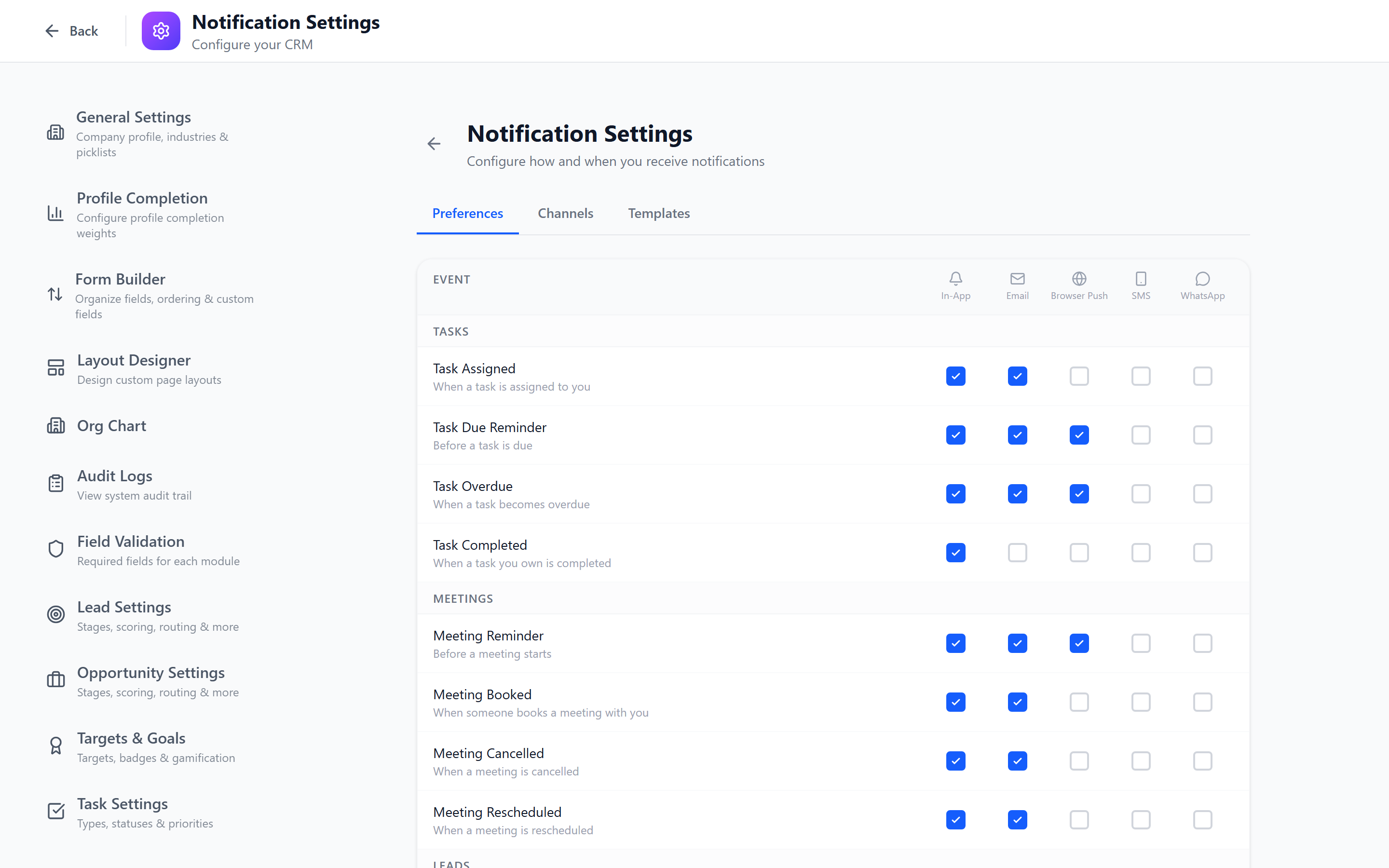
Navigate to Admin > Notification Settings > Templates tab — or the dedicated Email Templates module in admin, which is the recommended home for marketing- and sales-style email templates that you want to reuse in workflows, forms, and the email composer.
Email Templates Admin Module
The Email Templates module gives marketing / ops a single place to maintain reusable email shells.
| Capability | Detail |
|---|---|
| Rich-text body editor | WYSIWYG editor with the same toolbar as the email composer — bold/italic/lists/links/inline images. Falls through to HTML mode for power users. |
| Template variables | Uses the same {{trigger.fieldName}} interpolation as workflows (see the Workflow Builder). |
| Template picker | The picker is exposed on the workflow send_email action, the form send_email submit action, and the in-app email composer — so an admin can update copy once and every channel picks it up. |
| Audit-logged | Every save records a diff in the audit log so you can see who changed which template and when. |
Template System Overview
Each event type has templates for each enabled channel:
Event: task_assigned
├── Email Template (subject + HTML body)
├── SMS Template (plain text, 160 char limit)
├── In-App Template (short text)
└── Browser Push Template (title + body)
Templates use double-brace variables that are replaced with actual values at send time.
Template Variables
Variables are enclosed in \{\{double_braces\}\} and are replaced with real data when the notification is sent.
Common Variables
| Variable | Description | Example Output |
|---|---|---|
\{\{user_name\}\} | The recipient's full name | "Jane Smith" |
\{\{user_first_name\}\} | The recipient's first name | "Jane" |
\{\{actor_name\}\} | The person who triggered the event | "Tom Wilson" |
\{\{entity_name\}\} | The record's name/title | "Acme Corp Deal" |
\{\{entity_type\}\} | The module name | "Opportunity" |
\{\{entity_id\}\} | The record's unique ID | "abc-123-def" |
\{\{entity_url\}\} | Direct link to the record | "https://crm.example.com/opportunities/abc-123" |
\{\{stage_name\}\} | Pipeline stage name | "Negotiation" |
\{\{old_stage_name\}\} | Previous stage name | "Proposal" |
\{\{assigned_to\}\} | The assignee's name | "Jane Smith" |
\{\{due_date\}\} | Task due date | "March 25, 2026" |
\{\{amount\}\} | Deal/opportunity amount | "$50,000" |
\{\{company_name\}\} | Your organization's name | "Acme Corp" |
\{\{current_date\}\} | Today's date | "March 18, 2026" |
Event-Specific Variables
| Event | Additional Variables |
|---|---|
deal_closed_won | \{\{amount\}\}, \{\{close_reason\}\}, \{\{sales_cycle_days\}\} |
task_due_soon | \{\{due_date\}\}, \{\{hours_remaining\}\} |
approval_requested | \{\{approval_type\}\}, \{\{requested_by\}\}, \{\{approval_url\}\} |
target_milestone | \{\{target_name\}\}, \{\{percentage\}\}, \{\{current_value\}\}, \{\{target_value\}\} |
Editing Email Templates
Email templates have two parts: subject line and HTML body.
- Click on an event's email template.
- Edit the Subject:
[\{\{company_name\}\}] Task assigned: \{\{entity_name\}\} - Edit the Body using the rich text editor or HTML mode:
<p>Hi \{\{user_first_name\}\},</p>
<p>\{\{actor_name\}\} has assigned you a new task:</p>
<ul>
  <li><strong>Task:</strong> \{\{entity_name\}\}</li>
  <li><strong>Due Date:</strong> \{\{due_date\}\}</li>
</ul>
<p><a href="\{\{entity_url\}\}">View Task</a></p> - Click Save.
Keep email subjects concise (under 60 characters) and include the most important information. The subject line determines whether the recipient opens the email.
Editing SMS Templates
SMS templates are plain text with a recommended limit of 160 characters.
- Click on an event's SMS template.
- Edit the message:
\{\{actor_name\}\} assigned you a task: "\{\{entity_name\}\}" due \{\{due_date\}\}. View: \{\{entity_url\}\} - A character counter shows the current length.
- Click Save.
SMS messages over 160 characters are split into multiple segments, increasing cost. Keep SMS templates concise. Use abbreviations if needed, but ensure the message is still clear.
Editing In-App Notification Templates
In-app templates appear in the notification dropdown within the application.
- Click on an event's in-app template.
- Edit the message:
\{\{actor_name\}\} assigned you task "\{\{entity_name\}\}" - In-app notifications support bold and links but not full HTML.
- Click Save.
Editing Browser Push Templates
Browser push templates have a title and body:
- Click on an event's push template.
- Edit the Title:
New Task Assigned - Edit the Body:
\{\{entity_name\}\} - due \{\{due_date\}\} - Push notifications are limited to approximately 120 characters in the body.
- Click Save.
Preview and Testing
Preview
- Click Preview on any template.
- The preview shows the template with sample data substituted for variables.
- Review the formatting and content.
Send Test Notification
- Click Send Test.
- Select the channel to test (email, SMS, in-app, push).
- Select a recipient (yourself or another admin).
- The test notification is sent with sample data.
- Verify delivery and formatting.
Always send a test notification after editing a template. This catches formatting issues, broken variables, and delivery problems before real notifications go out.
Best Practices
- Personalize with names —
"Hi \{\{user_first_name\}\}"is more engaging than a generic greeting. - Include a call to action — every notification should tell the user what to do next (e.g., "View Task", "Review Deal").
- Keep it concise — users scan notifications quickly. Lead with the most important information.
- Test all variables — if a variable returns empty (e.g., no due date set), ensure the template still reads naturally.
- Match tone to channel — emails can be more formal; SMS and push should be brief and direct.
- Include the entity link —
\{\{entity_url\}\}lets users jump directly to the relevant record. - Review templates after field changes — if you rename fields or stages, update templates that reference them.
- Using a variable that does not exist for the event type — it will render as blank or
\{\{variable_name\}\}literally. - Making SMS templates too long — causes multi-segment charges.
- Forgetting to save after editing — changes are not auto-saved.
Next: Workflow Builder — Automate business processes with visual workflows.