Team Management
Teams in IntelliSales CRM are cross-functional groupings of users who work together, regardless of their department. A user can belong to multiple teams, making teams ideal for project-based collaboration, territory management, and shared record access.
Team Management Overview
Navigate to Admin > Teams to view and manage all teams.
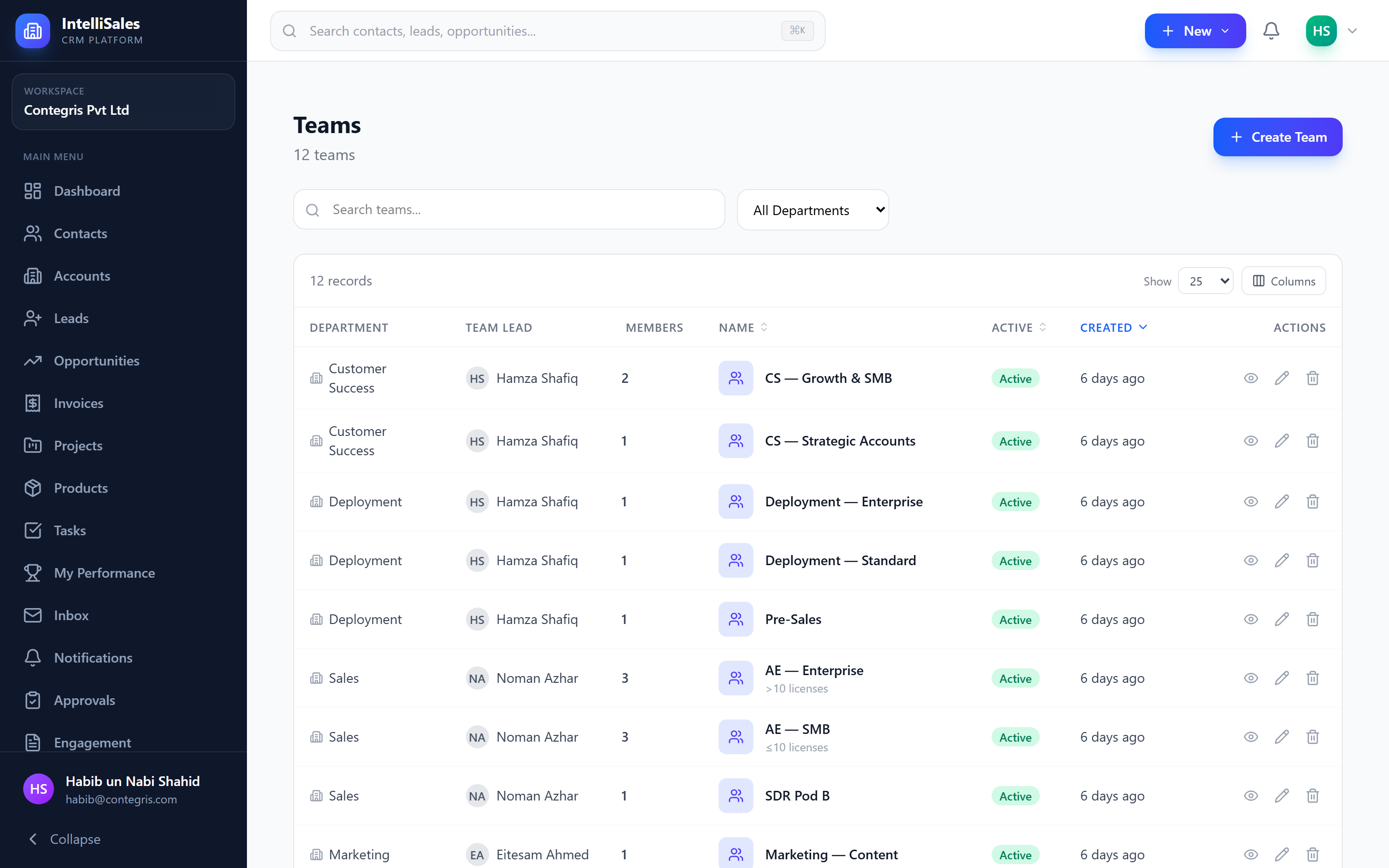
The teams list displays each team's name, description, department affiliation, member count, and creation date.
Creating a Team
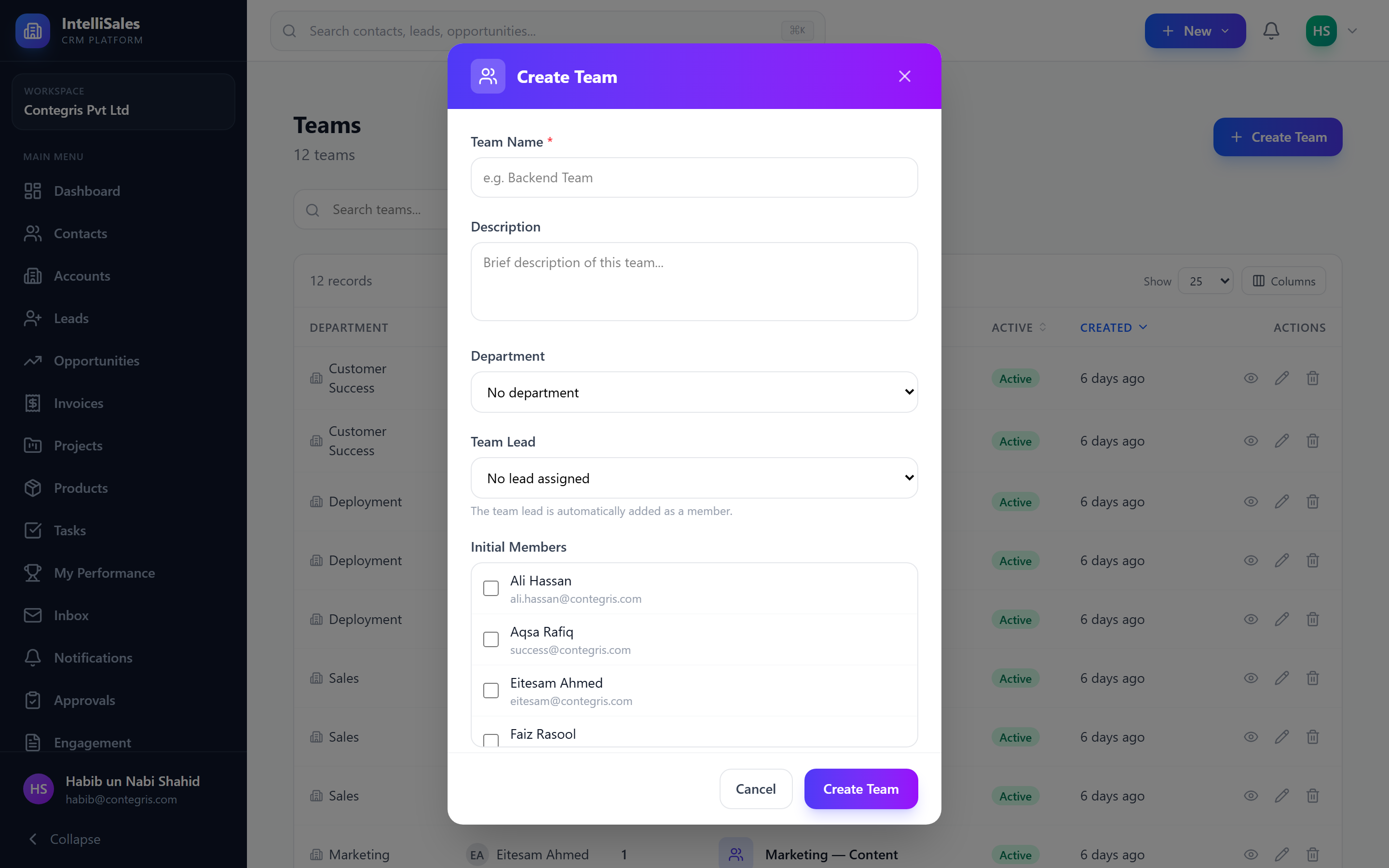
- Click Add Team.
- Fill in the form:
- Name (required) — e.g., "Enterprise Sales", "APAC Support", "Product Launch Q2"
- Description (optional) — the team's purpose and scope
- Department (optional) — link the team to a department for organizational context
- Click Create Team.
Adding and Removing Team Members
- Open a team by clicking its name.
- In the Members section, click Add Member.
- Search for and select users to add.
- Assign a Team Role to each member:
- Lead — the team's primary point of contact; can manage team settings
- Member — a regular participant
- Click Save.
To remove a member, click the Remove icon next to their name and confirm.
Users can be members of multiple teams simultaneously. Their combined team memberships affect record visibility when team-based scoping is enabled.
Team to Department Relationship
Teams can optionally be linked to a department. This is purely organizational — it helps admins understand which department "owns" the team. The department link does not restrict team membership to users in that department.
Use department-linked teams for departmental sub-groups (e.g., "Sales Team A" under Sales). Use unlinked teams for truly cross-functional groups (e.g., "Product Launch" with members from Sales, Marketing, and Engineering).
Multiple Team Memberships
Unlike departments (where a user belongs to exactly one), users can belong to any number of teams. This is by design:
- A sales rep might be on "Enterprise Team" and "APAC Territory"
- A manager might be on "Leadership Team" and "Revenue Ops"
- A support agent might be on "Tier 1 Support" and "VIP Accounts"
Impact on Record Access
Teams are central to team-based record access scoping. When a role's record access for a module is set to Team scope:
- The user can see their own records plus records owned by any member of any team they belong to.
- This is the most common scoping model for sales teams.
See Record Access for detailed scoping rules.
| Example | What They See |
|---|---|
| Rep A is on Team X. Rep B is also on Team X. | Rep A sees Rep B's records (and vice versa). |
| Rep A is on Team X and Team Y. | Rep A sees records from all members of both teams. |
| Manager is on Team X with Lead role. | Manager sees all Team X member records. |
Territory Assignment
Teams can serve as territory containers. By assigning geographic or segment-based teams:
- Create teams like "West Coast", "East Coast", "EMEA", "Enterprise", "SMB".
- Add the relevant reps to each team.
- Set record access to "Team" scope for the sales modules.
- Use Lead Routing rules to auto-assign new leads to users based on territory.
Territory-based teams combined with lead routing rules create a powerful automatic distribution system. New leads flow to the right team automatically based on source, geography, or other criteria.
Best Practices
- Name teams descriptively — "Enterprise Sales - West" is better than "Team 1".
- Assign a Team Lead — every team should have at least one Lead for accountability.
- Review memberships quarterly — remove users who have moved on and add new hires.
- Use teams for access, not hierarchy — departments handle hierarchy; teams handle collaboration.
- Limit team count — too many teams creates administrative overhead. Aim for teams that reflect real working groups.
Next: Roles & Permissions — Define what each role can see and do.