API Keys
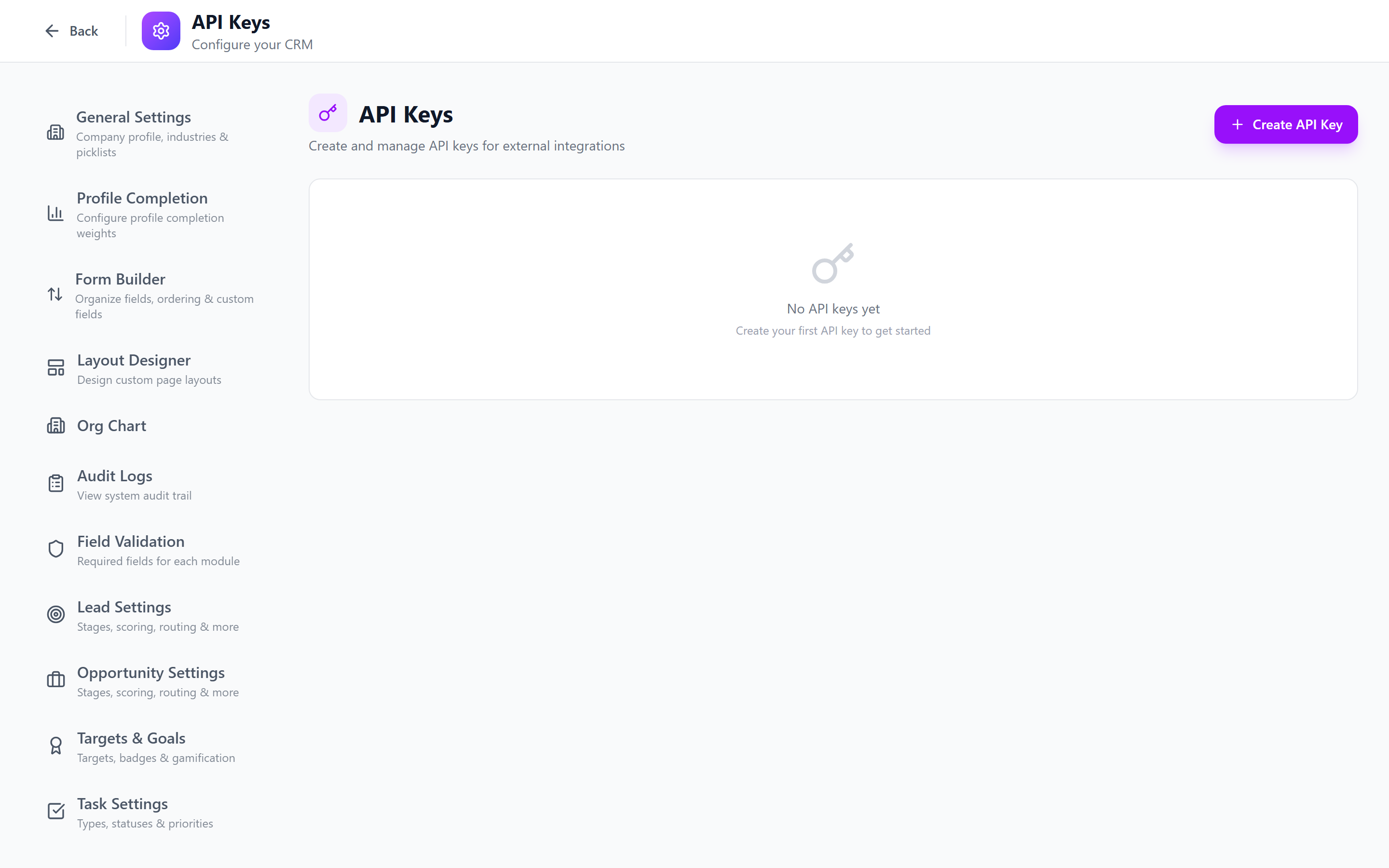
API keys enable third-party applications and custom integrations to access IntelliSales CRM data programmatically. As an admin, you control who has access, what they can do, and monitor how keys are being used.
Navigate to Admin > API Keys.
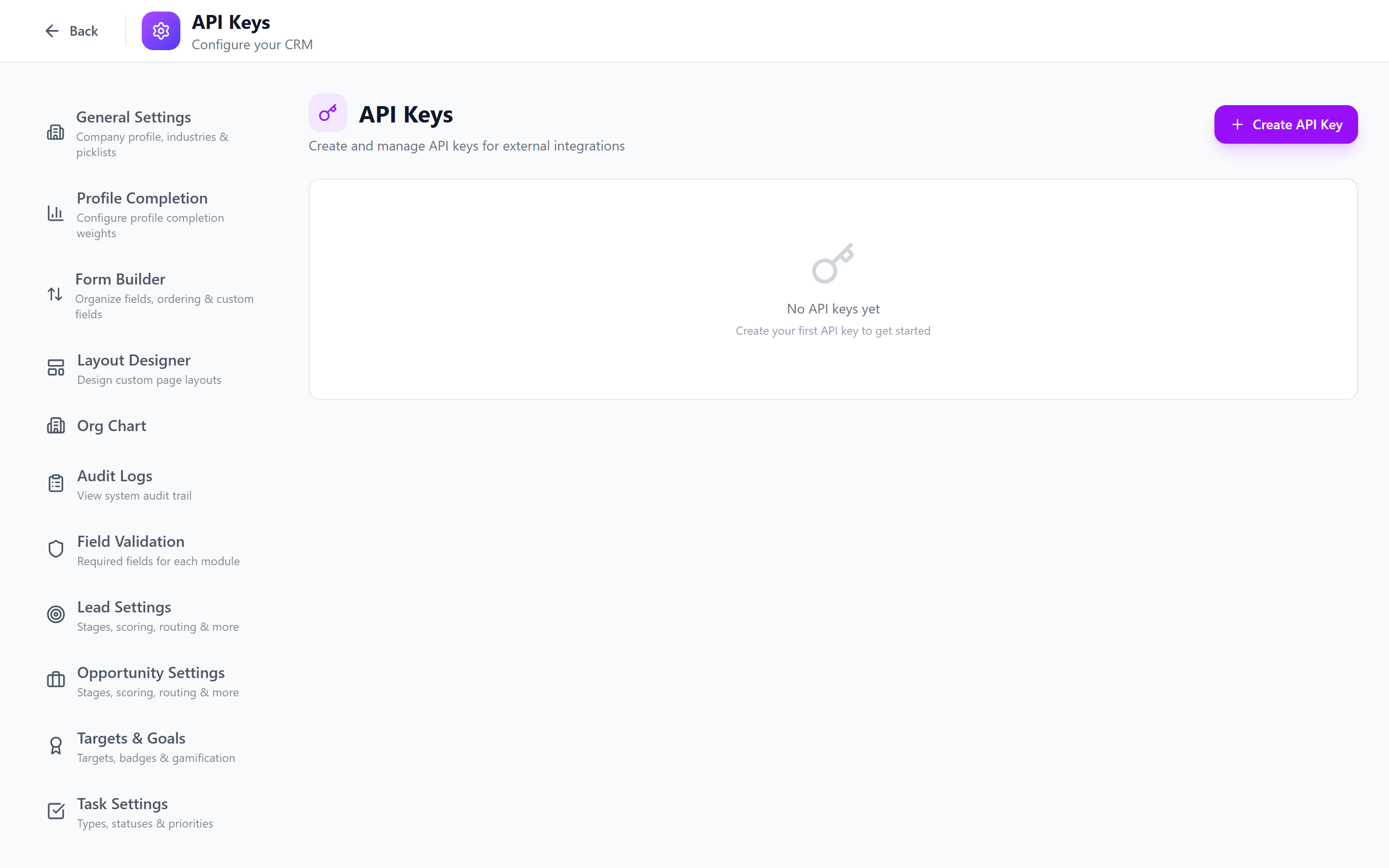
API Keys Overview
An API key is a secure token that authenticates external systems to the IntelliSales CRM API. Each key has:
- A unique identifier
- Assigned permissions (scoped to specific modules and actions)
- Usage tracking (request counts, last used timestamp)
- An expiration policy
API keys provide direct access to your CRM data. Treat them with the same security as passwords. Never share keys in emails, chat messages, or version control.
Generating API Keys
- Click Generate API Key.
- Configure the key:
- Name (required) — a descriptive label (e.g., "Website Form Integration", "BI Tool Access", "Zapier Connector")
- Description (optional) — purpose and owner of the key
- Expiration — when the key expires:
- Never (not recommended)
- 30 days
- 90 days
- 1 year
- Custom date
- Configure permissions (see next section).
- Click Generate.
- The API key is displayed once. Copy it immediately.

The API key value is shown only at generation time. It cannot be retrieved later. If you lose the key, you must revoke it and generate a new one.
Scope and Permission Assignment
Each API key is scoped to specific modules and actions, following the same permission model as roles.
Configuring Permissions
- During key generation (or by editing an existing key), open the Permissions section.
- For each module, toggle the allowed actions:
| Module | View | Create | Edit | Delete | Export |
|---|---|---|---|---|---|
| Contacts | Yes | Yes | No | No | No |
| Leads | Yes | Yes | Yes | No | No |
| Opportunities | Yes | No | No | No | No |
- Save the permissions.
Scope Examples
| Integration | Recommended Scope |
|---|---|
| Website contact form | Contacts: Create only |
| BI/reporting tool | All modules: View + Export only |
| Marketing automation | Leads: View + Create + Edit |
| Full integration | All modules: All actions (use sparingly) |
Follow the principle of least privilege. A website form integration only needs to create contacts — it should not be able to view, edit, or delete anything else.
Key Rotation
Regularly rotating API keys reduces the risk window if a key is compromised.
Rotating a Key
- Find the key to rotate in the list.
- Click Rotate.
- A new key value is generated with the same name, description, and permissions.
- The old key remains active for a grace period (configurable: 1 hour, 24 hours, 7 days).
- Update the external system with the new key value.
- After the grace period, the old key is automatically revoked.
The grace period allows you to update external systems without downtime. Both the old and new key work during this window.
Key Revocation
To immediately disable an API key:
- Find the key in the list.
- Click Revoke.
- Confirm the revocation.
- The key is immediately invalid — all API requests using it will be rejected with a
401 Unauthorizedresponse.
Revoking a key is immediate and permanent. Any external system using the key will lose access instantly. Ensure you have updated the external system with a replacement key before revoking, unless the key is compromised and must be disabled immediately.
Usage Tracking
Each API key shows usage statistics:
| Metric | Description |
|---|---|
| Total Requests | Lifetime API calls made with this key |
| Last 24h Requests | Calls in the past 24 hours |
| Last Used | Timestamp of the most recent API call |
| Error Rate | Percentage of failed requests |
| Top Endpoints | Most frequently called API endpoints |
Usage Alerts
Configure alerts for unusual API key activity:
- High volume — notify if requests exceed a threshold (e.g., 10,000/hour)
- Error spike — notify if error rate exceeds 10%
- Unused key — notify if a key has not been used in 30 days (may be safe to revoke)
Managing API Keys
Key List
The API keys page shows all keys with:
| Column | Description |
|---|---|
| Name | Descriptive label |
| Created | When the key was generated |
| Expires | Expiration date |
| Last Used | Most recent API call |
| Status | Active, Expired, Revoked |
| Requests (24h) | Recent usage volume |
Filtering Keys
- Status — Active, Expired, Revoked
- Search — by name or description
Editing Key Permissions
- Click on a key name.
- Modify the permissions.
- Save.
Changing permissions takes effect immediately. The next API request with that key will be evaluated against the updated permissions.
Security Best Practices
- Never expose keys in client-side code — API keys should only be used in server-to-server communication, never in browser JavaScript.
- Use environment variables — store keys in environment variables, not in configuration files that might be committed to version control.
- Rotate every 90 days — set a calendar reminder to rotate keys quarterly.
- Revoke unused keys — if a key has not been used in 30+ days, investigate and revoke if no longer needed.
- Use the narrowest scope — grant only the permissions the integration actually needs.
- Monitor usage — review usage statistics monthly. Unexpected spikes may indicate misuse.
- Use separate keys per integration — do not share one key across multiple systems. If one is compromised, you only need to revoke that one key.
- Set expiration dates — prefer time-limited keys over permanent ones. This forces periodic review.
- Log and audit — all API key actions (generation, rotation, revocation) are recorded in the audit log.
This concludes the Admin Manual. Return to the Getting Started page for an overview, or use the sidebar to navigate to any specific topic.