Organization Chart
The Organization Chart provides a visual, hierarchical view of your company's reporting structure. It is automatically generated from the manager relationships set on each user's profile.
Viewing the Org Chart
Navigate to Admin > Org Chart (or access it from the Users section via the "Org Chart" tab).
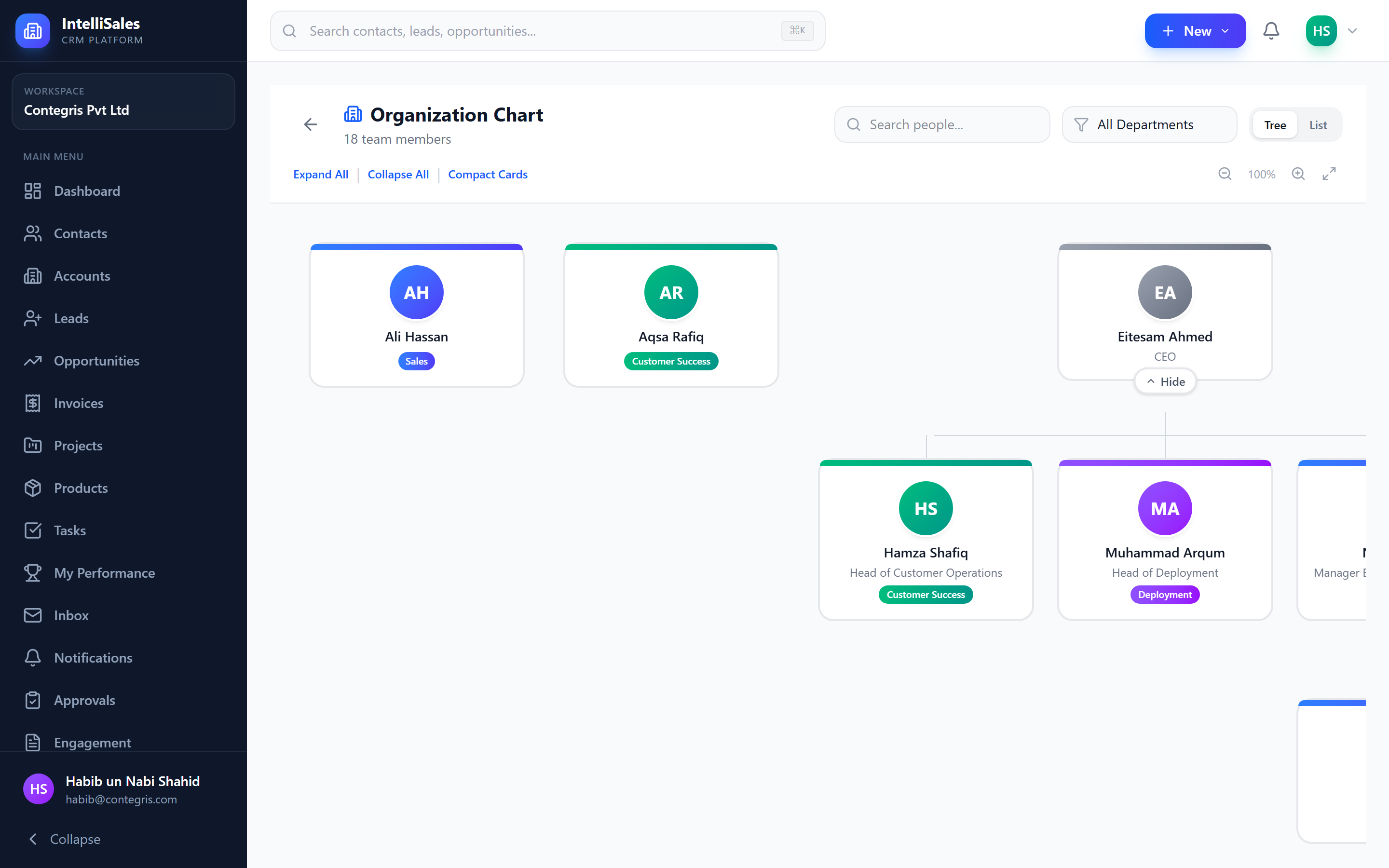
The chart renders as a top-down tree structure:
- The top-level node is the user (or users) with no manager assigned — typically the CEO or company owner.
- Branches extend downward showing each manager's direct reports.
- Each node displays the user's name, job title, department, and avatar.
How the Org Chart Is Built
The org chart is derived entirely from the manager_id field on each user record:
CEO (no manager)
├── VP Sales (manager = CEO)
│   ├── Sales Manager A (manager = VP Sales)
│   │   ├── Rep 1 (manager = Sales Manager A)
│   │   └── Rep 2 (manager = Sales Manager A)
│   └── Sales Manager B (manager = VP Sales)
│       └── Rep 3 (manager = Sales Manager B)
└── VP Engineering (manager = CEO)
    └── Eng Manager (manager = VP Engineering)
To build an accurate org chart, ensure every user has their Manager field set correctly in their user profile. Users without a manager appear as top-level nodes.
Filtering by Department
Use the Department dropdown filter above the chart to show only the hierarchy within a specific department. This is helpful for large organizations where the full chart is too wide to navigate.
- Select All Departments to see the complete organization.
- Select a specific department to zoom into that subtree.
Interacting with the Chart
- Click a node to view the user's profile summary (role, department, email, direct reports count).
- Expand/Collapse branches by clicking the toggle icon on manager nodes.
- Zoom and Pan — use mouse scroll to zoom and click-drag to pan across large charts.
- Search — type a name in the search box to highlight and center the chart on that person.
Reporting Line Hierarchy
The org chart directly represents the reporting line used by the Record Access system. When a role is configured with reporting_line scope:
- A manager can see all records owned by their direct and indirect reports.
- This follows the full chain up through the org chart.
Circular manager references (User A reports to User B, who reports to User A) will cause issues with the org chart rendering and reporting line scoping. The system validates against this when setting a manager, but review your hierarchy if you see unexpected behavior.
Printing and Exporting
- Print — Click the Print button to generate a printer-friendly version of the current view.
- Export as Image — Click Export to download the chart as a PNG image, suitable for presentations or HR documentation.
For very large organizations (500+ users), export the chart filtered by department to produce readable diagrams. The full organization export may be too large for a single page.
Maintaining an Accurate Org Chart
- Set managers during onboarding — assign the manager field when creating or inviting users.
- Update on transfers — when an employee changes teams or departments, update their manager.
- Handle departures — before deactivating a manager, reassign their direct reports to a new manager first.
- Periodic review — review the org chart quarterly to catch stale relationships.
Next: Departments — Organize your company into departments and sub-departments.