Field Permissions
Field permissions are the third and most granular layer of RBAC. They control what individual fields a user can see and edit on record forms and detail pages, based on their role.
Field-Level Permissions Overview
While module permissions control actions and record access controls visibility, field permissions control the content within visible records.
Each field can be set to one of three permission levels per role:
| Level | Behavior |
|---|---|
| Editable | The field is visible and the user can modify it. This is the default. |
| Read Only | The field is visible but displayed as non-editable (greyed out or plain text). |
| Hidden | The field does not appear at all on forms or detail pages for this role. |
Configuring Field Permissions
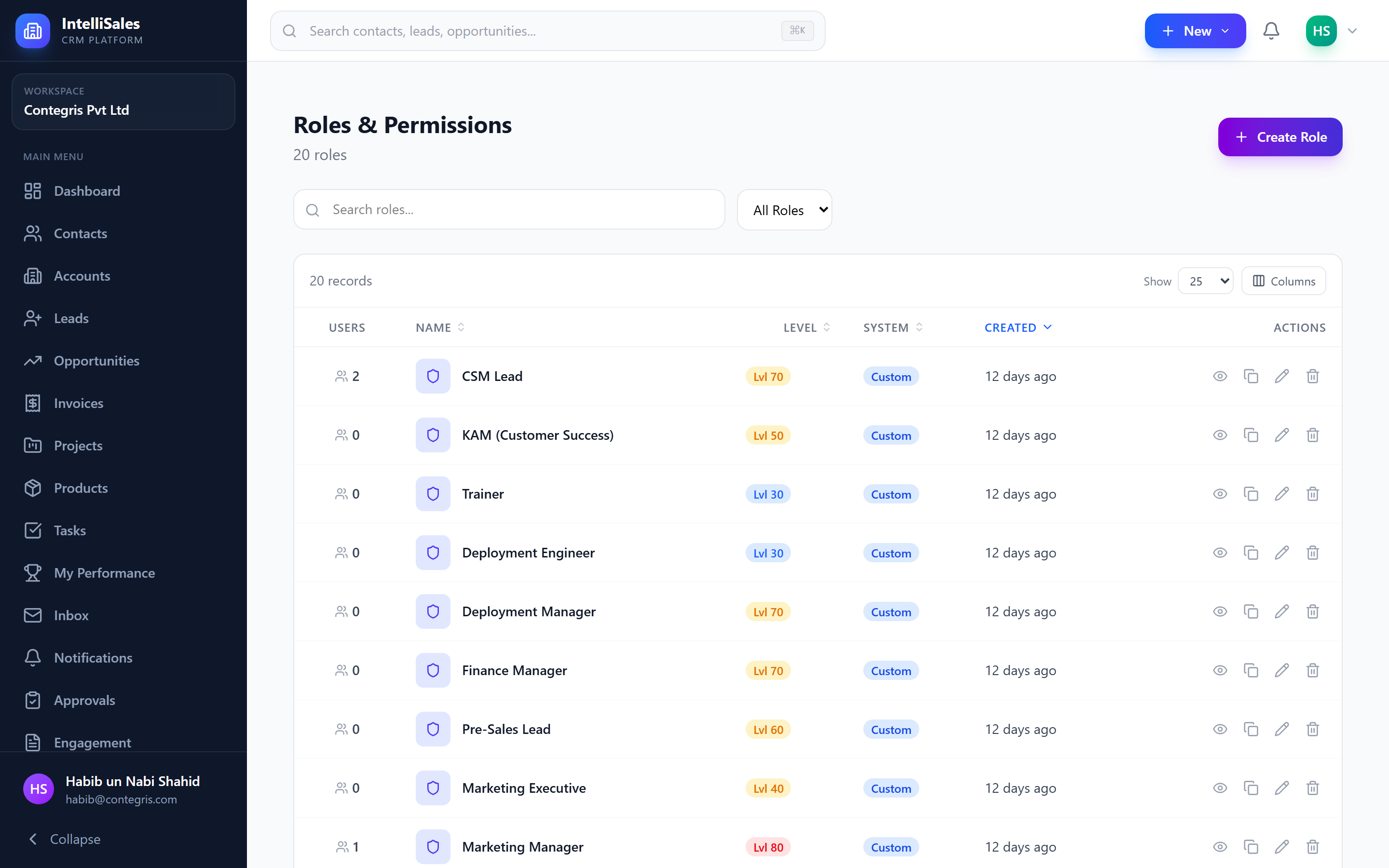
- Navigate to Admin > Roles.
- Open the role you want to configure.
- Switch to the Field Permissions tab.
- Select the module from the dropdown (e.g., Contacts, Leads, Opportunities).
- A table appears listing every field for that module (standard and custom fields).
- For each field, select the permission level: Editable, Read Only, or Hidden.
- Click Save.
Field permissions apply to both standard fields (name, email, phone, etc.) and custom fields you have added to the module.
Use Cases
Hide Sensitive Financial Data
Scenario: You want sales reps to see contacts but not their salary or revenue information.
| Field | Admin | Manager | Sales Rep |
|---|---|---|---|
| Name | Editable | Editable | Editable |
| Editable | Editable | Editable | |
| Annual Revenue | Editable | Read Only | Hidden |
| Employee Count | Editable | Read Only | Read Only |
Make Key Dates Read-Only
Scenario: Only managers should be able to change the close date on opportunities.
| Field | Manager | Sales Rep |
|---|---|---|
| Close Date | Editable | Read Only |
| Amount | Editable | Editable |
| Stage | Editable | Editable |
Restrict Approval-Related Fields
Scenario: Discount percentage should be visible but not editable by reps — only managers can modify it.
| Field | Manager | Sales Rep |
|---|---|---|
| Discount % | Editable | Read Only |
| Approved By | Read Only | Read Only |
| Approval Status | Read Only | Hidden |
Impact on Forms and Detail Pages
Field permissions affect every UI surface:
- Create forms — hidden fields do not appear; read-only fields are shown as non-editable.
- Edit forms — same behavior as create forms.
- Detail pages — hidden fields are omitted; read-only fields display as plain text.
- List view columns — hidden fields cannot be added as table columns.
- Export — hidden fields are excluded from CSV/Excel exports for that role.
If you make a required field hidden for a role, users with that role will not be able to create records (the form submission will fail validation). Either make the field non-required or set it to "Read Only" with a default value instead of "Hidden".
System Fields
Some system fields cannot be hidden because they are essential for the application:
- Name / Title — primary identifier
- Owner — record ownership (affects scoping)
- Created Date and Modified Date — always visible as metadata
These fields can be set to Read Only but not Hidden.
Best Practices
- Start with all fields Editable and restrict selectively — it is easier to lock down specific fields than to unlock many.
- Never hide required fields — this creates a broken form experience.
- Use Read Only for audit-sensitive fields — fields like "Approved By", "Created Date", and "Last Modified By" should be read-only for most roles.
- Review after adding custom fields — when you add a new custom field, it defaults to Editable for all roles. Check whether it should be restricted for certain roles.
- Test as the role — log in as a user with the configured role to verify the field visibility and editability matches your intent.
- Document restrictions — maintain a spreadsheet of field permissions per role for quick reference during audits.
Field permissions are especially powerful when combined with stage-based field visibility. You can make certain fields appear only at specific pipeline stages and be editable only by certain roles.
Next: Custom Fields — Extend the data model with your own fields.