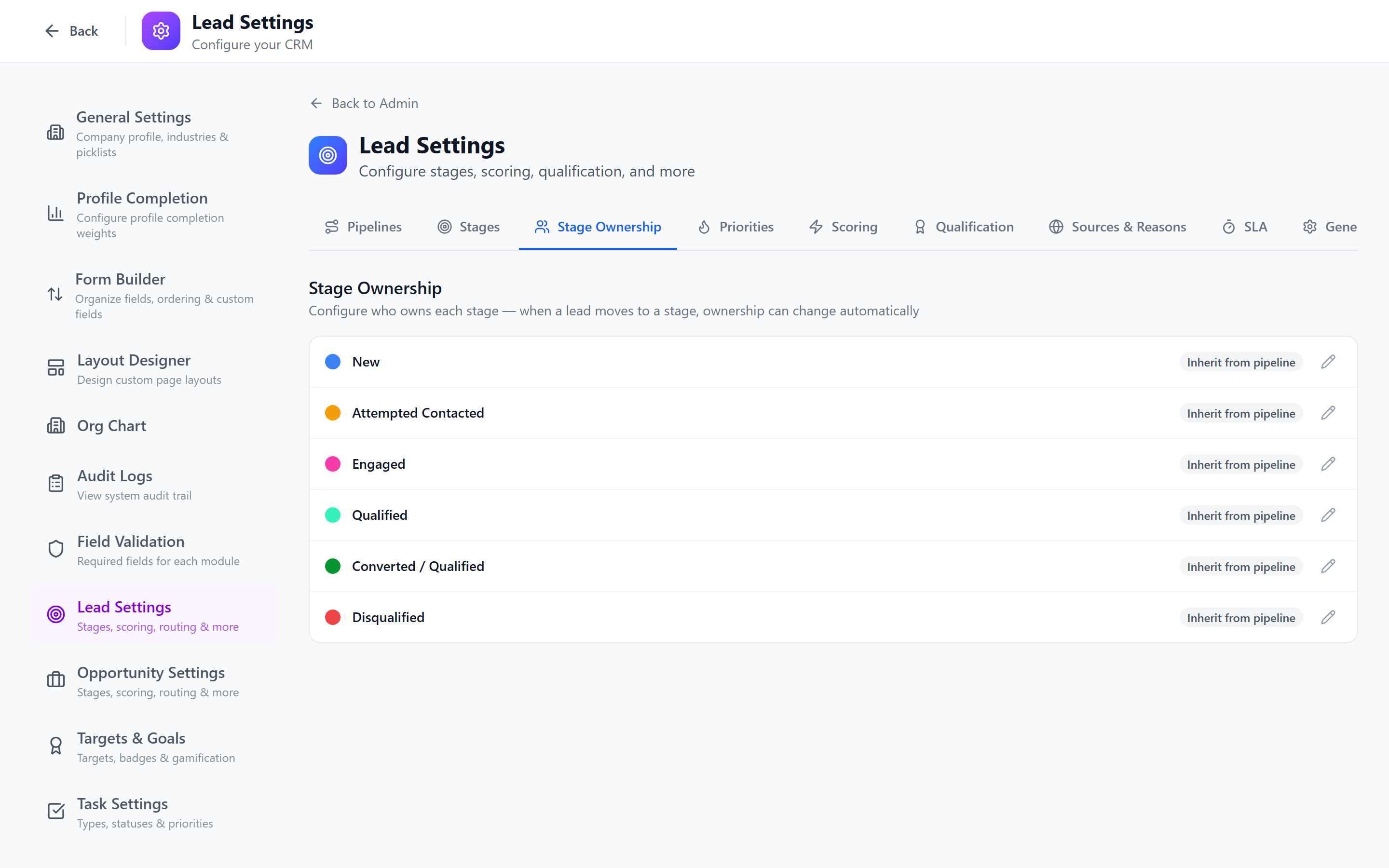
Stage Ownership
Stage ownership extends the pipeline system by allowing you to assign responsibility for each stage to a specific user, team, or role. Combined with per-stage field visibility, this creates a powerful workflow where the right people see the right information at every step.
Stage Ownership Concept
In many organizations, different stages of a pipeline are handled by different people or groups:
- Qualification — handled by SDR team
- Discovery — handled by Account Executives
- Proposal — handled by Solutions Engineers
- Negotiation — handled by Sales Managers
- Legal Review — handled by Legal team
Stage ownership formalizes this by assigning an owner to each stage. When a record enters a stage, the stage owner is notified and responsible.
Owner Types
The team_round_robin mode and the team_id scope on role ship with migration 083, which also drops the deprecated auto_assign value. Run npx ts-node apps/api/src/scripts/run-tenant-migrations.ts to apply. The migration auto-backfills existing auto_assign rows — with a team → team_round_robin, without → inherit.
Each stage can be assigned one of five owner modes:
| Mode | Picks via | Rotation state |
|---|---|---|
| Inherit | Falls through to the record's owner — the standard owner model is the default. | n/a |
| Specific user | A single user. An optional team filter narrows the user dropdown to a team's members (UX only — doesn't affect resolution). | n/a |
| Team lead | The team's designated team lead user. | n/a |
| Team round-robin (new) | Rotates across the active members of the team. | Per-stage cursor in stage_owner_team_assignments — so two stages sharing the same team rotate independently. |
| Role (with optional team scope) | Round-robins across users with the role; optionally narrowed to a single team so admins can say "AEs on the EMEA team" instead of "all AEs globally". | Cursor keyed by role_id in stage_owner_role_assignments. |
Configuring Ownership Per Stage
- Navigate to the relevant settings page:
- Admin > Lead Settings > Stage Ownership tab
- Admin > Opportunity Settings > Stage Ownership tab
- Select the pipeline.
- For each stage, click Configure Ownership.
- Pick the owner mode from the dropdown.
- Fill in the required refs for the chosen mode:
user→ pick a user. Optionally pick a team filter to narrow the user dropdown.team_lead/team_round_robin→ pick a team.role→ pick a role, optionally pick a team to scope it to.
- Click Save. The save endpoint validates that each mode has its required refs — saving a
team_round_robinmode without a team, or arolemode without a role, is rejected.
Stage Requirements — including Form Submissions
In addition to stage owners, Stage Requirements can force fields (and now forms) to be filled before a record advances. Open Stage Fields on any stage:
- Fields — pick any system or custom field that must be non-empty before the record can advance.
- Forms (new) — pick any active form that targets the trigger module. The record can't enter the stage until at least one matching
form_submissionsrow exists for it.
The forms dropdown is populated from GET /forms/module/:moduleName so it auto-updates as you create / archive forms. The field key shape is form.<formId> internally.
Once-met-always-met semantics
Form-submission requirements are anytime-in-history — once a matching submission exists, the requirement is satisfied even after backward stage moves. The submission row is permanent, so re-entering the stage doesn't re-require it. This is intentional: you don't want a user pinged twice for the same demo request when an admin moves a record back to fix a different mistake.
Standard field requirements (Budget filled, Close Date set, etc.) re-validate on every move forward, so they don't share this carry-forward behaviour.
Examples
- "Lead can't reach Qualified until the Demo Request form has been submitted."
- "Opportunity can't reach Negotiation until the MSA Checklist form has been submitted."
- "Opportunity can't reach Closed Won until Close Reason, Actual Amount, and the Final Approval form are all done."
Example Configuration
| Stage | Owner Type | Owner |
|---|---|---|
| New | Team | SDR Team |
| Qualified | Role | Account Executive |
| Proposal | User | Jane Smith (Solutions Engineer) |
| Negotiation | Team | Sales Leadership |
| Closed | Role | Admin |
If no ownership is configured for a stage, the record's assigned owner remains responsible. Stage ownership is an optional enhancement to the standard ownership model.
Field Visibility Per Stage
In addition to ownership, you can control which fields are visible at each stage. This keeps forms clean by showing only relevant information.
Configuring Field Visibility
- Open the stage ownership settings.
- Select a stage.
- Switch to the Field Visibility tab.
- For each field, toggle:
- Visible — the field appears when the record is at this stage
- Hidden — the field is not shown at this stage
- Save.
Example: Field Visibility
| Field | New | Qualified | Proposal | Negotiation | Closed |
|---|---|---|---|---|---|
| Contact Name | Visible | Visible | Visible | Visible | Visible |
| Budget | Hidden | Visible | Visible | Visible | Visible |
| Proposal Doc | Hidden | Hidden | Visible | Visible | Visible |
| Discount % | Hidden | Hidden | Hidden | Visible | Visible |
| Contract | Hidden | Hidden | Hidden | Visible | Visible |
| Close Reason | Hidden | Hidden | Hidden | Hidden | Visible |
Use stage-based field visibility to progressively reveal fields as a deal advances. Early stages need minimal fields (reduce data entry friction), while later stages require detailed information.
Record Stage Assignments
When a record moves to a stage with configured ownership, the system creates a stage assignment record that tracks:
- Which record was assigned
- Which stage it entered
- Who the stage owner is
- When the assignment happened
- How long the record spent at the stage (calculated on exit)
This data powers stage-level analytics:
- Average time per stage
- Bottleneck identification
- Owner workload analysis
Runtime Stage-Owner Resolution
The stage owner is resolved at runtime every time a workflow or notification needs to know it, not cached on the record. The lookup order is:
- The most recent
record_stage_assignmentsrow for the entity (set whenchangeStageruns). - The stage's configured owner type — user, team, or role (with role/team resolved to a single user via round-robin where applicable).
- The record owner — the standard
owner_idon the entity.
This means if you update stage ownership configuration (or replace a team member), the next workflow run automatically picks up the new resolution without needing to re-fire a stage change.
Stage Owner in Workflows
The runtime resolver powers a new Stage Owner assignee mode on the workflow create_task action. When you pick "Stage Owner" as the task assignee:
- The runner reads the latest
record_stage_assignmentsrow, - Falls back to the stage's configured owner if no assignment exists yet (e.g., the workflow fires on
_createdbefore any stage move), - Falls back to the record owner if neither is set.
That's the same resolver the Stage Ownership UI displays — so a task tagged "Send to stage owner" always agrees with the stage indicator on the record.
Impact on Notifications and Workflow
Stage ownership integrates with other systems:
- Notifications — When a record enters an owned stage, the stage owner receives a notification (configurable in Notification Settings).
- Workflows — Stage change triggers in Workflows can reference the stage owner for assignment and notification actions.
- Dashboards — Stage-specific widgets can show data filtered by stage owner.
If a stage owner (user) is deactivated, records entering that stage will not have a responsible party. Update stage ownership before deactivating users who are stage owners.
Best Practices
- Use teams over users when possible — individual assignments create single points of failure. Teams allow for coverage during absences.
- Align with your org structure — stage ownership should reflect who actually handles each stage in practice.
- Keep field visibility progressive — do not show all fields at every stage. Reveal information as it becomes relevant.
- Monitor stage duration — use the assignment data to identify stages where records get stuck.
- Review ownership quarterly — as teams change, ensure stage ownership reflects the current organization.
- Combine with stage fields — use stage fields to require data collection and stage ownership to enforce accountability.
Next: Priorities — Configure priority levels for leads and opportunities.