Email Integration
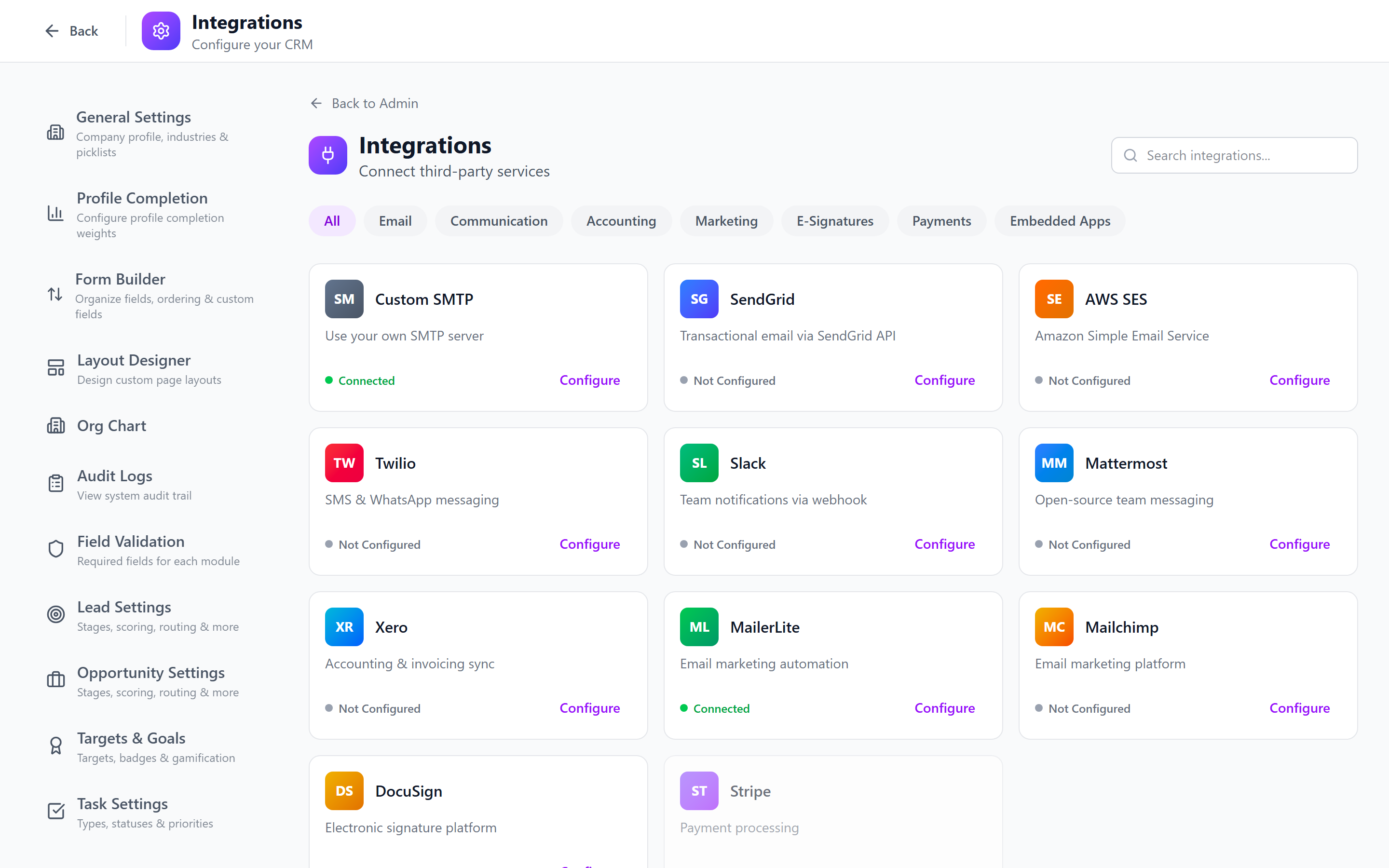
Email integration connects your team's email accounts to IntelliSales CRM, enabling email tracking, automatic association with CRM records, and centralized communication history.
Navigate to Admin > Integrations > Email.
Email Account Connections
Gmail (OAuth)
- Click Connect Gmail.
- Redirect to Google's consent screen.
- Sign in and grant the following permissions:
- Read email messages
- Send email on behalf of the user
- Manage labels
- Click Allow.
- The Gmail account appears as connected.
Outlook (OAuth)
- Click Connect Outlook.
- Redirect to Microsoft's consent screen.
- Sign in with your Microsoft 365 account.
- Grant the following permissions:
- Read and send mail
- Access mailbox settings
- Click Accept.
- The Outlook account appears as connected.
Email connections are per-user. Each user connects their own email account from their personal settings. The admin page configures the OAuth app credentials (Client ID, Client Secret) and organization-level settings.
Admin Configuration
- Gmail OAuth App: Enter the Google OAuth Client ID and Client Secret from your Google Cloud Console.
- Outlook OAuth App: Enter the Microsoft Azure AD Application ID and Secret.
- Set the Redirect URI for each provider.
- Save.
SMTP Configuration for Outbound
For organizations that prefer SMTP over OAuth for outbound email:
- Select the SMTP tab.
- Configure:
- Host — SMTP server address
- Port — 587 (TLS) or 465 (SSL)
- Username and Password
- Encryption — TLS or SSL
- From Address — default sender address
- From Name — default sender name
- Click Test Connection.
- Save.
Use a dedicated sending domain (e.g., notifications@crm.yourcompany.com) rather than individual user accounts for system-generated emails. This prevents deliverability issues when users leave.
Default Email Signature
Configure an organization-wide email signature that is appended to all outbound emails sent from within the CRM.
- Select the Signature tab.
- Use the rich text editor to design the signature.
- Available variables:
\{\{user_name\}\}— sender's full name\{\{user_title\}\}— sender's job title\{\{user_phone\}\}— sender's phone number\{\{user_email\}\}— sender's email address\{\{company_name\}\}— organization name\{\{company_logo\}\}— organization logo URL
- Preview the signature.
- Save.
Users can override the organization signature with their own in personal settings, if allowed by the admin. Toggle the Allow User Override setting to control this.
Sync Frequency Settings
Configure how often emails are fetched and synchronized:
| Setting | Options | Recommended |
|---|---|---|
| Inbound Sync | Real-time, 5 min, 15 min, hourly | 5 minutes |
| Outbound Tracking | Real-time, 5 min | Real-time |
| Historical Import | Last 30/60/90 days, None | Last 30 days |
Historical import pulls existing emails into the CRM when a user first connects their account. This provides context on prior communications.
Auto-Link Rules
Auto-link rules automatically associate incoming and outgoing emails with the correct CRM records (contacts, leads, accounts, opportunities).
How Auto-Linking Works
The system matches emails to CRM records using:
- Email address — matches the sender/recipient email to a contact's email field.
- Domain — matches the email domain to an account's domain.
- Email thread — if a reply is in a thread already linked to a record, the new email is linked to the same record.
Configuring Auto-Link Rules
- Select the Auto-Link tab.
- Configure:
- Link to Contacts — match by email address (enabled by default)
- Link to Accounts — match by domain (enabled by default)
- Link to Leads — match by email address
- Link to Opportunities — link via associated contact or account
- Create Contact if not found — automatically create a contact for unknown senders
- Save.
The "Create Contact if not found" option can generate many contact records from spam or irrelevant emails. Consider enabling it only after configuring domain exclusion rules.
Domain Exclusion Rules
Exclude certain domains from auto-linking and auto-contact creation:
- In the Auto-Link settings, find Excluded Domains.
- Add domains to exclude:
gmail.com,yahoo.com,hotmail.com,outlook.com(personal email providers). - Add your own company domain (to avoid linking internal emails).
- Save.
Inbox Rules Administration
Set organization-level rules for email processing:
- Archive after linking — automatically archive emails in the user's inbox after they are linked to a CRM record.
- Label/tag applied emails — add a label (Gmail) or category (Outlook) to emails that have been processed.
- Ignore automated emails — skip emails from no-reply addresses, newsletters, and auto-responders.
Best Practices
- Use OAuth over SMTP — OAuth is more secure and supports two-way sync.
- Configure auto-link early — link rules are most effective when configured before users connect their accounts.
- Exclude personal domains — prevent irrelevant contacts from being created.
- Set reasonable sync intervals — 5-minute sync provides near-real-time visibility without excessive API usage.
- Standardize signatures — a consistent email signature strengthens your brand in every outgoing email.
- Train users on email tracking — explain that emails sent from the CRM are tracked and linked to records.
Next: Import/Export — Bulk import and export data.