Layout Designer
The Layout Designer gives administrators full control over how record detail pages look for each module. You can rearrange fields, group them into sections, toggle visibility, and configure collapse states — all through a visual drag-and-drop interface.
Layout Designer Overview
Navigate to Admin > Layout Designer.
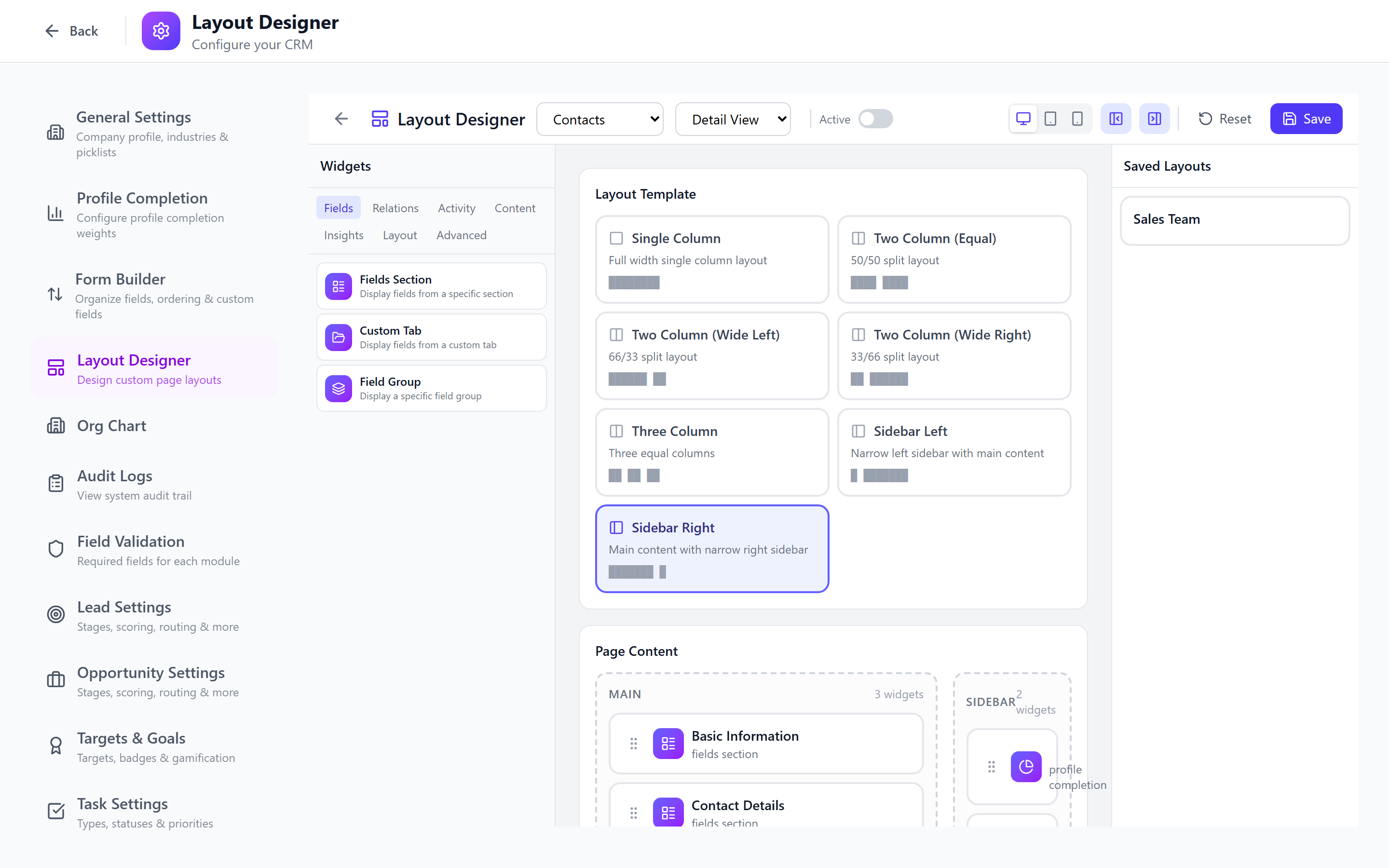
The Layout Designer has three main areas:
- Module selector — choose which module's layout to edit
- Layout canvas — the drag-and-drop area showing the current layout
- Field palette — available fields that can be added to the layout
Selecting a Module
Use the dropdown at the top to select the module you want to design. Each module has its own independent layout configuration.
Available modules: Contacts, Accounts, Leads, Opportunities, Tasks, Projects.
Drag-and-Drop Field Ordering
To reorder fields within a section:
- Hover over a field in the layout canvas.
- Grab the drag handle (grip icon) on the left side.
- Drag the field to its new position.
- Release to drop it in place.
- The layout auto-saves or click Save Layout to persist.
Fields can be arranged in a single column or two-column grid layout depending on the section configuration.
Custom fields now support the same drag-reorder within a tab — long lists of custom fields can be grouped logically inside their section without having to delete and re-create them in a specific order.
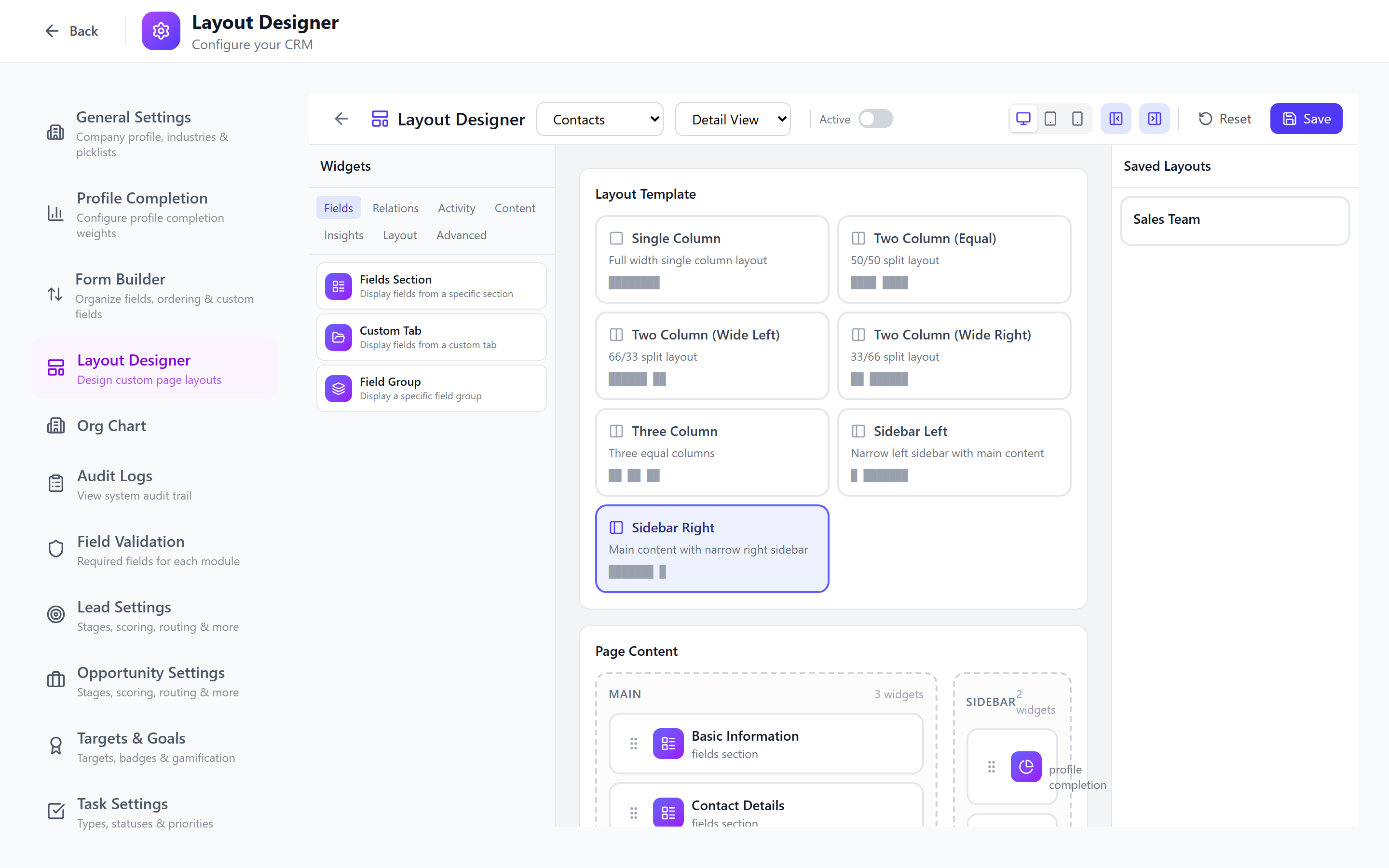
Creating Sections
Sections group related fields together with a header and optional collapse behavior.
- Click Add Section on the layout canvas.
- Enter the section name (e.g., "Contact Information", "Financial Details", "Custom Data").
- Choose the column layout: 1-column or 2-column.
- Drag fields from other sections or the field palette into the new section.
- Save.
Use sections to organize fields logically. Common patterns:
- Basic Information — name, email, phone, company
- Address — street, city, state, postal code, country
- Financial — revenue, budget, currency
- Custom Fields — all custom fields in one section
Configuring Section Collapse State
Each section can be configured as:
| State | Behavior |
|---|---|
| Expanded (default) | Section is open when the page loads |
| Collapsed | Section is closed by default; users click to expand |
| Always Expanded | Section cannot be collapsed |
To configure:
- Click the gear icon on the section header.
- Select the collapse behavior.
- Save.
Collapsible sections improve the user experience on records with many fields. Keep the most important fields in expanded sections and secondary data in collapsed ones.
Field Visibility Toggle
Each field on the layout canvas has a visibility toggle (eye icon):
- Visible (eye open) — the field appears on the detail page
- Hidden (eye closed) — the field is removed from the layout
Hidden fields are moved to the field palette so they can be re-added later.
Hiding a field in the Layout Designer is different from field permissions. Layout Designer hiding applies to all users regardless of role. Field permissions hide fields per role. Use Layout Designer for fields you want to remove from the layout entirely.
Required Field Marking
Fields marked as required (via Field Validation) display a red asterisk (*) in the layout. The Layout Designer shows this indicator so you can see at a glance which fields are mandatory.
You cannot change the required status from the Layout Designer — manage that in Field Validation.
Layout Preview
Click Preview to see how the layout will appear to end users:
- The preview renders the actual form layout with sample data.
- Switch between Create Form, Edit Form, and Detail View modes.
- Test the layout at different screen sizes (desktop, tablet, mobile).
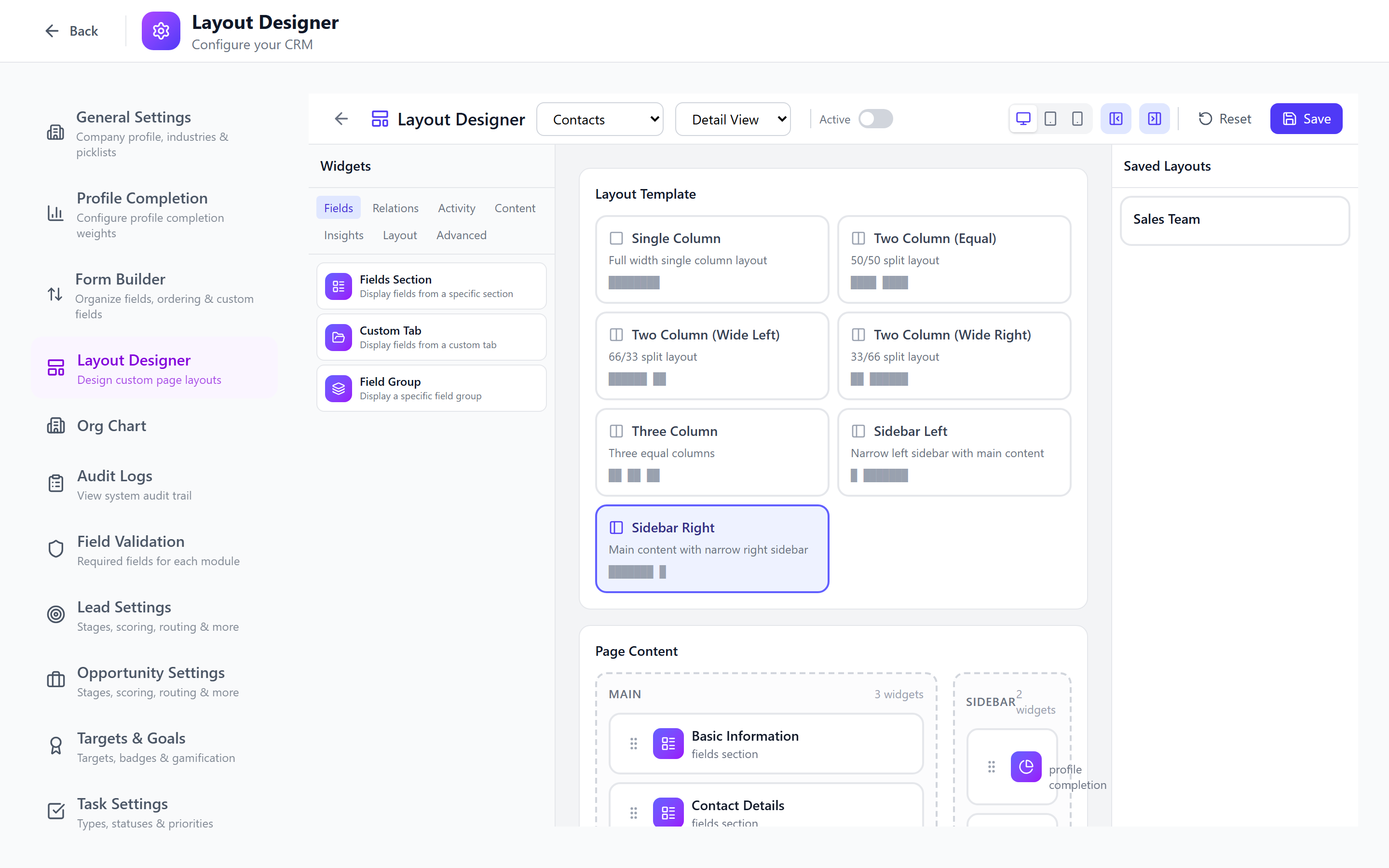
Impact on Detail Pages
The Layout Designer layout affects:
- Detail pages — the main record view uses the designed layout
- Create forms — new record forms follow the same section and field order
- Edit forms — editing an existing record uses the same layout
- Quick view — popup previews use a condensed version of the layout
Best Practices
- Put critical fields first — the most important fields should be at the top, in the first section.
- Use 2-column layout for short fields — name and email side by side. Use 1-column for long fields like description and rich text.
- Collapse secondary sections — financial details, custom fields, and audit information can be collapsed by default.
- Group logically — keep related fields together (all address fields in one section, all financial fields in another).
- Test the layout — use preview mode and also log in as a regular user to verify the experience.
- Keep it clean — hide fields that are rarely used. Users can always ask an admin to show them if needed.
Next: Custom Tabs & Groups — Add custom tabs and field groupings to detail pages.