Inviting Users
The invitation flow is the recommended way to onboard new users. It sends an email with a secure link that allows the invitee to set their own password, ensuring better security hygiene than admin-created passwords.
Invite Flow Overview
Admin sends invite → Email delivered → User clicks link →
Sets password → Account activated → User logs in
The system creates a pending user record with an invitation token. The token is valid for 24 hours. Once the user accepts and sets their password, the account becomes fully active.
Sending an Invitation
- Navigate to Admin > Users.
- Click the Invite User button.
- Fill in the invitation form:
- Email (required) — the invitee's email address
- Role (required) — select the role to assign
- Department (optional) — pre-assign to a department
- Team (optional) — pre-assign to one or more teams
- Click Send Invitation.
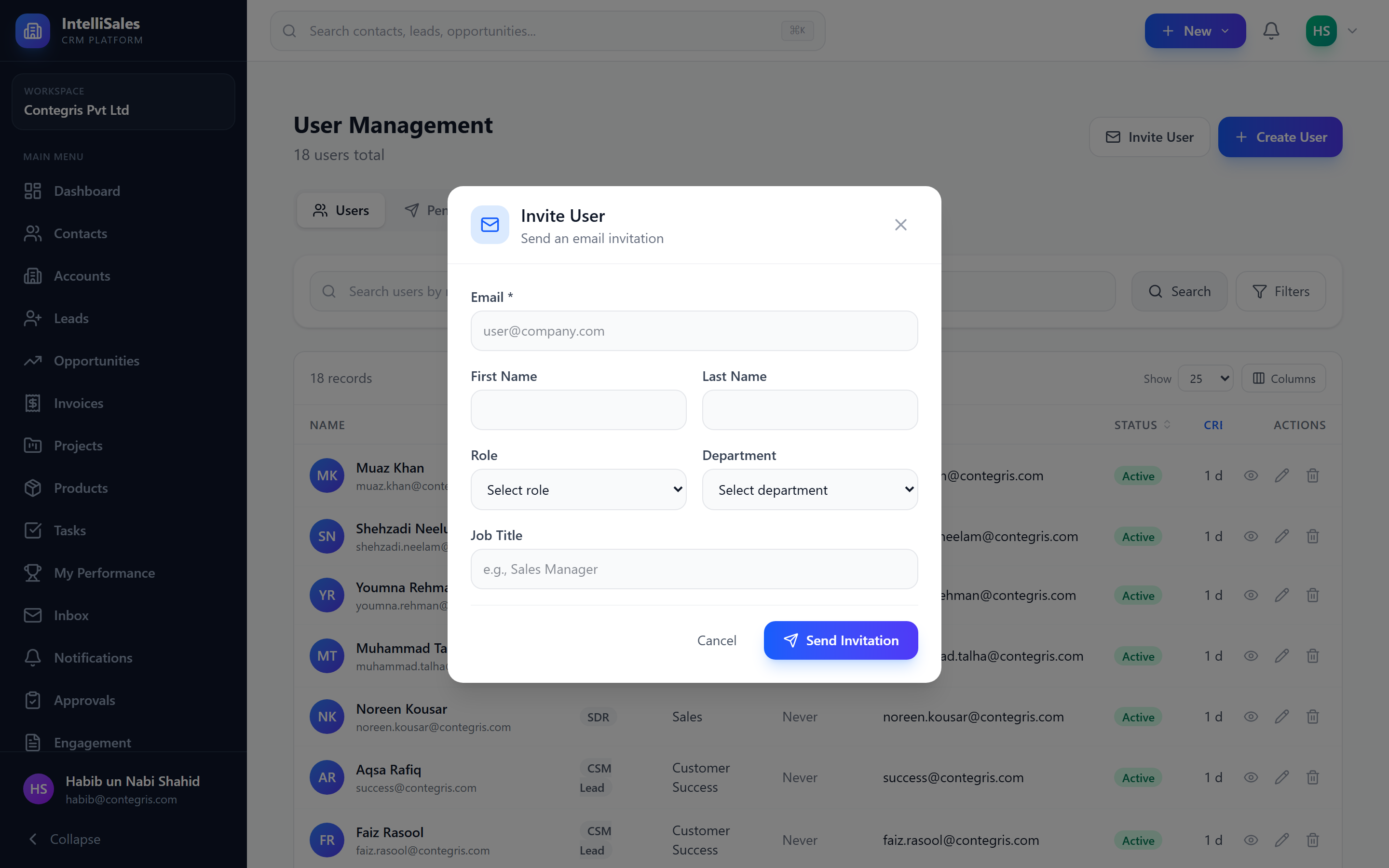
You can invite multiple users at once by entering comma-separated email addresses. Each will receive an individual invitation email with the same role and team assignments.
Pending Invitations Tab
Switch to the Pending Invitations tab on the Users page to see all outstanding invitations.
| Column | Description |
|---|---|
| Invited email address | |
| Role | Pre-assigned role |
| Invited By | Admin who sent the invitation |
| Sent At | When the invitation was sent |
| Expires At | 24 hours after sending |
| Status | Pending, Expired, or Accepted |
Resending Invitations
If an invitee did not receive the email or the token expired:
- Go to the Pending Invitations tab.
- Find the invitation and click the Resend button.
- A new token is generated with a fresh 24-hour expiry window.
- The original token is invalidated.
Resending generates a completely new token. Any previous invitation link for that email will no longer work.
Cancelling Invitations
To revoke a pending invitation:
- Go to the Pending Invitations tab.
- Click the Cancel button next to the invitation.
- Confirm the cancellation.
The invitation link is immediately invalidated. The invitee will see an error page if they click the link after cancellation.
What the Invitee Sees
When the invitee clicks the invitation link in their email:
- They are taken to the Accept Invitation page.
- The page displays the organization name and their pre-assigned role.
- They fill in:
- First Name and Last Name
- Password (minimum 8 characters)
- Confirm Password
- They click Accept & Create Account.
- They are automatically logged in and taken to the dashboard.
Invitation Expiry
| Aspect | Detail |
|---|---|
| Token lifetime | 24 hours from when the invitation is sent |
| Expired link behavior | Shows an "Invitation Expired" page with instructions to contact their admin |
| Resend resets the clock | A resent invitation gets a fresh 24-hour window |
| Token storage | Hashed in the database; the plaintext token only exists in the email link |
Invitation tokens expire after 24 hours. If a user reports they cannot accept their invitation, check whether the token has expired and resend if necessary.
Troubleshooting Invitation Issues
Invitee says they never received the email
- Verify the email address is correct in the Pending Invitations tab.
- Ask the invitee to check their spam/junk folder.
- Verify your SMTP configuration is working (Admin > Notification Settings > Email channel).
- Try resending the invitation.
- If SMTP is misconfigured, fix the configuration first and then resend.
Invitee clicks the link and sees "Invalid Token"
- The token may have been cancelled by an admin.
- The invitation may have been resent, which invalidates the old link. Ask them to use the most recent email.
Invitee clicks the link and sees "Invitation Expired"
- The 24-hour window has passed. Resend the invitation from the admin panel.
Email address already exists
- If the email is already associated with an active or inactive user, the system will reject the invitation. Check the Users list (including inactive users) for a duplicate.
For organizations onboarding many users at once, consider using the Import/Export feature to bulk-create user accounts, then send invitations in batches.
Best Practices
- Send invitations during business hours so users accept them promptly before the 24-hour expiry.
- Pre-assign roles and teams during the invitation so the user has correct access from their first login.
- Follow up on pending invitations older than 12 hours — a quick Slack or verbal reminder helps.
- Clean up expired invitations periodically by cancelling them and resending if still needed.
Next: Org Chart — Visualize your reporting hierarchy.