Project Settings
Project Settings control how projects are structured and managed within IntelliSales CRM. Configure project statuses, task statuses, and create reusable templates with pre-defined phases and tasks.
Navigate to Admin > Project Settings.
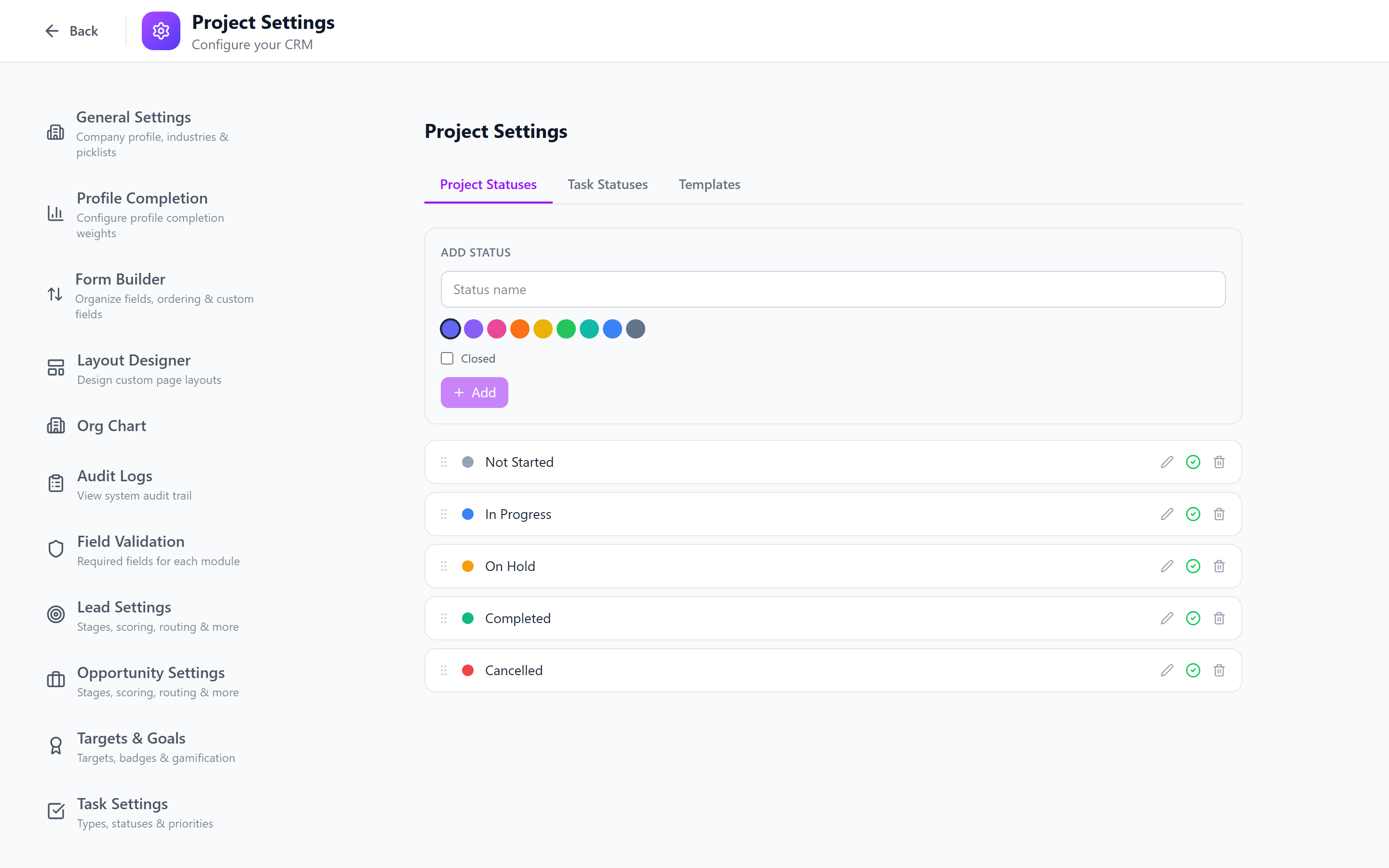
Project Statuses
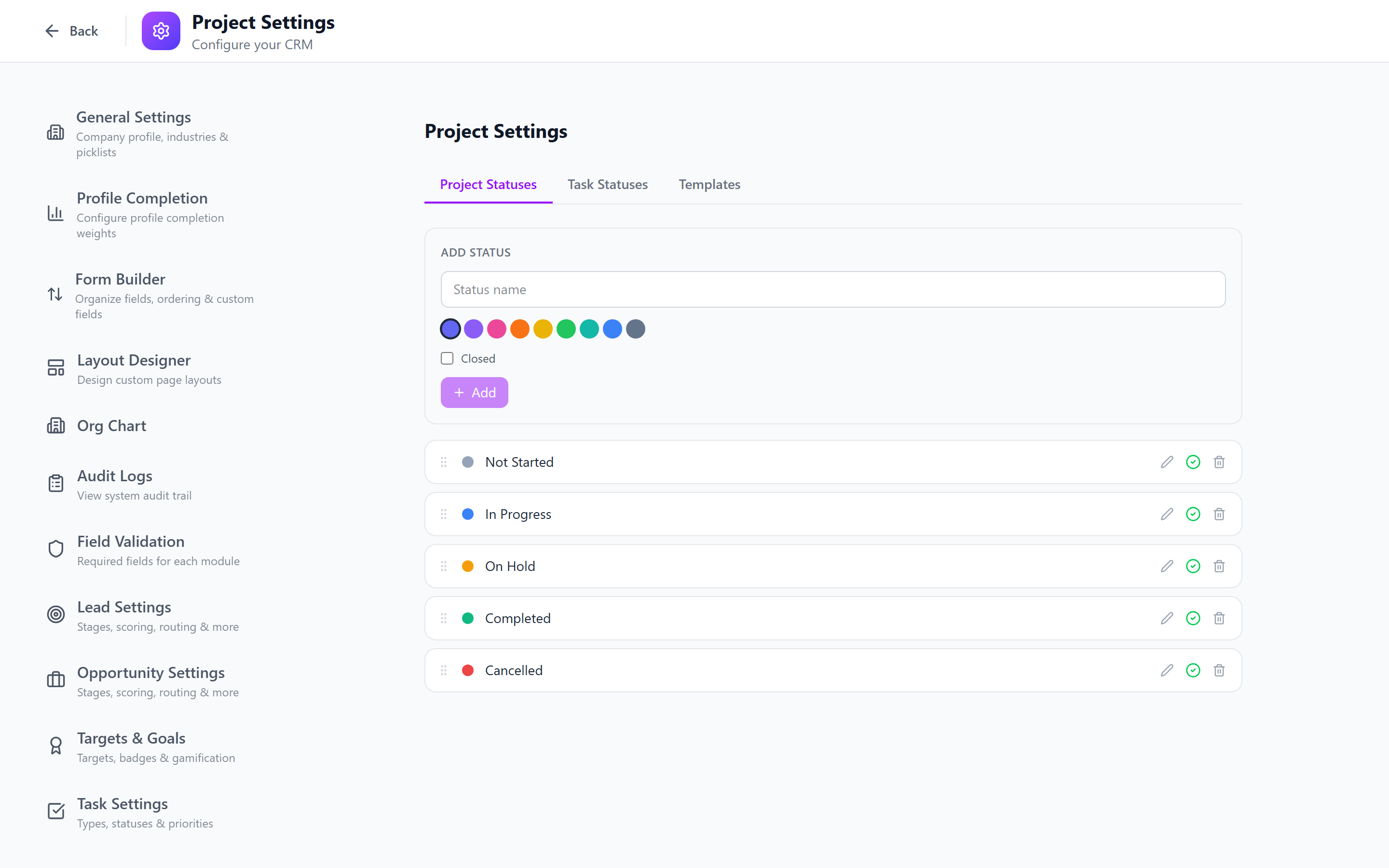
Project statuses track the lifecycle of a project from initiation to completion.
Configuring Statuses
- Select the Statuses tab.
- Click Add Status to create a new status.
- Configure:
- Name (required) — e.g., "Planning", "In Progress", "On Hold", "Completed", "Cancelled"
- Color — visual identifier shown on project cards and lists
- Icon — an icon displayed alongside the status name
- Is Default — whether this status is automatically assigned to new projects
- Is Closed — whether this status represents a completed/terminal state
- Save.
Status Properties
| Property | Description |
|---|---|
| Name | The display name of the status |
| Color | A color code used for visual identification in the UI |
| Icon | An icon displayed next to the status name |
| Is Default | When enabled, new projects are created with this status. Only one status can be the default. |
| Is Closed | When enabled, projects at this status are considered finished. Closed statuses are excluded from active project counts and dashboards. |
Recommended Status Set
| Order | Status | Color | Icon | Is Default | Is Closed |
|---|---|---|---|---|---|
| 1 | Planning | Gray | ClipboardList | Yes | No |
| 2 | Not Started | Blue-gray | Clock | No | No |
| 3 | In Progress | Blue | Play | No | No |
| 4 | On Hold | Amber | Pause | No | No |
| 5 | Review | Purple | Eye | No | No |
| 6 | Completed | Green | CheckCircle | No | Yes |
| 7 | Cancelled | Red | XCircle | No | Yes |
The status marked as Is Default is used as the initial status for new projects. Ensure it represents the starting state (typically "Planning" or "Not Started"). Statuses marked as Is Closed signal that no further work is expected.
Task Statuses
Task statuses are separate from project statuses and track the state of individual tasks within projects.
Configuring Task Statuses
- Select the Task Statuses tab.
- Click Add Task Status.
- Configure:
- Name (required) — e.g., "To Do", "In Progress", "In Review", "Done"
- Color — visual identifier
- Is Done — whether this status means the task is complete
- Is Default — whether new tasks are created with this status
- Save.
Task Status Properties
| Property | Description |
|---|---|
| Name | The display name of the task status |
| Color | A color code for visual identification |
| Is Done | When enabled, tasks at this status are considered complete. This affects progress calculations and reporting. |
| Is Default | New tasks are created with this status. Only one task status can be the default. |
Recommended Task Status Set
| Order | Status | Color | Is Default | Is Done |
|---|---|---|---|---|
| 1 | To Do | Gray | Yes | No |
| 2 | In Progress | Blue | No | No |
| 3 | In Review | Purple | No | No |
| 4 | Done | Green | No | Yes |
| 5 | Blocked | Red | No | No |
Keep task statuses simple. Most teams need 3-5 statuses. Too many statuses add overhead without improving visibility.
Project Templates
Templates are reusable project structures that standardize how projects are set up. Instead of creating every project from scratch, select a template to pre-populate phases, tasks, and settings.
Creating a Project Template
- Select the Templates tab.
- Click Create Template.
- Configure the template fields:
| Field | Required | Description |
|---|---|---|
| Name | Yes | Template name, e.g., "Standard Implementation", "Website Redesign" |
| Description | No | What this template is for and when to use it |
| Color | No | A color used to visually identify the template in the list |
| Icon | No | An icon displayed alongside the template name |
| Estimated Days | No | The typical total duration in days for projects using this template |
- Click Save to create the template.

Template Phases
Phases break a project into major milestones or workstreams. Each template can have multiple phases that are created automatically when a project uses the template.
Adding Phases to a Template
- Open a project template.
- Switch to the Phases tab.
- Click Add Phase.
- Configure:
| Field | Required | Description |
|---|---|---|
| Name | Yes | Phase name, e.g., "Discovery", "Design", "Development", "Testing", "Launch" |
| Color | No | Visual identifier for the phase |
| Sort Order | Yes | The sequence number determining the order of phases (1, 2, 3...) |
| Estimated Days | No | Days allocated to this phase |
- Save.
Example: Implementation Project Phases
| Sort Order | Phase | Color | Estimated Days |
|---|---|---|---|
| 1 | Discovery & Planning | Gray | 5 |
| 2 | Configuration | Blue | 10 |
| 3 | Data Migration | Purple | 5 |
| 4 | User Training | Amber | 3 |
| 5 | UAT & Go-Live | Green | 5 |
Template Tasks
Each phase can have pre-defined tasks that are created when a project is instantiated from the template.
Adding Tasks to a Phase
- Open a phase within a project template.
- Click Add Task.
- Configure:
| Field | Required | Description |
|---|---|---|
| Title | Yes | Task name, e.g., "Conduct stakeholder interviews", "Configure user roles" |
| Description | No | Detailed instructions for what needs to be done |
| Assignee Role | No | Which role should handle this task (the actual person is assigned at project creation) |
| Due Days From Start | No | Number of days from the project start date when this task is due |
| Estimated Hours | No | Time estimate for completing the task |
| Priority | No | Task priority level (Low, Medium, High, Urgent) |
- Save.

Example: Discovery Phase Tasks
| Title | Assignee Role | Due Days | Est. Hours | Priority |
|---|---|---|---|---|
| Conduct stakeholder interviews | Project Manager | 3 | 4 | High |
| Document current processes | Business Analyst | 5 | 8 | High |
| Identify integration requirements | Technical Lead | 5 | 4 | Medium |
| Create project plan | Project Manager | 5 | 6 | High |
| Get sign-off on scope | Project Manager | 7 | 2 | High |
Task templates create real tasks when a project is instantiated from the template. Ensure task titles and descriptions are generic enough to apply across different project instances.
Preview Project from Template
Before using a template to create a project, you can preview what will be generated:
- Open the template.
- Click Preview.
- The preview shows:
- All phases in order with their estimated durations
- All tasks within each phase with assignee roles, due dates, and priorities
- A timeline view showing the overall project duration
- Total estimated hours across all tasks
- Use the preview to verify the template is complete before creating a project from it.
Review the preview after making changes to a template. It is easy to miss a task or phase when editing, and the preview gives you a complete picture.
Using Templates
When a user creates a new project, they can select a template from the dropdown. The project is created with all the template's phases and tasks pre-populated. Users can then customize the specific project as needed:
- Adjust due dates based on the actual start date
- Assign specific people to tasks (replacing role-based assignments)
- Add or remove tasks for the specific project
- Modify phase durations
Create templates for your most common project types. An implementation team might have templates for "Small Implementation (30 days)", "Medium Implementation (60 days)", and "Enterprise Implementation (90 days)".
Custom Project Fields
Add module-specific custom fields to projects through the Custom Fields page (select "Projects" as the module). Common custom fields for projects include:
- Budget (Currency)
- Client Sponsor (Text)
- Risk Level (Select: Low / Medium / High)
- Go-Live Date (Date)
- Project Code (Text)
Best Practices
- Build templates from experience — create templates based on projects you have already completed successfully.
- Keep templates maintained — update templates as your processes evolve.
- Use realistic time estimates — over-optimistic estimates set projects up for failure.
- Include buffer phases — add review or buffer time between major phases.
- Use assignee roles, not specific users — templates should be reusable across teams. Assign roles like "Project Manager" or "Technical Lead" and let the project creator assign specific people.
- Set meaningful priorities — not every task is high priority. Use priority levels to help team members focus on what matters.
- Preview before using — always preview a template before creating a project from it to catch any missing phases or tasks.
- Version your templates — when making significant changes, consider creating a new template version rather than modifying the existing one.
Next: Targets Setup — Configure performance targets and assignments.