Batch Jobs
The Batch Jobs page provides a centralized view of all bulk operations — imports, exports, re-scoring, and other background tasks. Monitor progress, investigate failures, and download results.
Navigate to Admin > Batch Jobs.
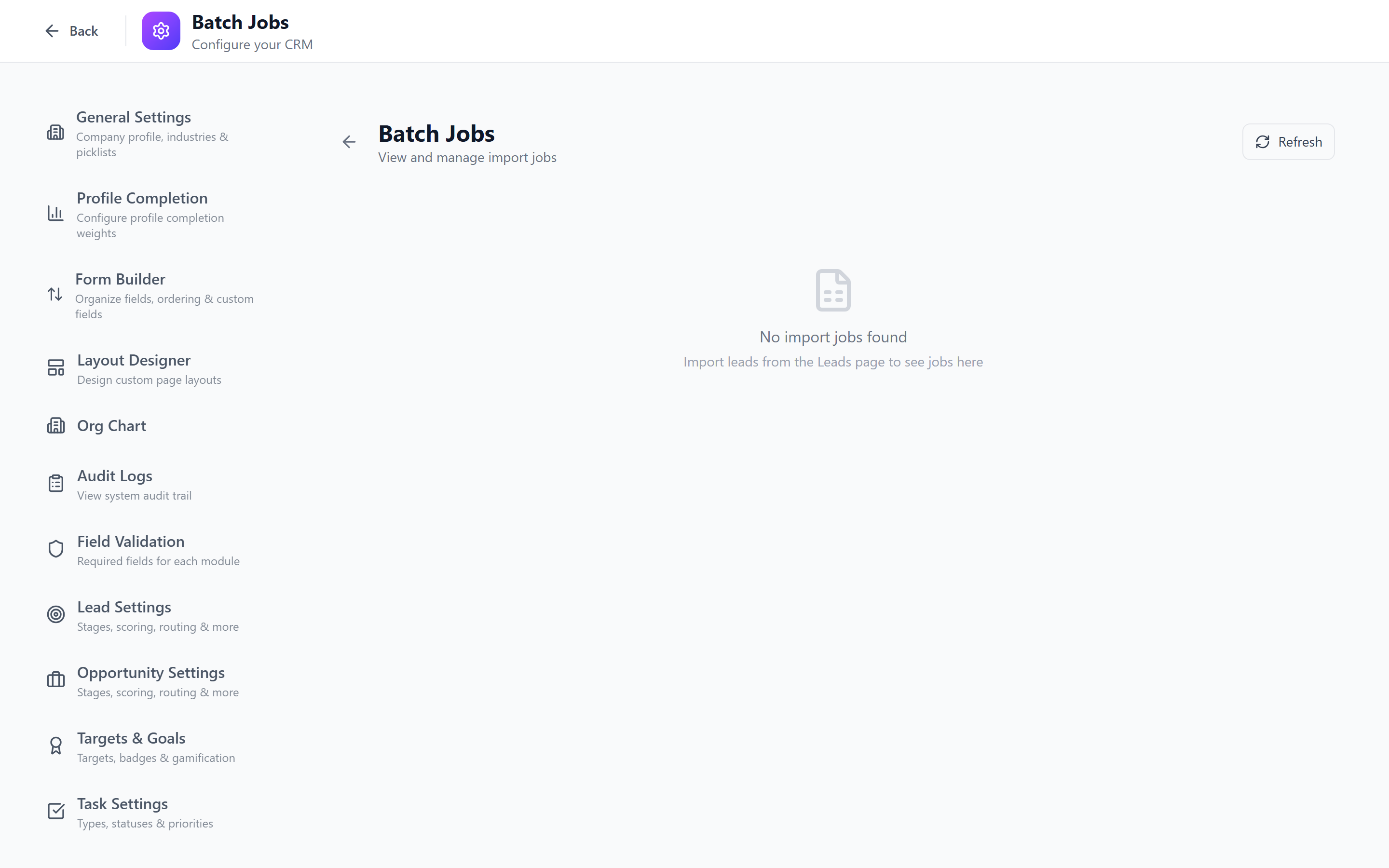
Batch Jobs Overview
All long-running operations in IntelliSales CRM are processed as background jobs using a queue system. This allows users to continue working while operations complete.
Job Types
| Type | Description |
|---|---|
| Import | CSV/XLSX bulk data import |
| Export | Data export to CSV/Excel |
| Re-score | Lead scoring recalculation |
| Sync | Integration sync operations |
| Bulk Update | Mass field updates |
| Bulk Delete | Mass record deletion |
Import Job Tracking
Job Status
Each import job shows:
| Field | Description |
|---|---|
| Job ID | Unique identifier |
| Type | Import |
| Module | Which module (Leads, Contacts, etc.) |
| File Name | Original uploaded file |
| Status | Queued, Processing, Completed, Failed, Cancelled |
| Progress | Percentage and record count (e.g., "450/1000 — 45%") |
| Created | Records successfully created |
| Updated | Records updated (duplicate mode) |
| Skipped | Duplicate records skipped |
| Failed | Records that failed validation |
| Started At | Job start timestamp |
| Completed At | Job completion timestamp |
| Initiated By | User who started the import |
Progress Monitoring
While a job is processing:
- The progress bar updates in real time.
- Counts for created, updated, skipped, and failed records update as each record is processed.
- Estimated time remaining is displayed for large jobs.
Export Job Tracking
Export jobs show:
- Module — what data was exported
- Format — CSV or Excel
- Record Count — number of records in the export
- File Size — size of the generated file
- Download Link — available once the export completes
Click Download to save the exported file to your computer.
Export files are retained for 7 days after generation. Download them promptly. After 7 days, the file is deleted and you will need to re-export.
Viewing Job Details
Click on any job to see its full details:
- Summary — high-level statistics (total, success, failed, skipped).
- Processing Log — timestamped log of the job's execution.
- Error Details — for failed records, the specific validation or processing error.
- Configuration — the mapping, options, and settings used for the job.
Error Details
For each failed record, the detail view shows:
| Field | Value |
|---|---|
| Row Number | Row 47 |
| Error | "Email field invalid: 'not-an-email'" |
| Data | The raw row data from the import file |
This makes it easy to identify and fix the source data.
Cancelling Running Jobs
To cancel a job that is currently processing:
- Find the job in the list (status: Processing).
- Click Cancel.
- Confirm the cancellation.
- Records already processed remain in the system. Only remaining unprocessed records are skipped.
Cancelling a job does not roll back records that were already imported. If you need to undo a partial import, you will need to identify and delete the records manually or use bulk delete.
Downloading Failed Records
When an import job has failed records:
- Open the job detail.
- Click Download Failed Records.
- A file is downloaded containing only the rows that failed, with an additional Error column explaining each failure.
- Fix the errors in the file.
- Re-import the corrected file.
The failed records file maintains the same format as the original import, with an error column appended. Fix the errors, remove the error column, and re-import using the same template mapping.
Job History and Retention
| Setting | Default |
|---|---|
| Job history retention | 90 days |
| Export file retention | 7 days |
| Failed records file retention | 30 days |
After the retention period, job records are archived but summary statistics remain available.
Filtering Job History
Use the filters at the top of the Batch Jobs page:
- Type — Import, Export, Re-score, etc.
- Status — Completed, Failed, Cancelled
- Module — Leads, Contacts, Accounts, etc.
- Date Range — filter by job creation date
- User — filter by who initiated the job
Best Practices
- Monitor large imports — check progress periodically for imports over 1,000 records.
- Download failed records immediately — fix and re-import promptly to maintain data completeness.
- Clean up old exports — download export files within the 7-day retention window.
- Schedule bulk operations — run large imports and re-scores during off-peak hours.
- Keep the history clean — use filters to focus on recent, relevant jobs.
Next: Audit Logs — Review all changes made across the system.