Data Management
The Data Management tools provide administrative control over your organization's data — full exports for backup or migration, module-level exports for analysis, and data purge for resetting your environment.
Navigate to Admin > Data Management.

Export All Data
Download a complete backup of your CRM data as a multi-sheet Excel workbook (.xlsx). Each module's data is placed on a separate sheet.
What is Included
| Sheet | Contents |
|---|---|
| Accounts | All account records with all fields |
| Contacts | All contact records |
| Leads | All lead records |
| Opportunities | All opportunity records |
| Tasks | All task records |
| Products | Product catalog |
| Subscriptions | All subscription records |
| Invoices | All invoices and line items |
| Projects | All project records |
| Notes | All notes across modules |
| Activities | Activity log entries |
How to Export
- Click Export All Data.
- The system prepares the export in the background.
- When ready, the file is available for download (a notification is sent).
- Click Download to save the
.xlsxfile.
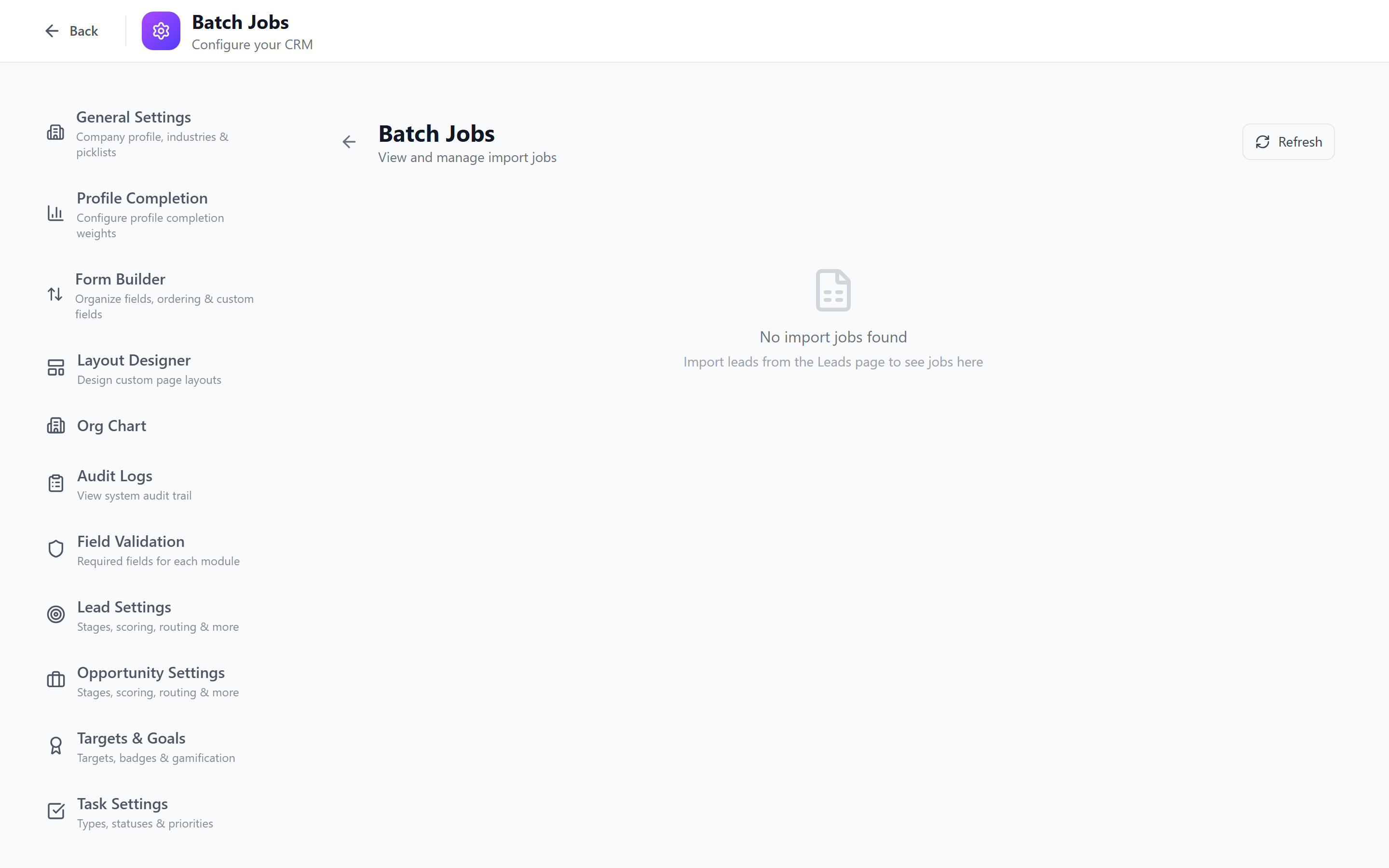
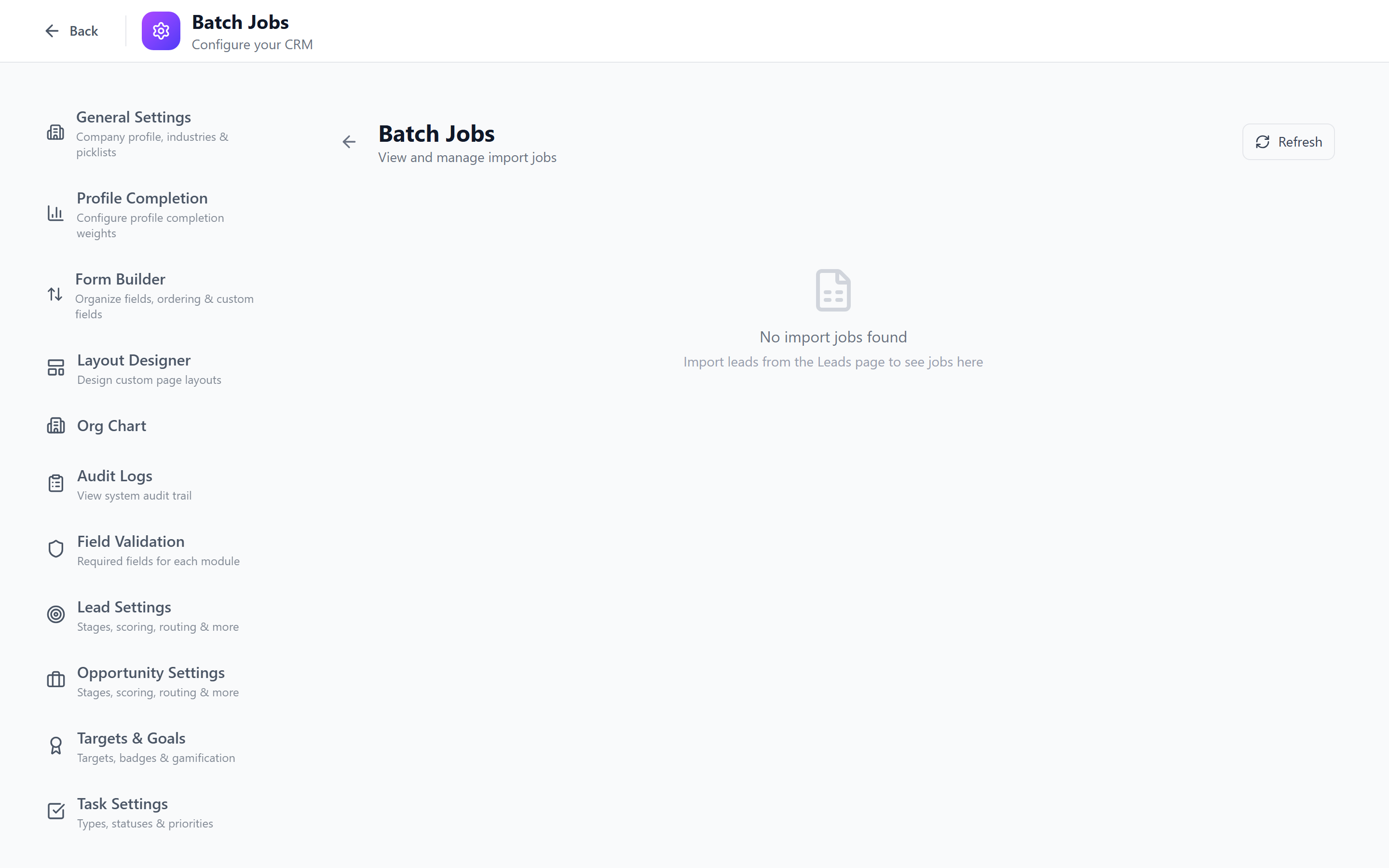
Large datasets may take several minutes to export. You can continue working while the export processes. Check Admin > Batch Jobs for progress.
Export Scope
- Only data your role has access to is included. Admins with full access get the complete dataset.
- Deleted (soft-deleted) records are not included in the export.
- System configuration (custom fields, pipelines, workflows) is not included — this is a data export, not a full system backup.
Schedule regular full exports as part of your data backup strategy. Store exports securely — they contain all your business data including contact information and financial records.
Module-Level Export
Export data from individual modules with filtering and column control.
Supported Modules
- Accounts
- Contacts
- Leads
- Opportunities
How to Export a Module
- Navigate to the module's list view (e.g., Accounts).
- Apply any filters you need (status, owner, industry, date range, etc.).
- Click the Export button above the data table.
- The exported file includes:
- Only the visible columns — hidden columns are excluded
- Only the filtered records — respecting your active filters
- Choose format: CSV or Excel (.xlsx).
- The file downloads immediately for small datasets or is queued for large ones.
Use module-level export to create targeted reports — for example, export all "Active" accounts in the "Technology" industry owned by a specific team member.
Data Purge
Danger Zone — Data purge permanently deletes business data from your CRM. This action cannot be undone. Use extreme caution.
The Data Purge feature removes all business data while preserving system configuration. This is useful for:
- Resetting a demo or sandbox environment
- Starting fresh after a testing period
- Cleaning up before a production go-live
What is Purged
| Purged | Preserved |
|---|---|
| Accounts | Users |
| Contacts | Roles & Permissions |
| Leads | Teams & Departments |
| Opportunities | Custom Fields |
| Tasks | Pipelines & Stages |
| Products | Workflows |
| Subscriptions | Notification Templates |
| Invoices | Page Layouts |
| Projects | System Settings |
| Notes & Activities | Integration Configurations |
| Documents |
Double Confirmation
Because of the irreversible nature of this operation, the purge requires two confirmation steps:
- First confirmation — click Purge All Data and type the confirmation phrase displayed on screen (e.g., "DELETE ALL DATA").
- Second confirmation — a final dialog asks "Are you absolutely sure?" with a countdown timer before the Confirm Purge button becomes active.
Purge Process
- The purge runs as a background job.
- All business data tables are truncated in the correct order (respecting foreign key relationships).
- A notification is sent when the purge is complete.
- The audit log records the purge event (the audit log itself is preserved).
Export your data before purging. Use the Export All Data feature above to create a backup. Once purged, data cannot be recovered.
Best Practices
- Export before you purge — always create a full data export as a backup before any purge operation.
- Restrict access — only grant Data Management access to senior administrators.
- Use module export for reporting — instead of pulling everything, export just the module and columns you need.
- Schedule regular backups — export all data weekly or monthly as part of your disaster recovery plan.
- Purge only in non-production — avoid purging production data unless absolutely necessary. Use it primarily for test/demo environments.
Related Pages
- Import & Export — standard import/export operations
- Batch Jobs — monitoring export and purge job progress
- Audit Logs — tracking who performed data management operations
- Roles & Permissions — controlling access to data management features