Custom Tabs & Groups
Custom tabs and groups let you organize record detail pages into multiple tabbed views with logically grouped fields. This is especially valuable for modules with many fields where a single scrolling page becomes unwieldy.
Custom Tabs on Detail Pages
Each module's detail page can have multiple tabs. By default, modules come with standard tabs (e.g., "Details", "Activity", "Notes", "Documents"). You can add custom tabs to organize additional information.
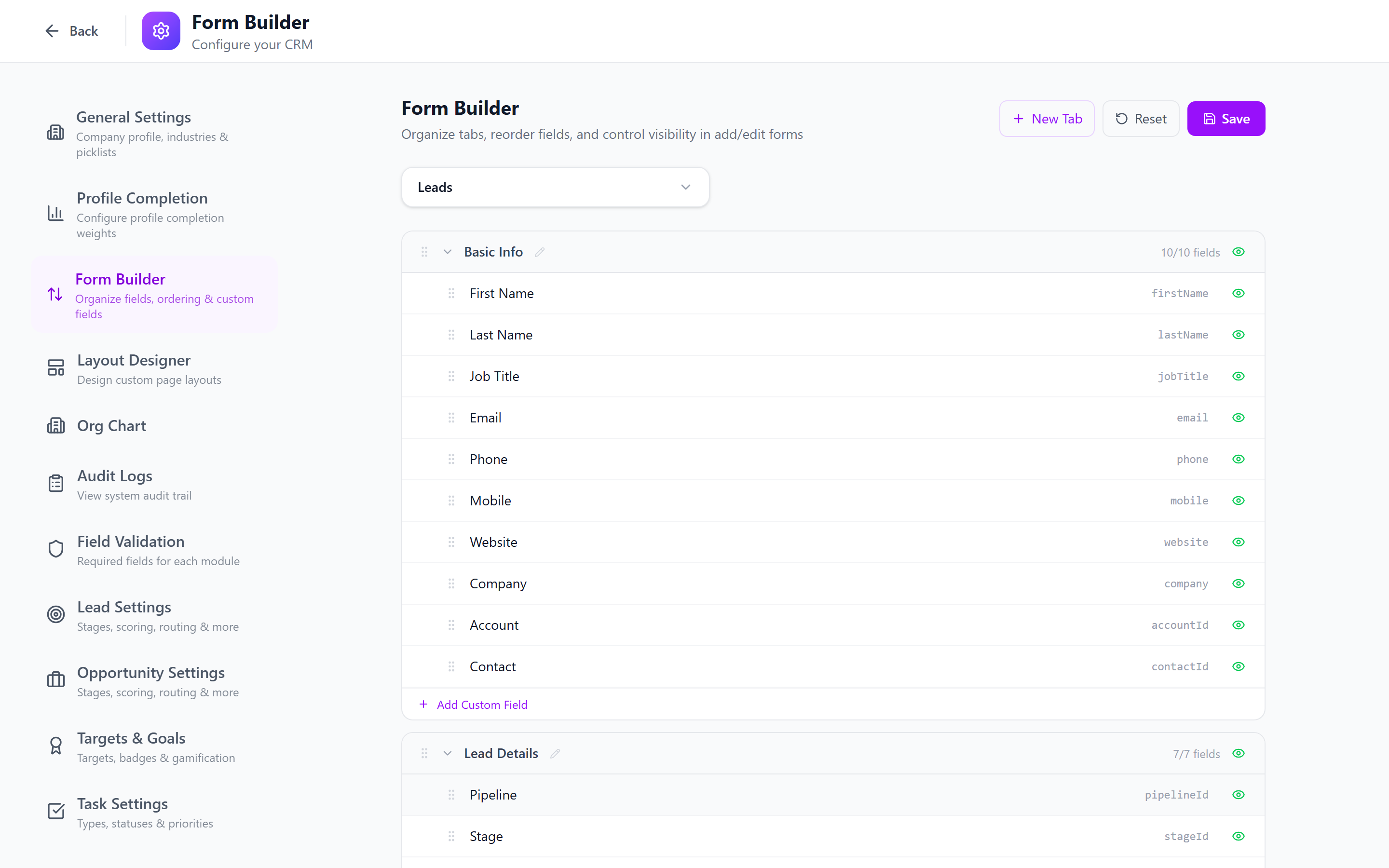
Creating Custom Tabs
- Navigate to Admin > Custom Fields or Admin > Layout Designer and select the module.
- Click the Tabs management button.
- Click Add Tab.
- Configure the tab:
- Tab Name (required) — e.g., "Compliance", "Technical Details", "Partner Info"
- Module — the module this tab belongs to
- Order — the position of the tab relative to other tabs
- Click Save.
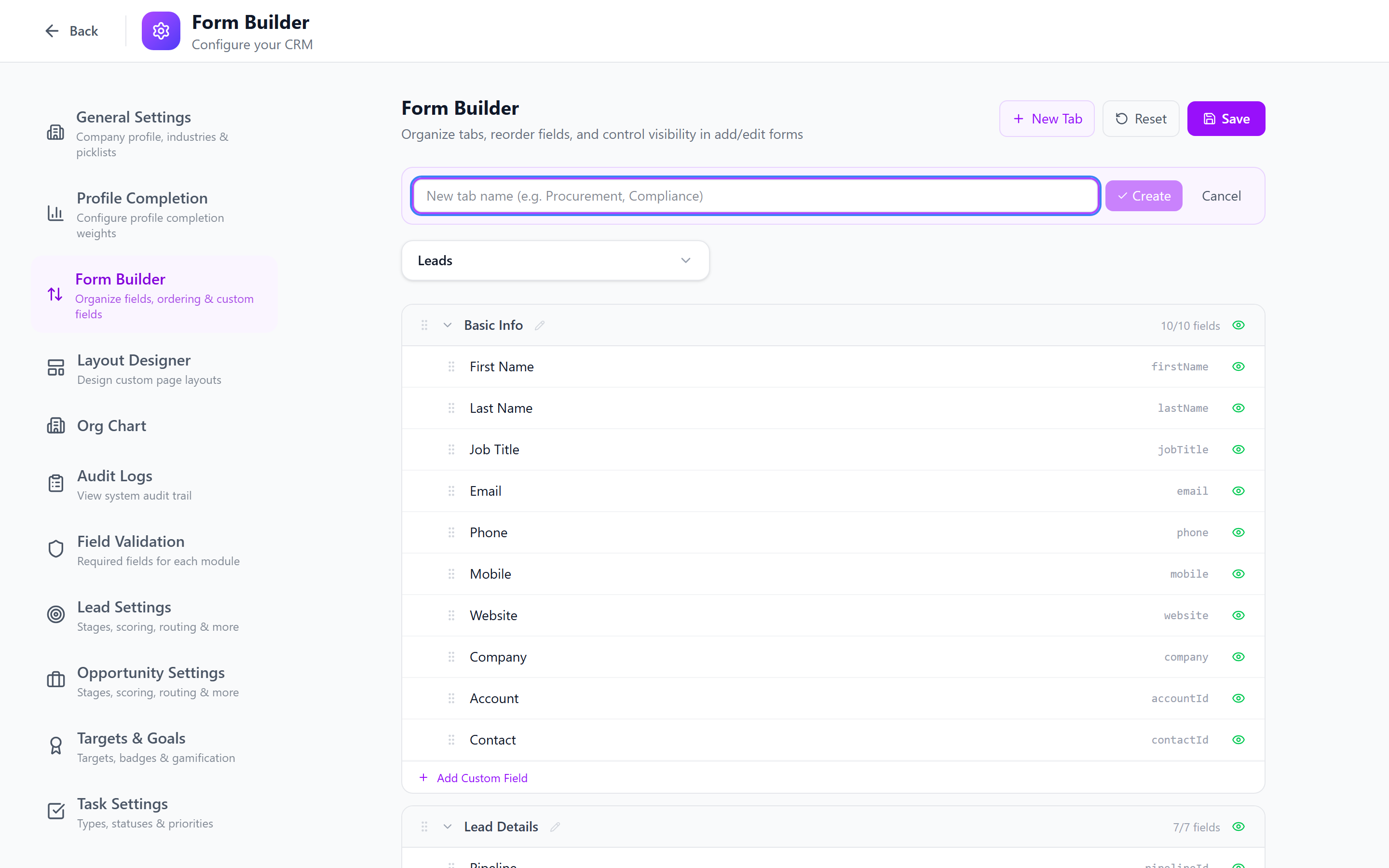
Keep tab names short (1-2 words) so they fit neatly in the tab bar. Use descriptive names that tell users what data lives inside.
Assigning Fields to Tabs
Once a tab exists, assign fields to it:
- Open the tab configuration.
- In the Fields section, click Add Fields.
- Select fields from the available list (standard and custom fields).
- Drag fields to set the display order within the tab.
- Save.
Fields can only belong to one tab at a time. Moving a field to a new tab removes it from its previous location.
Custom Field Groups
Within a tab or section, you can create groups to further organize fields with a sub-heading.
Creating a Group
- In the tab or Layout Designer view, click Add Group.
- Enter the group name — e.g., "Billing Address", "Shipping Address", "Social Profiles".
- Drag fields into the group.
- Save.
Groups display as bordered sections with a header label inside the tab.
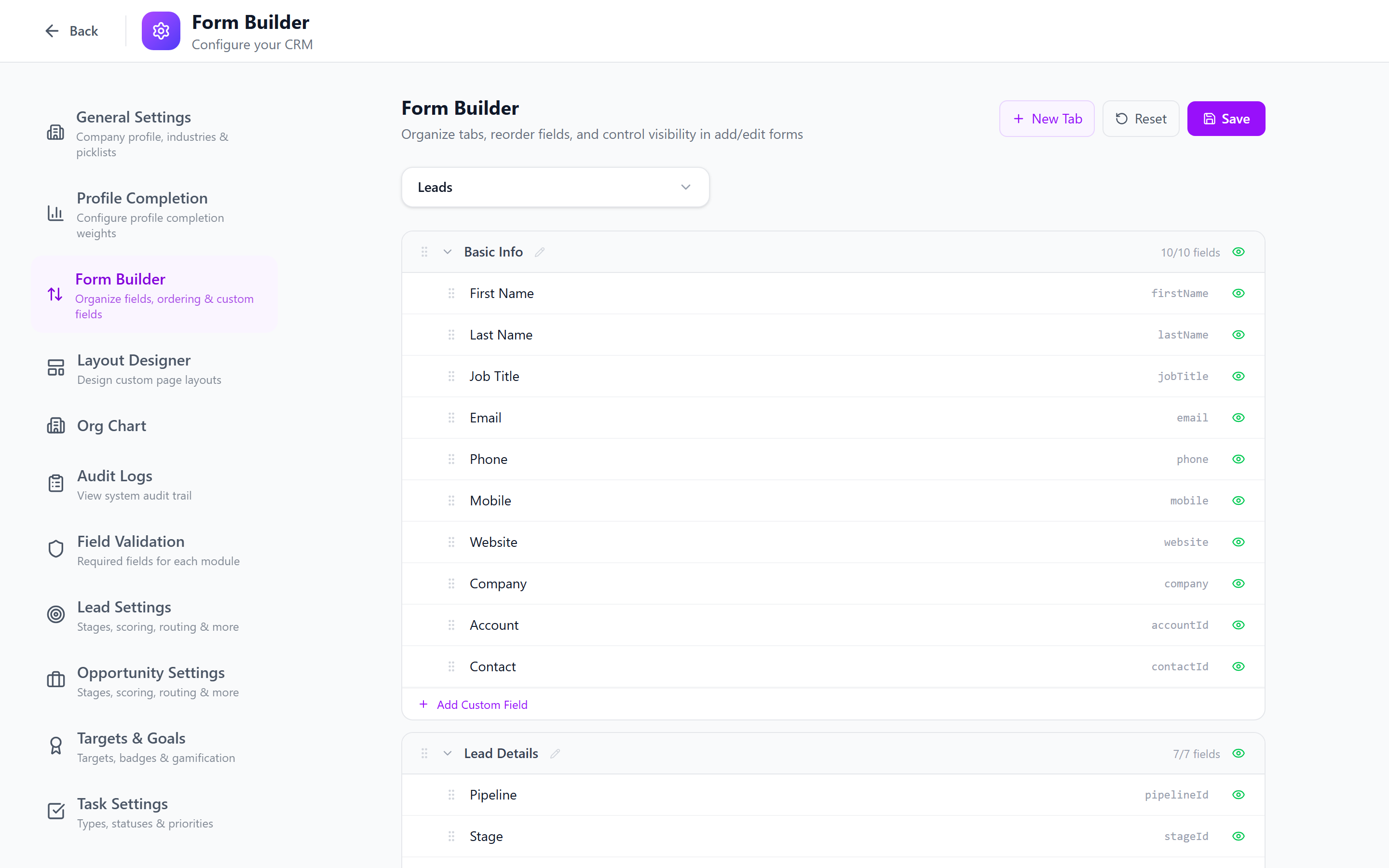
Group Ordering
Groups can be reordered within a tab by dragging the group header:
- Hover over the group header.
- Grab the drag handle.
- Move the group up or down.
- Release to set the new position.
Reordering Tabs
To change the order of tabs on the detail page:
- Go to the Tabs management screen.
- Drag tabs to reorder them.
- The first tab is displayed by default when opening a record.
Standard system tabs (Details, Activity, Notes, Documents) cannot be deleted, but they can be reordered relative to your custom tabs.
Profile Completion Configuration
Profile completion is a progress indicator that shows how "complete" a record is based on which fields have been filled in.
Setting Up Profile Completion
- Navigate to the module's tab/field configuration.
- Click Profile Completion settings.
- For each field, configure:
- Include in completion — whether this field counts toward the completion percentage
- Weight — how much this field contributes (e.g., Name = 20%, Email = 15%, Phone = 10%)
- Save.
The completion percentage displays as a progress bar on list views and detail pages.
Weighted Fields Example
| Field | Weight | Impact |
|---|---|---|
| Name | 20% | Essential — high weight |
| 15% | Important for communication | |
| Phone | 10% | Secondary contact method |
| Company | 15% | Key for B2B context |
| Job Title | 10% | Professional context |
| Address | 10% | Physical location |
| Industry | 10% | Segmentation |
| Custom fields | 10% | Additional data completeness |
Use profile completion to encourage users to fill in key fields. Display the completion percentage in list views so managers can identify records that need enrichment.
Best Practices
- Limit tabs to 5-7 per module — too many tabs become hard to navigate.
- Put the most-used tab first — it opens by default.
- Use groups for address-like data — billing address, shipping address, and similar field sets benefit from visual grouping.
- Name groups descriptively — "Primary Contact Info" is better than "Group 1".
- Configure profile completion for key modules — Contacts and Leads benefit most from completion tracking.
- Review tab assignments after adding fields — new custom fields are not automatically assigned to a tab.
Next: Pipelines & Stages — Configure your sales process pipelines.