Field Validation
Field validation ensures data quality by enforcing rules on what users can enter. Validation rules run on both the frontend (immediate feedback) and the backend (API enforcement), so data integrity is maintained regardless of how records are created — whether through the UI, API, or imports.
Field Validation Overview
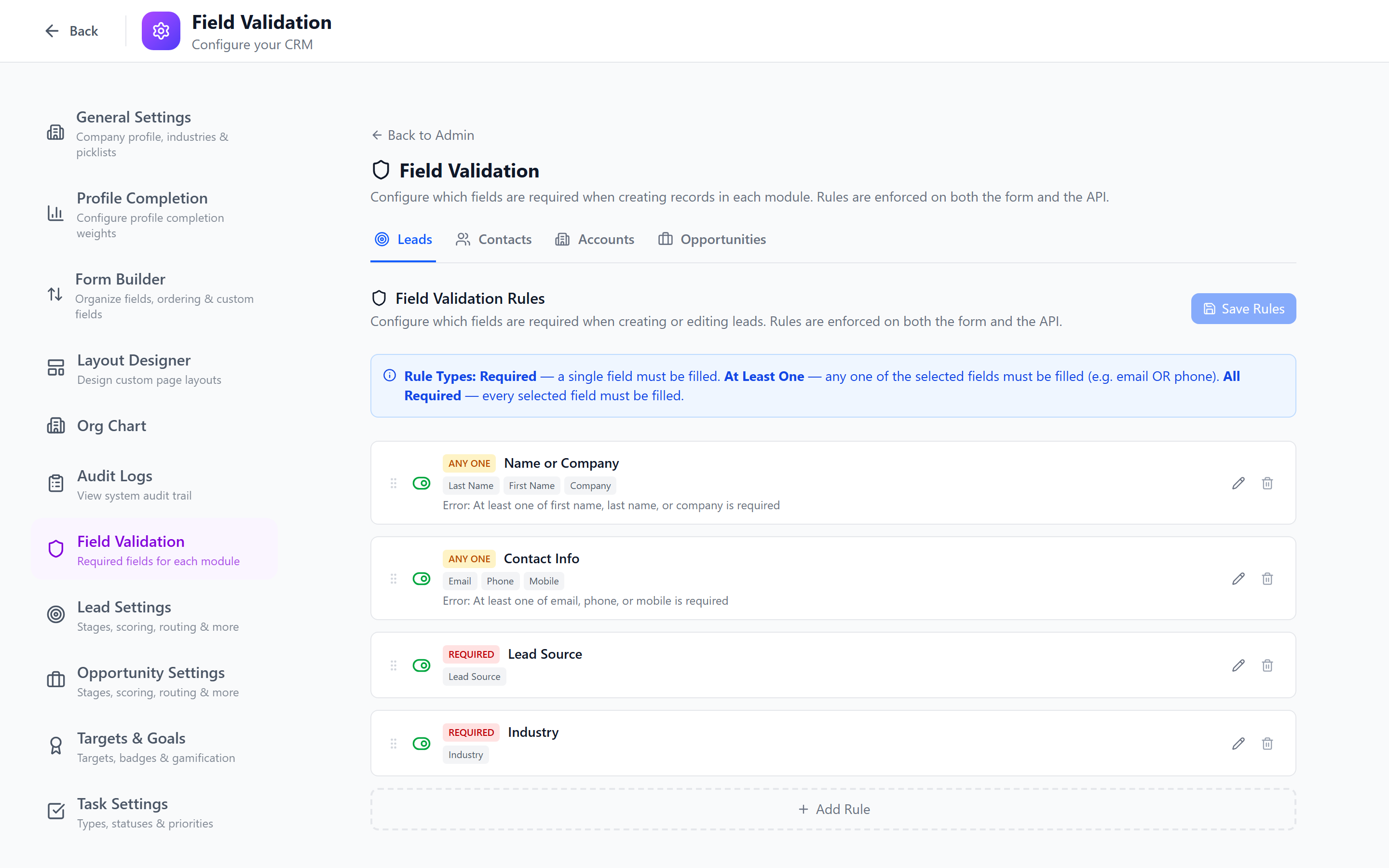
Navigate to Admin > Field Validation to manage validation rules.
Supported Modules
Use the Module dropdown at the top to choose which module's fields you want to configure. Validation rules are defined independently for each module.
- Leads
- Contacts
- Accounts
- Opportunities
How Validation Works
Field validation is enforced in two places:
- Form UI — When a user fills out a create or edit form, validation runs on blur (when the user leaves a field) and on submit. Error messages appear directly below the invalid field in red text. The save button is disabled until all validation errors are resolved.
- API — When a record is created or updated via the backend API, the same validation rules are checked server-side. If validation fails, the API returns an error response with details about which fields failed and why.
This dual enforcement ensures that data quality is maintained even if records are created through integrations, imports, or direct API calls.
Toggling Fields as Required
The most common validation rule is marking a field as required:
- Select the module from the dropdown.
- Fields are displayed grouped by their standard sections (see below).
- Find the field you want to make required.
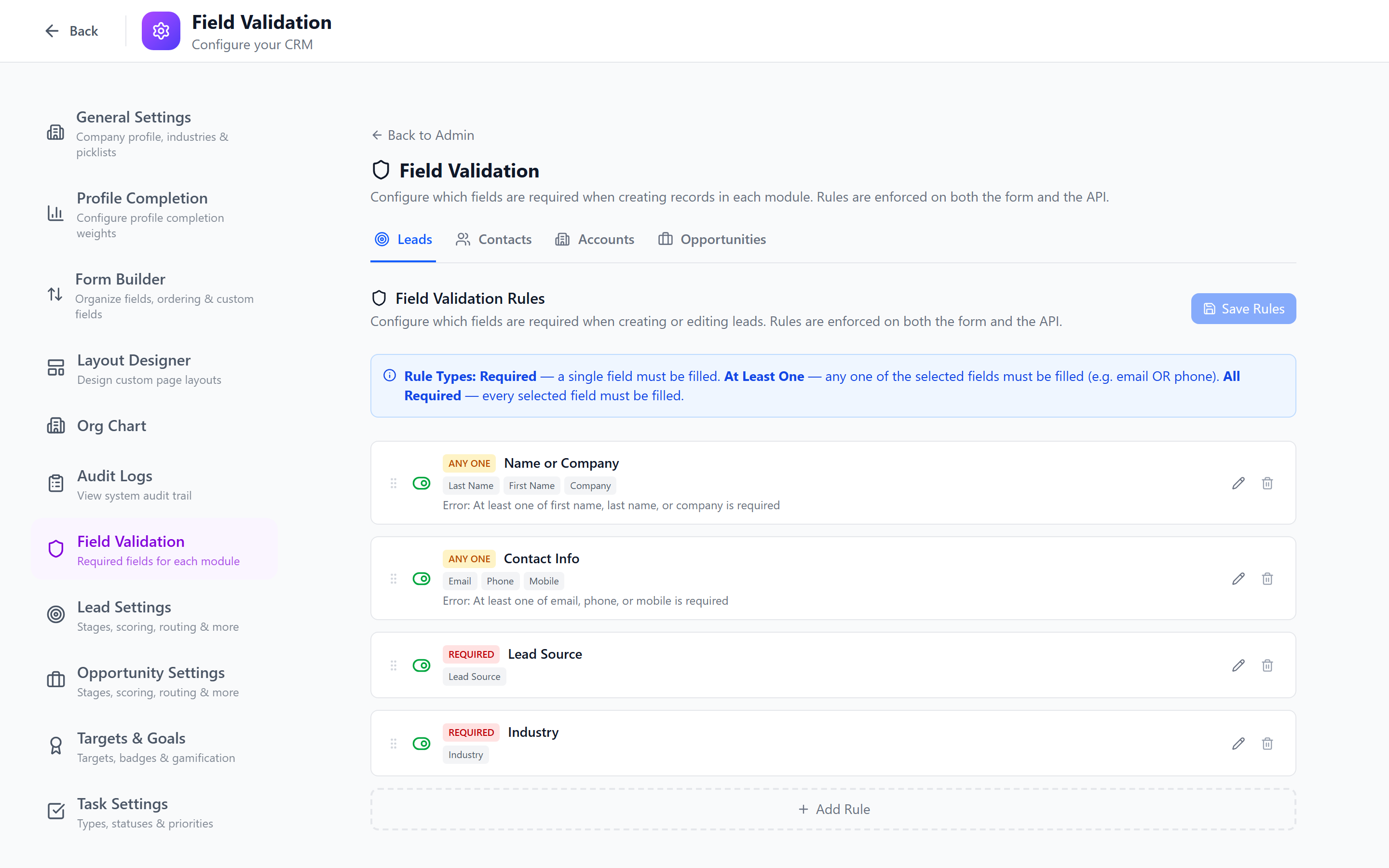
- Toggle the Required switch next to the field.
- The change is saved automatically.
Required fields are marked with a red asterisk (*) on create and edit forms. If a user tries to save a record without filling in a required field, they will see an error message and the save will be blocked.
Field Grouping by Section
Fields are organized into standard sections that match the module's form layout. This makes it easy to find and configure fields:
Leads
| Section | Fields |
|---|---|
| Basic Info | First Name, Last Name, Email, Phone, Company, Job Title, Website, Mobile |
| Lead Details | Pipeline, Stage, Priority, Source, Industry, Owner, Team |
| Address | Country, Address Line 1, Address Line 2, City, State, Postal Code |
| Communication | Do Not Contact, Do Not Email, Do Not Call |
| Other | Tags |
Contacts
| Section | Fields |
|---|---|
| Basic Info | First Name, Last Name, Email, Phone, Mobile, Job Title, Department, Account |
| Contact Details | Emails, Phones, Fax, Website |
| Address | Street, City, State, Postal Code, Country |
| Social Profiles | LinkedIn, Twitter, Facebook |
| Other | Source, Description, Tags |
Accounts
| Section | Fields |
|---|---|
| Basic Info | Name, Classification, Industry, Website, Account Type, Company Size, Annual Revenue |
| Contact Details | Email, Phone, Fax |
| Addresses | Billing Address, Shipping Address |
| Social | LinkedIn, Twitter, Facebook |
| Other | Description, Tags |
Opportunities
| Section | Fields |
|---|---|
| Basic Info | Name, Account, Primary Contact, Pipeline, Stage, Priority, Source, Type |
| Deal Details | Amount, Currency, Probability, Close Date, Forecast Category, Next Step, Competitor, Owner, Team |
| Other | Description, Tags |
Validating Custom Fields
Custom fields created in the Custom Fields page also appear in the field validation settings. You can:
- Toggle required on any custom field, just like standard fields
- Custom fields are grouped under a Custom Fields section at the bottom of the field list
- The field type is displayed for reference (Text, Number, Select, etc.)
When you create a custom field and mark it as "Required" in the Custom Fields page, it automatically appears as required here. You can also manage the required state from either page — they stay in sync.
Validation Types
| Type | Applies To | Description |
|---|---|---|
| Required | All field types | The field must have a value before saving |
| Min Length | Text, Textarea, Rich Text | Minimum number of characters |
| Max Length | Text, Textarea, Rich Text | Maximum number of characters |
| Email Format | Text, Email | Must match a valid email pattern |
| Number Range | Number, Currency | Minimum and/or maximum numeric value |
| Custom Regex | Text, Phone, Link | Must match a custom regular expression pattern |
Creating Advanced Validation Rules
Beyond required/optional toggles, you can add more specific validation rules:
- Select the module.
- Find the field you want to validate in the field list.
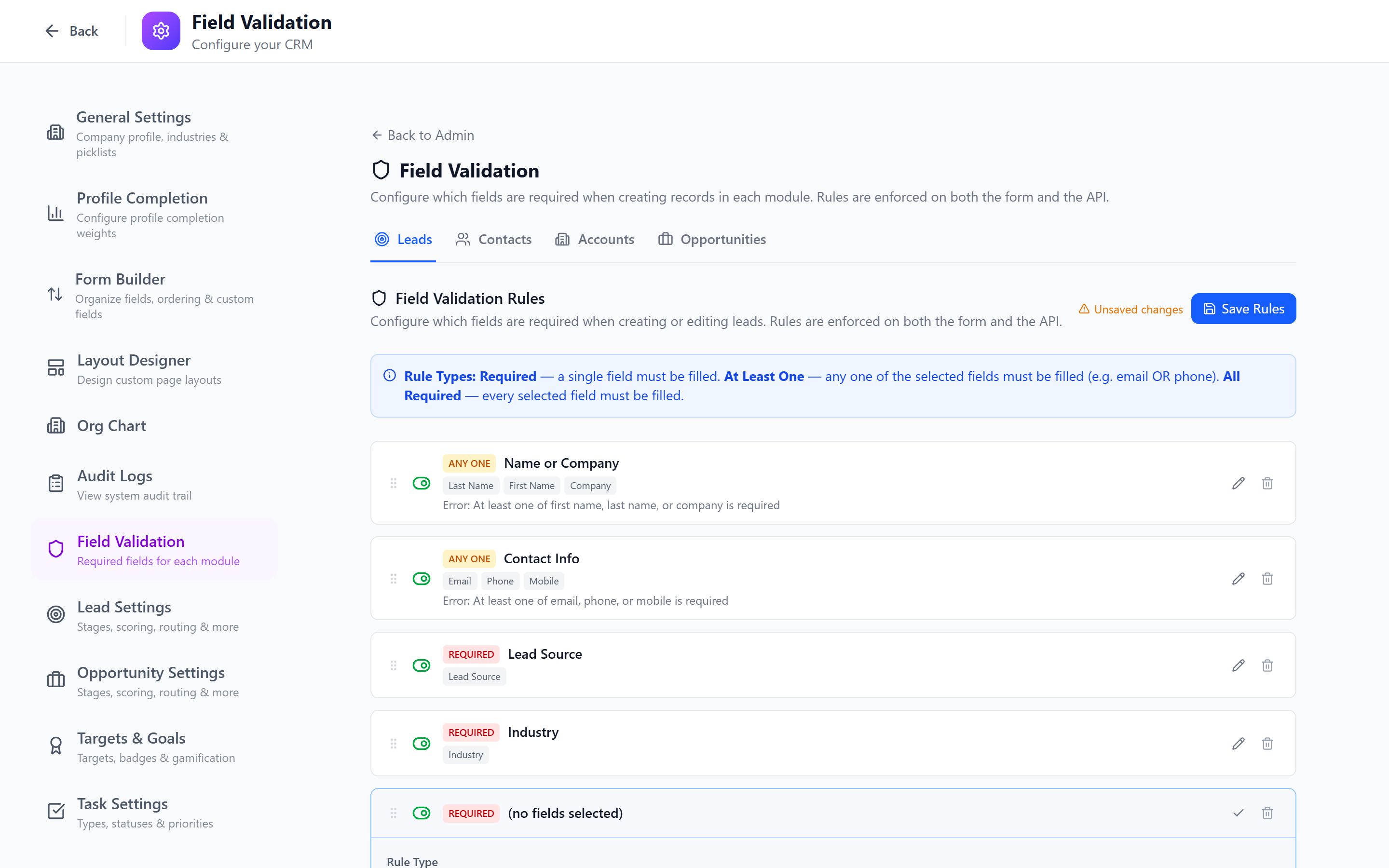
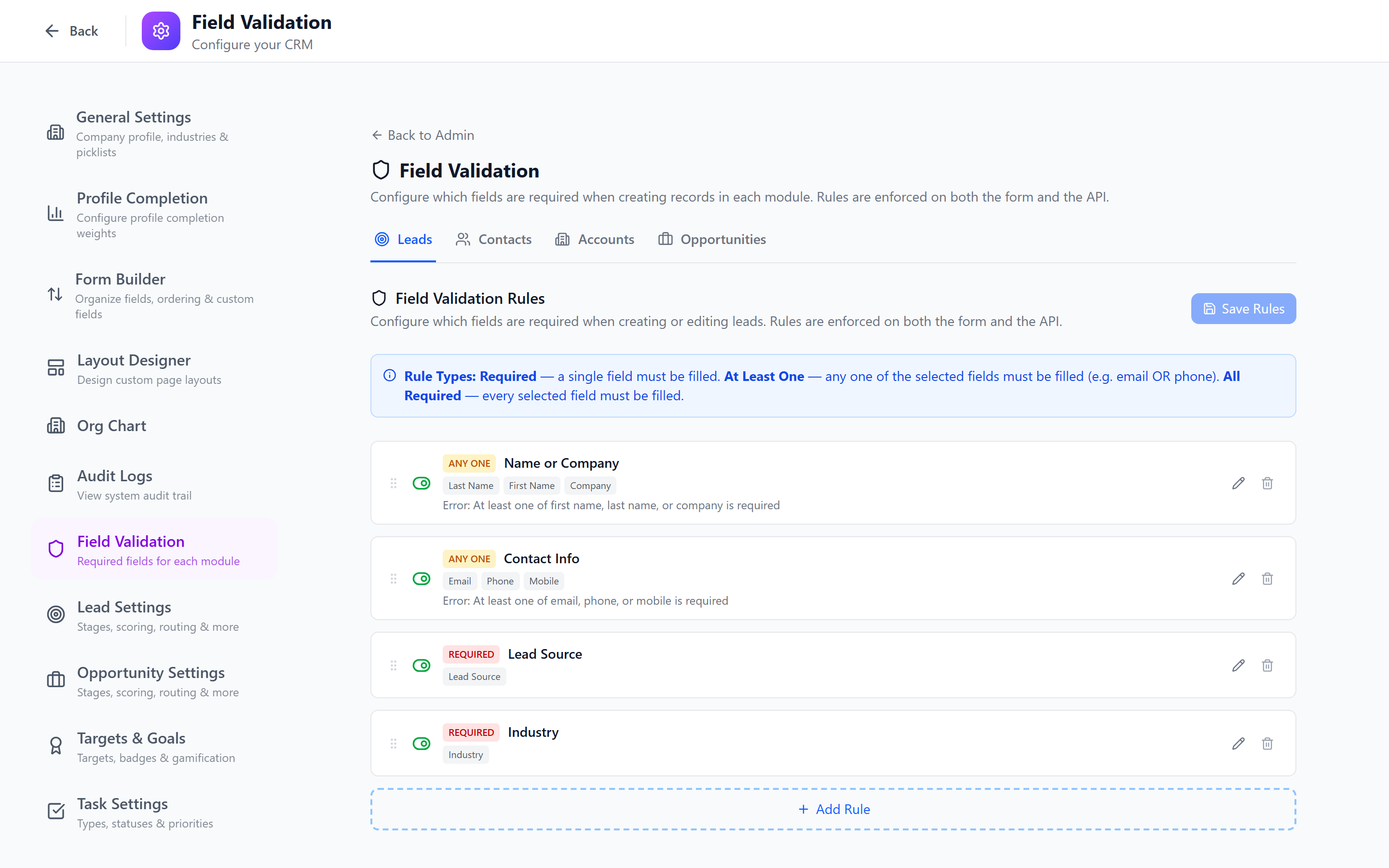
- Click Add Rule next to the field.
- Configure the rule:
- Rule type — select from the types above
- Parameters — varies by type (e.g., min value, max value, regex pattern)
- Error message — the message displayed when validation fails
- Click Save Rule.
Example: Required Field
Field: Company Name
Rule: Required
Error Message: "Company name is required"
Example: Number Range
Field: Deal Amount
Rule: Number Range
Min: 0
Max: 10000000
Error Message: "Deal amount must be between $0 and $10,000,000"
Example: Custom Regex
Field: Tax ID
Rule: Custom Regex
Pattern: ^\d{2}-\d{7}$
Error Message: "Tax ID must be in format XX-XXXXXXX"
You can add multiple validation rules to a single field. All rules must pass for the field to be accepted. For example, a field can be both Required and have a Min Length of 3.
Field Dependency Rules
Field dependencies let you create dynamic forms where certain fields appear or become required based on the value of another field.
Conditional Visibility
Scenario: Show the "Reason for Loss" field only when the Stage is "Closed Lost".
- Find the "Reason for Loss" field.
- Click Add Dependency.
- Configure:
- Depends on field: Stage
- Condition: Equals
- Value: "Closed Lost"
- Action: Show field
- Save.
When the Stage field is not "Closed Lost", the "Reason for Loss" field is hidden from the form entirely.
Conditional Required
Scenario: Make "Discount Justification" required only when "Discount %" is greater than 20.
- Find the "Discount Justification" field.
- Click Add Dependency.
- Configure:
- Depends on field: Discount %
- Condition: Greater than
- Value: 20
- Action: Make required
- Save.
Available Conditions
| Condition | Description |
|---|---|
| Equals | Field value matches exactly |
| Not Equals | Field value does not match |
| Greater Than | Numeric value exceeds threshold |
| Less Than | Numeric value below threshold |
| Contains | Text value includes substring |
| Is Empty | Field has no value |
| Is Not Empty | Field has a value |
Testing Validation Rules
After configuring rules:
- Open a create or edit form for the module.
- Try submitting with invalid data.
- Verify that error messages appear correctly.
- Test edge cases (empty values, boundary values, special characters).
Validation rules apply retroactively to new saves only. Existing records that violate newly added rules will not be flagged until someone tries to edit and save them.
Impact on Create/Edit Forms
- Validation runs on blur (when the user leaves a field) and on submit.
- Error messages appear directly below the invalid field in red text.
- The save button is disabled until all validation errors are resolved.
- Required fields are marked with a red asterisk (*).
Best Practices
- Write clear error messages — tell the user what is expected, not just what went wrong. "Enter a valid email (e.g., user@example.com)" is better than "Invalid format".
- Be conservative with Required — every required field is a barrier to data entry. Only require what is truly essential.
- Test regex patterns thoroughly — a too-strict regex will frustrate users. Test with edge cases.
- Use dependencies sparingly — complex dependency chains make forms hard to understand. Limit to 1-2 levels of dependency.
- Document your rules — maintain a reference of what validation exists per module so new admins do not create conflicting rules.
- Test API enforcement — after configuring validation, verify that the API also rejects invalid data by testing with a tool like Postman or through import.
Next: Layout Designer — Control the layout of record detail pages.