Task Settings
Task Settings let you customize how tasks are categorized, tracked, and prioritized. Configure task types, statuses, and priorities to match your team's workflow.
Navigate to Admin > Task Settings.
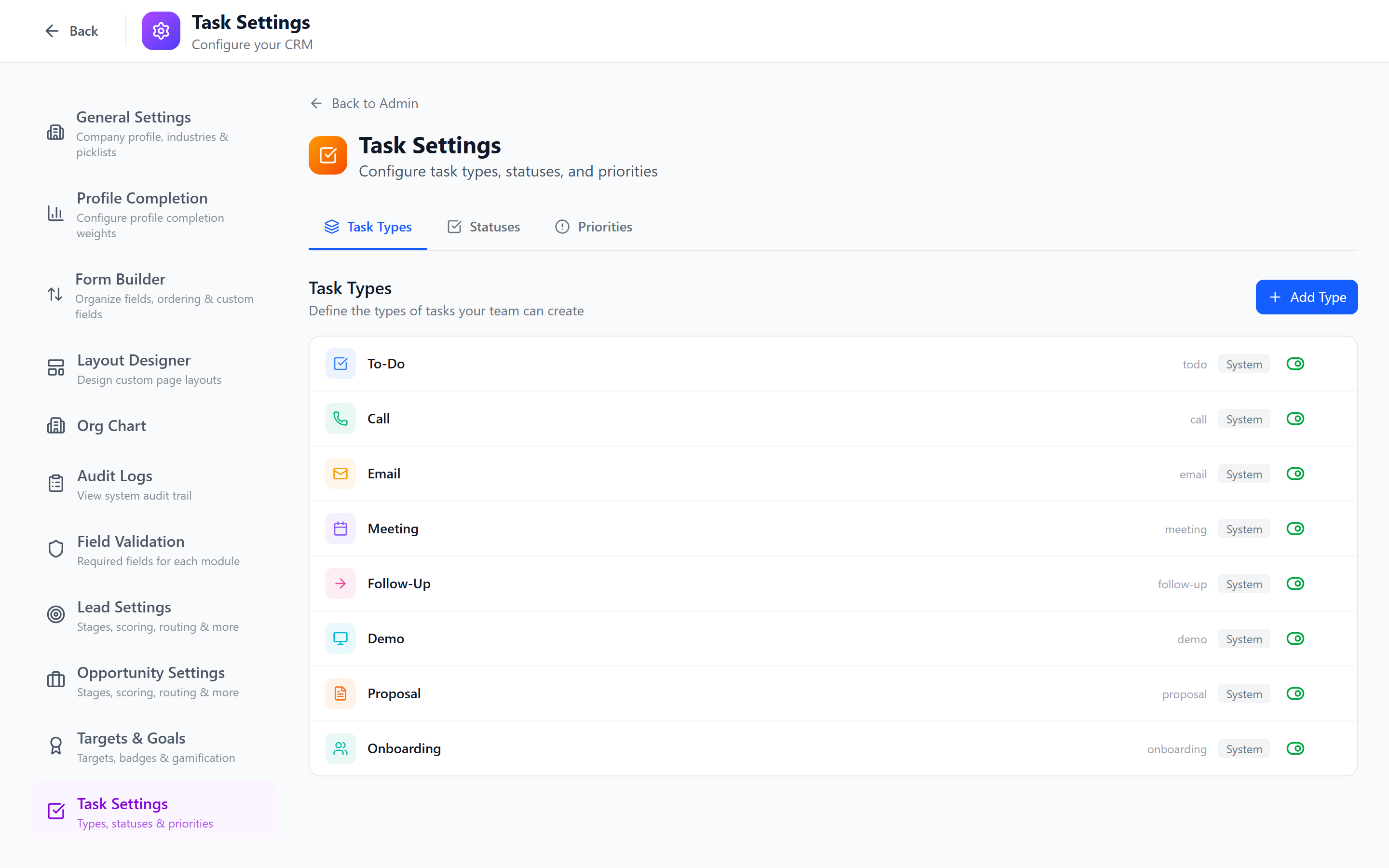
Task Types
Task types categorize the nature of a task (what kind of work it represents).
Managing Task Types
- Select the Types tab.
- View the list of existing task types.
Creating a Task Type
- Click Add Type.
- Configure:
- Name (required) — e.g., "Call", "Email", "Meeting", "Follow-up", "Demo", "Research", "Documentation"
- Icon — select an icon that visually represents the type
- Color — choose a color for visual identification
- Click Save.
Editing a Task Type
Click on a type to modify its name, icon, or color. Changes are reflected across all existing tasks of that type.
Deleting a Task Type
- Click Delete on the type.
- If tasks exist with this type, select a replacement type.
- Confirm.
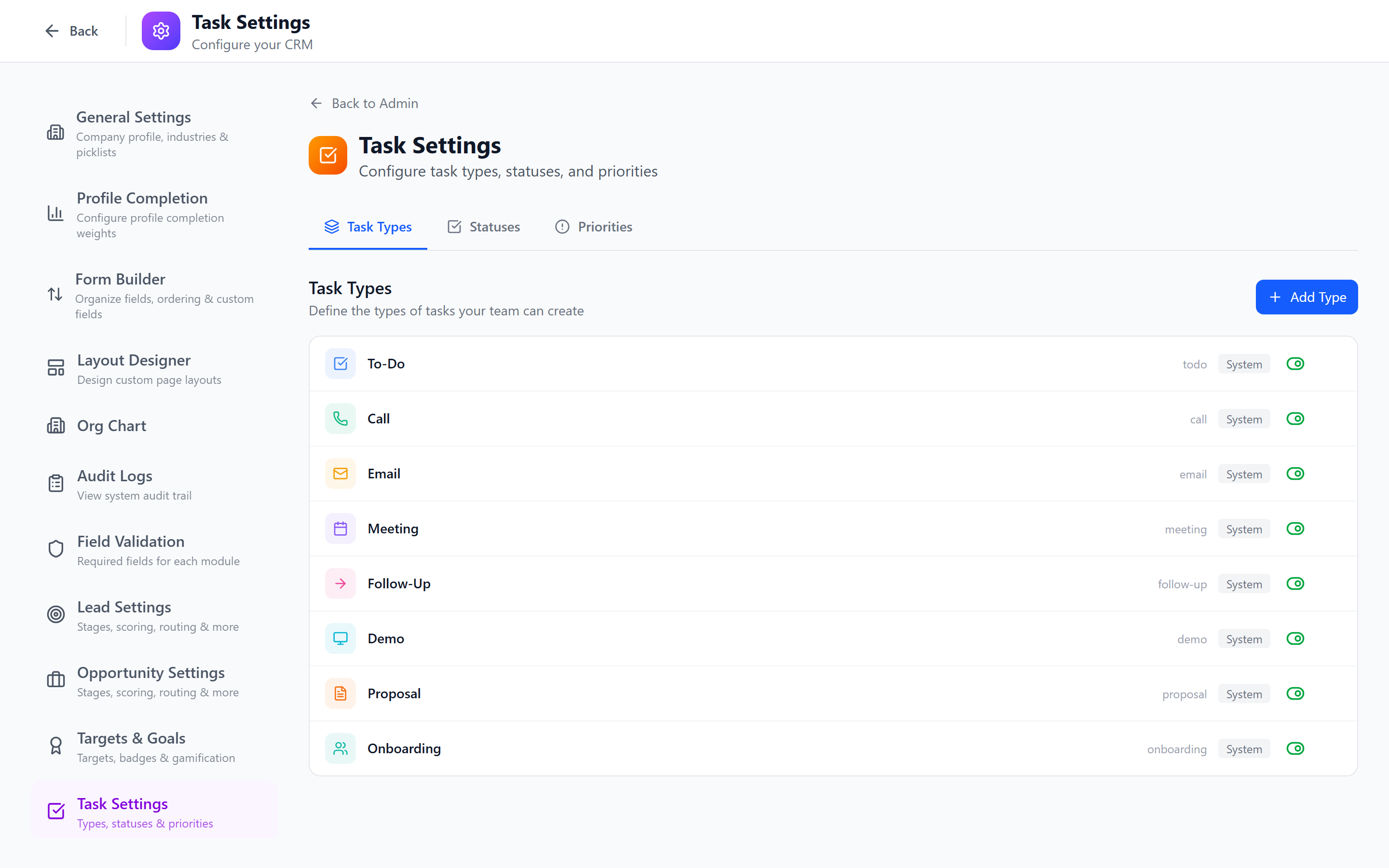
Common task types for CRM workflows:
- Call (phone icon) — scheduled calls with contacts
- Email (envelope icon) — follow-up emails to send
- Meeting (calendar icon) — in-person or virtual meetings
- Follow-up (arrow icon) — general follow-up actions
- Demo (presentation icon) — product demonstrations
- Document (file icon) — document preparation tasks
Task Statuses
Statuses track the progress of a task through its lifecycle.
Managing Task Statuses
- Select the Statuses tab.
- View the ordered list of statuses.
Creating a Task Status
- Click Add Status.
- Configure:
- Name (required) — e.g., "Not Started", "In Progress", "Waiting", "Completed", "Cancelled"
- Color — visual color coding (e.g., gray for Not Started, blue for In Progress, green for Completed)
- Order — position in the status progression
- Click Save.
Reordering Statuses
Drag and drop statuses to change their order. The order determines how statuses appear in dropdowns and kanban views.
Default Status Progression
| Order | Status | Color | Meaning |
|---|---|---|---|
| 1 | Not Started | Gray | Task has been created but not yet begun |
| 2 | In Progress | Blue | Task is actively being worked on |
| 3 | Waiting | Amber | Task is blocked or waiting for input |
| 4 | Completed | Green | Task is finished |
| 5 | Cancelled | Red | Task was abandoned |
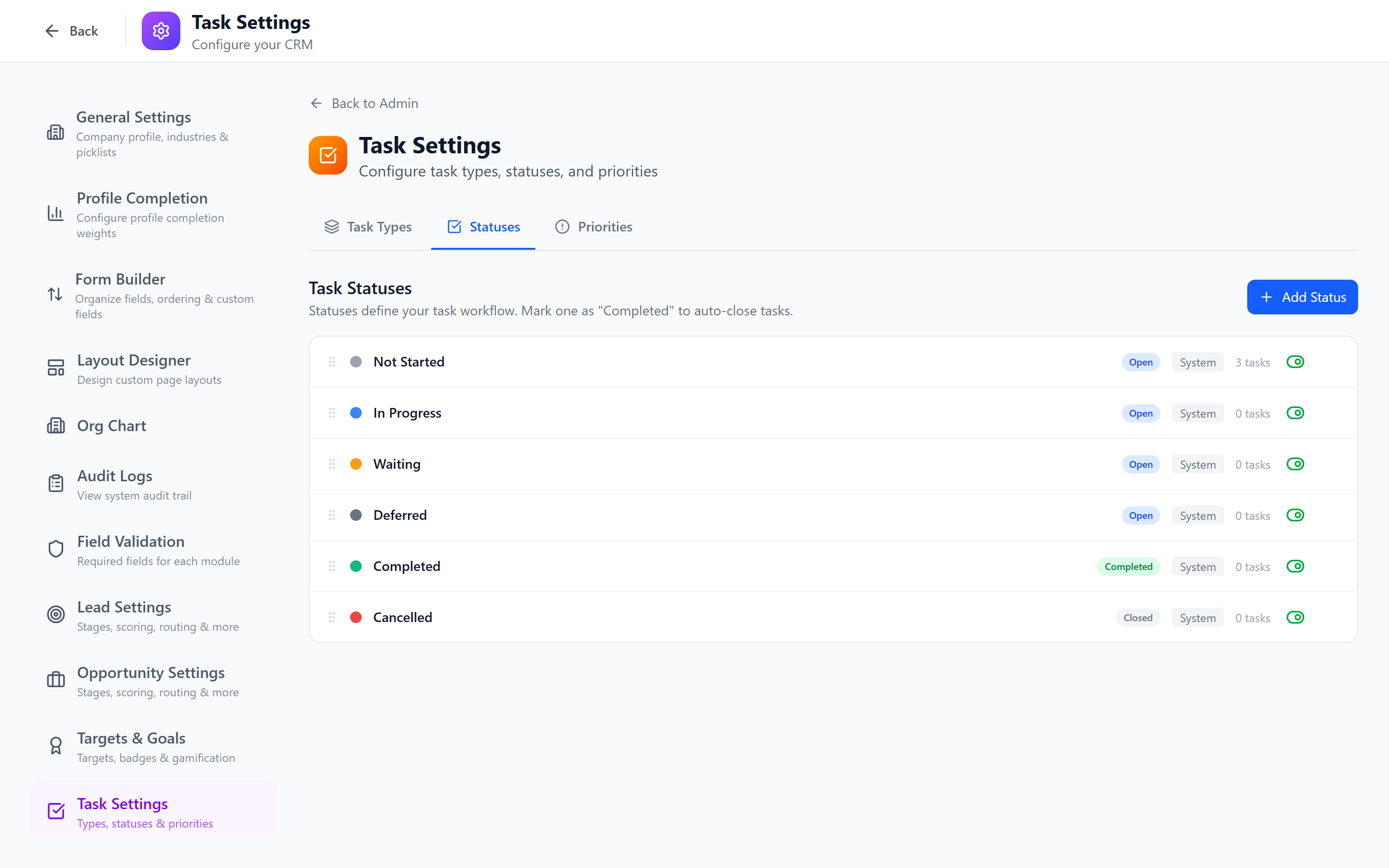
The first status in the list (lowest order) is used as the default status for new tasks. Typically this should be "Not Started" or "Open".
Task Priorities
Priorities indicate the urgency of a task.
Managing Task Priorities
- Select the Priorities tab.
- View the list of priorities with their icons and colors.
Creating a Task Priority
- Click Add Priority.
- Configure:
- Name (required) — e.g., "Critical", "High", "Medium", "Low"
- Icon — select from available icons (flame, thermometer, sun, snowflake, minus)
- Color — visual color coding
- Order — priority ranking (1 = highest)
- Click Save.
Default Priority Configuration
| Order | Priority | Icon | Color |
|---|---|---|---|
| 1 | Critical | Flame | Red |
| 2 | High | Thermometer | Orange |
| 3 | Medium | Sun | Yellow |
| 4 | Low | Snowflake | Blue |
Default Values Configuration
Configure default values that are pre-selected when creating a new task:
- Scroll to the Defaults section (or select the Defaults tab).
- Set:
- Default Type — which task type is pre-selected
- Default Status — typically "Not Started"
- Default Priority — typically "Medium"
- Default Due Date Offset — number of days from creation (e.g., 3 days)
- Save.
Setting a default due date offset of 3-5 days encourages timely task completion. Users can always change the due date, but having a default prevents tasks from being created without deadlines.
Impact on Task Creation Forms and Filters
| Surface | How Settings Apply |
|---|---|
| Create form | Type, Status, and Priority dropdowns are populated from these settings. Default values are pre-selected. |
| Edit form | Same dropdowns with current values selected |
| List view filters | Filter by type, status, and priority using these configured values |
| Kanban board | Columns can be grouped by status; cards show type icon and priority color |
| Reports | Group by and filter by type, status, priority |
Best Practices
- Keep types focused — 5-8 types is optimal. Every type should represent a distinct kind of work.
- Use colors consistently — green for done, red for critical/cancelled, blue for in-progress. Users learn the visual language quickly.
- Order statuses logically — the progression should flow from start to finish.
- Set sensible defaults — reduce the number of decisions users must make when creating a task.
- Review usage — check which types and statuses are actually used. Remove or merge rarely used ones.
- Creating too many statuses (10+) — this makes the kanban board unwieldy and confuses users.
- Not setting a default status — tasks created via API or automation may end up with no status.
- Using similar colors for different statuses — users rely on color coding, so make each color distinct.
Next: Project Settings — Configure project statuses, templates, and phases.