Opportunity Settings
The Opportunity Settings page provides 8 tabs for configuring every aspect of your opportunity management process, from pipeline structure through forecasting categories.
Navigate to Admin > Opportunity Settings.
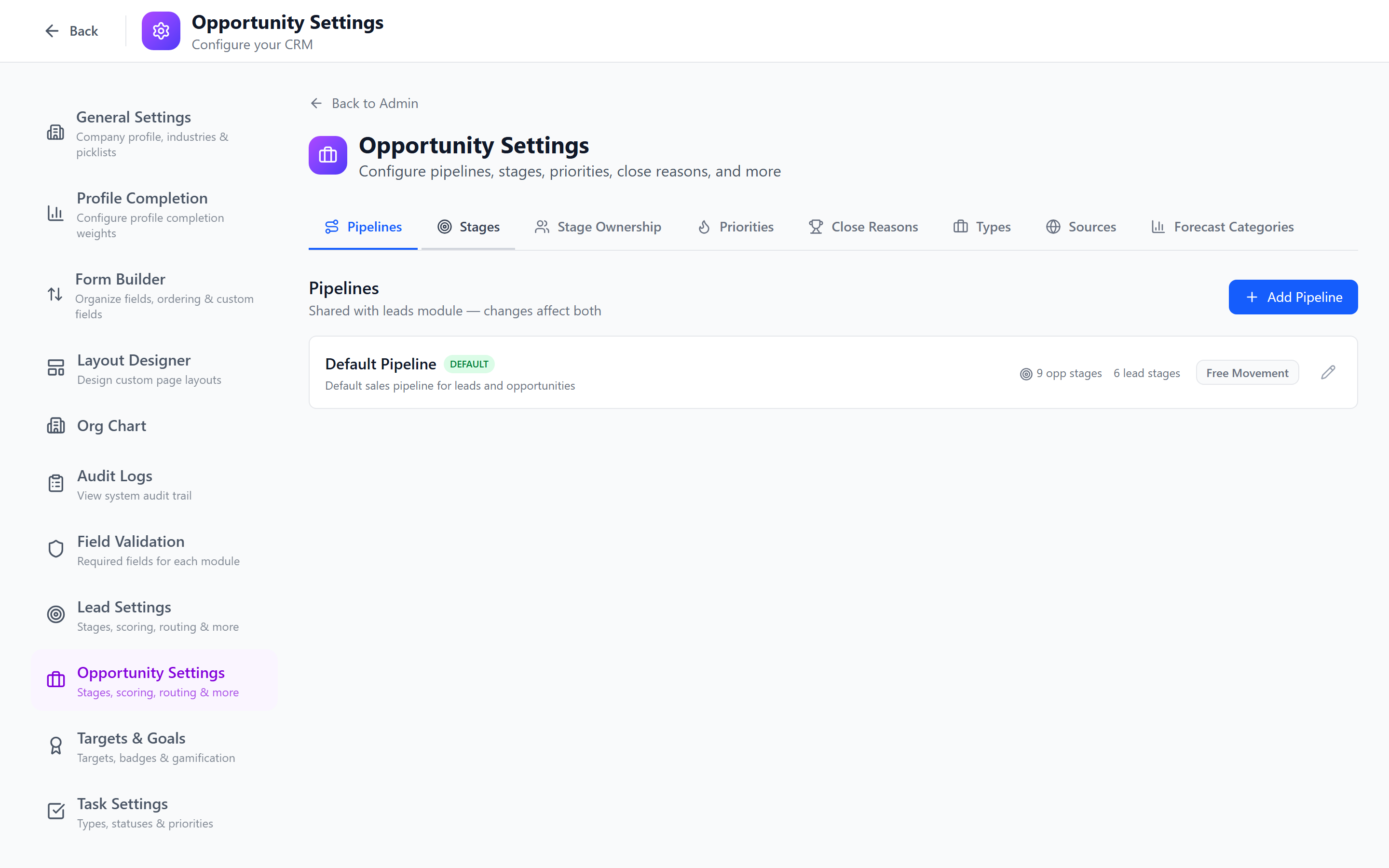
Tab Overview
| Tab | Purpose |
|---|---|
| Pipelines | Opportunity-specific pipelines |
| Stages | Stages within each pipeline |
| Stage Ownership | Owner assignment per stage |
| Priorities | Priority levels for opportunities |
| Close Reasons | Won and Lost reason management |
| Types | Opportunity type classification |
| Sources | Origin tracking for opportunities |
| Forecast Categories | Revenue forecasting configuration |
Pipelines & Stages
Opportunity pipelines use the same shared pipeline system as leads, but with module=opportunities. Configuration works identically — create pipelines, add stages, set order and probabilities.
Opportunity stages typically have probability percentages that feed into revenue forecasting. Set these thoughtfully: Discovery (10%), Qualification (20%), Proposal (40%), Negotiation (60%), Verbal Commitment (80%), Closed Won (100%), Closed Lost (0%).
Editing Stage Name, Color, and Probability
Stages are editable inline from the Stages tab — click the stage tile and edit:
- Name — what shows on the pipeline / kanban / stage indicator.
- Color — used by the stage chip and kanban column.
- Probability — the weighted-forecast value (0–100) that feeds the Best Case / Commit / Closed forecast categories.
When you change a stage's probability the system runs an atomic rebalance — every dependent computation (forecasts, scorecards, kanban column totals) is recomputed in a single transaction so the dashboard never shows half-old, half-new numbers.
Won and Lost Terminal Stages
The terminal Won and Lost stages are also fully editable — name, color, probability (typically 100 / 0), and the field-config of which fields a user must fill in to move into them. Use field-config on Lost to require a Lost Reason; use it on Won to require Close Date and Actual Amount.
Form Submissions as Stage Requirements
Opportunity stages now accept form submissions as required-at-stage requirements in addition to required fields. Open the Stage Fields modal for any stage, scroll to the Forms section, and pick any active form for the opportunities module. The opportunity can't advance to the stage until at least one matching form_submissions row exists for it.
The requirement is once-met-always-met — once the submission lands, backward stage moves don't reset it. Useful for "Negotiation requires the MSA Checklist form" or "Closed Won requires the Final Approval form" patterns where the submission is the artifact, not a fresh checkbox tick.
See Stage Ownership → Stage Requirements for the full reference.
Stage Change — Custom Field Handling
The change-stage endpoint:
- accepts both
stage_fieldsand thestageFieldscamelCase alias from the UI, - strips the
custom.prefix that custom-field keys carry into the validator, - correctly parses JSONB-as-string when a custom field is sent as a stringified JSON value,
- resolves
custom.*keys against the entity'scustom_fieldsblob.
These were silent fixes — admins didn't change configuration. The result is that field requirements on stage change now work correctly for custom fields where they previously sometimes errored out as missing.
Stage Ownership
The Stage Ownership tab allows you to assign responsibility for each stage to a user, team, or role. See Stage Ownership for full details.
Common opportunity stage ownership patterns:
| Stage | Owner |
|---|---|
| Qualification | SDR Team |
| Discovery | Account Executive (role) |
| Proposal | Solutions Engineering Team |
| Negotiation | Sales Manager (role) |
| Legal Review | Legal Team |
| Closed | Account Executive (role) |
Close Reasons
Close reasons categorize why an opportunity was won or lost. They are split into two groups.
Won Reasons
- Switch to the Close Reasons tab.
- In the Won Reasons section, click Add Reason.
- Enter the reason (e.g., "Best Fit Solution", "Competitive Pricing", "Existing Relationship", "Superior Support").
- Save.
Lost Reasons
- In the Lost Reasons section, click Add Reason.
- Enter the reason (e.g., "Lost to Competitor", "No Budget", "No Decision", "Timing", "Product Gap", "Champion Left").
- Save.
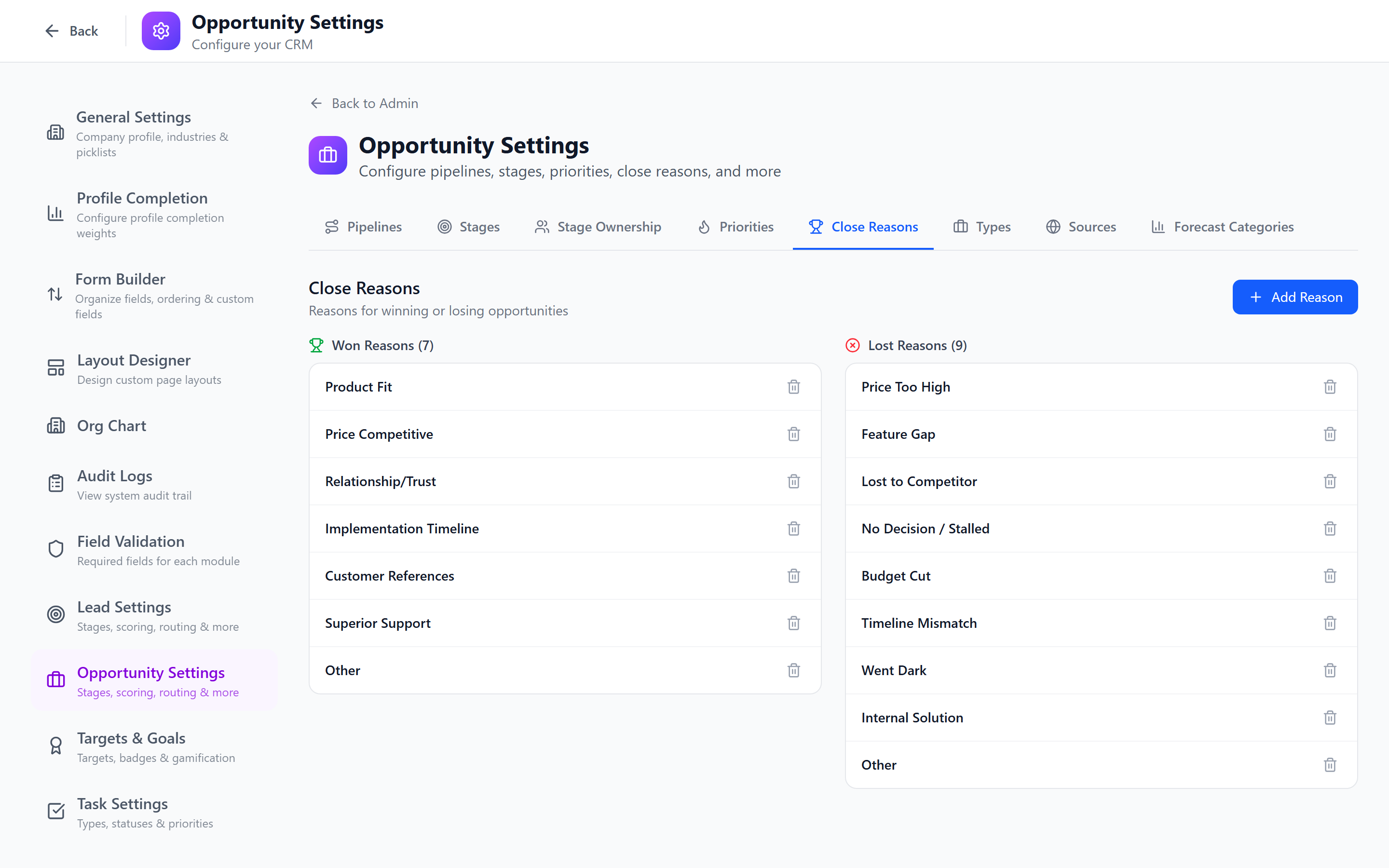
When users close an opportunity as Won or Lost, they must select one of these reasons. This data is invaluable for win/loss analysis.
Review lost reasons monthly in Reports. If "Lost to Competitor" dominates, investigate which competitors and why. If "No Decision" is frequent, your qualification process may need improvement.
Opportunity Types
Types classify opportunities by their nature or deal structure.
- Switch to the Types tab.
- Click Add Type.
- Enter the type name and optional description.
- Save.
Common Opportunity Types
| Type | Description |
|---|---|
| New Business | First-time deal with a new customer |
| MSA (Master Service Agreement) | Framework agreement for ongoing services |
| Renewal | Renewing an existing contract |
| Expansion | Upselling additional products/services to existing customer |
| Cross-sell | Selling different product lines to existing customer |
| Professional Services | Consulting or implementation engagement |
Types help segment your pipeline for reporting. You can filter reports and dashboards by opportunity type to analyze new business vs. renewal performance separately.
Sources
Manage where opportunities originate from.
- Switch to the Sources tab.
- Click Add Source.
- Enter the source name (e.g., "Qualified Lead", "Referral", "RFP Response", "Partner", "Direct Outreach", "Event").
- Save.
Opportunity sources are separate from lead sources, though they often overlap. When a lead is converted to an opportunity, the source can be carried over automatically.
Forecast Categories
Forecast categories group opportunities by their likelihood of closing, providing a structured view for revenue forecasting.
Configuring Forecast Categories
- Switch to the Forecast Categories tab.
- Review or modify the default categories.
- Each category has:
- Name — e.g., "Pipeline", "Best Case", "Commit", "Closed"
- Probability range — the stage probability range that maps to this category
- Color — visual identification in forecast views
Default Forecast Categories
| Category | Probability Range | Meaning |
|---|---|---|
| Pipeline | 0-20% | Early stage, low confidence |
| Best Case | 21-60% | Active opportunity, moderate confidence |
| Commit | 61-90% | High confidence, expected to close |
| Closed | 91-100% | Won or nearly certain |
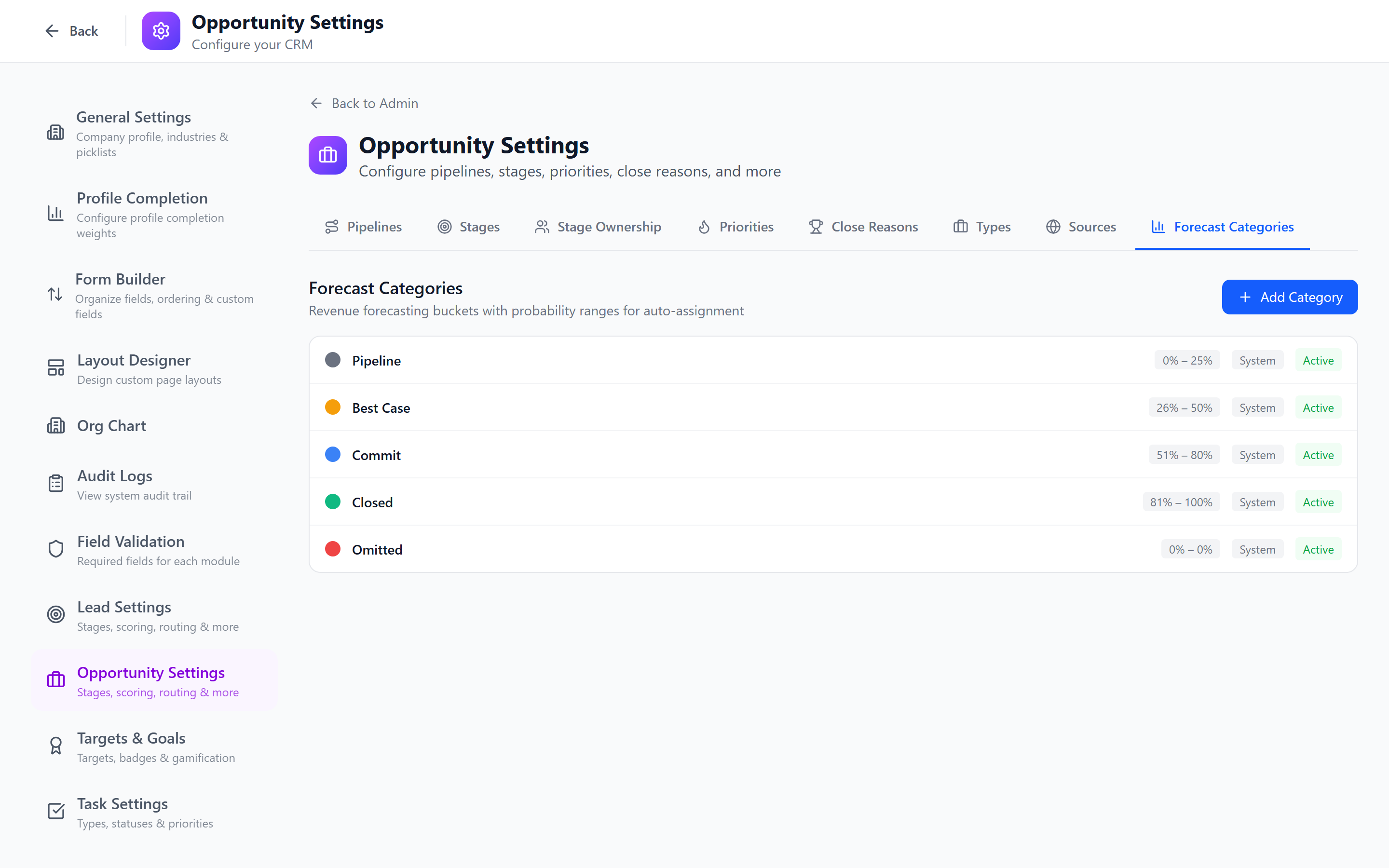
Forecast categories should align with your stage probabilities. If you change stage probabilities, review forecast category ranges to ensure they still make sense.
Priority Management
The Priorities tab for opportunities works identically to lead priorities. Configure icons, colors, and the default priority.
Best Practices
- Align stages with your actual sales process — observe how your team sells before codifying stages.
- Set realistic probabilities — base them on historical conversion data, not optimism.
- Keep close reasons actionable — "Other" is not useful for analysis. Be specific.
- Use types for segmentation — distinguishing new business from renewals is critical for accurate forecasting.
- Review forecast categories quarterly — adjust probability ranges based on actual win rates.
- Limit the number of sources — too many sources dilute analysis. Group similar channels.
Next: Task Settings — Configure task types, statuses, and priorities.