Xero Integration
The Xero integration connects IntelliSales CRM to your Xero accounting platform, enabling bi-directional sync of contacts, accounts, and invoices. This eliminates double data entry and keeps your sales and accounting data aligned.
Navigate to Admin > Integrations > Xero.
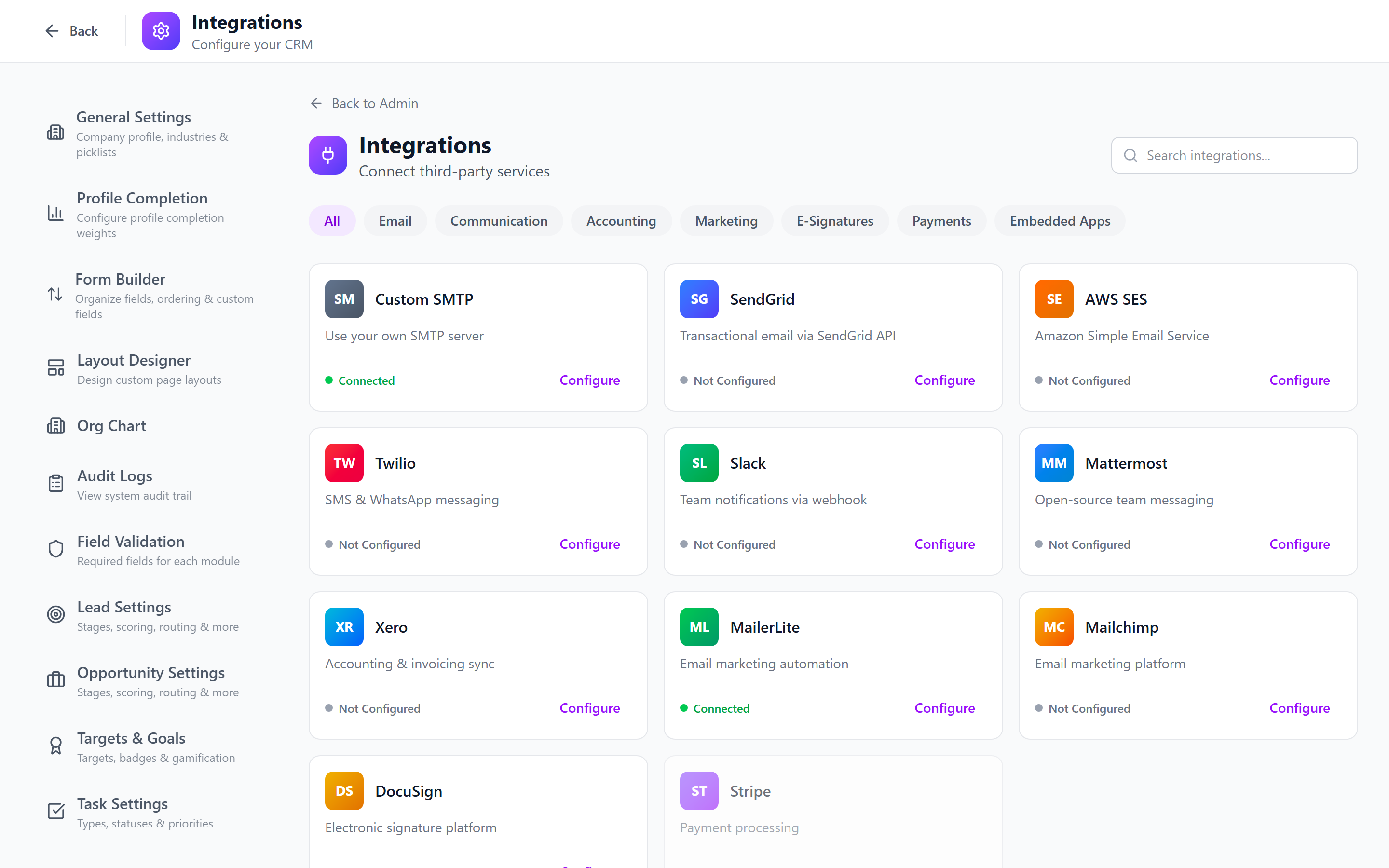
Xero Integration Setup
OAuth Consent Flow
- Click Connect to Xero.
- You are redirected to Xero's login page.
- Sign in with your Xero admin account.
- Select the Xero organization you want to connect.
- Review the permissions IntelliSales CRM is requesting:
- Read and write Contacts
- Read and write Invoices
- Read Chart of Accounts
- Click Allow Access.
- You are redirected back to IntelliSales CRM with a success message.
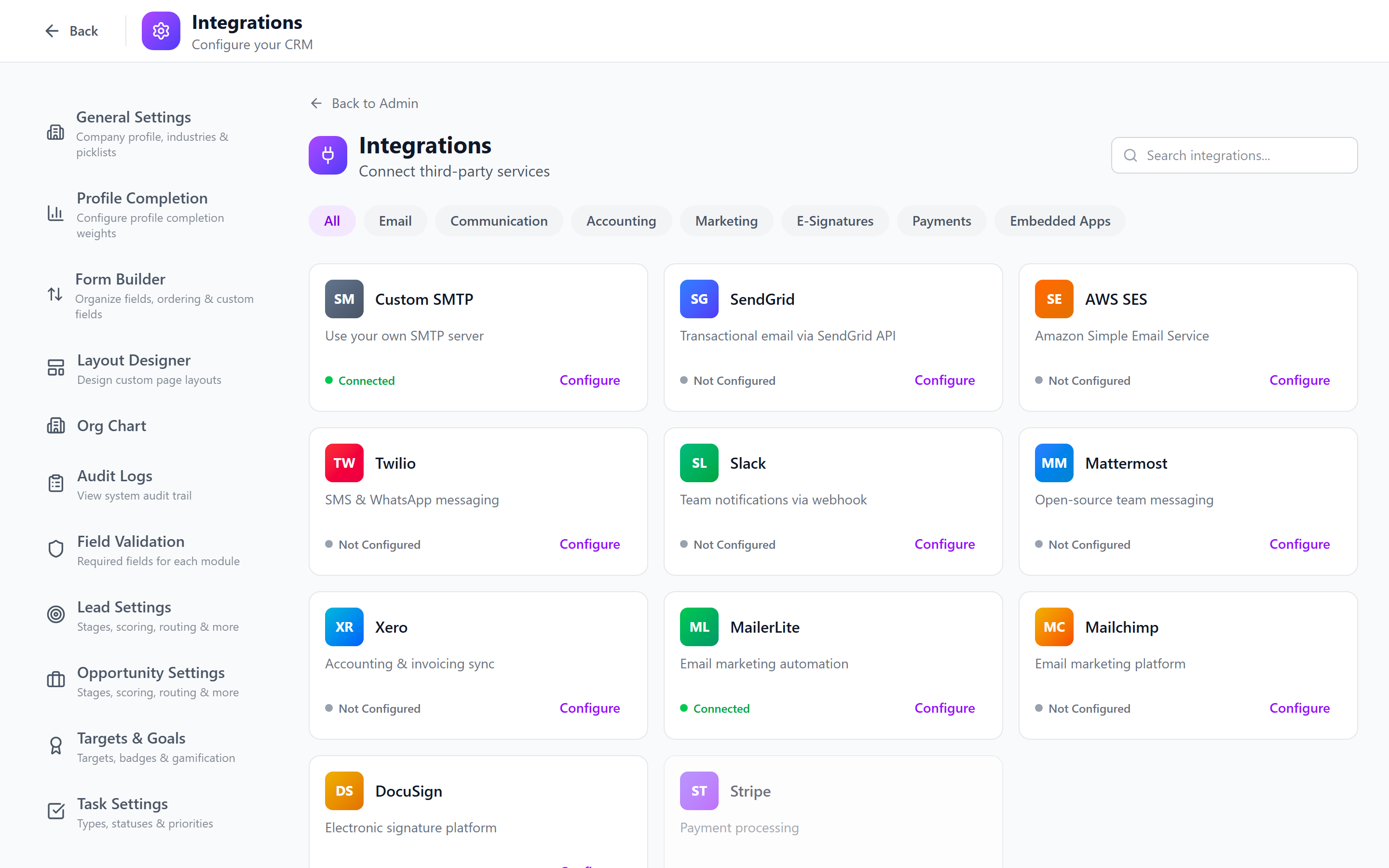
The OAuth token expires periodically. IntelliSales CRM automatically refreshes it. If the refresh fails (e.g., Xero credentials changed), you will need to reconnect.
Contact/Account Matching
When syncing, the system needs to match CRM contacts and accounts to Xero contacts.
Automatic Matching
The system attempts to match records by:
- Email address — exact match
- Company name — fuzzy match
- Phone number — exact match
Manual Matching
For records that cannot be auto-matched:
- Navigate to the Matching tab.
- View the list of unmatched CRM records and Xero contacts.
- Manually link records by selecting the correct Xero contact for each CRM record.
- Click Save Matches.
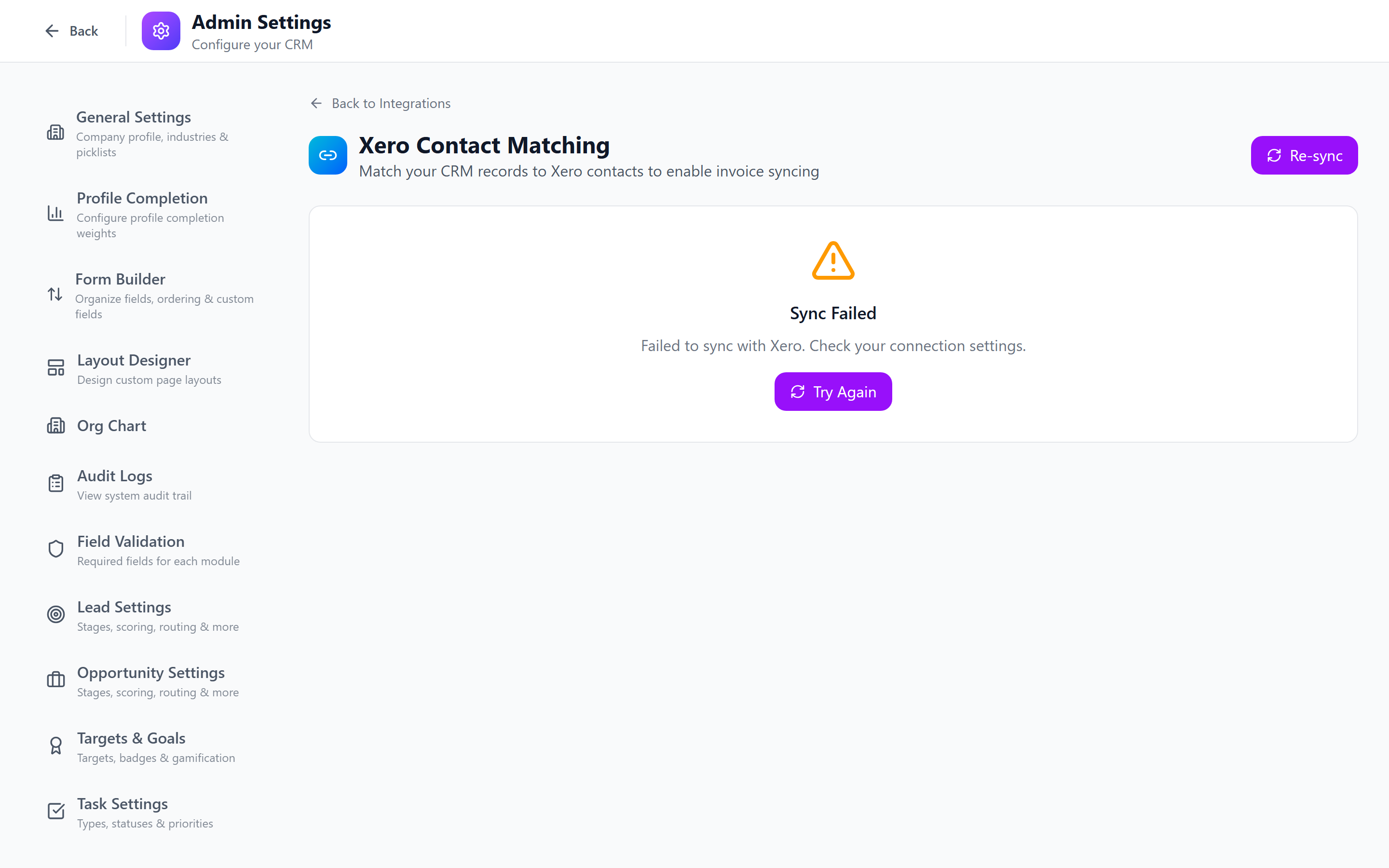
Run manual matching after the initial connection to ensure key accounts are correctly linked before enabling auto-sync.
Auto-Sync Configuration
Configure what data syncs and how often:
- Select the Sync Settings tab.
- Configure:
- Sync Direction: CRM to Xero, Xero to CRM, or Both
- Sync Frequency: Every 15 min, hourly, daily, or manual only
- Contact Sync: Enable/disable contact synchronization
- Invoice Sync: Enable/disable invoice synchronization
- New Record Behavior: Auto-create in the target system or queue for review
- Save.
| Setting | Recommended |
|---|---|
| Direction | Bi-directional |
| Frequency | Hourly |
| Contact Sync | Enabled |
| Invoice Sync | Enabled |
| New Records | Queue for review (initially) |
Manual Sync Operations
To trigger a sync manually:
- Click Sync Now on the Xero integration page.
- Select what to sync: Contacts, Invoices, or All.
- The sync job starts and you can monitor progress in Batch Jobs.
Manual syncs process all records, not just changes. For large datasets, this can take several minutes. Avoid triggering manual syncs during peak business hours.
Pushing Invoices to Xero
When invoices are created in IntelliSales CRM, they can be pushed to Xero:
- Ensure invoice sync is enabled in Sync Settings.
- When an invoice is created or finalized in the CRM, it is queued for Xero sync.
- The invoice appears in Xero with:
- Linked Xero contact
- Line items and amounts
- Due date and reference number
- Payment status (synced back from Xero when paid)
Field Mapping
View and configure how CRM fields map to Xero fields:
- Select the Field Mapping tab.
- Review the default mappings:
| CRM Field | Xero Field |
|---|---|
| Account Name | Contact Name |
| Email Address | |
| Phone | Phone Number |
| Billing Address | Address (POBOX) |
| Tax ID | Tax Number |
| Invoice Amount | Total |
| Invoice Date | Date |
| Due Date | Due Date |
- Customize mappings for custom fields if needed.
- Save.
Troubleshooting Xero Sync
Common Issues
| Issue | Cause | Solution |
|---|---|---|
| "Token expired" error | OAuth token refresh failed | Reconnect to Xero via OAuth |
| Duplicate contacts in Xero | Auto-matching failed | Review and fix matching manually |
| Invoice amounts differ | Currency conversion | Verify currency settings in both systems |
| Sync stuck at "Processing" | API rate limit reached | Wait 1 hour and retry; Xero limits to 60 calls/minute |
| "Organisation not found" | Connected to wrong Xero org | Disconnect and reconnect, selecting the correct organization |
Checking Sync Logs
- Go to the Sync Log tab on the Xero integration page.
- View recent sync operations with status (success/failed), records processed, and error details.
- Click on a failed record to see the specific Xero API error message.
If you disconnect and reconnect Xero, all existing matches are preserved. However, if you connect to a different Xero organization, matches will be invalid and need to be rebuilt.
Best Practices
- Start with manual sync to verify data quality before enabling auto-sync.
- Review matches carefully — incorrect matches cause data corruption in both systems.
- Monitor weekly — check the sync log for recurring errors.
- Use staging first — if Xero offers a demo company, test the integration there before connecting to production.
- Keep field mappings current — update mappings when you add custom fields.
Next: Google Calendar — Set up two-way calendar synchronization.