Google Calendar Integration
The Google Calendar integration provides two-way synchronization between IntelliSales CRM tasks/meetings and Google Calendar events. Users can see their CRM schedule in Google Calendar and vice versa.
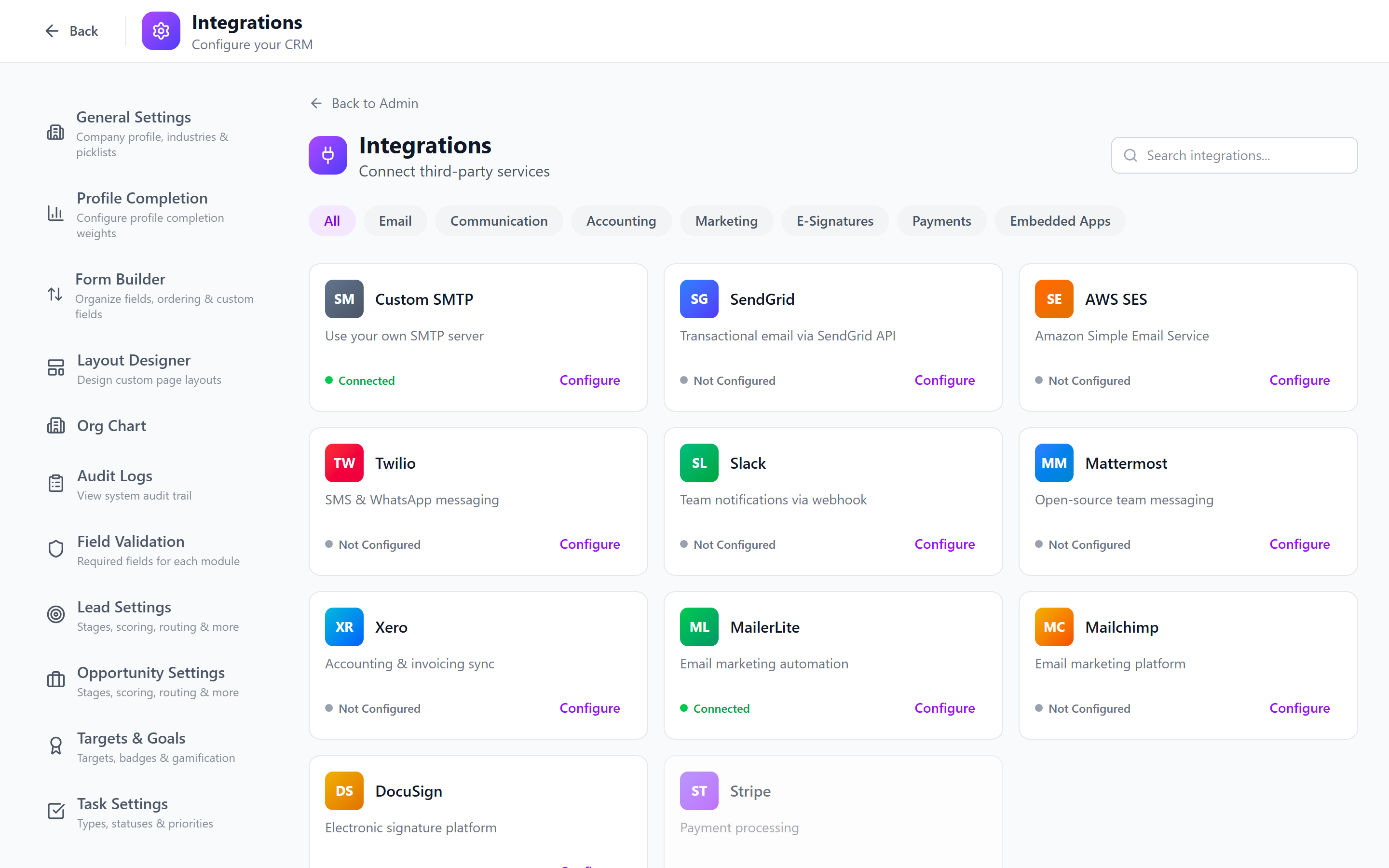
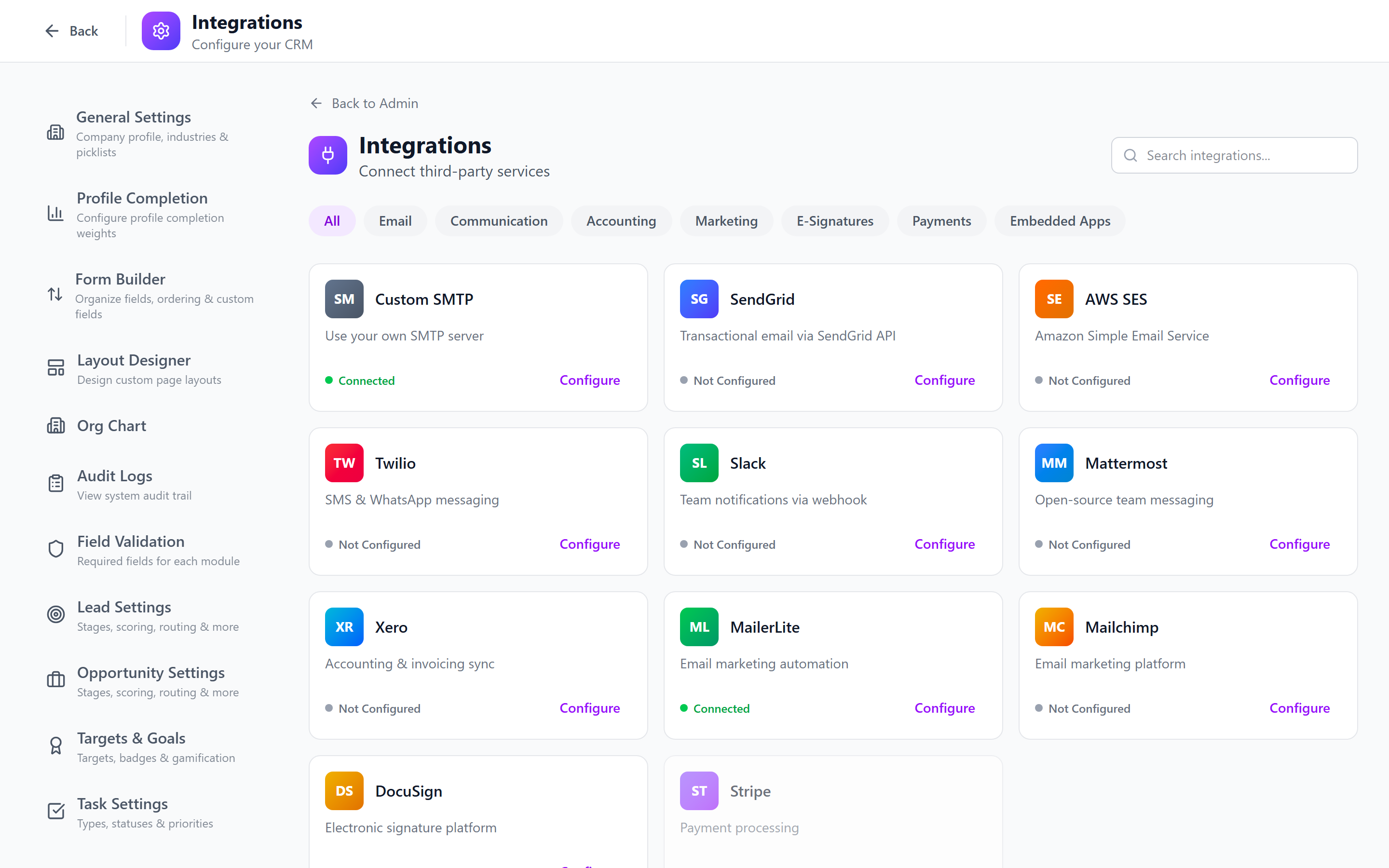
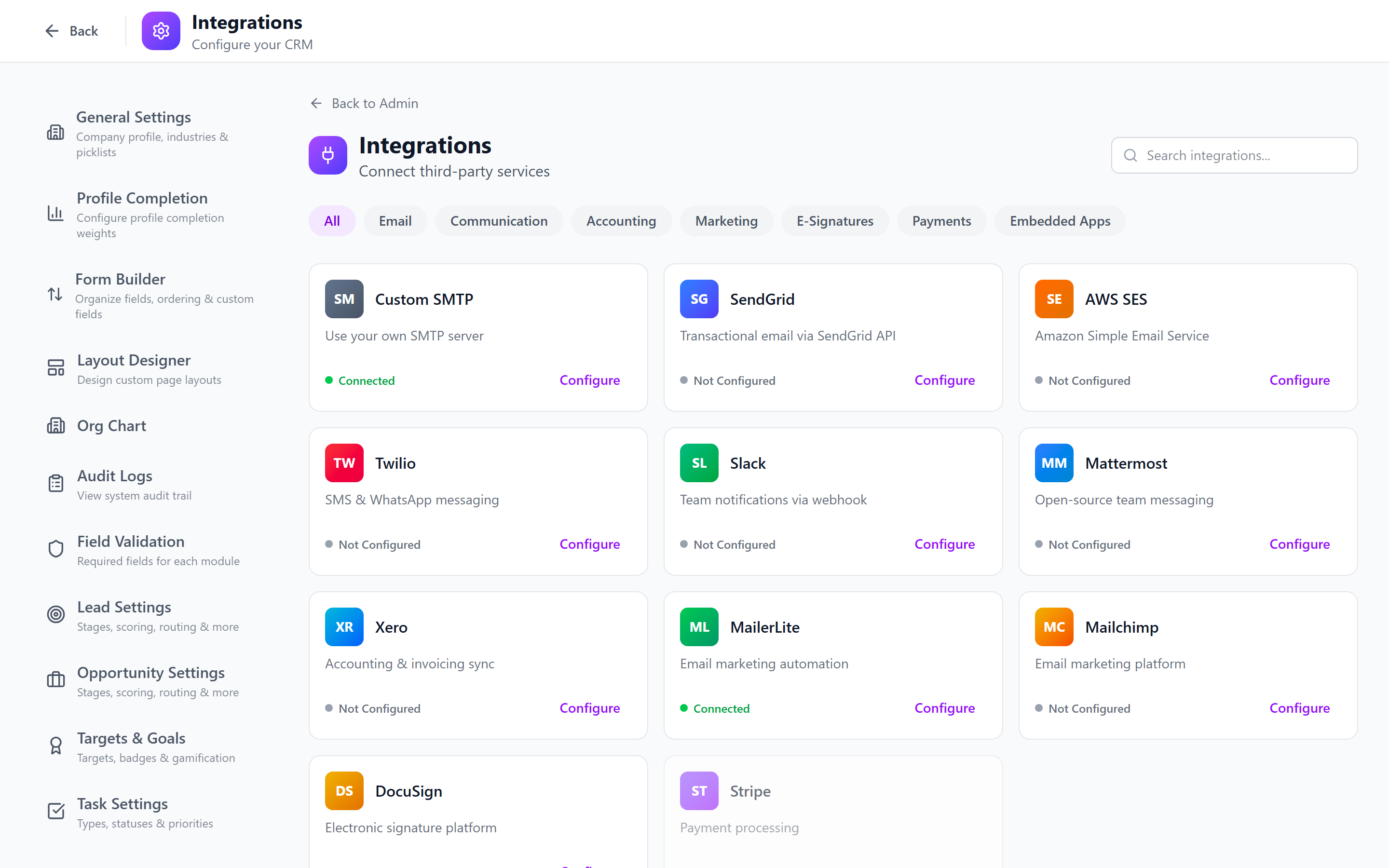
Navigate to Admin > Integrations > Google Calendar.
Google Calendar Setup
OAuth Flow
- Click Connect Google Calendar.
- You are redirected to Google's consent screen.
- Sign in with the Google Workspace admin account.
- Grant the following permissions:
- View and edit calendar events
- View calendar settings
- Click Allow.
- You are redirected back with a success message.
The admin connects the integration at the organization level. Individual users then authorize their own Google accounts from their personal settings to enable their calendar sync.
Admin vs. User Setup
| Level | Who Does It | What It Does |
|---|---|---|
| Admin Setup | System administrator | Configures the Google OAuth app credentials (Client ID, Client Secret) |
| User Authorization | Each user individually | Connects their personal Google Calendar account |
Configuring OAuth Credentials
- In the Google Cloud Console, create an OAuth 2.0 Client ID.
- Set the authorized redirect URI to
https://your-crm-domain.com/api/calendar-sync/callback. - Copy the Client ID and Client Secret.
- Paste them into the IntelliSales CRM Google Calendar configuration.
- Save.
Sync Configuration
Configure how and what syncs between the two systems:
Sync Frequency
| Option | Behavior |
|---|---|
| Real-time | Events sync within seconds of creation/update |
| Every 15 minutes | Batch sync every 15 minutes |
| Hourly | Less frequent, lower API usage |
| Manual | Users trigger sync manually |
What Syncs
| CRM to Google | Google to CRM |
|---|---|
| Tasks with type "Meeting" | Calendar events → CRM tasks |
| Tasks with type "Call" (optional) | All-day events → CRM tasks (optional) |
| Task due date → Event time | Event time → Task due date |
| Task description → Event description | Event description → Task description |
| Task attendees → Event guests | Event guests → Task attendees |
Configuration Steps
- Select the Sync Settings tab.
- Choose sync frequency.
- Toggle which task types should sync to Google Calendar.
- Toggle whether Google Calendar events should create CRM tasks.
- Set the default task type for events imported from Google Calendar.
- Save.
Two-Way Sync Behavior
When two-way sync is enabled:
- Creating a meeting in CRM creates a Google Calendar event.
- Creating a Google Calendar event creates a CRM task (if configured).
- Updating either side propagates changes to the other.
- Deleting either side marks the other as cancelled.
Sync Identifiers
Each synced record stores a reference to its counterpart:
- CRM tasks store the Google Calendar event ID
- Google Calendar events store the CRM task ID in extended properties
This prevents duplicate creation and enables accurate updates.
Conflict Resolution
When the same event is modified in both systems between sync cycles:
| Conflict Policy | Behavior |
|---|---|
| CRM Wins | CRM version overwrites Google Calendar |
| Google Wins | Google Calendar version overwrites CRM |
| Last Modified Wins (recommended) | The most recently modified version takes precedence |
| Manual | Conflicts are flagged for user resolution |
Configure the conflict policy in Sync Settings > Conflict Resolution.
"Last Modified Wins" works well for most organizations. Users naturally edit the system they are currently in, and the most recent edit is usually the correct one.
Viewing Sync Jobs
- Select the Sync History tab.
- View recent sync operations:
- Sync Time — when the sync ran
- Direction — CRM to Google, Google to CRM, or Both
- Records Processed — number of events synced
- Conflicts — number of conflicts encountered
- Errors — number of failures
- Click on a sync job for detailed logs.
Retrying Failed Syncs
- Find a failed sync in the history.
- Click Retry.
- The system re-attempts the failed records only.
If a user revokes Google Calendar access from their Google account settings, their sync will fail silently. Check for failed syncs and prompt users to re-authorize if needed.
Troubleshooting
| Issue | Cause | Solution |
|---|---|---|
| "Access denied" during OAuth | Insufficient Google Workspace permissions | Ensure the admin account has calendar management rights |
| Events not appearing in Google | Sync frequency too low | Reduce the sync interval or trigger manual sync |
| Duplicate events | Sync identifier lost | Check for orphaned events and clean up manually |
| Wrong calendar | User has multiple Google Calendars | Ensure the correct calendar is selected in user settings |
| "Rate limit exceeded" | Too many API calls | Increase sync interval to hourly |
Best Practices
- Start with hourly sync and reduce the interval only if real-time is needed.
- Use "Last Modified Wins" for conflict resolution unless you have a strong reason otherwise.
- Limit what syncs — not every CRM task needs to be a Google Calendar event. Sync meetings and calls, not to-do items.
- Monitor sync health — check the sync history weekly for persistent failures.
- Educate users — explain that changes in Google Calendar will reflect in the CRM (and vice versa) to avoid confusion.
Next: Email Integration — Connect Gmail and Outlook for email synchronization.