Email Marketing Integration
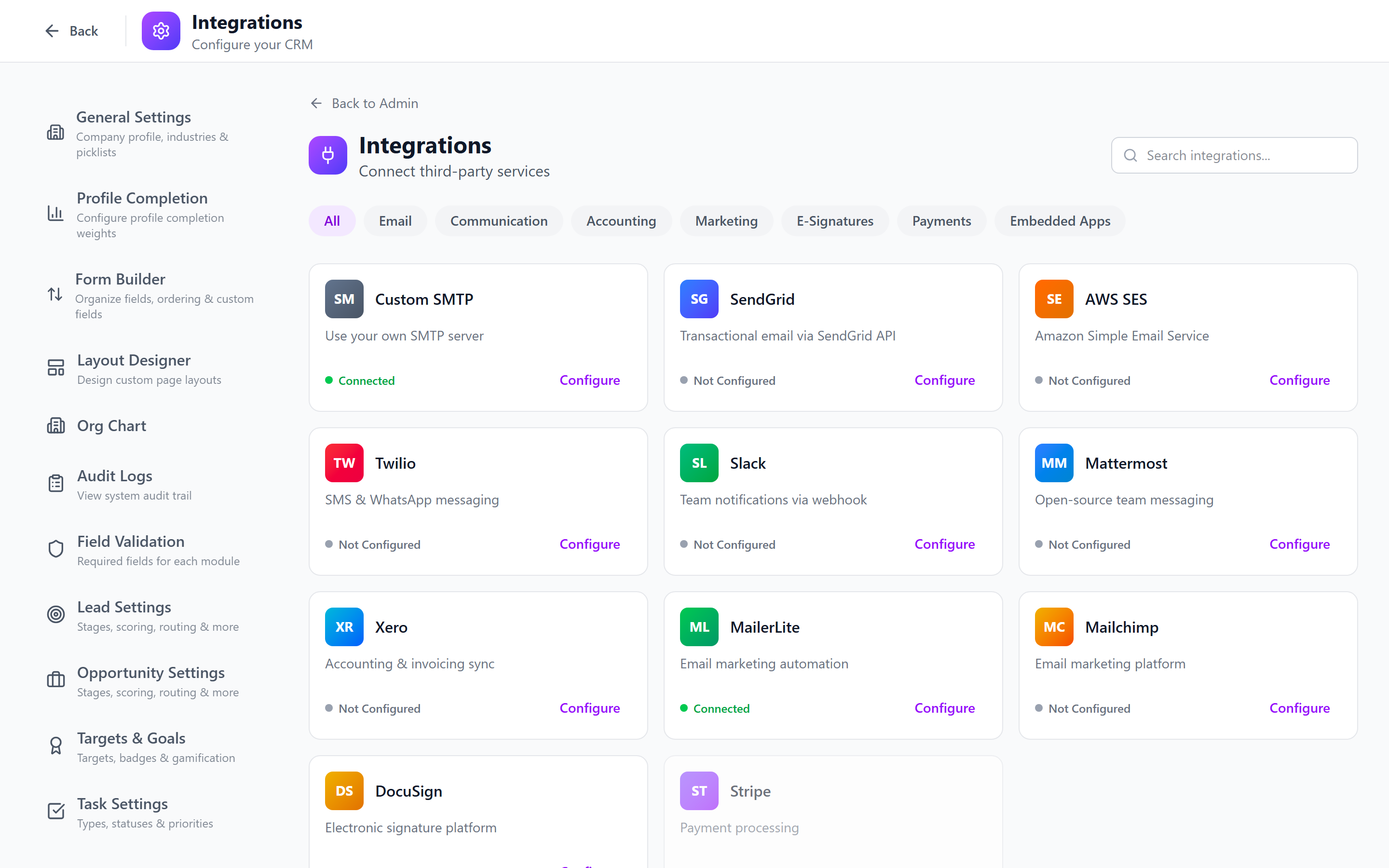
IntelliSales CRM integrates with MailerLite and Mailchimp to connect your CRM contact data with your email marketing campaigns. Sync contacts to lists, view engagement metrics inside the CRM, and trigger email marketing actions from workflows.
Navigate to Admin > Integrations to configure.
Supported Platforms
| Platform | Features |
|---|---|
| MailerLite | Contact sync, list management, engagement tracking, webhook events |
| Mailchimp | Contact sync, list/audience management, engagement tracking, webhook events |
Setting Up the Integration
Step 1: Enter API Key
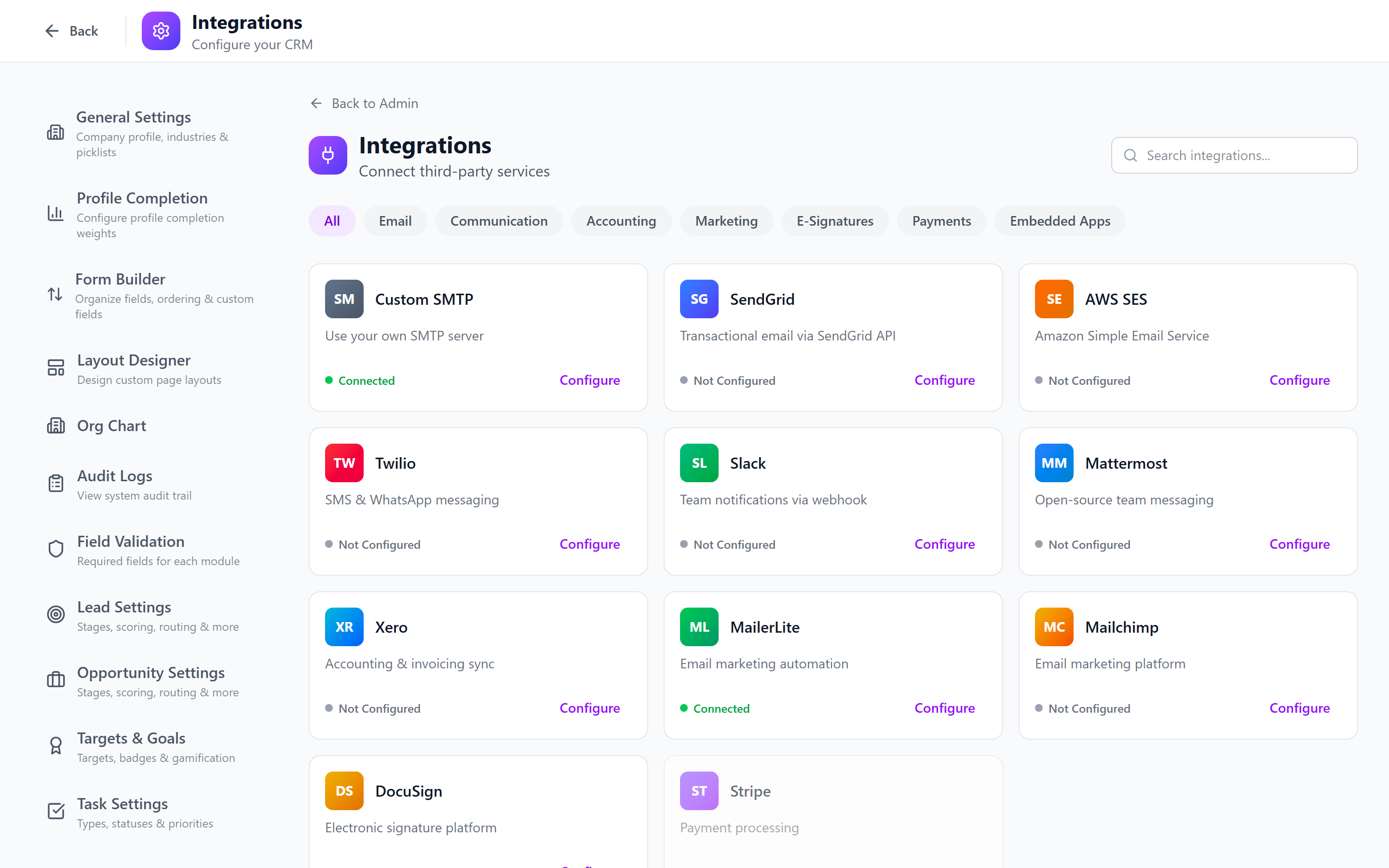
- Navigate to Admin > Integrations.
- Click the MailerLite or Mailchimp card.
- Enter your API key:
- MailerLite: Found under MailerLite > Integrations > Developer API
- Mailchimp: Found under Mailchimp > Account > Extras > API Keys
- Click Save.
Step 2: Test Connection
After entering your API key:
- Click the Test Connection button.
- The system verifies the API key is valid and the service is reachable.
- A green checkmark and "Connected" status confirms success.
- If the test fails, verify your API key and check that the service is not experiencing downtime.
API keys grant access to your email marketing account. Keep them secure and rotate them periodically. Never share API keys via email or chat.
Step 3: Configure Webhook URL
To receive real-time events from your email marketing platform (unsubscribes, bounces, complaints):
- After connecting, the system generates a unique Webhook URL.
- Copy the webhook URL.
- In your email marketing platform, navigate to the webhook settings:
- MailerLite: Settings > Webhooks
- Mailchimp: Audience > Settings > Webhooks
- Add the copied URL as a new webhook endpoint.
- Select the events you want to receive (subscribe, unsubscribe, bounce, complaint).
- Save the webhook in the email marketing platform.
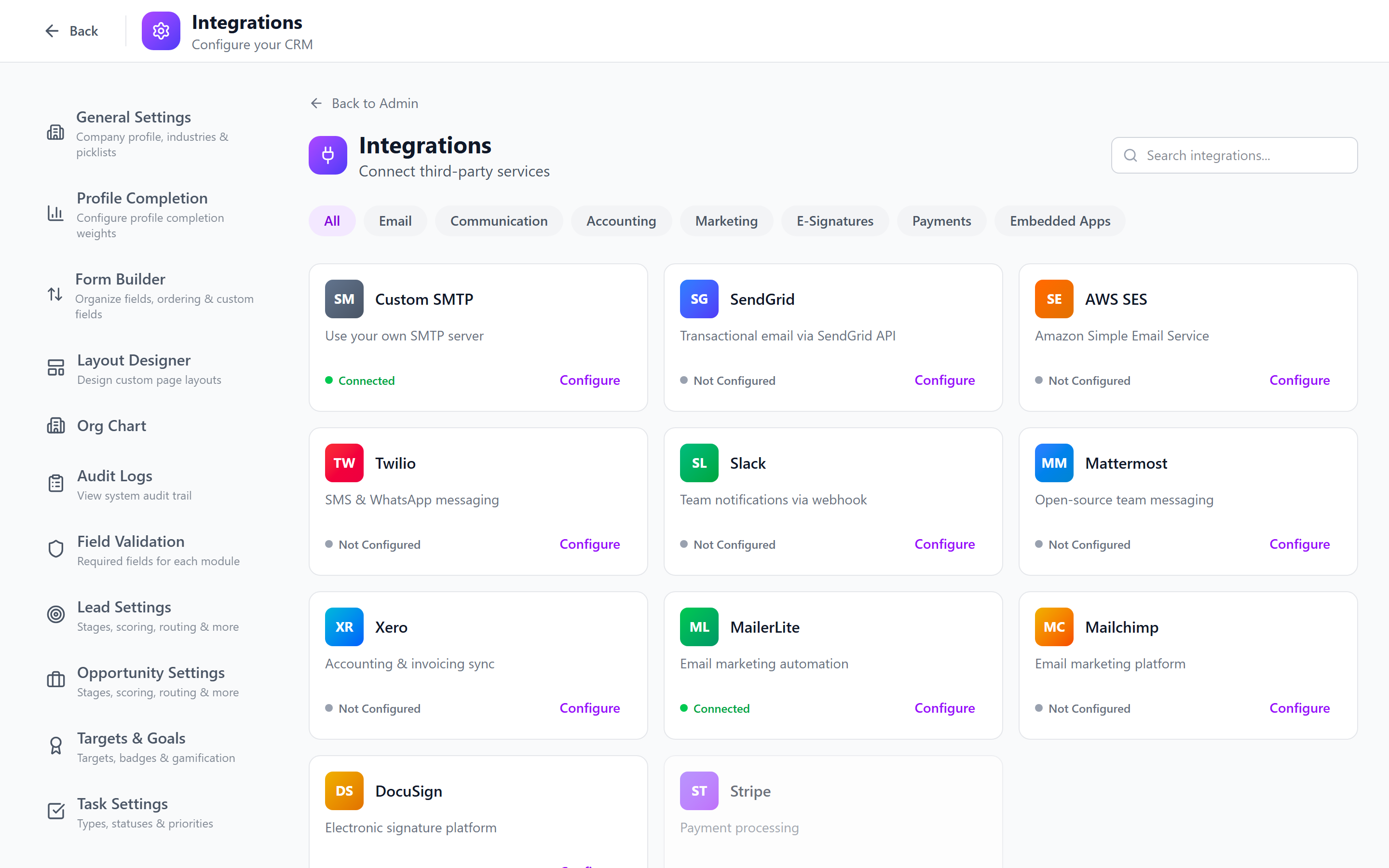
Webhooks enable real-time sync. Without them, the CRM only updates engagement data when you manually refresh or on scheduled syncs.
Contact Email Marketing Panel
On every Contact Detail Page, an Email Marketing panel shows the contact's status in your email marketing platform:
| Field | Description |
|---|---|
| Subscription Status | Subscribed, Unsubscribed, Pending, Cleaned |
| Lists/Audiences | Which lists or audiences the contact belongs to |
| Last Campaign | The most recent campaign sent to this contact |
| Open Rate | Personal open rate across campaigns |
| Click Rate | Personal click rate across campaigns |
| Last Engagement | Date of last open or click |

Adding a Contact to a List
From the Contact Detail Page:
- Open the Email Marketing panel.
- Click Add to List.
- Select one or more lists from the dropdown (lists are fetched from your connected platform).
- Click Confirm.
- The contact is added to the selected lists in real time.
Multi-Provider List Selection
When you have both MailerLite and Mailchimp connected, every list in the picker is tagged with its provider (e.g., "Onboarding — MailerLite" / "Customers — Mailchimp") so there's no ambiguity about which platform the action will hit. The provider chooser is also exposed on the workflow add_to_email_list action and the form Add to Email List submit action.
The provider for each subscribe / unsubscribe call is then sent to the right backend so cross-provider sync stays clean — a MailerLite list never sees a Mailchimp call accidentally.
Removing a Contact from a List
- In the Email Marketing panel, find the list.
- Click the Remove button next to the list name.
- Confirm the removal.
Account Email Marketing Tab
On the Account Detail Page, the Email Marketing tab provides a bulk view of all contacts linked to that account:
- Table showing each contact's name, email, subscription status, lists, and last engagement date
- Bulk Add to List — select multiple contacts and add them to a list in one action
- Bulk Remove from List — remove multiple contacts from a list
- Filter by subscription status (Subscribed, Unsubscribed, etc.)

Use the Account Email Marketing tab to quickly enroll all contacts at a new customer account into your onboarding email sequence.
Workflow Actions
The email marketing integration adds two actions to the Workflow Builder:
Add to Email List
Automatically add a contact to an email marketing list when workflow conditions are met.
Configuration:
- List — select the target list from your connected platform
- Tags (optional) — add tags to the contact in the email platform
Example workflow:
When a lead is converted to a contact → Add to "Onboarding Sequence" list in MailerLite
Remove from Email List
Automatically remove a contact from a list.
Configuration:
- List — select the list to remove from
Example workflow:
When an account status changes to "Churned" → Remove all contacts from "Active Customers" list
Sync Behavior
| Event | Direction | Behavior |
|---|---|---|
| Contact created in CRM | CRM → Email Platform | Added to default list (if configured) |
| Contact unsubscribes in email platform | Email Platform → CRM | Status updated via webhook |
| Contact bounces | Email Platform → CRM | Status marked as "Cleaned" |
| List membership changed in email platform | Email Platform → CRM | Lists updated in CRM on next sync |
| Engagement event (open/click) | Email Platform → CRM | Engagement metrics updated |
Troubleshooting
| Issue | Solution |
|---|---|
| "Invalid API Key" error | Verify the key in your email platform; regenerate if needed |
| Webhook events not arriving | Check the webhook URL is correct; verify the email platform shows successful deliveries |
| Contact not syncing | Ensure the contact has a valid email address; check for email platform rate limits |
| Engagement data stale | Click "Refresh" on the Email Marketing panel; verify webhook is active |
Related Pages
- Integrations Overview — all available integrations
- Workflow Builder — automating email marketing actions
- Contact Detail Page — Email Marketing panel
- Account Detail Page — Email Marketing tab