Navigating the Interface
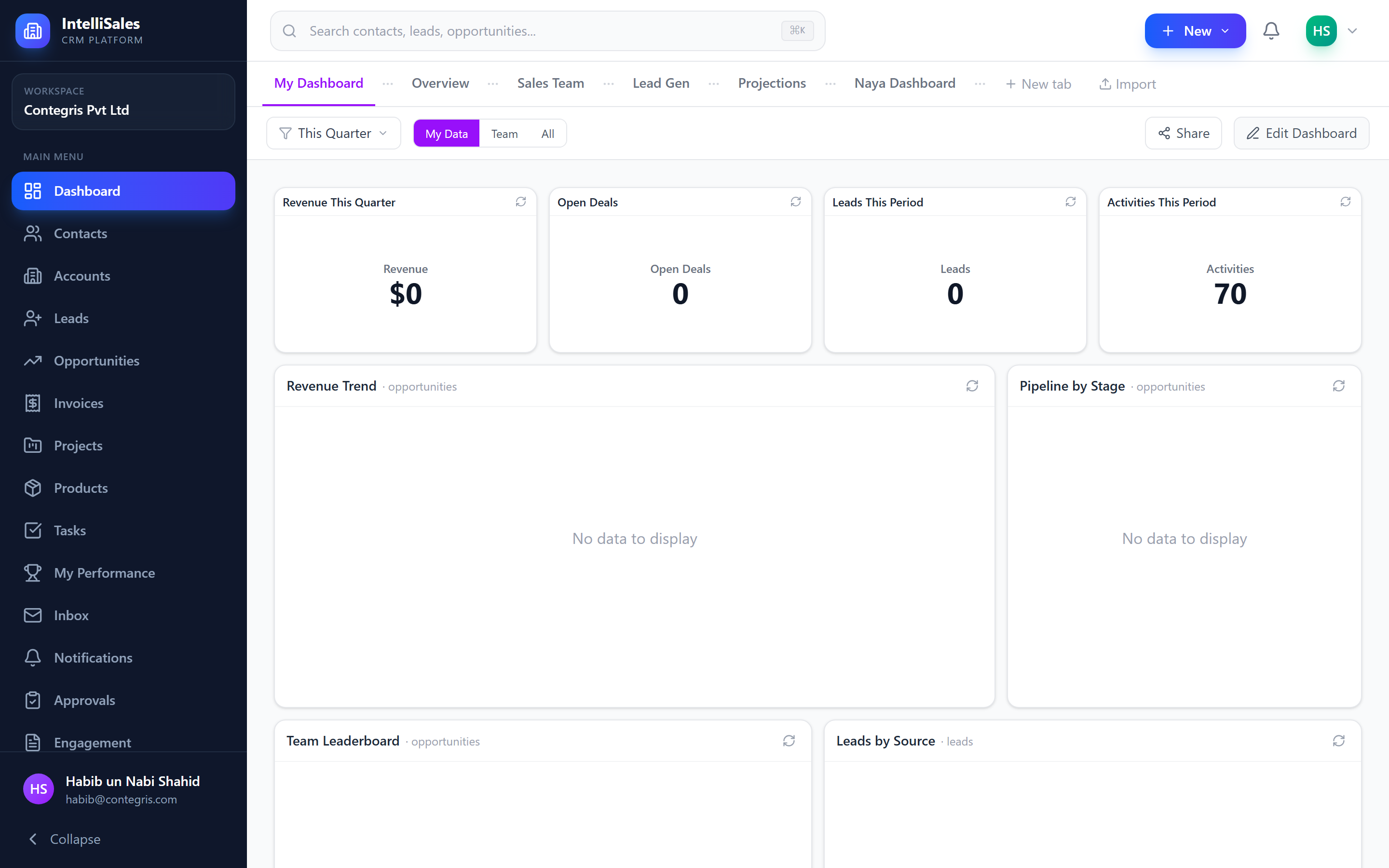
IntelliSales CRM uses a clean, consistent layout across all modules. Once you understand the main navigation elements, you can move efficiently through the entire platform.
Main Layout
The interface is divided into three main areas:
- Sidebar (left) — primary navigation to all modules
- Header Bar (top) — global search, notifications, and user menu
- Content Area (center) — the main working area that changes based on the selected module
Sidebar Navigation
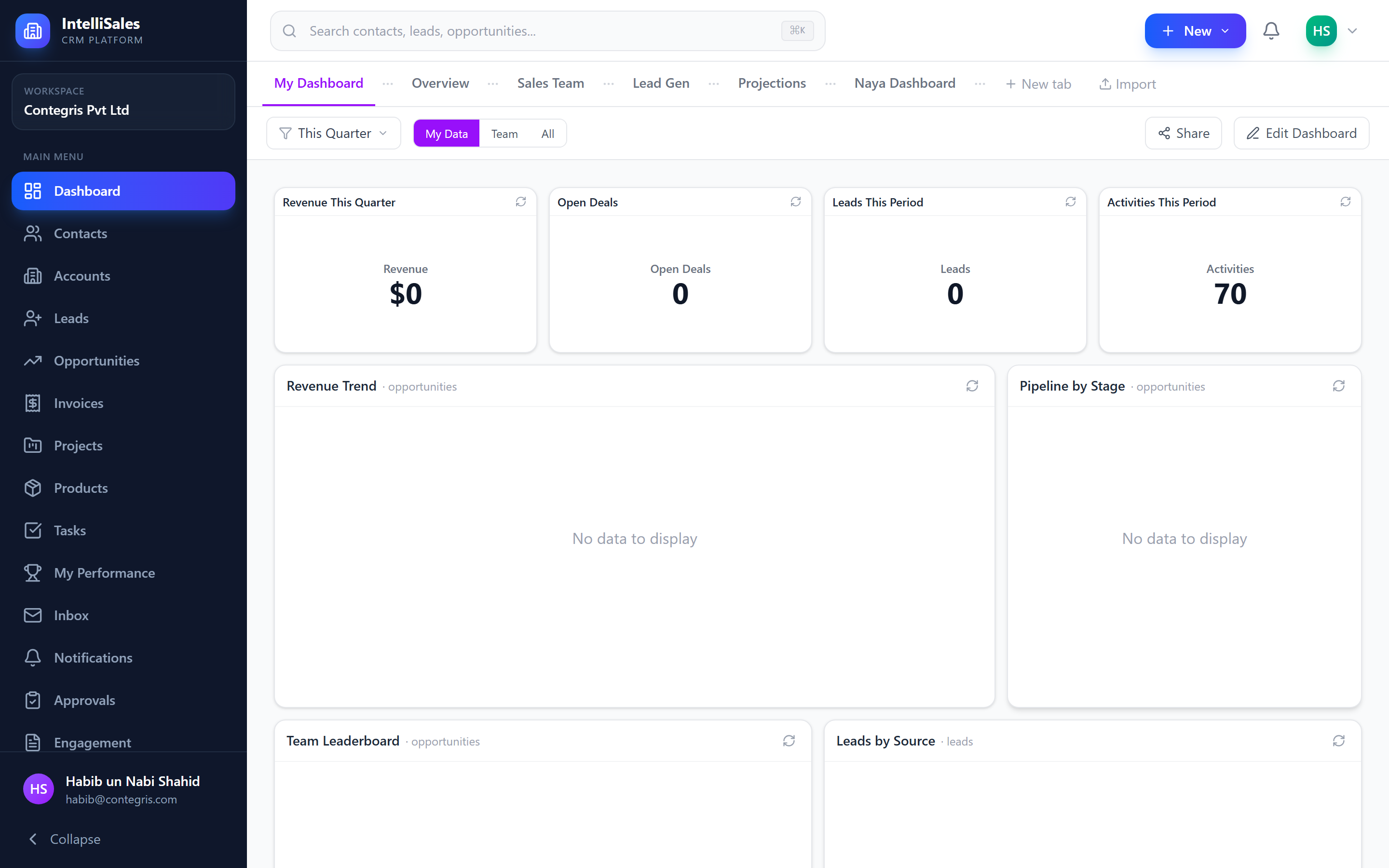
The sidebar is your primary tool for moving between modules. It displays icons for each module, with the following sections:
Main Modules
- Dashboard — home screen with KPIs and widgets
- Contacts — people directory
- Accounts — organization directory
- Leads — sales lead pipeline
- Opportunities — qualified deal pipeline
- Invoices — billing and payments
- Projects — project management
- Products — product catalog
- Tasks — to-do and activity management
- Inbox — integrated email
- Notifications — alert center
- Approvals — pending approval requests
- Engagement — forms and scheduling pages
- Workflows — automation rules
- Reports — analytics and reporting
Admin Section
At the bottom of the sidebar, administrators will see an Admin section with links to:
- Users — user management
- Departments — department structure
- Teams — team configuration
- Roles — role and permission management
- Settings — system-wide configuration
Collapsing the Sidebar
Click the collapse arrow at the top of the sidebar to toggle between:
- Expanded mode — shows icons alongside full module labels
- Collapsed mode — shows only icons, giving more space to the content area
In collapsed mode, hover over any icon to see a tooltip with the module name. This is useful on smaller screens where you want maximum content space.
Header Bar
The header bar spans the top of the page and contains:
Global Search
A search input field that lets you find records across all modules. Type a name, email, or keyword to see instant results. See Global Search for details.
Notifications Bell
A bell icon with an unread count badge showing the number of new notifications. Click it to open the notifications dropdown. See Notifications.
User Menu
Your avatar or initials displayed on the right side of the header. Click to open a dropdown with:
- Your name and role
- Profile — edit your profile
- Settings — personal preferences
- Logout — sign out of the application
Dark Mode Toggle
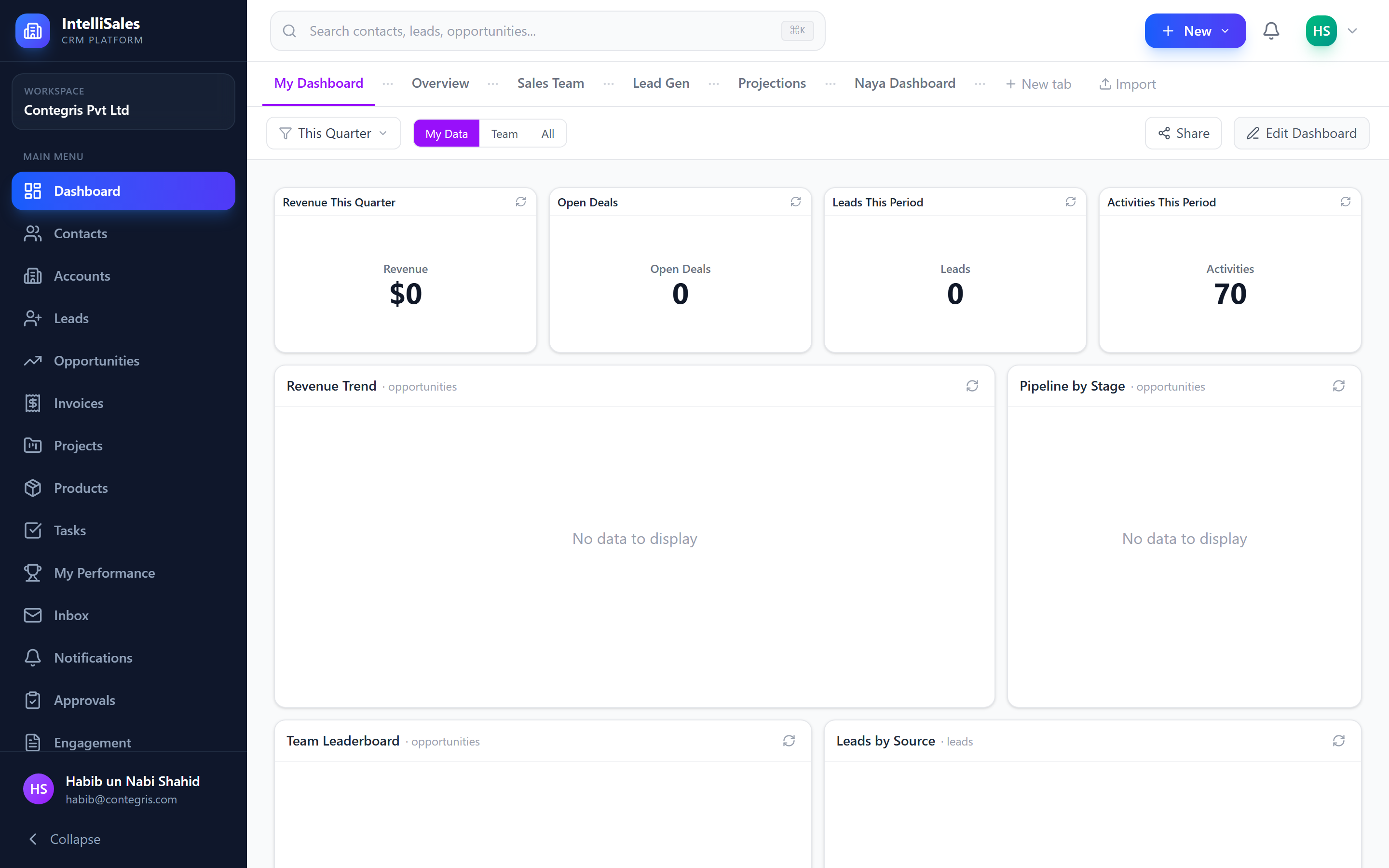
IntelliSales CRM supports both light and dark themes.
To switch between themes:
- Click your avatar in the top-right corner to open the user menu.
- Click the Dark Mode toggle to switch themes.
The theme preference is saved and persists across sessions.
Dark mode applies a slate-toned dark background throughout the interface. All text, charts, and UI elements are optimized for readability in both modes.
Mobile Responsive Navigation
On smaller screens (tablets and mobile devices):
- The sidebar collapses automatically into a hamburger menu.
- Tap the hamburger icon (three horizontal lines) to open the sidebar as an overlay.
- Tap a module to navigate, and the overlay closes automatically.
- The header bar remains visible at the top with search and notifications.
While the interface is responsive, complex features like report building and Gantt charts are best used on screens 1024px wide or larger.
Breadcrumbs and Page Hierarchy
Many pages display breadcrumbs below the header bar to show your current location in the module hierarchy. For example:
Leads > Acme Corp Lead > Details
Click any breadcrumb segment to navigate back to that level.
Keyboard Shortcuts
The platform supports basic browser-level keyboard navigation:
| Shortcut | Action |
|---|---|
Tab | Move focus to the next interactive element |
Shift + Tab | Move focus to the previous element |
Enter | Activate the focused button or link |
Escape | Close modals, dropdowns, and popover menus |
/ | Focus the global search bar (when available) |