Your Profile
Your profile contains your personal information, avatar, and preferences within IntelliSales CRM. Keeping it up to date helps your team identify you and ensures communications are routed correctly.
Viewing Your Profile
To view your profile:
- Click your avatar or initials in the top-right corner of the header bar.
- Select Profile from the dropdown menu.
Your profile page displays your name, email, phone number, role, department, and team assignments.
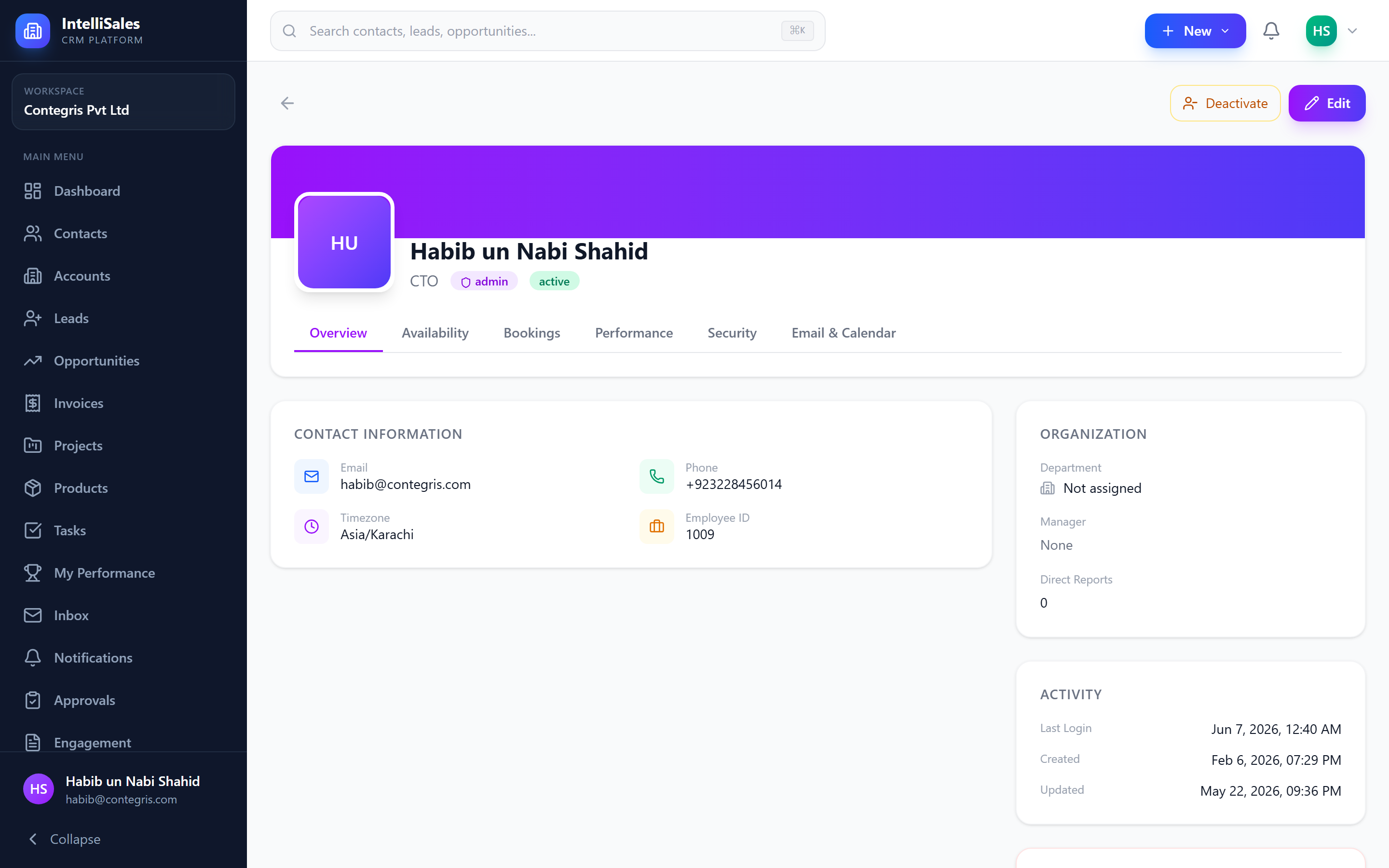
Editing Profile Information
To update your profile details:
- Navigate to your profile page.
- Click the Edit button.
- Update any of the following fields:
- First Name and Last Name
- Email Address
- Phone Number
- Job Title
- Click Save to apply your changes.
Some fields may be locked by your administrator and cannot be edited from your profile. Contact your admin if you need to change a restricted field.
Uploading an Avatar
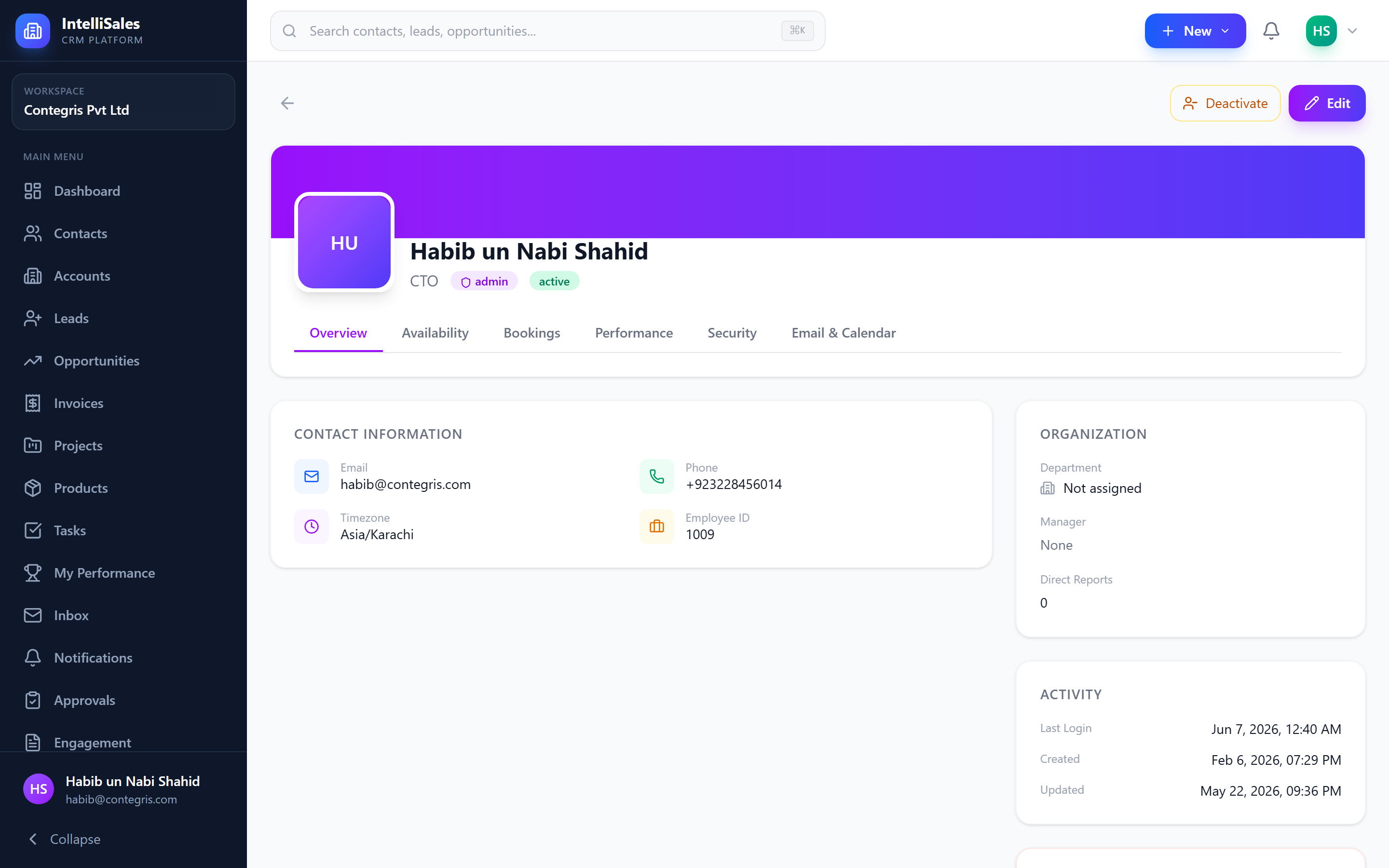
Your avatar appears throughout the platform — in the header, on records you own, in activity timelines, and in team views.
To upload or change your avatar:
- On your profile page, click the camera icon overlaying your current avatar (or the placeholder circle).
- Select an image file from your computer (JPEG, PNG, or GIF).
- The image uploads automatically and replaces your previous avatar.
Use a clear, professional headshot at least 200x200 pixels. The image will be cropped to a circle in most places it appears.
Changing Your Password
To change your password:
- Navigate to your profile page.
- Click Change Password (or find the password section).
- Enter your current password.
- Enter your new password.
- Confirm the new password.
- Click Update Password.
After changing your password, your current session remains active. However, any other devices or browsers where you were logged in may require you to sign in again with the new password.
Email Signature Setup
You can configure an email signature that is appended to emails sent from the integrated inbox:
- Navigate to your profile or personal settings.
- Find the Email Signature section.
- Enter your signature text (your name, title, phone number, company details).
- Click Save.
Your signature will automatically appear at the bottom of new emails and replies composed from the Email Inbox.
Notification Preferences
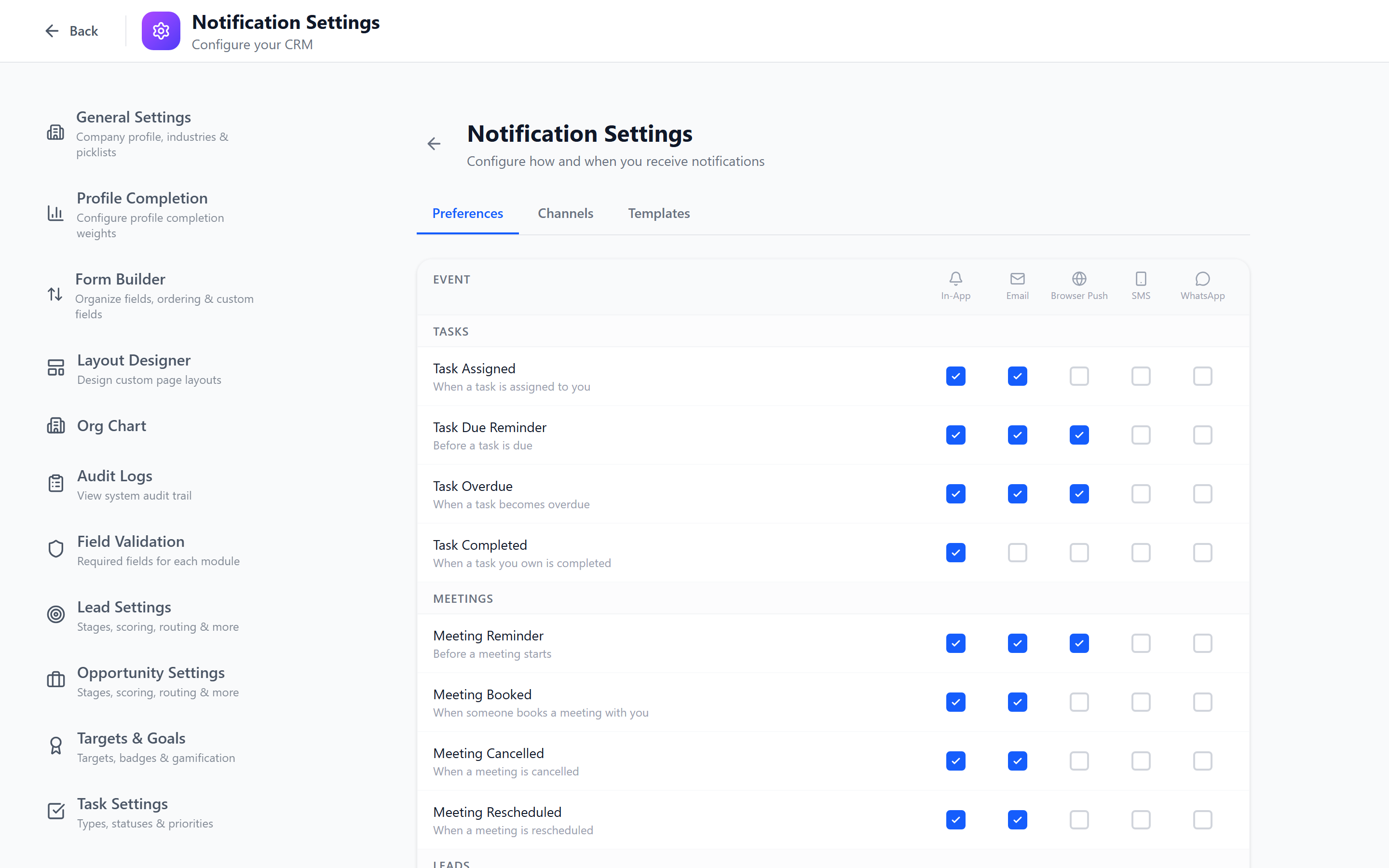
You can control which notifications you receive and through which channels:
- From your profile or the Settings menu, navigate to Notification Preferences.
- For each notification type, toggle the channels you want:
- In-App — notifications within the platform
- Email — notifications sent to your email
- SMS — text message notifications
- Browser Push — desktop push notifications
- Save your preferences.
For full details on how notifications work, see Notifications.
Administrators can set organization-wide notification defaults. Your personal preferences override the defaults where allowed.