Projects Overview
The Projects module helps you plan and execute work after a deal is closed. Projects provide structured management of phases, tasks, teams, timelines, deliverables, and time tracking.
Projects Module Overview
Projects in IntelliSales CRM can be:
- Created from scratch for internal or standalone initiatives
- Created from an opportunity when closing a deal (maintaining the link to the original sale)
- Created from a template to standardize repeatable project types
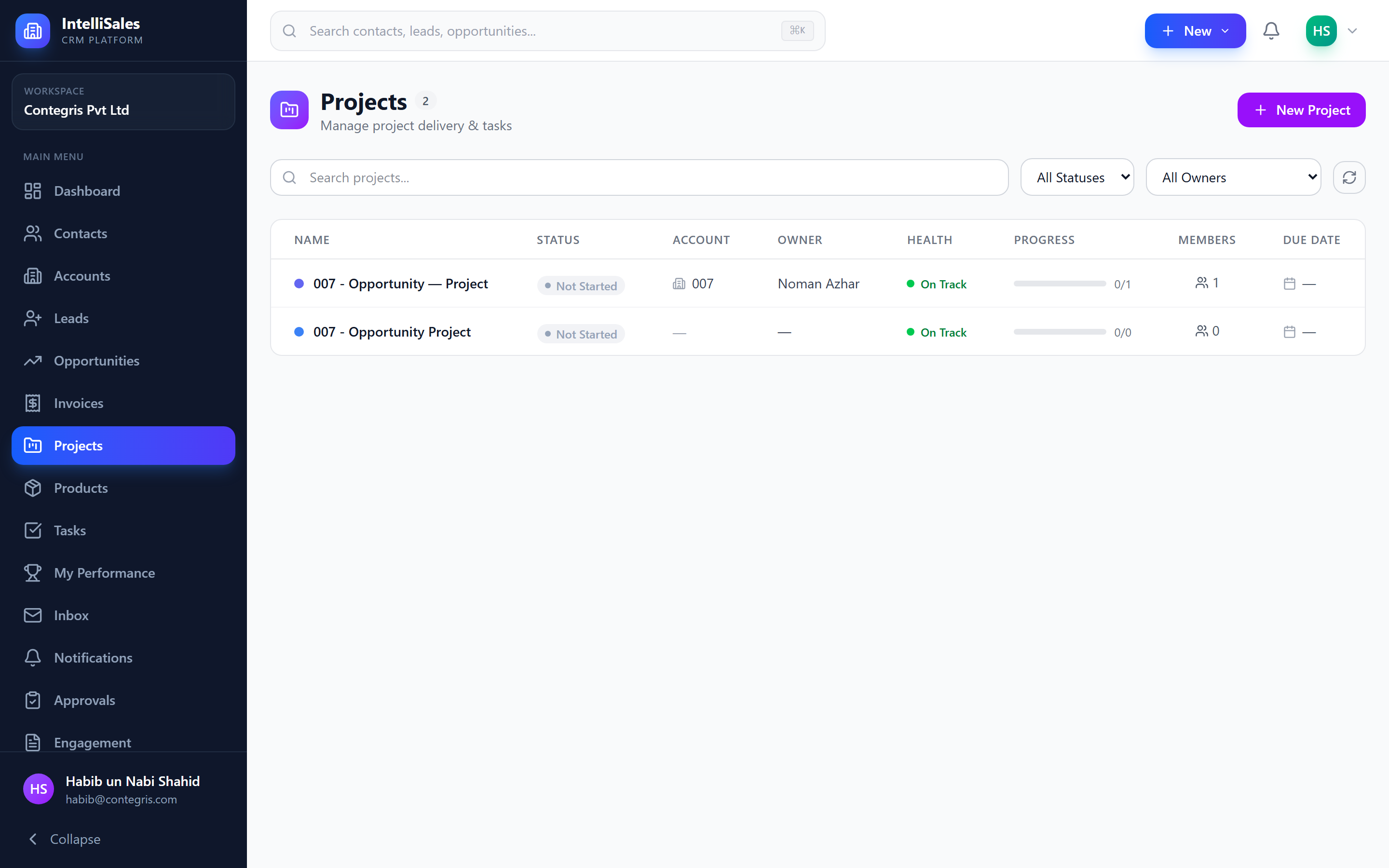
Creating Projects
From Scratch
- Navigate to Projects in the sidebar.
- Click + New Project.
- Fill in the project form:
- Project Name (required)
- Description — overview of the project scope
- Start Date and End Date
- Status — initial project status
- Health — initial health indicator
- Color — a color tag for visual identification
- Owner — project manager
- Template — optionally select a project template (see below)
- Click Save.
From an Opportunity
When closing an opportunity as Won, you can toggle Create Project. This:
- Automatically creates a project linked to the opportunity
- Carries over the opportunity name, account, and contacts
- Links the project to the revenue record
See Closing Opportunities for details.
From a Template
When creating a project, select a Template from the dropdown:
- All pre-defined phases, tasks, and team roles from the template are automatically created
- Task due dates are calculated relative to the project start date
- You can modify any auto-created phases or tasks after creation
Custom Fields on Projects
Projects now support custom fields end-to-end — same admin flow as leads / opps / accounts / contacts. Add custom fields via Admin → Custom Fields → Projects, position them via the Layout Designer, and they appear on the create / edit form, on the detail page, in workflow update_field actions, and as report columns. Custom-field values are stored in the project's custom_fields JSONB column.
Calendar Tasks on Project Tasks
CRM tasks (the standalone Tasks module) can now be linked to a specific project task in addition to the project itself. When you create a task and pick a project, the project task dropdown narrows to that project's tasks; the resulting CRM task shows on the project's Calendar tab alongside project tasks. Useful for spinning out a "phone call to confirm specs" task during phase work without leaving the project context.
Project Fields
| Field | Description |
|---|---|
| Project Name | Descriptive title for the project |
| Description | Scope and objectives |
| Start Date | When work begins |
| End Date | Target completion date |
| Status | Current project status |
| Health | Overall project health indicator |
| Color | Visual color tag |
| Owner | The project manager |
| Linked Opportunity | The opportunity that generated this project |
| Template | The template used to create the project (if any) |
Project Templates
Templates allow administrators to pre-define project structures that can be reused across the organization.
What Templates Include
- Phases — Pre-defined project phases with relative durations
- Tasks — Default tasks within each phase, with descriptions and relative due dates
- Team Roles — Role definitions for the project team (e.g., Project Manager, Developer, Designer)
- Milestones — Key deliverable checkpoints
Using a Template
- When creating a new project, select a template from the Template dropdown.
- All template phases, tasks, and milestones are automatically created.
- Dates are calculated relative to the project start date.
- Modify any auto-created items as needed for the specific project.
Project templates are configured by administrators under Admin → Project Settings. If you need a new template, request it from your admin.
Project Statuses
| Status | Description |
|---|---|
| Not Started | Project created but work has not begun |
| In Progress | Project is actively underway |
| On Hold | Project is paused |
| Completed | All deliverables done |
| Cancelled | Project was terminated |
Health Indicators
Health status provides a quick visual indicator of how the project is progressing:
| Health | Color | Meaning |
|---|---|---|
| On Track | Green | Project is progressing as planned — no issues |
| At Risk | Yellow/Amber | Some issues that may cause delays or budget overruns |
| Off Track | Red | Significant problems — deadlines or budget at risk |
Update project health regularly (at least weekly) to keep stakeholders informed. Health indicators appear on project cards, dashboards, and reports.
Phases and Tasks
Projects are organized into phases (major stages) containing tasks (individual work items).
Phases
Phases represent major milestones or stages (e.g., "Planning," "Development," "Testing," "Launch"). Each phase contains:
- Phase name and description
- Start and end dates
- Status
- Tasks assigned to that phase
Tasks
Tasks within phases are the individual work items:
- Assignees, due dates, and priorities
- Subtasks — break down complex tasks into smaller steps
- Status tracking (matches your CRM task statuses)
- Same task entities used throughout the CRM
Task Dependencies
Tasks can have dependencies on other tasks:
- Finish-to-Start — Task B cannot start until Task A is finished
- Dependencies are visualized in the Gantt chart as connecting lines
- Overdue dependencies are highlighted to show blockers
Time Tracking
Log hours worked on each task for project cost tracking and billing:
- Open a task within a project.
- Click Log Time.
- Enter:
- Hours — time spent
- Date — when the work was performed
- Description — what was done
- Billable — toggle whether this time is billable to the client
- Click Save.
Time entries are aggregated at the task, phase, and project level, giving you visibility into total effort and billable hours.
Milestones
Milestones mark key deliverable checkpoints within a project:
- Milestones have a name, date, and status (pending/completed)
- They appear on the Gantt chart as diamond markers
- Milestones help track whether the project is meeting key deadlines
Team Members
Each project has a team with assigned roles:
| Field | Description |
|---|---|
| User | The CRM user assigned to the project |
| Role | Their role on this project (e.g., Project Manager, Developer, Designer, QA) |
| Added Date | When they were added to the project team |
Team members can be assigned tasks and receive project-related notifications.
For managing projects in detail (views, Gantt, client portal), see Managing Projects.