Contacts Overview
The Contacts module is your directory of individuals — the people your organization interacts with. Contacts can be customers, prospects, partners, vendors, or any individual relevant to your business.
What are Contacts?
Contacts represent individual people in IntelliSales CRM. They are distinct from Accounts, which represent organizations. A single account may have many associated contacts (e.g., multiple employees at a company).
Contacts are linked across the platform — they can be associated with leads, opportunities, tasks, emails, and more. When you convert a lead, a contact is automatically created from the lead's information.
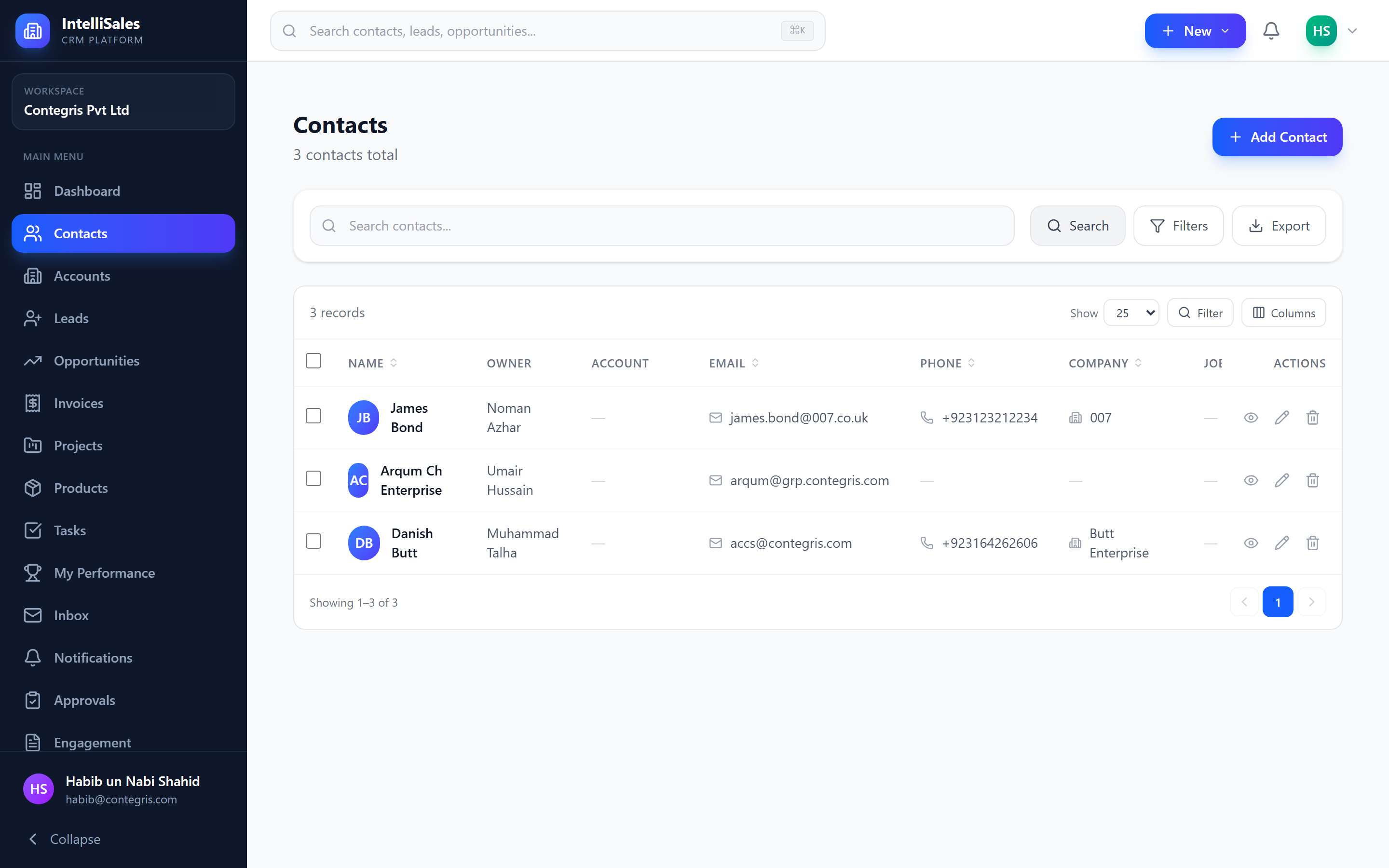
Contact Fields
Every contact has the following standard fields:
| Field | Description |
|---|---|
| First Name | The contact's first name |
| Last Name | The contact's last name |
| Primary email address | |
| Phone | Primary phone number |
| Mobile | Mobile phone number |
| Job Title | Role or position at their organization |
| Department | Department within their organization |
| Company | Company name (may link to an Account) |
| Address | Street address, city, state, zip, country |
| LinkedIn profile URL | |
| Twitter/X handle | |
| Website | Personal or professional website |
| Description | Free-text notes about the contact |
| Date of Birth | Birthday |
| Source | How the contact was acquired (web form, referral, etc.) |
Custom Fields
Your administrator can create custom fields for the Contacts module to capture data specific to your business. Custom fields appear in configurable groups on the contact detail page.
Examples of custom fields:
- Preferred contact method (dropdown)
- VIP status (checkbox)
- Account manager assignment (user lookup)
- Last purchase date (date picker)
Custom fields are managed by administrators under Admin > Custom Fields. If you need a field that does not exist, request it from your admin.
Contact Statuses
Contacts can have statuses to indicate their current state in your workflow. Status values are configured by your administrator and may include:
- Active — current, engaged contact
- Inactive — no longer active but retained for records
- Lead — not yet qualified
- Customer — existing customer
- Prospect — potential customer
Contact Ownership
Each contact has an owner — the user responsible for managing the relationship. Ownership determines:
- Who sees the contact in "My Data" views
- Who receives notifications about the contact
- Reporting attribution
Contact ownership can be changed by editing the contact and selecting a different owner from the user dropdown. Depending on your role, you may only be able to assign contacts to yourself or to members of your team.
For instructions on creating, searching, and managing contacts, see Managing Contacts. For details on the contact detail page, see Contact Detail Page.