Tasks Overview
The Tasks module helps you manage activities, to-dos, and action items across the entire platform. Tasks can be standalone or linked to leads, opportunities, contacts, accounts, and projects.
Tasks Module Overview
Tasks represent work items that need to be completed — phone calls to make, emails to send, meetings to attend, follow-ups to schedule, and more. The Tasks module provides list, Kanban, and calendar views to help you stay organized.
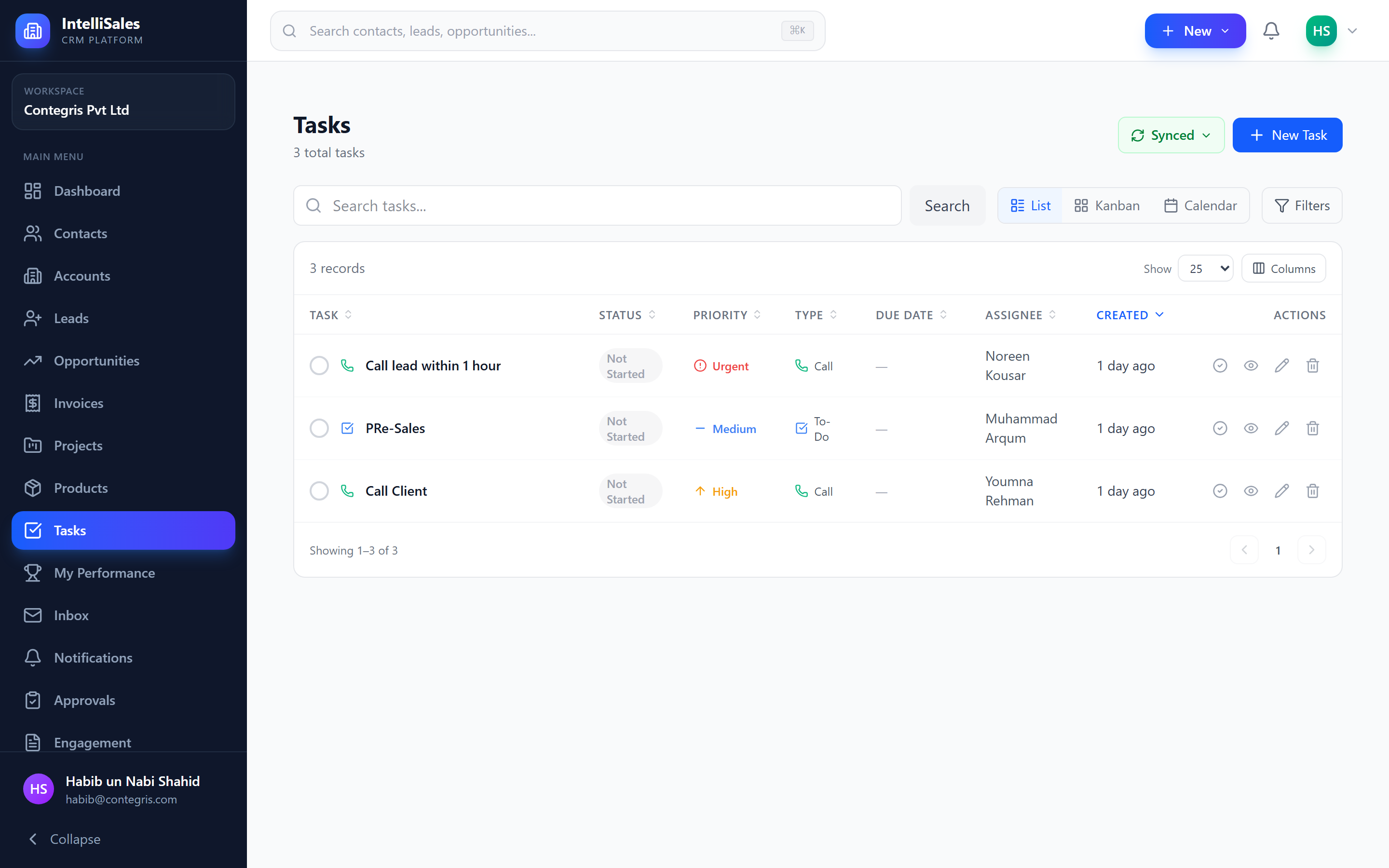
Task Types
Tasks are categorized by type to indicate the nature of the activity:
| Type | Description |
|---|---|
| Call | A phone call to make or that was made |
| An email to send or follow up on | |
| Meeting | A scheduled meeting (in-person or virtual) |
| Follow-up | A general follow-up action |
| Demo | A product demonstration |
| Proposal | Work related to preparing or sending a proposal |
| Onboarding | Customer onboarding activities |
| Custom types | Additional types configured by your administrator |
Task types are configured under Admin > Task Settings. Your organization may have additional custom types tailored to your workflow.
Task Statuses
| Status | Description |
|---|---|
| Not Started | Task has been created but work has not begun |
| In Progress | Task is actively being worked on |
| Waiting | Task is paused, waiting for external input |
| Deferred | Task has been postponed to a later date |
| Completed | Task has been finished |
| Cancelled | Task was cancelled and will not be completed |
Task Priorities
| Priority | Icon | Description |
|---|---|---|
| Urgent | Flame | Requires immediate action |
| High | Thermometer | Important, should be done soon |
| Medium | Sun | Standard priority |
| Low | Snowflake | Can be done when time permits |
Task Fields
| Field | Description |
|---|---|
| Title | A clear description of the task |
| Type | The activity type (Call, Email, Meeting, etc.) |
| Status | Current progress status |
| Priority | Urgency level |
| Assignee | The user responsible for completing the task |
| Due Date | When the task should be completed |
| Due Time | Specific time if applicable |
| Description | Detailed notes about what needs to be done |
| Estimated Minutes | Planned time to complete |
| Actual Minutes | Time actually spent (for time tracking) |
| Result | Outcome notes after completion |
Entity Linking
Tasks can be linked to other CRM entities, creating a direct association:
- Leads — follow-up tasks for leads in the pipeline
- Opportunities — action items for active deals
- Contacts — tasks related to specific people
- Accounts — tasks related to organizations
- Projects — project-related work items
When a task is linked to an entity, it appears on that entity's Tasks tab in the detail page. This provides full context for both the task and the related record.
Always link tasks to the relevant CRM record. This ensures activity history is complete and makes it easy to find all tasks related to a specific deal, contact, or project.
For task views (list, Kanban, calendar), see Task Views. For creating and managing tasks, see Managing Tasks.