Forms
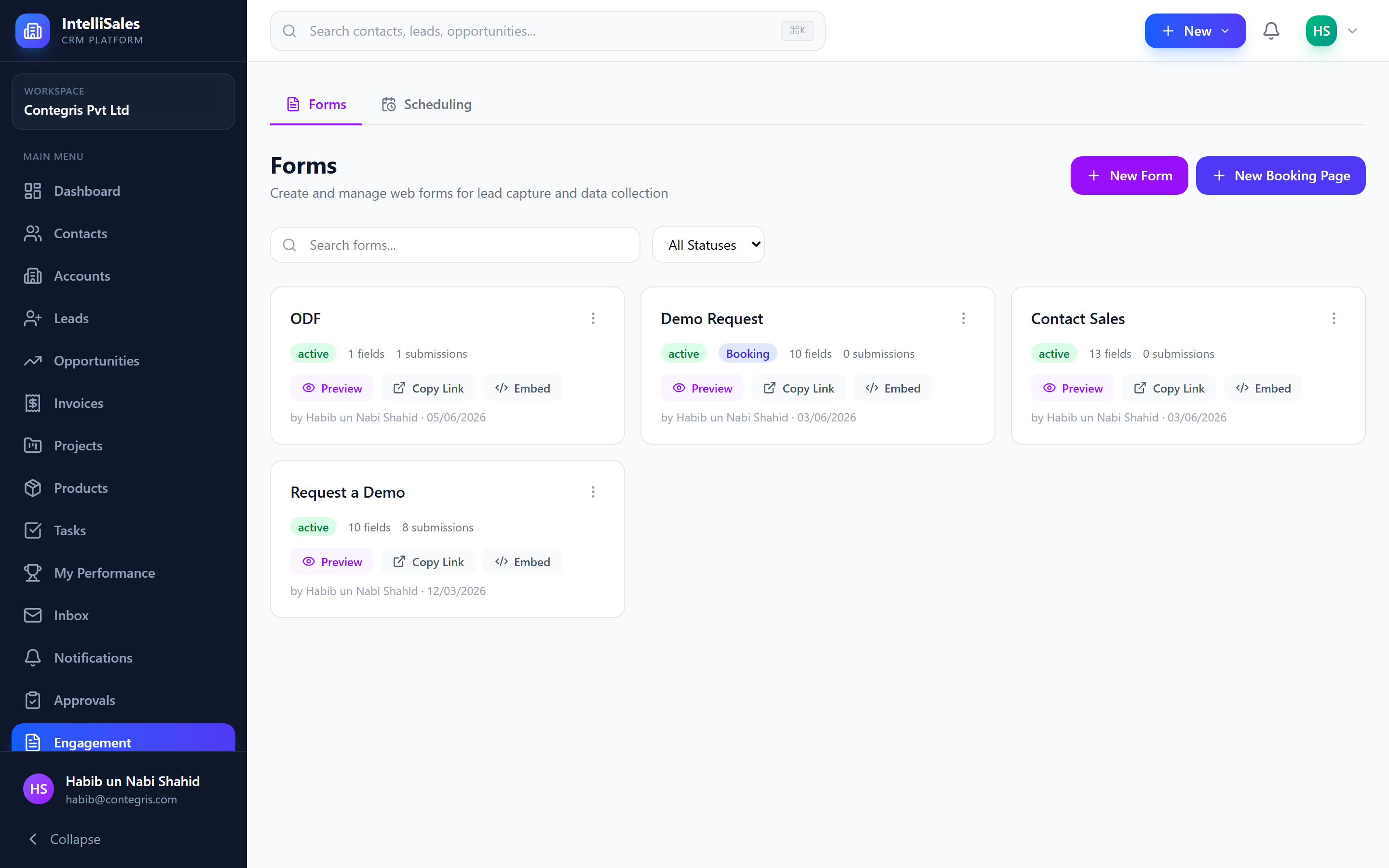
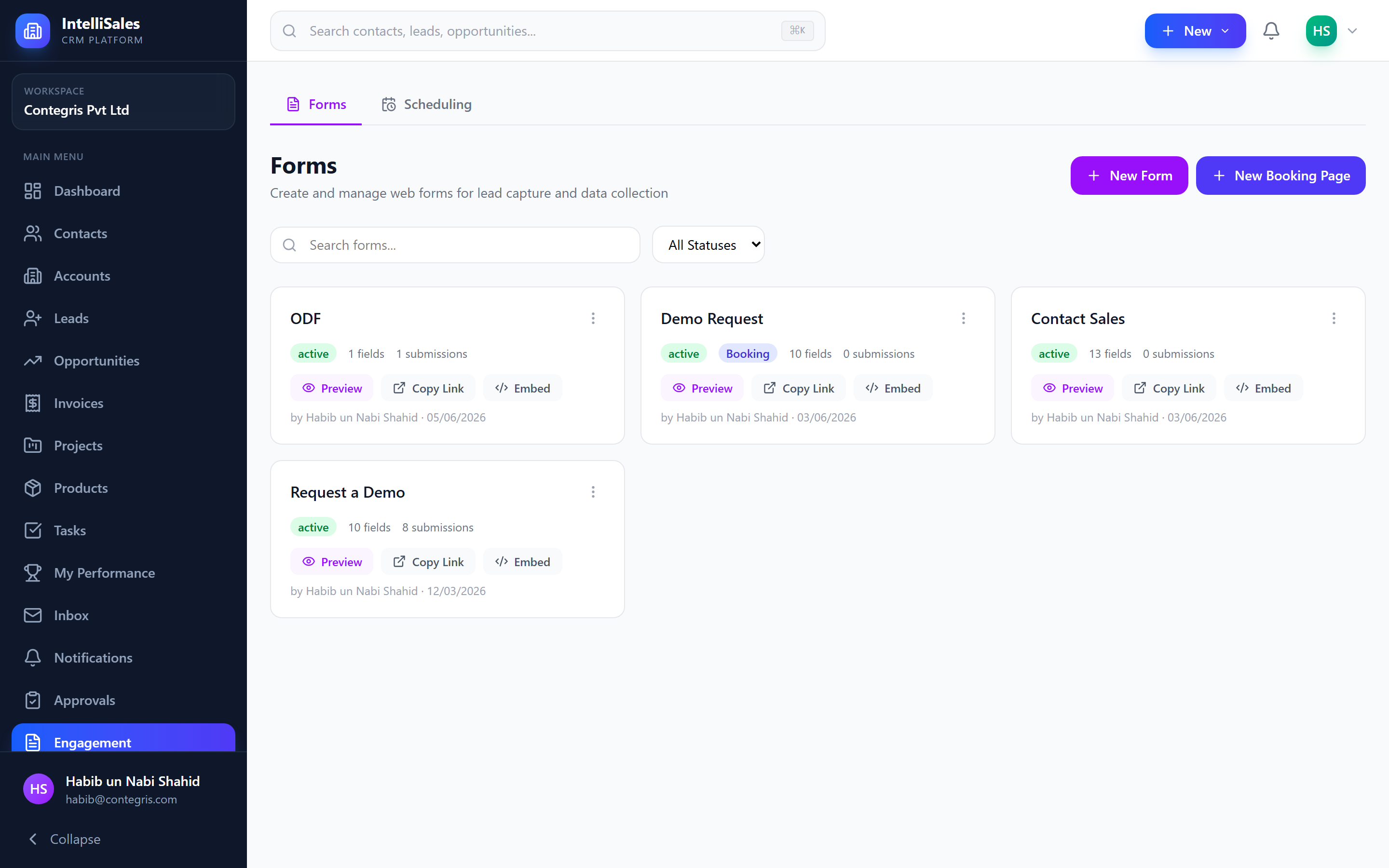
Forms allow you to create custom web forms for lead capture, data collection, and meeting scheduling. Each form gets a unique public URL that can be shared or embedded on your website.
Form Types
| Type | Description | Use Case |
|---|---|---|
| Standard Form | Collects data and triggers CRM actions | Lead capture, surveys, contact forms |
| Meeting Booking | Calendar-integrated booking page | Sales calls, demos, consultations |
Creating a Form
- Navigate to Engagement → Forms
- Click New Form (or New Booking Page for meetings)
- You'll be taken to the Form Builder
Form Statuses
| Status | Description |
|---|---|
| Draft | Work in progress — not publicly accessible |
| Active | Live and accepting submissions |
| Inactive | Temporarily paused — public link shows unavailable |
| Archived | Hidden from list but data retained |
Managing Forms
From the forms list, you can:
- Search forms by name
- Filter by status (draft, active, inactive, archived)
- Duplicate a form to create a copy
- Preview the public form
- Copy Link to share the public URL
- Embed to get iframe/script/popup code
- Delete forms you no longer need
Each form shows its submission count so you can quickly see which forms are performing well.
Form Builder
The form builder is a visual drag-and-drop editor with three panels:
Left Panel — Field Palette
Add fields by clicking or dragging:
| Field Type | Description |
|---|---|
| Text | Single-line text input |
| Email with format validation | |
| Phone | Phone number input with E.164 validation and an international country picker — submitters pick their country, type the local number, and the form stores it in +CCNNNNNNN format. Falls back to the tenant base_country from Company Settings if the form doesn't override. |
| Number | Numeric input |
| Date | Date picker |
| Textarea | Multi-line text |
| Select | Dropdown with options |
| Radio | Single-choice radio buttons |
| Checkbox | Multi-choice checkboxes |
| Lookup | Dropdown backed by a system-managed list (industries, countries, lead sources, etc.). Options stay in sync with the lists you maintain in admin — no need to copy values into each form. |
| File | File upload |
| Heading | Section heading (non-input) |
| Paragraph | Descriptive text (non-input) |
| Divider | Visual separator (non-input) |
Center Panel — Canvas
Preview your form as visitors will see it. Click any field to select it and configure its properties.
Right Panel — Settings
Five configuration tabs:
Fields Tab
Configure the selected field:
- Label — Display name
- Field Name — Submission key (auto-generated from label)
- Placeholder — Hint text inside the field
- Required — Make the field mandatory
- Width — Full width or half width (side-by-side layout)
- Options — For select/radio/checkbox: add, edit, remove choices
Actions Tab
Configure what happens after form submission:
| Action | Description |
|---|---|
| Create Lead | Creates a new lead — fires lead_created so workflows pick it up. |
| Create Contact | Creates a new contact, optionally linked to the account from context.accountId. |
| Create Account | Creates a new account with type prospect. |
| Webhook | POST form data to an external URL. |
| Send Email | Send a confirmation email to the submitter. Pick a sender account so the email shows the right From: address; fall back to the tenant default. |
| Add to Email List | Subscribe the submitter to a MailerLite or Mailchimp list. Lists are tagged with their provider in the picker so you can disambiguate when multiple ESPs are connected. |
Each CRM action includes field mapping — connect your form fields to CRM fields (first name, email, company, etc.). Custom fields use the cf_ prefix (e.g., cf_lead_score → custom_fields.lead_score).
Actions execute in order. Later actions can reference entities created by earlier ones (e.g., link a contact to an account).
The Actions tab is now also exposed on meeting_booking forms — booking a slot runs the same submit-action chain a standard form does, and the new lead/contact's owner defaults to the booking host (a workflow assign_owner can still override it).
Settings Tab
- Success Message — Shown after successful submission
- Redirect URL — Redirect instead of showing success message
- Allow Multiple Submissions — Let the same person submit again
- Require CAPTCHA — Enable reCAPTCHA v3 protection
- Notification Emails — Comma-separated emails to notify on new submissions
Landing Page Mode:
- Enable to wrap your form in a full landing page
- Hero Title & Subtitle — Main headline
- Background Color — Hero section color
- SEO Title & Description — For search engines
- Content Sections — Add text, images, or call-to-action blocks
Branding Tab
- Logo URL — Your company logo
- Primary Color — Button and accent color
- Background Color — Form background
- Header Text — Text above the form
- Footer Text — Text below the form
Meeting Tab (Booking Forms Only)
See Scheduling & Booking Pages for details.
Form Submissions
Click any form to view its submissions.
Summary View

- Stats Cards — Total responses, last 7 days, last 30 days, action success rate
- 30-Day Trend — Bar chart showing daily submission volume
- Per-Field Breakdown:
- Choice fields: donut charts with percentages
- Number fields: average, min, max values
- Text fields: sample of recent responses
Responses View
- Filter by date range and action status (success/error)
- Expand each response to see full form data
- Action Results — See if CRM actions succeeded or failed
- Retry failed webhook actions
- Export CSV — Download all responses
Sharing & Embedding
Public Link
Every active form has a public URL:
https://yourdomain.com/f/{tenant-slug}/{token}
Embedding Options
iFrame:
<iframe src="https://yourdomain.com/f/tenant/token"
        width="100%" height="600" frameborder="0"></iframe>
JavaScript:
<div id="intellicon-form-{id}"></div>
<script>
  (function() {
    var iframe = document.createElement('iframe');
    iframe.src = 'https://yourdomain.com/f/tenant/token';
    iframe.style = 'width:100%;height:600px;border:none;';
    document.getElementById('intellicon-form-{id}').appendChild(iframe);
  })();
</script>
Popup Modal: A button that opens the form in an overlay modal.
Forms must be in Active status to accept public submissions. Draft and inactive forms will show an error page.
Forms on Entity Detail Pages
Forms now appear on Opportunities and Leads detail pages on a dedicated Forms tab — so a salesperson working a deal can drop a form link straight from the entity page without leaving for the Forms list. Drafts and inactive forms are also shown here (with their status badge) so admins can see WIP forms attached to the entity.
"Filled by" Submission Badges
Every submission now records who actually filled the form — the logged-in user, an anonymous portal visitor, or a known contact identified by the submitted email. The submissions list shows a "Filled by" badge so you can tell at a glance whether the entry came from a salesperson testing the form, a portal user, or a real prospect.