Email Inbox
The Inbox module provides a Gmail-like integrated email experience within IntelliSales CRM. Read and manage emails without leaving the platform, and keep your communications linked to the right CRM records.
Email Inbox Overview
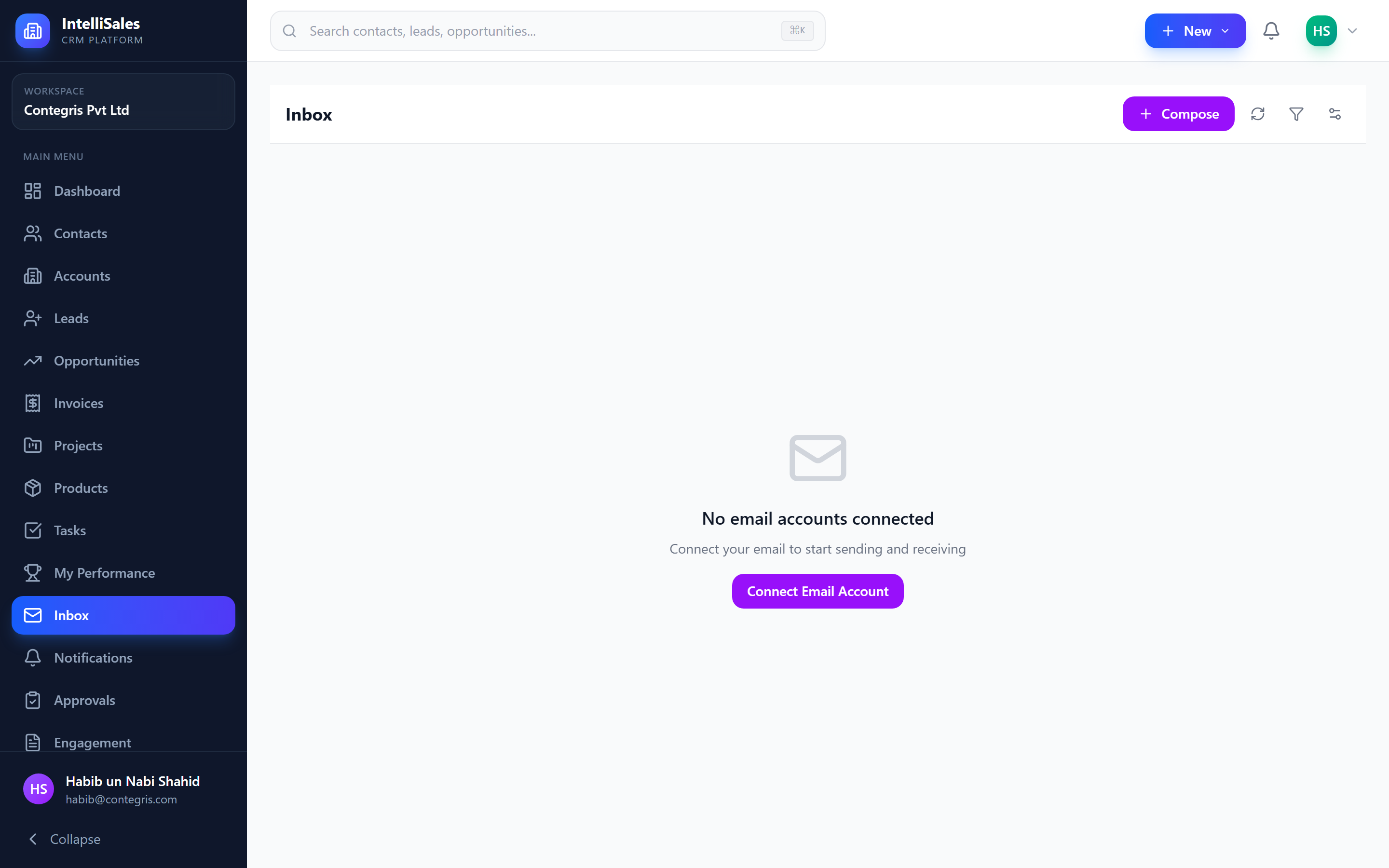
The inbox connects to your existing email accounts and displays your messages directly within IntelliSales CRM. This integration ensures that all email communication is captured in context alongside your leads, contacts, and opportunities.
Connected Accounts
The inbox supports connections to three providers:
| Provider | Connection Method | Features |
|---|---|---|
| Gmail | Google OAuth | Full send/receive, labels, threading |
| Microsoft 365 | Microsoft OAuth | Full send/receive, folders, threading |
| IMAP/SMTP | Manual configuration | Send/receive with any email provider |
Connecting a Gmail Account
- Navigate to Inbox or email settings.
- Click Connect Account.
- Select Gmail.
- Sign in with your Google account and authorize IntelliSales CRM.
- Your inbox populates with recent messages.
Connecting a Microsoft 365 Account
- Click Connect Account.
- Select Microsoft 365.
- Sign in with your Microsoft account and authorize IntelliSales CRM.
- Your inbox populates with recent messages.
Connecting via IMAP/SMTP
For email providers that do not support OAuth, use manual IMAP/SMTP configuration:
- Click Connect Account.
- Select IMAP/SMTP.
- Enter the following settings:
| Setting | Description |
|---|---|
| IMAP Host | Incoming mail server (e.g., imap.example.com) |
| IMAP Port | Usually 993 (SSL) or 143 (STARTTLS) |
| SMTP Host | Outgoing mail server (e.g., smtp.example.com) |
| SMTP Port | Usually 465 (SSL) or 587 (STARTTLS) |
| Username | Your email address |
| Password | Your email password or app-specific password |
- Click Test Connection to verify.
- Click Save.
You can connect multiple email accounts. Switch between them using the account selector in the inbox.
Two-Pane Interface
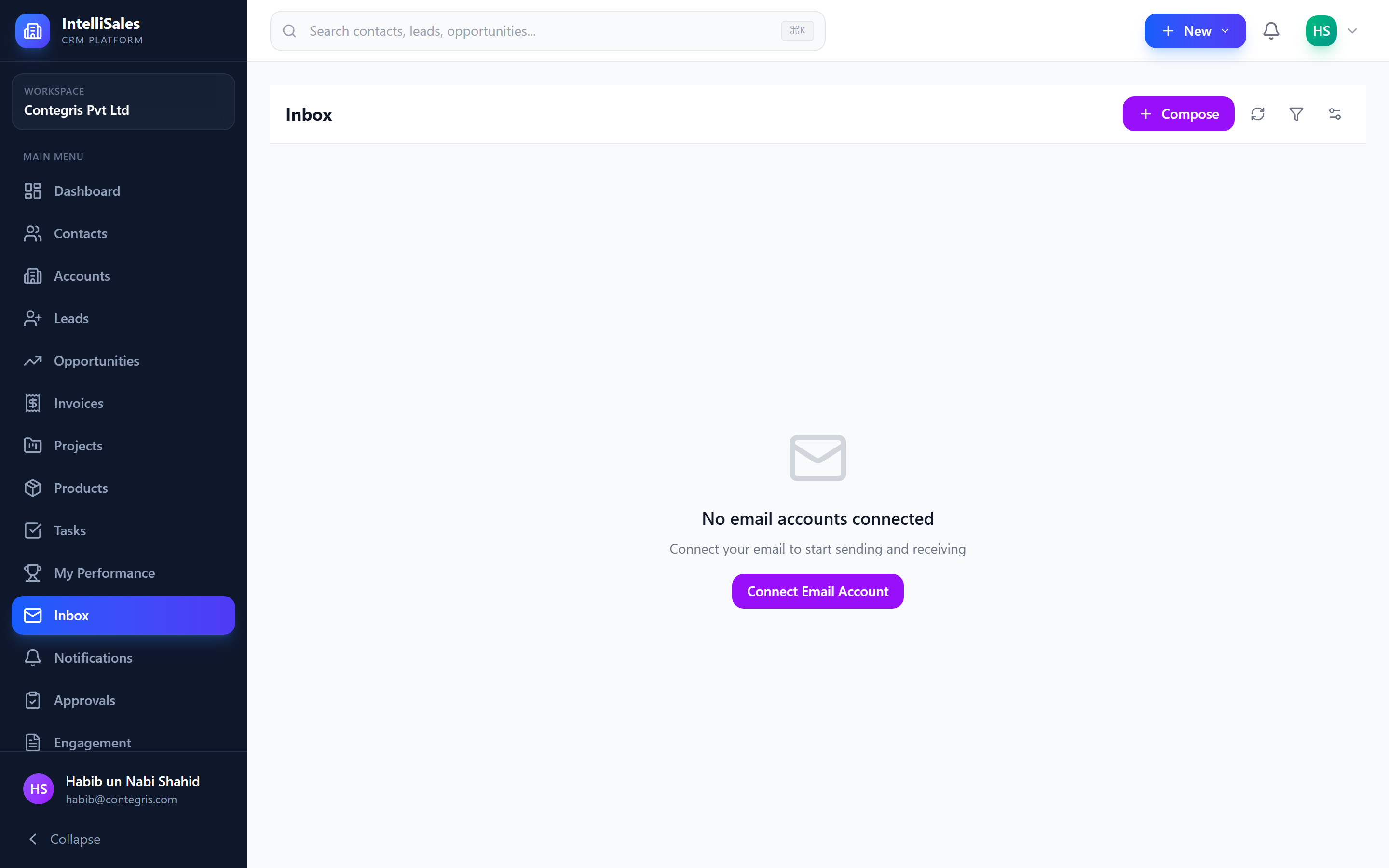
The inbox uses a Gmail-like two-pane layout:
- Left pane — Email list with sender, subject, preview text, and date
- Right pane — Full email thread view when a message is selected
This layout lets you browse your inbox while reading messages without navigating away from the list.
Email List
The email list displays:
- Sender name and avatar
- Subject line
- Preview text (first line of the message body)
- Date/time received
- Star indicator
- Read/unread status (bold = unread)
- Attachment indicator (paperclip icon if email has attachments)
- CRM entity link indicator (if linked to a record)
Filters
Filter your email list using the tabs at the top:
| Filter | Shows |
|---|---|
| All | All emails in your inbox |
| Unread | Only unread messages |
| Starred | Messages you have starred |
| Sent | Emails you have sent |
Reading Emails — Thread View
Click an email in the list to open the thread view in the right pane:
- The full conversation thread is displayed with all replies in chronological order
- Each message shows sender, recipients, date, and full body
- Attachments appear as clickable links or thumbnails below each message
- Reply, Reply All, and Forward buttons appear at the bottom of each message
- The thread collapses older messages, showing the most recent message expanded
Searching Emails
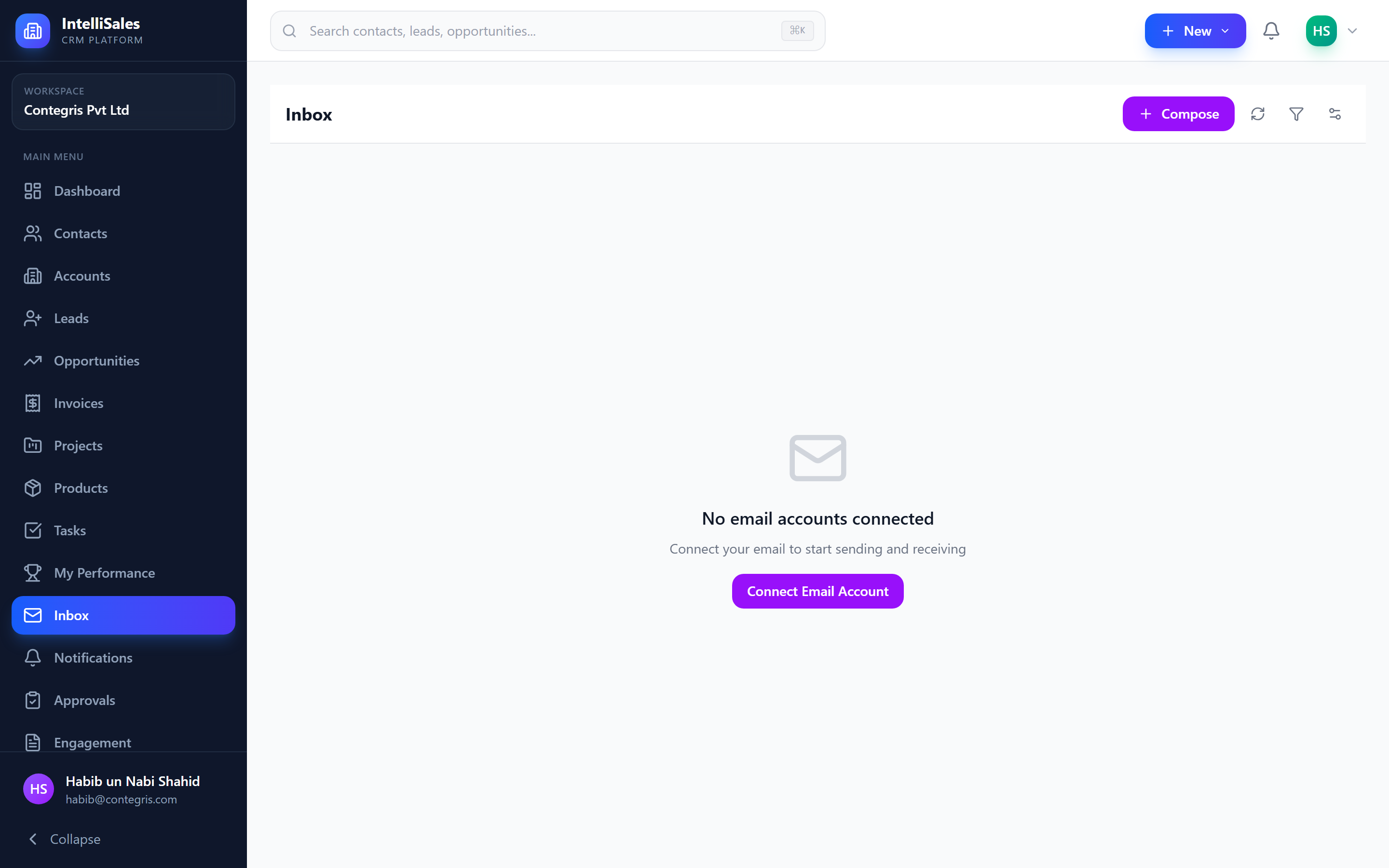
Use the search bar at the top of the inbox to find emails:
- Search by sender name or email address
- Search by subject line keywords
- Search by keywords in the message body
- Results update as you type (instant search)
Use search to quickly find client communications when preparing for meetings or following up on discussions.
Bulk Actions
Select multiple emails using the checkboxes to perform bulk actions:
| Action | Description |
|---|---|
| Mark as Read | Mark all selected emails as read |
| Mark as Unread | Mark all selected emails as unread |
| Star | Add a star to all selected emails |
| Unstar | Remove stars from all selected emails |
| Archive | Move selected emails to archive |
| Delete | Move selected emails to trash |
Select all visible emails by clicking the checkbox in the header row.
Starring Emails
Star important emails for quick access:
- Click the star icon next to any email in the list.
- The email appears in the Starred filter tab.
- Click the star again to unstar.
Stars are useful for flagging emails that need follow-up or are especially important.
Mark as Read / Unread
- Emails are automatically marked as read when you open them in the thread view.
- Right-click an email or use the bulk action to mark as unread if you want to come back to it later.
- Unread emails appear in bold in the list and are counted in the unread badge on the sidebar.
CRM Record Linking
Emails are automatically linked to CRM records when the sender or recipient matches a known contact. Linked emails show a small entity indicator in the list view. When linked:
- The email appears on the contact's, lead's, or opportunity's Emails tab
- Your team can see the full communication history in context
- No manual linking required for known contacts
For manual linking, see Composing Emails.
For composing, replying, and linking emails to CRM records, see Composing Emails. For automated email management, see Email Rules.