Notifications
The Notifications system keeps you informed about important events across IntelliSales CRM. Receive alerts when records are assigned to you, when deadlines approach, when approvals need your attention, and more.
Notification Center
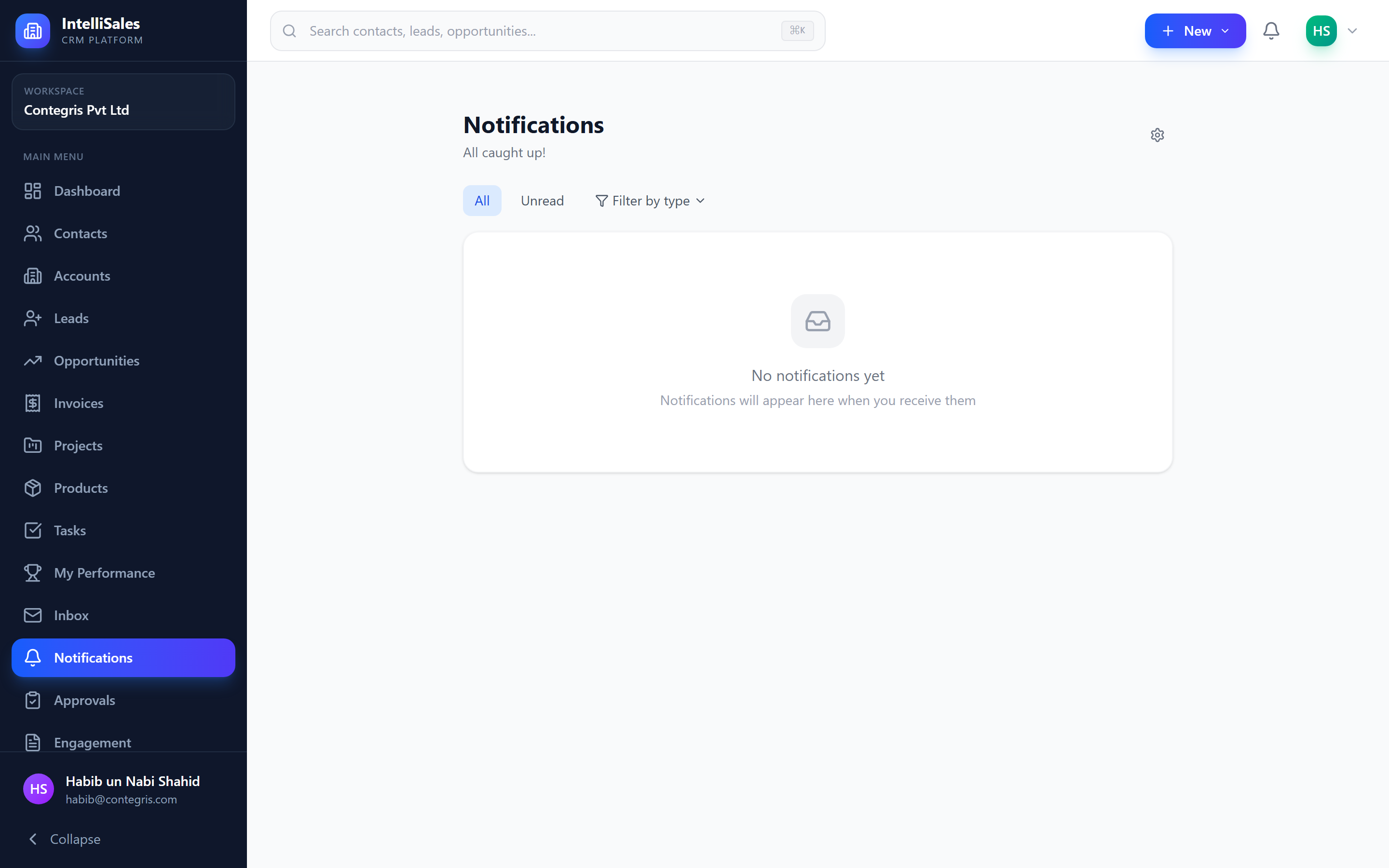
The notification center is accessed via the bell icon in the header bar. Click it to open a dropdown showing your recent notifications.
Notification Types
| Type | Examples |
|---|---|
| System | Account updates, maintenance notices, password changes |
| Activity | Record assigned to you, record updated, stage changed |
| Approval | Approval request pending, approval decision made |
| Mention | Someone mentioned you in a note or comment |
| SLA | SLA warning approaching, SLA breached |
| Task | Task assigned, task due soon, task overdue |
| Workflow | Workflow action completed, workflow error |
Unread Count Badge
A red badge on the bell icon shows the number of unread notifications. The count updates in real time as new notifications arrive.
- A number like 5 means five unread notifications
- No badge means all notifications have been read
Mark as Read
Individual Notifications
- Click a notification to mark it as read (it also navigates you to the related record)
- Click the checkmark icon on a notification to mark it as read without navigating
Mark All as Read
- Click Mark All as Read at the top or bottom of the notification dropdown to clear all unread notifications at once
Review your notifications at least twice a day — once in the morning and once in the afternoon. This ensures you do not miss time-sensitive items like SLA warnings and approval requests.
Click to Navigate
Every notification is linked to a CRM record. Click the notification to navigate directly to the related entity:
- A "Lead assigned to you" notification takes you to the lead detail page
- An "Approval pending" notification takes you to the approval queue
- A "Task overdue" notification takes you to the task
Notification Preferences
Customize which notifications you receive and through which channels:
- Navigate to your Profile or Settings > Notification Preferences.
- A grid displays all notification events with channel toggles.
- For each event, enable or disable channels:
| Channel | Description |
|---|---|
| In-App | Notifications within the CRM (bell icon) |
| Notification emails sent to your inbox | |
| SMS | Text message notifications to your phone |
| Browser Push | Desktop push notifications (even when the CRM tab is in background) |
- Click Save to apply changes.
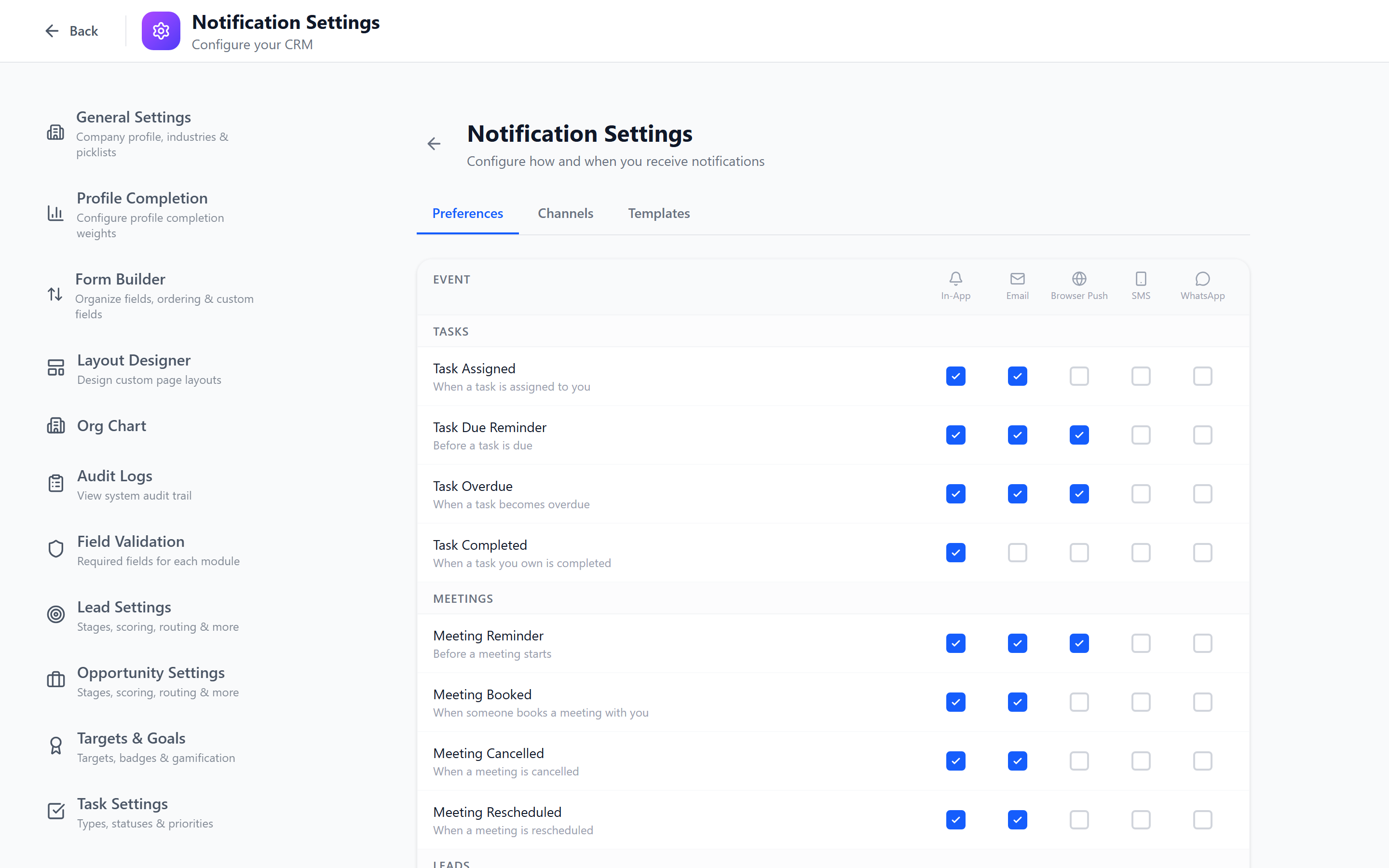
Disabling all channels for a notification type means you will not receive that alert at all. Be careful about turning off critical notifications like SLA warnings and approval requests.
Channel Details
In-App notifications are always recommended — they appear instantly without any external dependency.
Email notifications are useful for important events when you are away from the CRM.
SMS notifications should be reserved for urgent or time-critical events (like SLA breaches) to avoid notification fatigue.
Browser Push notifications work when the CRM is open in a browser tab (even if that tab is in the background). You need to grant browser notification permission when prompted.
Channel availability depends on your organization's configuration. SMS and browser push may not be available if your administrator has not enabled them.