Products Overview
The Products module is your central catalog of everything your organization sells — physical products, services, subscriptions, and bundles. Products are used across the platform, particularly in opportunities and invoices, where they appear as line items.
Products Module Overview
The Products module lets you:
- Maintain a comprehensive product/service catalog
- Organize products into hierarchical categories
- Define pricing at the product level and through price books
- Create bundle products that group multiple items
- Track product lifecycle with statuses
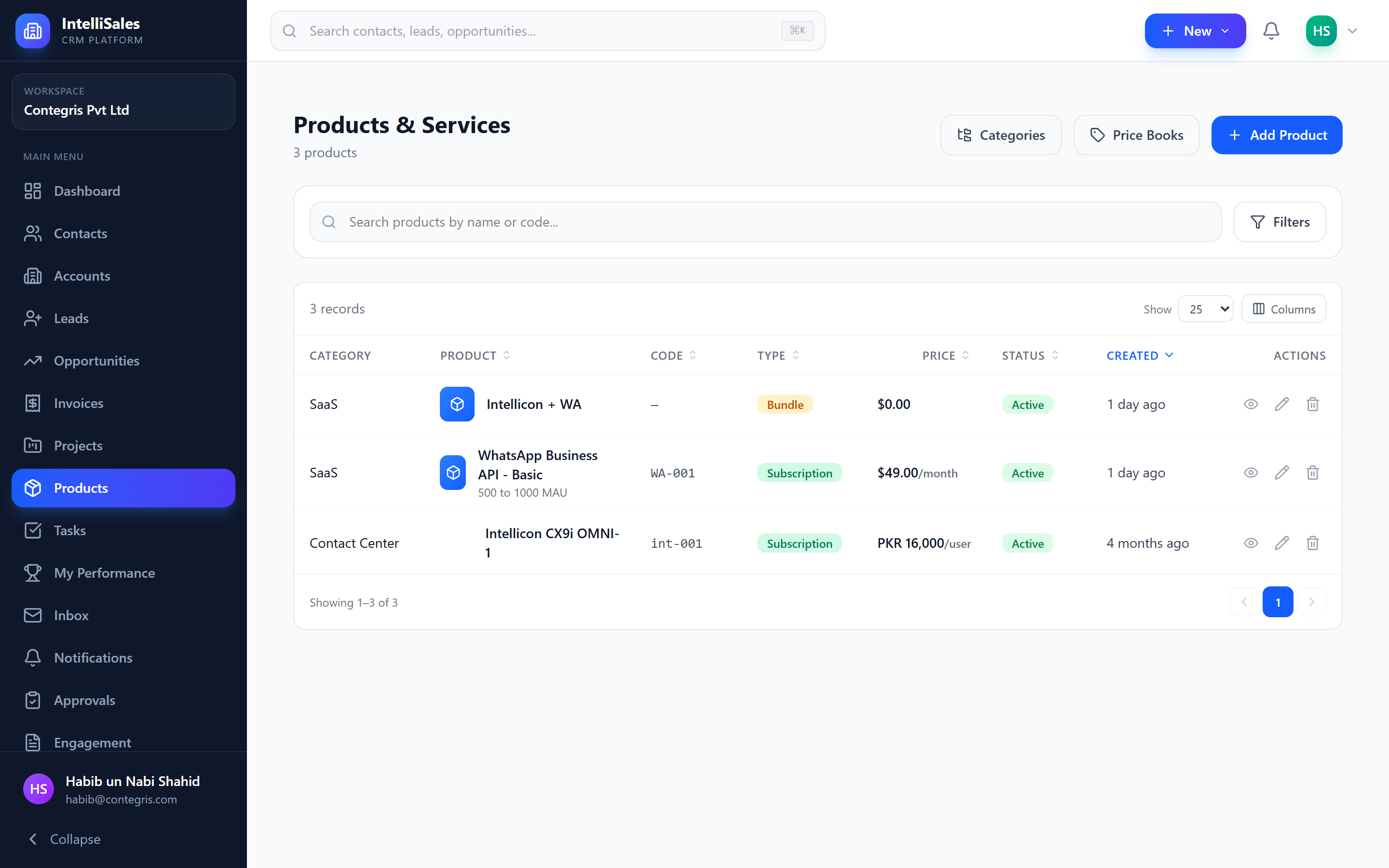
Product Types
Every product has a type that describes its nature:
| Type | Description |
|---|---|
| Product | A physical or digital good |
| Service | A professional service (consulting, implementation, training) |
| Subscription | A recurring product or service (monthly/annual) |
| Bundle | A package containing multiple products or services |
Product type affects how the product is handled in invoicing and reporting. For example, subscriptions may have recurring billing logic, while bundles expand into their component items.
Product Fields
Standard product fields include:
| Field | Description |
|---|---|
| Product Name | The display name |
| Product Code | A unique SKU or code |
| Description | Detailed product description |
| Type | Product, Service, Subscription, or Bundle |
| Category | The category this product belongs to |
| Cost Price | Your internal cost |
| List Price | The standard selling price |
| Status | Active, Inactive, or Discontinued |
| Unit | Unit of measure (each, hour, month, etc.) |
Product Categories
Products are organized into a hierarchical category tree. Categories help you structure your catalog and make products easier to find.
Example hierarchy:
Software
├── CRM Solutions
├── Analytics Tools
└── Integration Platforms
Services
├── Implementation
├── Training
└── Support Plans
Hardware
├── Servers
└── Networking
Managing Categories
- Navigate to the Products module.
- Use the category panel on the left side to view the tree.
- Add a category: Click the "+" button, enter a name, and select a parent category (or leave as root).
- Edit a category: Click the edit icon next to a category name.
- Delete a category: Click the delete icon. You cannot delete a category that has products assigned to it.
- Organize hierarchy: Drag categories to rearrange or nest them under different parents.
Deleting a category requires removing or reassigning all products in that category first. Plan your category structure carefully before creating products.
Product Statuses
| Status | Description |
|---|---|
| Active | Available for use in opportunities and invoices |
| Inactive | Temporarily unavailable (not shown in product selection) |
| Discontinued | Permanently retired (historical records preserved) |
Bundle Products
A bundle is a product that contains other products as child items. This is useful for:
- Pre-configured solution packages
- Volume discount packages
- Implementation kits (product + service + support)
To create a bundle:
- Create a new product and set the type to Bundle.
- In the bundle configuration, add child products from your catalog.
- Set quantities for each child item.
- The bundle price can be set independently or calculated from child items.
Creating, Editing, and Deleting Products
Creating
- Click + New Product at the top of the products list.
- Fill in the product fields (name, code, type, category, pricing, etc.).
- Click Save.
Editing
- Click a product in the list to open its detail view.
- Click Edit.
- Modify fields and click Save.
Deleting
- Click the actions menu on a product.
- Select Delete.
- Confirm the deletion.
Products are soft-deleted. Existing line items on opportunities and invoices that reference deleted products remain intact.
For pricing across different markets or customer segments, see Price Books.