Workflows
The Workflows module allows you to automate repetitive actions with trigger-based rules. When specific events occur in the CRM, workflows can automatically send emails, create tasks, update fields, reassign records, and much more.
How Workflows Work
A workflow is an automation rule consisting of three parts:
- Trigger — the event that starts the workflow (e.g., "Lead created" or "Opportunity stage changed")
- Conditions — optional filters that determine whether the workflow should proceed (e.g., "only if lead source is 'Web Form'")
- Actions — what happens when the trigger fires and conditions are met (e.g., "send welcome email and create follow-up task")
When a trigger event occurs, the workflow engine evaluates all active workflows that match that trigger. For each matching workflow, conditions are checked. If all conditions pass, the actions execute in sequence.
Workflow List
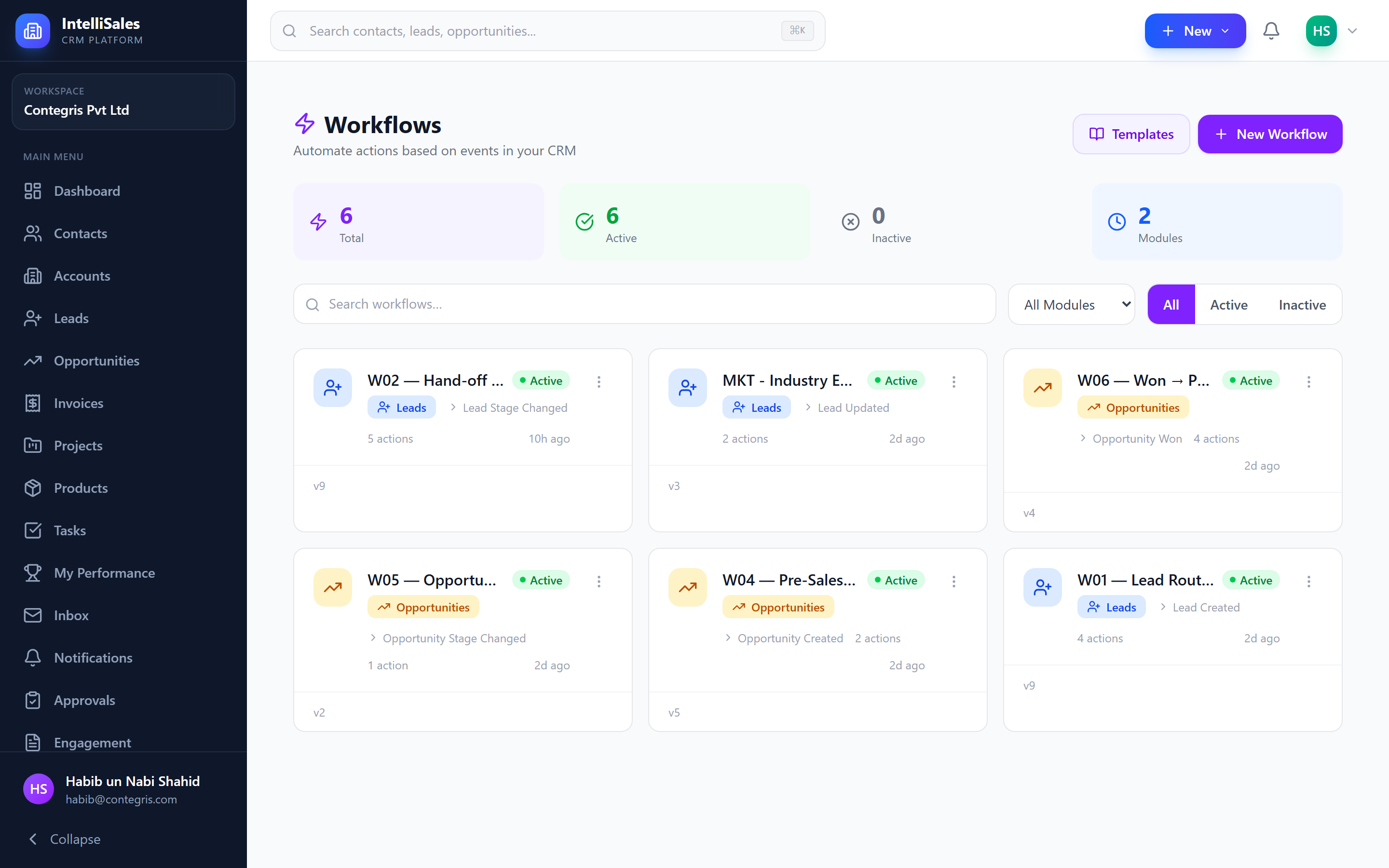
Navigate to Workflows in the sidebar to see all workflows displayed as a grid with:
- Workflow name — descriptive title
- Status — Active or Paused
- Trigger — the event that fires the workflow
- Module — which CRM module the workflow applies to
- Run Count — how many times the workflow has executed
- Last Run — when it last executed
Workflow Builder
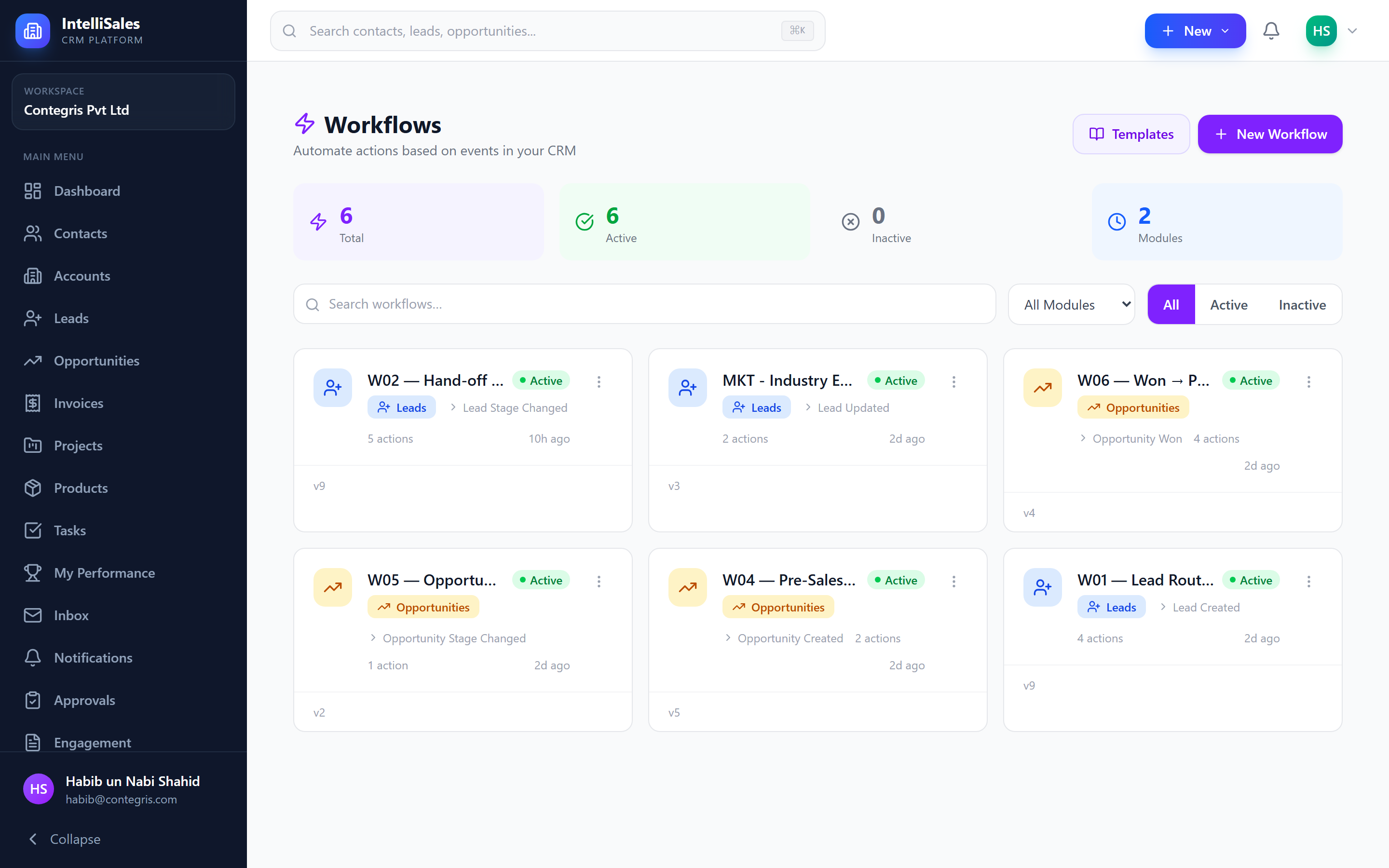
Click + New Workflow or edit an existing one to open the visual workflow builder.
Step 1: Define the Trigger
Select the module and event that starts the workflow.
Lead Triggers
| Trigger | Description |
|---|---|
lead_created | A new lead is created |
lead_updated | Any field on a lead is modified |
lead_stage_changed | Lead moves to a different pipeline stage |
lead_score_changed | Lead score increases or decreases |
lead_converted | Lead is converted to an opportunity/contact |
lead_assigned | Lead is assigned to a new owner |
Contact Triggers
| Trigger | Description |
|---|---|
contact_created | A new contact is created |
contact_updated | Any field on a contact is modified |
contact_assigned | Contact is assigned to a new owner |
Account Triggers
| Trigger | Description |
|---|---|
account_created | A new account is created |
account_updated | Any field on an account is modified |
account_assigned | Account is assigned to a new owner |
Opportunity Triggers
| Trigger | Description |
|---|---|
opportunity_created | A new opportunity is created |
opportunity_updated | Any field on an opportunity is modified |
opportunity_stage_changed | Opportunity moves to a different pipeline stage |
opportunity_won | Opportunity is closed as won |
opportunity_lost | Opportunity is closed as lost |
opportunity_assigned | Opportunity is assigned to a new owner |
Task Triggers
| Trigger | Description |
|---|---|
task_created | A new task is created |
task_updated | Any field on a task is modified |
task_overdue | A task passes its due date without completion |
task_completed | A task is marked as complete |
Project Triggers
| Trigger | Description |
|---|---|
project_created | A new project is created |
project_updated | Any field on a project is modified |
project_status_changed | Project status changes (e.g., In Progress to On Hold) |
project_task_overdue | A task within a project becomes overdue |
project_completed | A project is marked as completed |
Step 2: Add Conditions (Optional)
Conditions filter when the workflow should run. You can combine multiple conditions using AND/OR logic.
Condition Operators
| Operator | Description | Example |
|---|---|---|
equals | Exact match | Status equals "Hot" |
not_equals | Does not match | Source not equals "Manual" |
contains | Field contains substring | Company contains "Tech" |
not_contains | Field does not contain substring | Email not contains "test" |
starts_with | Field begins with value | Name starts with "Enterprise" |
is_empty | Field has no value | Phone is empty |
is_not_empty | Field has a value | Email is not empty |
greater_than | Numeric/date comparison | Amount greater than 50000 |
less_than | Numeric/date comparison | Score less than 20 |
in | Value is in a list | Stage in ["Qualified", "Proposal"] |
not_in | Value is not in a list | Status not in ["Lost", "Cancelled"] |
changed_to | Field changed to a specific value | Stage changed to "Negotiation" |
changed_from | Field changed from a specific value | Status changed from "Active" |
any_change | Field was modified (any value) | Score any change |
Use changed_to and changed_from operators with update triggers to react to specific field transitions rather than firing on every edit.
Step 3: Define Actions
Add one or more actions to execute when the trigger fires and conditions pass. Actions execute in sequence from top to bottom.
1. Assign Owner
Automatically assign the record to a user based on a distribution strategy.
| Strategy | Description |
|---|---|
round_robin | Rotate evenly across selected users |
weighted | Distribute based on assigned weights per user |
load_based | Assign to the user with the fewest open records |
territory | Match by geographic territory rules |
skill_match | Match by user skills/expertise |
sticky | Keep the same owner if already assigned; otherwise round-robin |
2. Create Task
Create a follow-up task automatically.
- Title — Task title (supports variables)
- Due Date — Relative (e.g., 3 days from trigger) or absolute
- Priority — Low, Medium, High, Urgent
- Assignee — Specific user, record owner, or manager
- Description — Task details (supports variables)
3. Update Field
Change a field value on the triggered record.
- Field — Select the field to update
- Value — The new value (static or variable)
4. Add Tag
Apply a tag to the record for segmentation and filtering.
- Tag — The tag name to add
5. Send Notification
Send an in-app notification to specified users.
- Recipients — Specific users, record owner, manager, or team
- Title — Notification title
- Message — Notification body (supports variables)
6. Send Email
Send a templated email to recipients.
- To — Email addresses (specific, record field, or variable)
- Template — Select an email template or compose inline
- Subject — Email subject (supports variables)
- Body — Email body with rich text (supports variables)
7. Send WhatsApp
Send a WhatsApp message via the configured WhatsApp Business API.
- To — Phone number field from the record
- Template — WhatsApp-approved message template
- Parameters — Variable values for template placeholders
8. Send SMS
Send an SMS message.
- To — Phone number field from the record
- Message — SMS text (supports variables, 160-character limit per segment)
9. Webhook
Send an HTTP request to an external system.
| Setting | Description |
|---|---|
| Method | GET, POST, PUT, or DELETE |
| URL | The endpoint to call (supports variables) |
| Headers | Custom HTTP headers (key-value pairs) |
| Query Params | URL query parameters |
| Body Type | JSON, form-data, or raw text |
| Body | Request payload (supports variables) |
Webhook responses are logged in the workflow run history. Use this to debug integrations with external systems.
10. Wait
Pause the workflow for a specified duration before continuing to the next action.
- Duration — Number of hours or minutes to wait
- Unit — Hours or Minutes
11. Branch (If/Else)
Add conditional branching within the action sequence.
- If — Define conditions (same operators as workflow conditions)
- Then — Actions to execute if conditions are true
- Else — Actions to execute if conditions are false
Branches can be nested for complex decision trees.
12. Create Opportunity
Create an opportunity from a lead record.
- Pipeline — Select the target pipeline
- Stage — Initial stage in the pipeline
- Field Mapping — Map lead fields to opportunity fields
- Keep Lead — Whether to keep the lead active or mark it as converted
13. Create Project
Create a project from an opportunity.
- Template — Select a project template (optional)
- Name — Project name (supports variables, defaults to opportunity name)
- Owner — Project owner (opportunity owner, specific user, or manager)
- Start Date — Relative or absolute
When a template is selected, all template phases and tasks are automatically created.
Variable Interpolation
Actions support dynamic variables using double-curly-brace syntax. Variables are replaced with actual values at execution time.
Syntax: {{trigger.fieldName}}
Common variables:
| Variable | Description |
|---|---|
{{trigger.id}} | Record ID |
{{trigger.name}} | Record name |
{{trigger.email}} | Email address |
{{trigger.phone}} | Phone number |
{{trigger.company}} | Company name |
{{trigger.owner}} | Record owner name |
{{trigger.ownerEmail}} | Record owner email |
{{trigger.stage}} | Current pipeline stage |
{{trigger.amount}} | Deal amount |
{{trigger.score}} | Lead score |
{{trigger.createdAt}} | Record creation date |
Use variables in email subjects, task titles, and webhook payloads to create personalized, context-aware automations.
Activating and Pausing Workflows
- Active — the workflow is running and evaluates triggers in real time
- Paused — the workflow is saved but does not execute
Toggle between states using the Active/Pause switch on the workflow list or within the builder.
Pause a workflow before making changes to it. Editing an active workflow could cause unexpected behavior during the brief editing period.
Workflow Runs (Execution History)
Every workflow execution is logged. To view the history:
- Open a workflow.
- Click the Runs or History tab.
- See a list of every execution with:
- Timestamp — when it ran
- Trigger record — which record triggered it
- Status — Success, Failed, or Skipped (conditions not met)
- Actions executed — which actions ran and their individual results
- Duration — how long the workflow took to execute
- Error details — if the run failed, what went wrong

Debugging Failed Runs
When a workflow run fails:
- Open the failed run from the history.
- Review the action-by-action execution log to see which action failed.
- Check the error message — common issues include:
- Invalid email addresses for Send Email actions
- Unreachable URLs for Webhook actions
- Missing required fields for Create Task/Opportunity actions
- Rate limits on external APIs
- Fix the underlying issue.
- Click Retry to re-execute the workflow for that record.
Workflow runs are retained for auditing and troubleshooting. Use the execution history to verify that automations are working correctly and to diagnose issues.
Best Practices
- Name workflows clearly — use descriptive names like "Send welcome email on new web lead" instead of "Workflow 1"
- Use conditions — avoid workflows that fire too broadly; a workflow without conditions runs for every matching trigger event
- Test before activating — create a test record to verify the workflow behaves as expected
- Monitor runs regularly — check execution history after creating new workflows, especially during the first week
- Document complex workflows — add descriptions explaining the business logic
- Use Wait actions carefully — long wait durations can make debugging difficult; keep waits as short as practical
- Limit webhook timeouts — external systems may be slow; ensure your webhook endpoints respond quickly
- Order actions intentionally — actions run sequentially, so place dependent actions after the ones they rely on (e.g., Create Lead before Create Task linked to that lead)
- Use branches for complex logic — instead of creating multiple similar workflows, use a single workflow with Branch actions
- Review and clean up — periodically audit your workflows and pause or delete ones that are no longer needed