Managing Invoices
This chapter covers the day-to-day operations for working with invoices — managing the list, editing invoices, handling line items, recording payments, and tracking overdue balances.
Invoice List
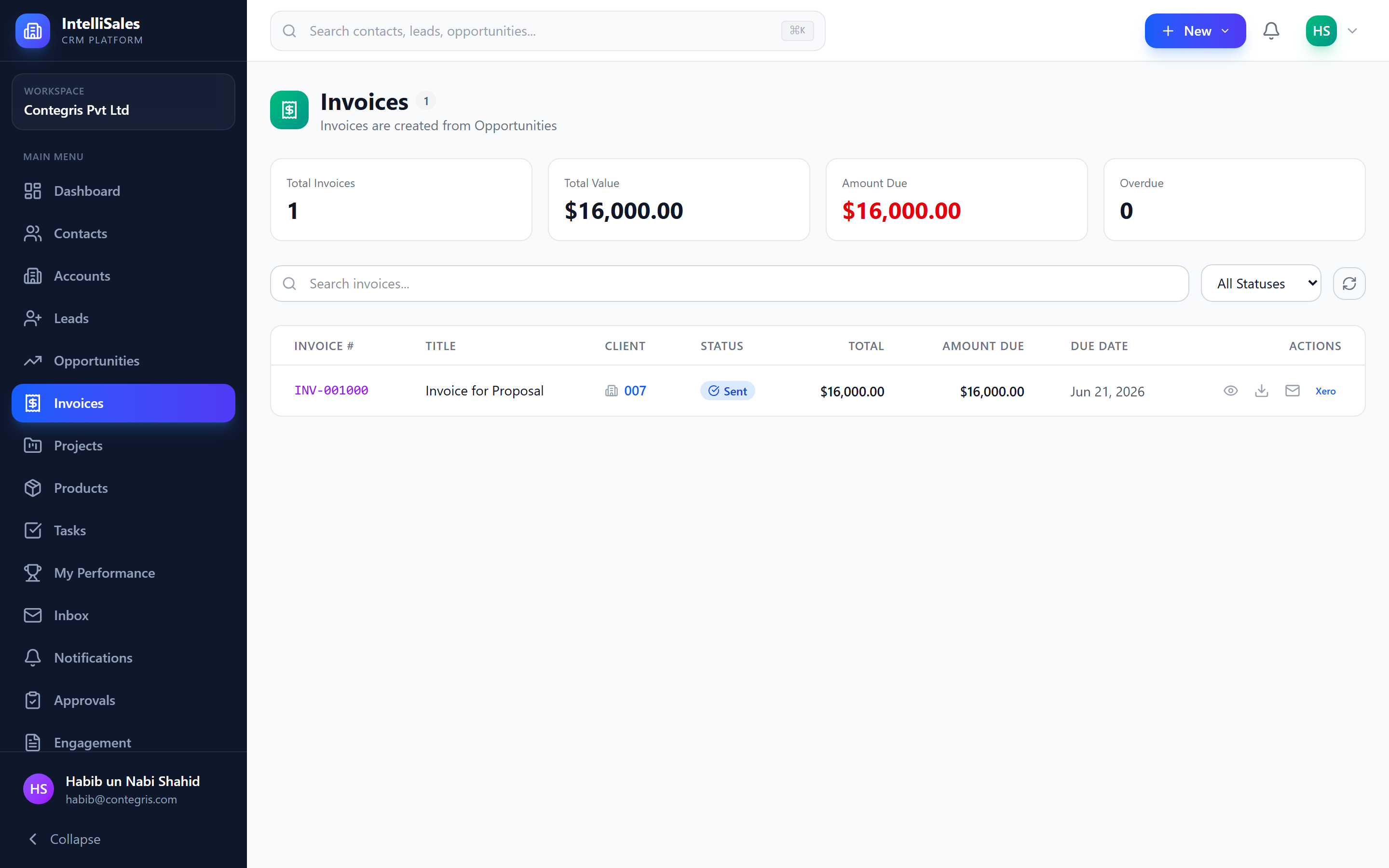
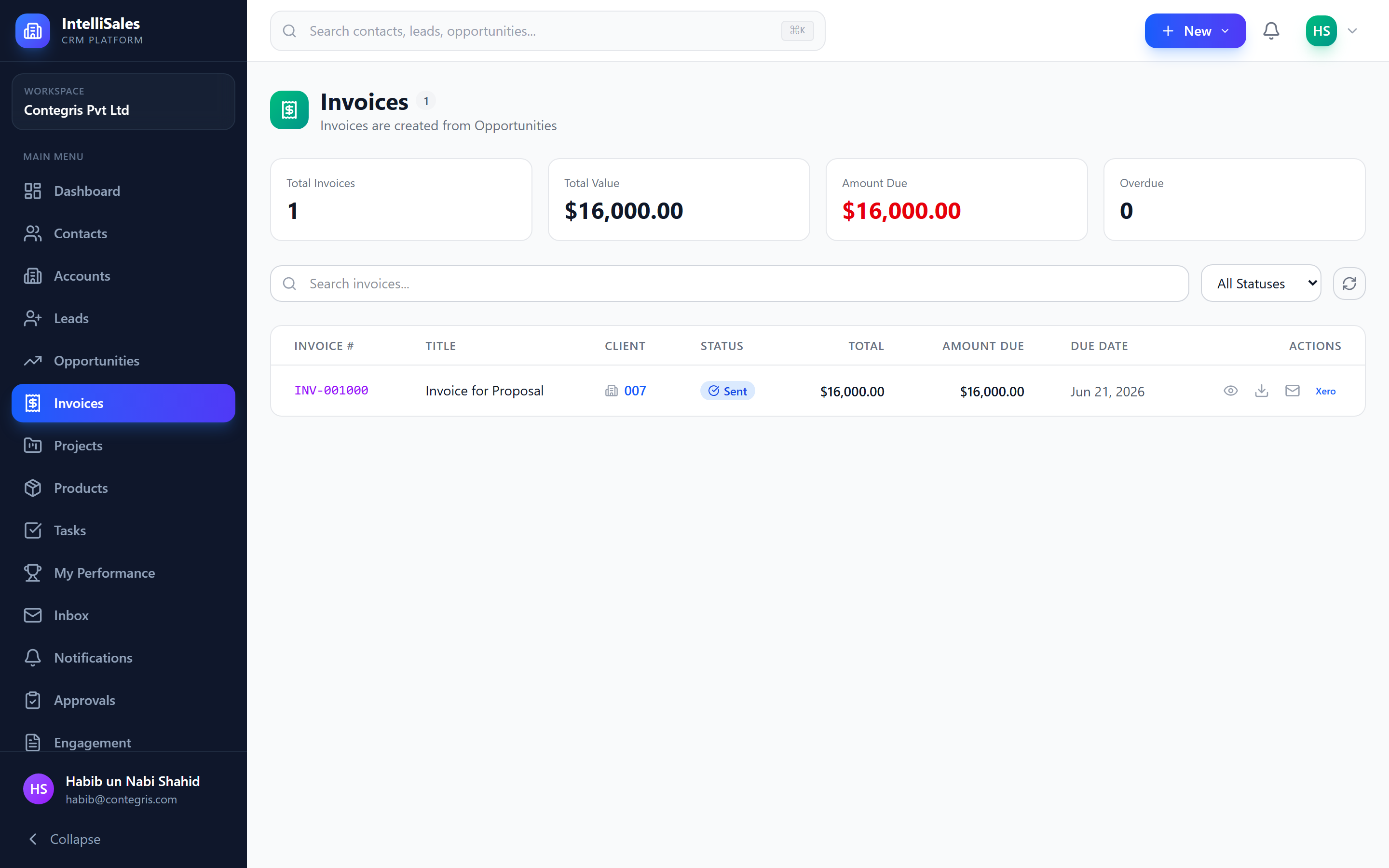
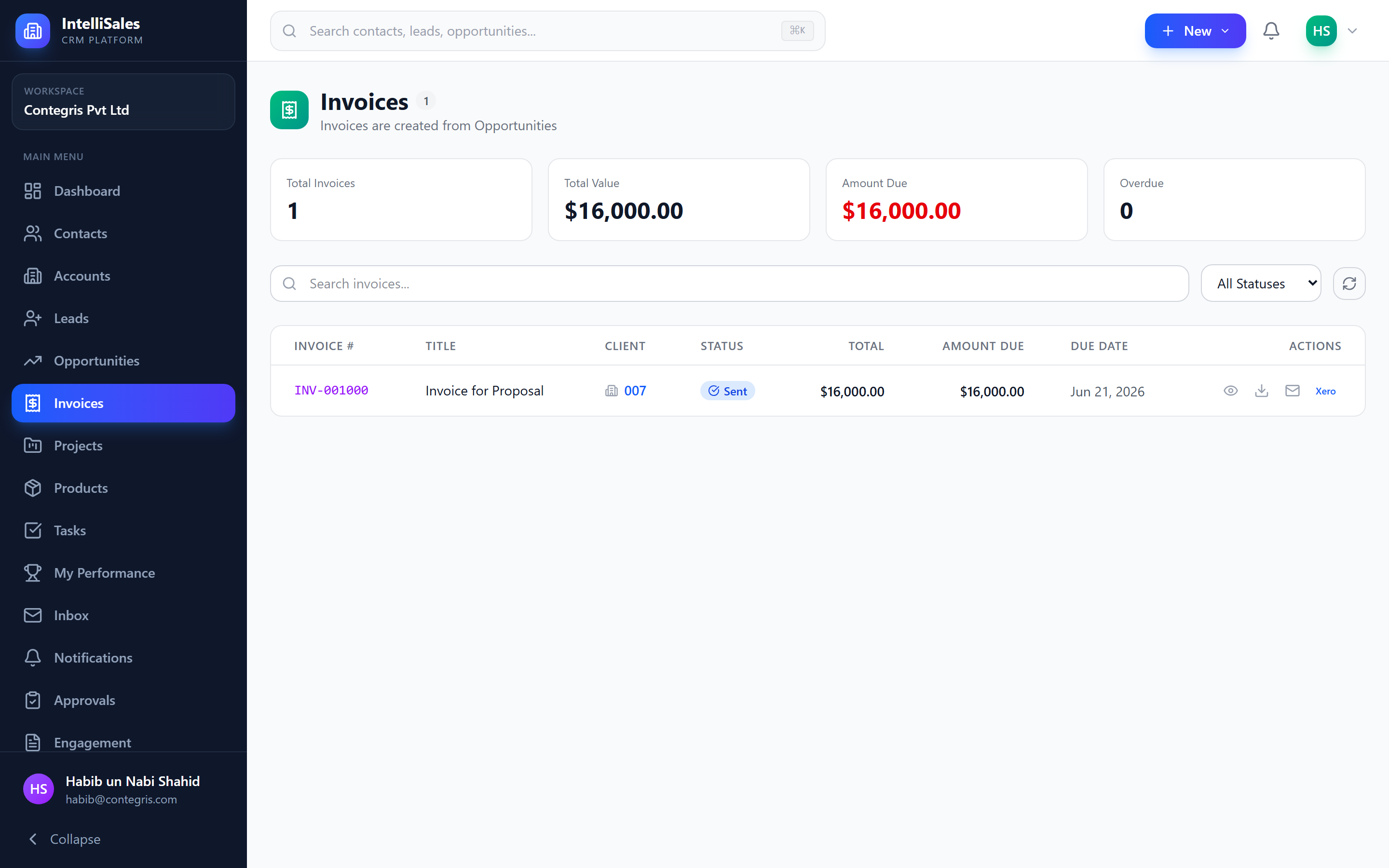
Navigate to Invoices in the sidebar to view all invoices. The list can be filtered by:
- Status — Draft, Sent, Partially Paid, Paid, Overdue, Cancelled, Void
- Date Range — filter by invoice date or due date
- Client/Account — invoices for a specific organization
- Search — find invoices by number or client name
Creating and Editing Invoices
Creating
- Click + New Invoice.
- Fill in the header fields:
- Client/Account — select the organization
- Contact — select the billing contact
- Invoice Date and Due Date
- Invoice Number — auto-generated or enter manually
- Add line items (see below).
- Set discount and tax.
- Add notes and payment terms.
- Click Save as Draft.
Editing
- Open the invoice.
- Click Edit (available for Draft invoices).
- Modify fields and line items.
- Click Save.
Once an invoice is Sent, editing is restricted. If you need to change a sent invoice, void it and create a new one.
Line Items Management
Line items detail what the client is being billed for:
- Click Add Line Item.
- Select a product from your catalog (or enter a custom description).
- Enter quantity and unit price.
- Optionally enter a discount per line (percentage or fixed amount).
- Optionally set a tax rate for the line item.
- The line total calculates automatically: (Quantity x Unit Price) - Discount + Tax.
You can:
- Reorder line items by drag-and-drop
- Edit any line item by clicking on it
- Remove line items using the delete button
- Add multiple items by repeating the process
The invoice subtotal, tax, discount, and total update in real time.
Discount Types
Discounts can be applied at two levels:
| Level | Options | Description |
|---|---|---|
| Per line item | Percentage or fixed | Applied to individual line items |
| Invoice-level | Percentage or fixed | Applied to the subtotal after all line items |
Sending Invoices via Email
To send an invoice to the client:
- Open the invoice (must be in Draft or Sent status).
- Click Send Invoice (or the email icon).
- A compose dialog opens with:
- To — pre-filled with the billing contact's email
- Subject — pre-filled with the invoice number
- Body — a customizable email template
- Attachment — the invoice PDF is auto-attached
- Review and click Send.
The invoice status changes to Sent upon successful delivery.
Recording Payments
When a payment is received:
- Open the invoice.
- Click Record Payment.
- Enter:
- Payment Amount — the amount received
- Payment Date — when the payment was made
- Payment Method — select from: bank transfer, credit card, cash, cheque, PayPal, Stripe, or other
- Reference Number — transaction, check, or confirmation number
- Click Save.
If the payment is less than the total, the status changes to Partially Paid with the remaining balance shown. When fully paid, the status changes to Paid.
Payment History
Each invoice maintains a full payment history:
- All recorded payments with date, amount, method, and reference
- Running balance showing amount remaining
- Payment history is visible on the invoice detail page
Record payments promptly to keep your financial data accurate. This affects dashboard revenue metrics and account balance reports.
Downloading PDF
To download an invoice as a PDF:
- Open the invoice.
- Click Download PDF (or the PDF icon).
- A professionally formatted PDF downloads containing all invoice details, line items, totals, and payment terms.
The PDF can be shared with clients, printed, or archived.
Recurring Invoices
For clients with ongoing billing:
- Create an invoice with the standard line items and amounts.
- Enable the Recurrence toggle.
- Select the frequency: Weekly, Monthly, Quarterly, or Annually.
- Set the start date and optionally an end date or number of occurrences.
- The system automatically generates new Draft invoices on schedule.
Managing Recurring Invoices
- Each generated invoice is independent — you can edit amounts before sending
- View all recurring invoice schedules from the invoice list filters
- Disable recurrence at any time by editing the invoice and toggling it off
- Recurring invoices show a recurrence icon in the list view
Recurring invoices generate Drafts that still require review and manual sending. This ensures you can adjust amounts or line items before delivery.
Xero Integration
If your organization uses Xero for accounting, invoices can be pushed to Xero:
- Open the invoice.
- Click Push to Xero (available if the integration is configured).
- The invoice is created in your Xero account with:
- All line items with descriptions, quantities, and prices
- Tax rates and discount amounts
- Contact/account information
- Invoice number and dates
- A sync status indicator shows whether the push was successful.
The Xero integration must be configured by your administrator. Contact your admin if you do not see the Xero option on invoices.
Overdue Tracking
Invoices that pass their due date without being fully paid are automatically marked as Overdue:
- Overdue invoices are highlighted in the list view with a red status badge
- Dashboard widgets can show total overdue amount
- Notifications can be configured to alert you when invoices become overdue
- Filter the invoice list by "Overdue" status to see all past-due invoices
Voiding and Cancelling
Cancelling (Draft Invoices)
- Open a Draft invoice.
- Click Cancel Invoice.
- Confirm the cancellation.
- Status changes to Cancelled — the invoice is no longer valid.
Voiding (Sent Invoices)
- Open a Sent, Partially Paid, or Overdue invoice.
- Click Void Invoice.
- Confirm the void.
- Status changes to Void — the invoice is nullified.
Voiding an invoice is permanent. If you need to bill the client again, create a new invoice. Voided invoices are retained for audit purposes.