Scheduling
The Scheduling module allows you to create public booking pages where clients, prospects, and partners can schedule meetings with you based on your available time slots.
Scheduling / Booking Page Overview
A booking page is a public web page that displays your availability and lets visitors pick a time to meet. This eliminates the back-and-forth of scheduling emails and ensures meetings are booked during times that work for you.
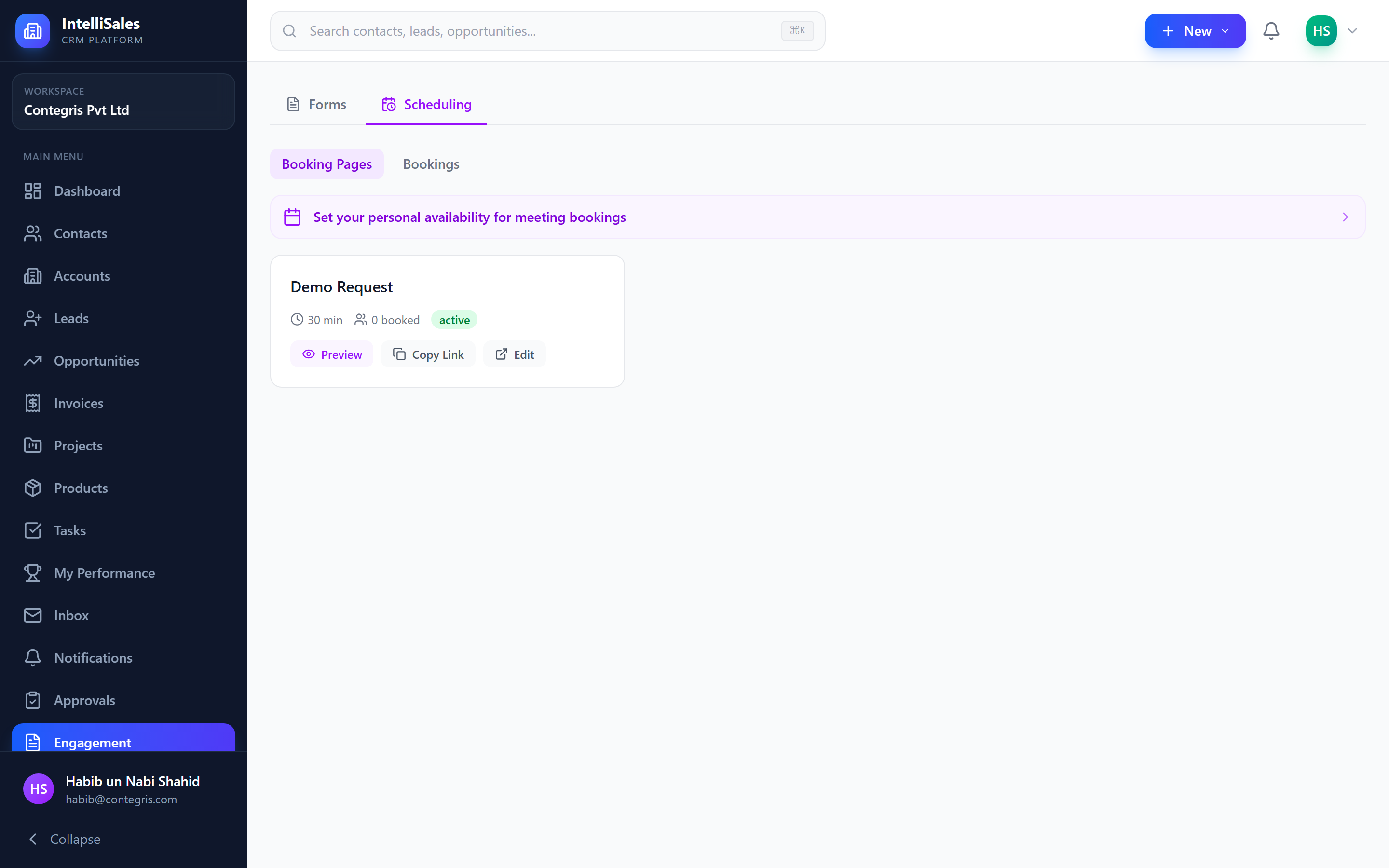
Setting Up a Booking Page
- Navigate to Engagement > Scheduling in the sidebar.
- Click + New Booking Page (or edit an existing one).
- Configure the settings:
- Page Title — the heading visitors see (e.g., "Schedule a Demo with John")
- Description — context about the meeting purpose
- Duration — default meeting length (15 min, 30 min, 60 min, or custom)
- Availability — set which days and hours you are available
- Buffer Time — minimum gap between meetings
- Advance Notice — how far in advance meetings must be booked
- Max Bookings — maximum meetings per day (optional)
- Click Save and Publish.
Set buffer time between meetings (e.g., 15 minutes) to avoid back-to-back scheduling. This gives you time for notes, preparation, and short breaks.
Public Booking Page
Once published, the booking page is accessible via a public URL. Share this link with prospects and clients.
The visitor experience:
- They see a calendar view with your available dates highlighted.
- They click a date to see available time slots.
- They select a time slot.
- They fill in their name, email, and optional notes.
- They click Confirm Booking.

Available Time Slots
Time slots are calculated based on:
- Your configured availability hours (e.g., Monday-Friday 9am-5pm)
- Your calendar events (connected via Google Calendar sync — busy times are excluded)
- Buffer time between meetings
- Advance notice requirements
- Existing bookings on the same page
For accurate availability, connect your Google Calendar. The system automatically blocks times where you have existing events, preventing double-booking.
Booking Confirmation
When a visitor books a meeting:
- Confirmation page — the visitor sees a success message with the meeting details.
- Confirmation email — both you and the visitor receive an email with:
- Meeting date and time
- Duration
- Visitor's name and email
- Any notes they provided
- Calendar invite attachment (.ics file)
- CRM record — a task or calendar entry is created in IntelliSales CRM linked to the visitor's contact record (if one exists).
Integration with Tasks and Calendar
Booked meetings integrate with the CRM:
- A task of type "Meeting" is automatically created for the booked time
- If Google Calendar Sync is connected, the meeting appears on your Google Calendar
- If the visitor's email matches an existing contact, the task is linked to that contact
- The booking appears on your Tasks Calendar View
If the visitor is a new person (no matching contact), you can manually create a contact and link the meeting task to them afterward.
Host Selection
Each booking page picks who the meeting goes to via the host picker:
- User mode — pick a single user; every booking is routed to them.
- Team mode — pick a team and one of the routing strategies below. If you leave the team's member list empty, the booking page falls back to every active member of the team so a single new team member doesn't break bookings.
Booking modes
| Mode | What the visitor sees |
|---|---|
| Pick-a-slot | The visitor sees a calendar and chooses one of the available slots. Standard scheduling UX. |
| Auto-book | The visitor submits the form and the system picks the first available slot for them. Useful for high-volume inbound demos where speed matters more than choice. |
Team round-robin
In team mode, slots are offered round-robin across team members — each member's availability and existing bookings are combined to compute the slots shown, and assignment cycles through the team for fairness.
Booking Submit Actions
Booking pages now run the same submit-action chain as standard forms — the Actions tab is exposed on meeting_booking forms and the action list (Create Lead, Create Contact, Send Email, Webhook, Add to Email List) runs as soon as a booking is confirmed.
By default the new lead or contact's owner_id is set to the booking host for that slot — but a workflow assign_owner action on the lead_created / contact_created trigger can override this if you want a different routing strategy.
Public Booking URLs
Booking pages are routed under /book/{tenantSlug}/{token} everywhere — older /f/... links also still resolve, but new shares use the booking-specific path.
Managing Bookings
View and manage your bookings:
- Navigate to Engagement > Scheduling.
- Click a booking page to see its Bookings tab.
- View upcoming and past bookings with visitor name, date, and status.
- Cancel a booking if needed — the visitor will be notified.
- Reschedule by cancelling and asking the visitor to rebook.