Price Books
Price Books allow you to maintain multiple pricing structures for the same products. This is essential for organizations that offer different pricing across customer segments, regions, currencies, or promotional periods.
What are Price Books?
A price book is a named collection of product prices that overrides the standard list price. For example:
- Standard Price Book — default pricing for all customers
- Enterprise Price Book — discounted pricing for large accounts
- Partner Price Book — special pricing for channel partners
- Q1 Promotion — temporary promotional pricing for a specific quarter
When adding products to an opportunity, you can select which price book to use, and the prices populate automatically.
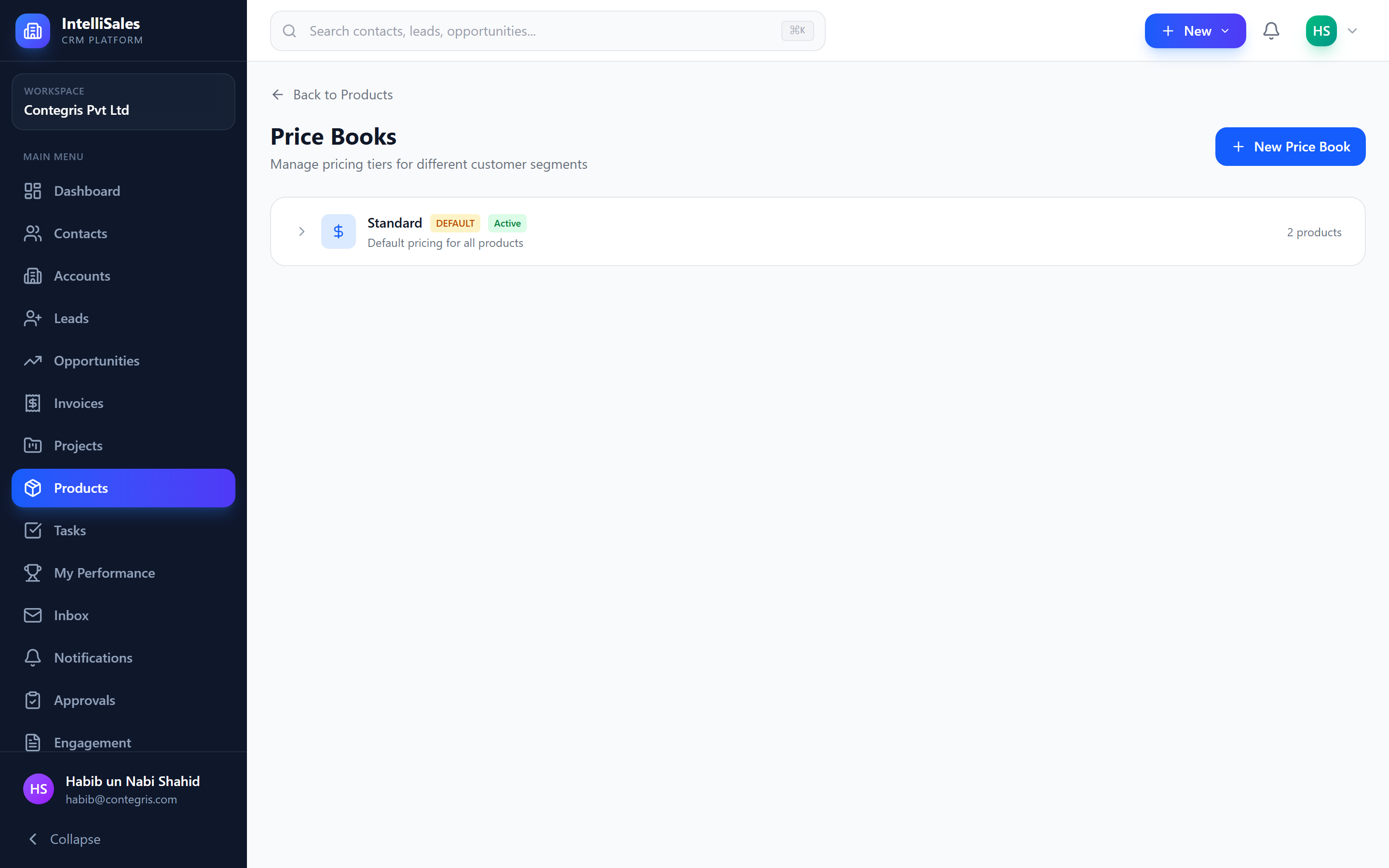
Creating Price Books
- Navigate to Products > Price Books (or the Price Books section within the Products module).
- Click + New Price Book.
- Fill in the details:
- Name — a descriptive name (e.g., "Enterprise Tier 2024")
- Description — optional description of when to use this price book
- Currency — the currency for all prices in this book
- Effective Start Date — when this price book becomes active
- Effective End Date — when this price book expires (leave blank for no expiration)
- Active — toggle to enable/disable the price book
- Click Save.
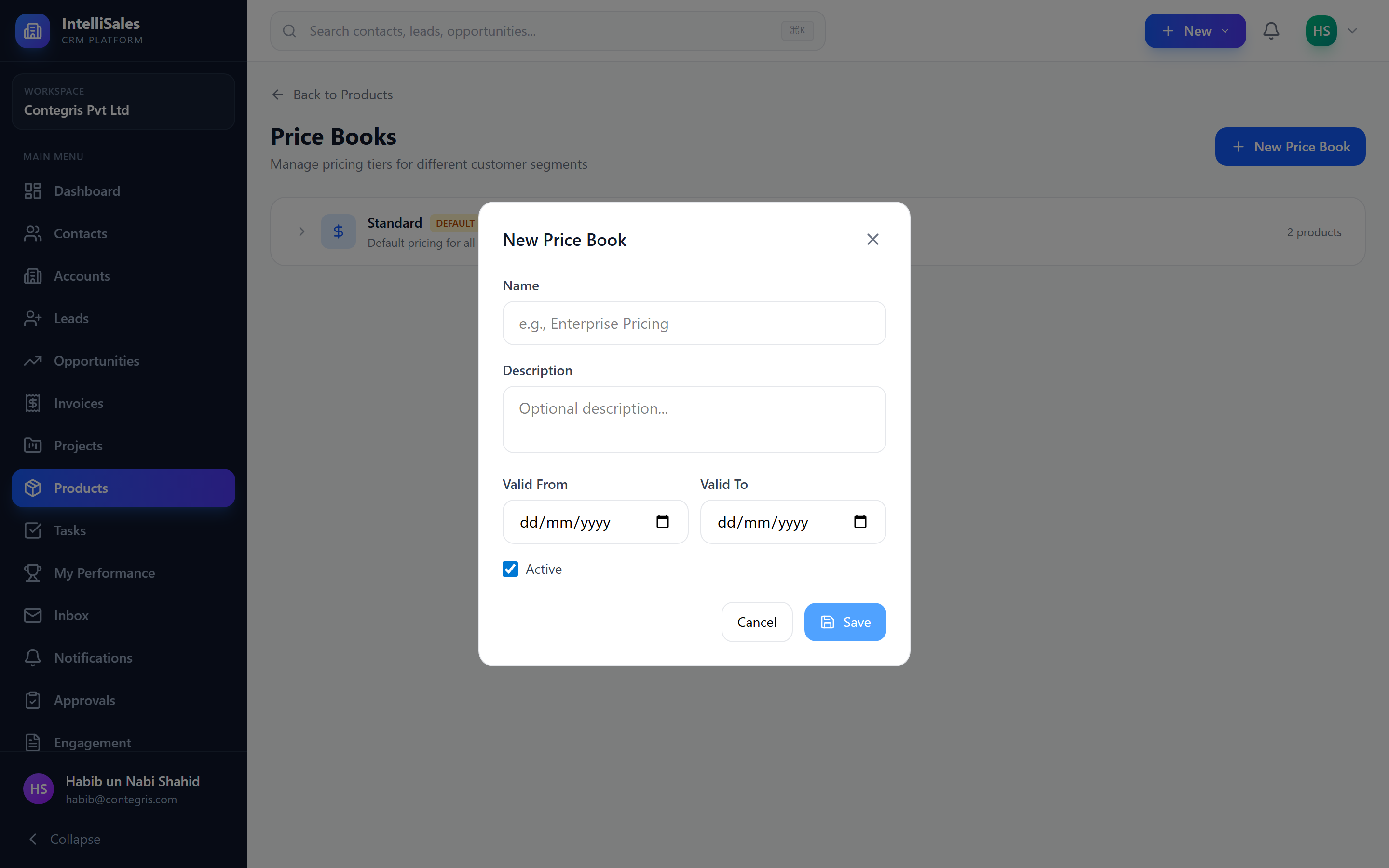
Use effective dates to manage seasonal or promotional pricing. When a promotion ends, the price book automatically becomes inactive without manual intervention.
Adding Products to Price Books
After creating a price book, add products with custom pricing:
- Open the price book.
- Click Add Product.
- Search for and select a product from your catalog.
- Enter the custom price for this product in this price book.
- Optionally set a minimum price (floor) and maximum price (ceiling).
- Click Save.
Repeat for each product that should have custom pricing in this book.
Products not explicitly added to a price book fall back to their standard list price from the product record.
Managing Price Book Entries
Within a price book, you can:
- View all entries — see every product and its custom price
- Edit pricing — click an entry to modify the price, minimum, or maximum
- Remove products — delete an entry to revert that product to standard pricing
- Search/filter — find specific products within the book
| Column | Description |
|---|---|
| Product Name | The product |
| Product Code | SKU |
| Standard Price | The list price from the product record |
| Book Price | The custom price in this price book |
| Minimum Price | Floor price (for discounting limits) |
| Maximum Price | Ceiling price |
Using Price Books in Opportunities
When adding line items to an opportunity:
- Select the price book to use for this opportunity (or use the default).
- When you add a product, the unit price automatically populates from the selected price book.
- You can still manually adjust the price on individual line items.
- If the product is not in the selected price book, the standard list price is used.
If a price book has expired (past its effective end date), it will not appear as a selectable option. Ensure your active price books have valid date ranges.

Best Practices
- Keep price books organized — use clear naming conventions that indicate the audience and time period
- Review regularly — update pricing at least quarterly to reflect market changes
- Use effective dates — let the system manage activation/deactivation
- Set min/max prices — protect margins by defining acceptable price ranges
- Audit usage — track which price books are used most to understand your pricing landscape