Work Request Settings
Work Requests let one team ask another to do a piece of work tied to a CRM record — a presales demo on an opportunity, a campaign brief on an account, a credit check on a lead. The request is raised from the record, lands with the team that does the work, and is tracked through its own pipeline with time logging, files and an activity timeline. Everything happens before (and independently of) a project.
Navigate to Admin > Work Requests (/admin/work-request-settings). The page has two tabs:
| Tab | What you configure |
|---|---|
| Request Types | The kinds of work each team accepts, who owns them, how they are assigned, and the questions the requester answers |
| Pipelines & Stages | The stages requests move through, which stages complete or cancel a request, and who picks up the request at each stage |
Every request type runs on a pipeline. Until at least one active work-request pipeline exists, the New Request Type button is disabled and the Request Types tab shows a prompt linking to Pipelines & Stages.
Request Types
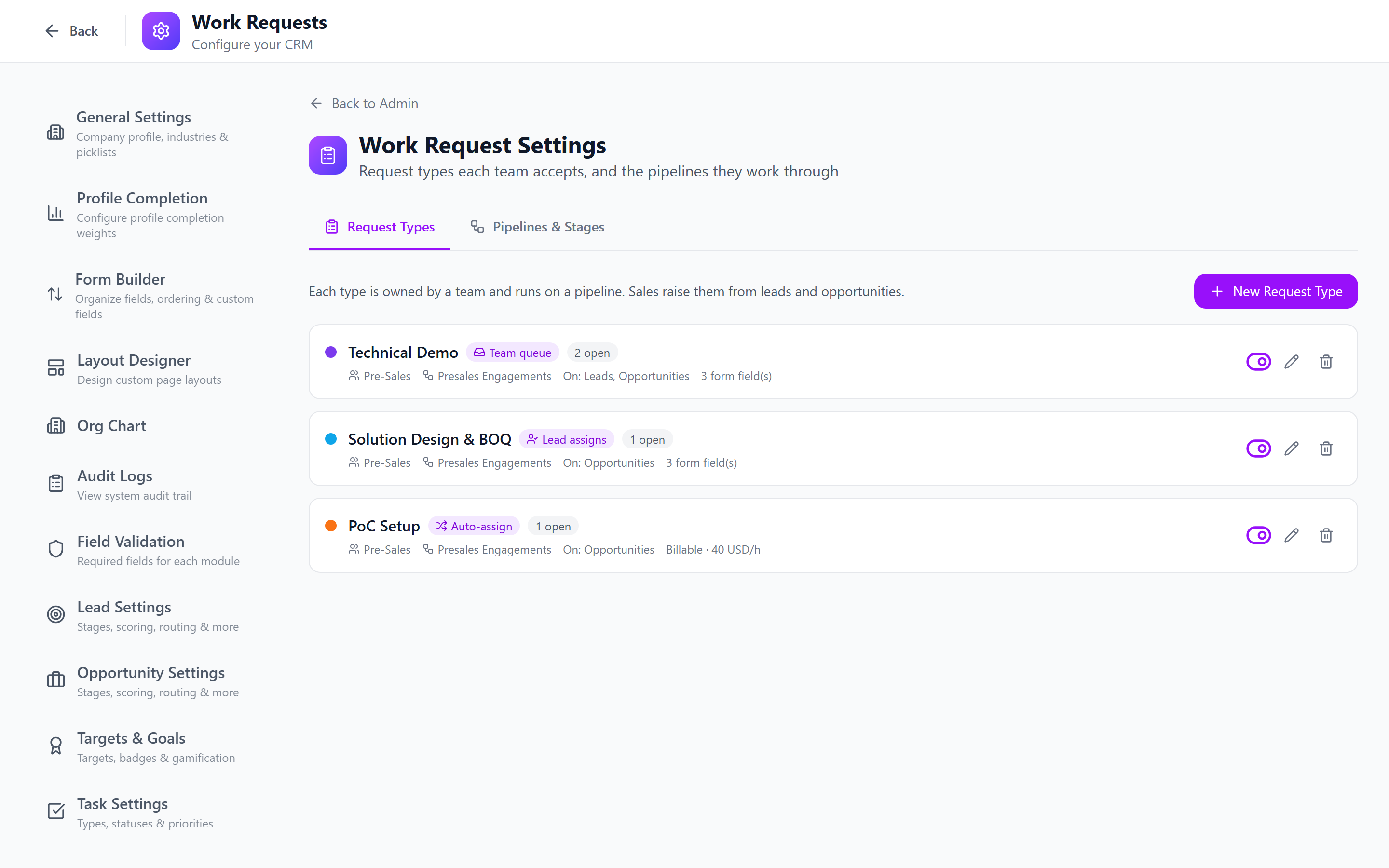
A request type describes one kind of work — "Technical Demo", "Solution Design", "Credit Check", "Campaign Brief". Each type is a card on the Request Types tab showing its assignment mode, owning team, pipeline, the record types it can be raised on, the number of request form fields, billing defaults, and how many requests are currently open.
Click New Request Type to add one, or the pencil icon on a card to edit it.
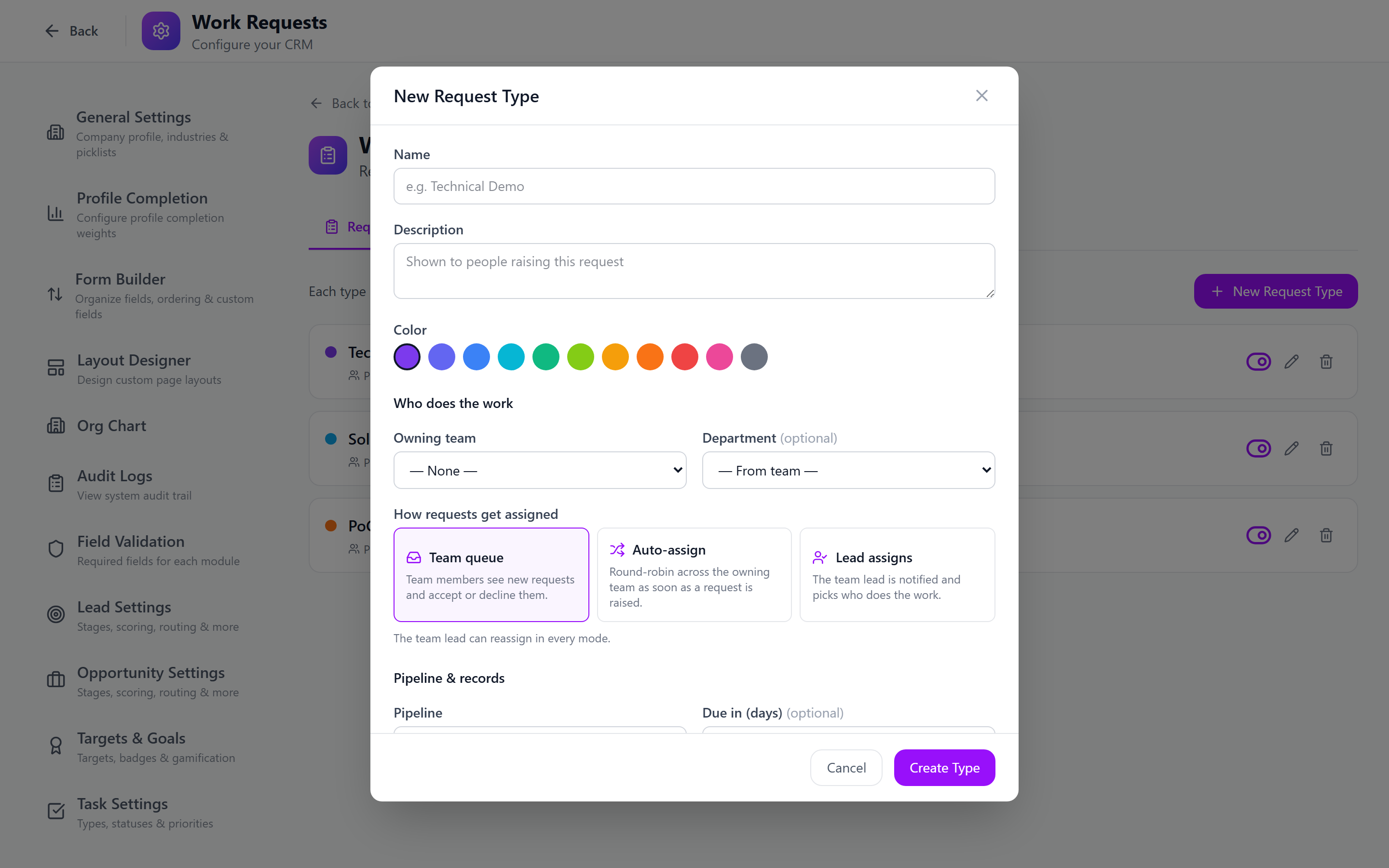
Basics
| Field | Description |
|---|---|
| Name (required) | Shown to people raising a request and on every request of this type. |
| Description | Shown to the requester in the request form. |
| Color | Badge color on lists, the board and record tabs. |
Who does the work
| Field | Description |
|---|---|
| Owning team | The team that receives and works these requests. Its members see the requests in their Team queue, and its team lead can assign and reassign. |
| Department (optional) | Defaults to the owning team's department. The department head can also manage requests of this type. |
You must pick a team or a department. A type with neither cannot take requests — raising one fails with "has no owning team. Ask an admin to set one."
Assignment modes
Pick how a new request finds the person who does it:
| Mode | Label in the UI | What happens when a request is raised |
|---|---|---|
queue (default) | Team queue | Every active member of the owning team is notified. Any member can accept (take it) or decline it with a reason. |
auto | Auto-assign | The request is assigned immediately. If the pipeline's first stage has its own stage owner rule, that rule picks the person; otherwise the request rotates round-robin across the owning team's members. If nobody can be resolved, the team is notified as in queue mode. |
manual | Lead assigns | Only the owning team's team lead is notified, and picks who does the work. |
In every mode the team lead (and the department head, admins, and anyone with All record access on Work Requests) can assign or reassign a request. A requester who is also a manager of the type can assign at creation time.
Use Team queue for small teams who self-organise, Auto-assign for high-volume request types where speed matters, and Lead assigns when the lead needs to match work to skills (e.g. presales engineers with different product specialities).
Pipeline & records
| Field | Description |
|---|---|
| Pipeline (required) | The work-request pipeline new requests of this type start on. Requests always start at the pipeline's first open stage (the lowest-ordered active stage that neither completes nor cancels). |
| Due in (days) (optional) | When set, a new request's due date defaults to today plus this many days. The requester can still pick a date. |
| Can be raised on | The record types requests of this type can be raised on: Leads, Opportunities, Accounts, Contacts, Projects, Tasks. At least one is required. New types default to Leads and Opportunities. |
Billing defaults
Turn on Billable by default to make time logged on these requests billable unless changed per entry. When on, you can also set an Hourly rate and a three-letter Currency (e.g. USD).
These values are copied onto each new request. After that, only the request's assignee or a manager of the request can change its billing — the requester cannot.
Request form
The Request form section adds questions the requester answers in addition to the title and description. Click Add field and configure each one:
| Setting | Options |
|---|---|
| Question | The field label (required). A key is generated from it. |
| Type | Short text · Long text · Number · Date · Dropdown · Multi-select · Checkbox · Link |
| Options | For Dropdown and Multi-select — comma-separated, at least one required |
| Required | The request cannot be raised (or saved) without an answer |
Use the arrows to reorder fields and the trash icon to remove one. Labels must be unique per type.
Answers are stored on the request itself (request_data), not as custom fields. Changing a type's form later does not rewrite answers already given on existing requests.
Activating, deactivating and deleting types
- The toggle on a type card activates or deactivates it. Inactive types cannot be picked for new requests; existing requests are unaffected.
- Delete soft-deletes the type. It is refused while the type has open requests (Requested, Accepted or In Progress) — complete or cancel them, or deactivate the type instead. Closed requests keep the type for history.
Pipelines & Stages
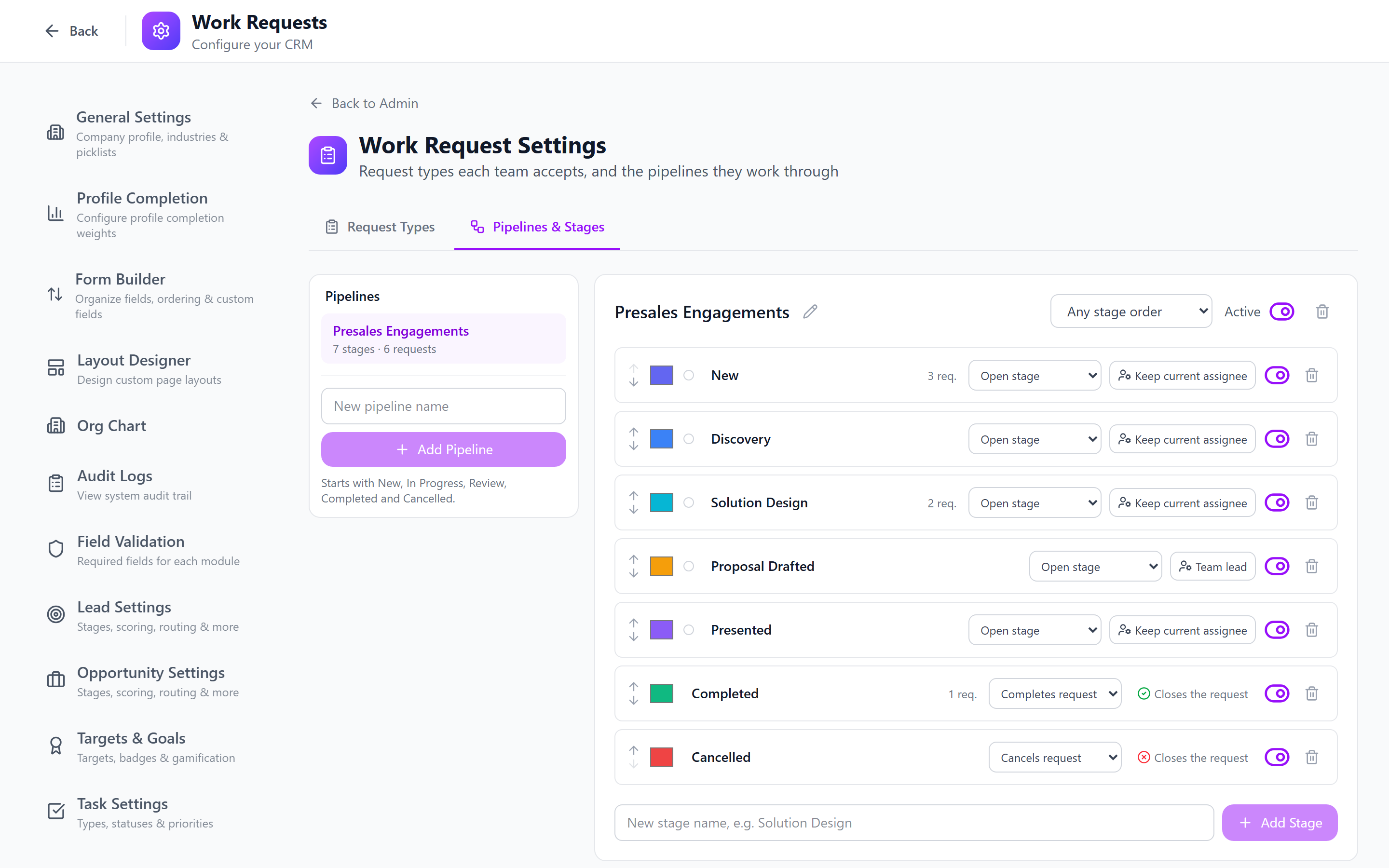
Work-request pipelines are separate from sales pipelines. They are created and managed only on this tab, and they never appear in Lead Settings or Opportunity Settings (and sales pipelines never appear here). See Pipelines & Stages.
Creating a pipeline
- Open the Pipelines & Stages tab.
- Type a name in New pipeline name at the bottom of the pipeline list.
- Click Add Pipeline.
New pipelines are seeded with five starter stages:
| Stage | Kind |
|---|---|
| New | Open stage |
| In Progress | Open stage |
| Review | Open stage |
| Completed | Completes request |
| Cancelled | Cancels request |
Rename, recolor, reorder, add or remove stages to match how the team works.
Pipeline options
With a pipeline selected, the header offers:
| Control | Description |
|---|---|
| Rename (pencil) | Change the pipeline name. |
| Stage movement | Any stage order (free) or One stage at a time (sequential). In sequential mode a request can only move to the adjacent stage; moving to a stage that cancels the request is always allowed. |
| Active | Inactive pipelines cannot be picked for new request types. |
| Delete | Refused while any request uses the pipeline or any request type defaults to it — deactivate it instead. |
Stages
Each stage row lets you:
- Reorder with the up/down arrows.
- Recolor with the color swatch and rename inline (saved when you leave the field).
- Set the stage kind:
| Kind | Effect when a request enters the stage |
|---|---|
| Open stage | The request keeps working. Moving an Accepted request into an open stage marks it In Progress. |
| Completes request | The request's status becomes Completed, any running timer on it is stopped, and the requester and assignee are notified. |
| Cancels request | The request's status becomes Cancelled, with the same timer stop and notifications. |
A stage cannot both complete and cancel. If no active stage completes a request, an amber warning asks you to mark one — otherwise finishing work cannot move the request onto a closing stage.
- Activate / deactivate a stage with the toggle.
- Delete a stage with the trash icon. Deleting is refused while any request sits in the stage — move those requests first, or deactivate the stage.
- Add Stage at the bottom adds a new open stage. New open stages are placed before the closing stages.
When a user clicks Complete or Cancel on a request (rather than moving it through stages), the request is also moved to the pipeline's first active Completes request or Cancels request stage. Reopen moves a request that sits on a closing stage back to the first open stage.
Stage owner rules (hand-offs)
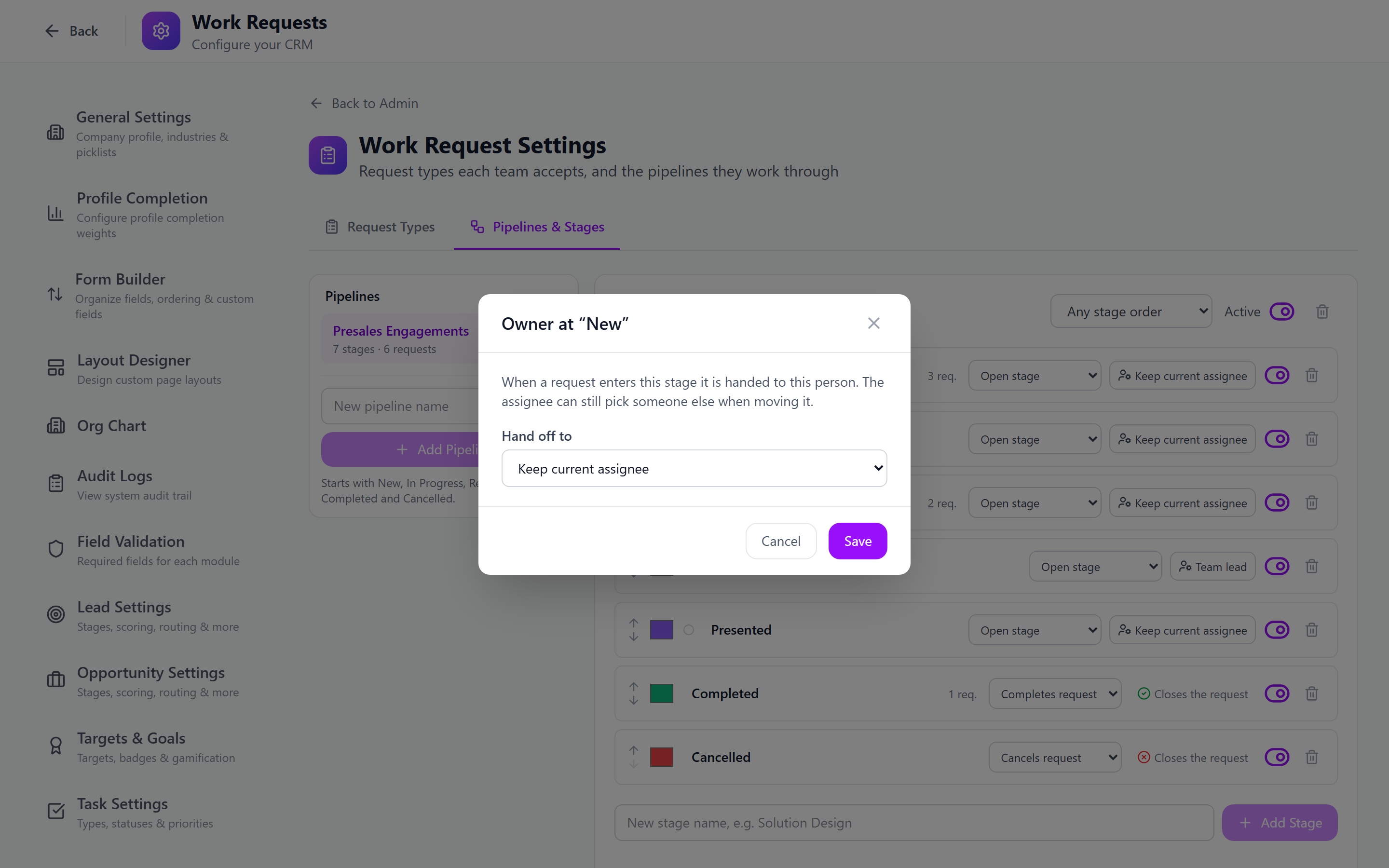
Open stages show a button with the stage's current owner rule (default Keep current assignee). Click it to open Owner at "<stage>" and choose who picks up the request when it enters that stage:
| Rule | Who gets the request |
|---|---|
| Keep current assignee | Nobody new — the assignee stays. |
| Specific user | The selected user (if active). |
| Team lead | The selected team's team lead. |
| Team — round-robin | The next active member of the selected team, rotating per stage. |
| Role — round-robin | The next user with the selected role, optionally narrowed to a team. |
When a request moves into a stage with a rule, it is handed to that person: they become the assignee, are notified, and the hand-off is recorded on the request's timeline (Handed off at stage "…"). The rules are the same owner types used for lead and opportunity stages — see Stage Ownership. Closing stages have no owner rule.
The pipeline's first stage rule also drives Auto-assign request types: when a type uses Auto-assign and its first stage has a rule, the rule picks the first assignee instead of the team round-robin.
Walkthrough: a "Technical Demo" type for presales
This sets up sales-to-presales demo requests that the presales lead assigns, with a hand-off to a solutions architect for the solution-design step.
Before you start: create a Presales team under Teams, add the presales engineers as members, and set a team lead.
- Create the pipeline. Open Admin > Work Requests > Pipelines & Stages, enter
Presales Demoas the new pipeline name and click Add Pipeline. - Shape the stages. Rename In Progress to
Demo Prep, add a stageSolution Designand move it after Demo Prep, and rename Review toDemo Delivered. Leave Completed as Completes request and Cancelled as Cancels request. - Add a hand-off. On Solution Design, click the owner button, choose Role — round-robin, pick the
Solutions Architectrole and (optionally) the Presales team, and Save. Requests reaching Solution Design are now handed to the next solutions architect. - Create the type. Switch to Request Types and click New Request Type:
- Name:
Technical Demo· Description: "Book a product demo with presales" - Owning team: Presales
- How requests get assigned: Lead assigns
- Pipeline: Presales Demo · Due in (days):
5 - Can be raised on: Leads, Opportunities
- Request form: add
Products to demo(Multi-select, options from your catalogue, required),Preferred demo date(Date, required),Attendee count(Number), andCustomer environment notes(Long text). - Leave Billable by default off for internal presales work.
- Name:
- Click Create Type.
Sales reps can now open a lead or opportunity, go to its Work Requests tab and raise a Technical Demo. The presales team lead is notified, assigns an engineer, and the request moves through Demo Prep, Solution Design (hand-off to an architect) and Demo Delivered to Completed. If the lead is converted, its requests move to the new opportunity, and when a project is created from that opportunity, the requests are linked to the project so delivery can see the pre-sale effort and time.
Permissions
Work Requests use two RBAC modules — Work Requests (work_requests) and Time Tracking (time_entries) — configured in Roles & Permissions. This settings page itself is restricted to administrators (or roles with admin.edit / settings.edit for changes); reading request types and pipelines only needs Work Requests → View, because the request form and board use them.
Best Practices
- One type per kind of work, not per customer — "Technical Demo" rather than "Acme Demo". Use the request form for the specifics.
- Keep request forms short — ask only what the team needs to start. Use Required sparingly.
- Always mark a completing stage — without one, closing the request leaves it on an open stage.
- Use stage owner rules for genuine hand-offs only — leave other stages on Keep current assignee so the same person carries the work through.
- Deactivate rather than delete — types and pipelines with history should be deactivated so reports stay intact.
- Set default due days — overdue requests are flagged on the queue and in the Overdue count, so a realistic default turnaround makes that signal useful.
Next: Targets Setup — Configure targets and assignments.