Managing Accounts
This chapter covers everyday operations for working with accounts — browsing the list, filtering by classification, creating new accounts, and maintaining existing records.
Accounts List View
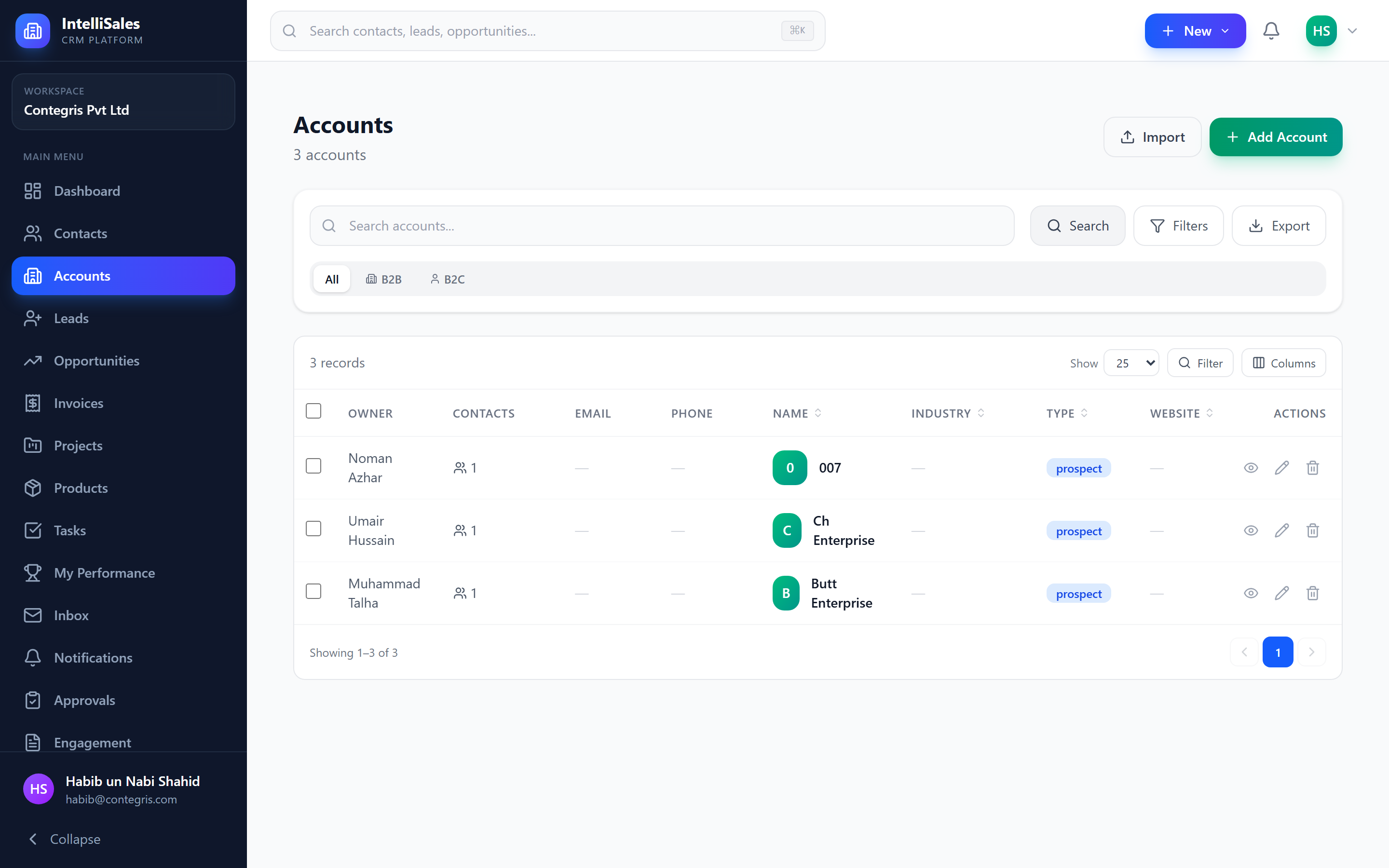
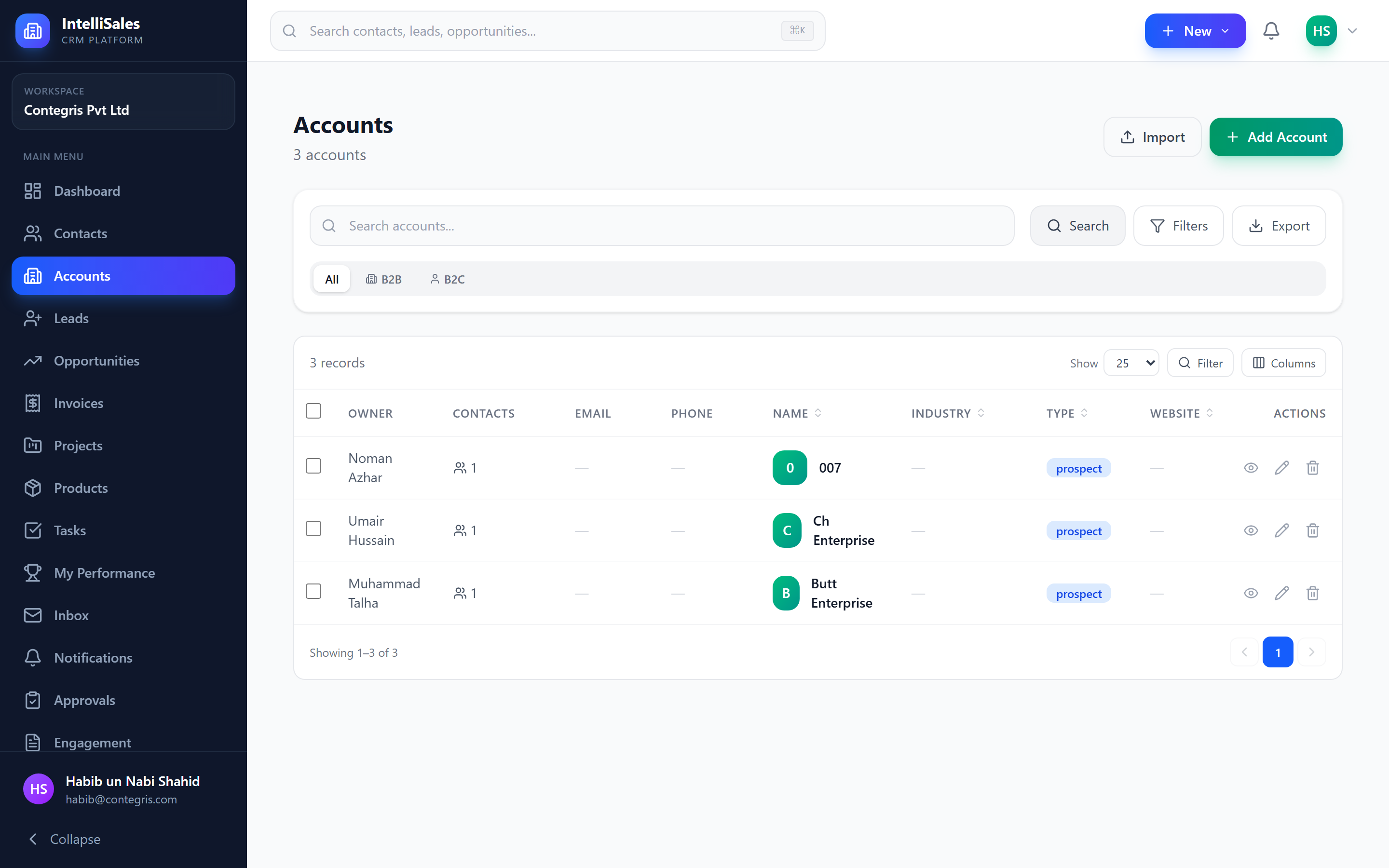
Navigate to Accounts in the sidebar to see the accounts list. The data table displays accounts with configurable columns including:
- Account Name
- Classification (B2B/B2C badge)
- Account Type
- Industry
- Phone
- Website
- Owner
- Created Date
Classification Filter
At the top of the accounts list, you will find classification filter tabs:
- All — shows all accounts regardless of classification
- B2B — shows only business-to-business accounts
- B2C — shows only business-to-consumer accounts
Click a tab to instantly filter the list. The active tab is highlighted.
Searching, Sorting, and Filtering
Searching
Use the search bar above the data table to search accounts by name, email, phone, or website. Results filter as you type.
Sorting
Click any column header to sort by that column. Click again to reverse the sort order.
Filter Panel
Click the Filters button to open the filter panel. The following filters are available:
| Filter | Description |
|---|---|
| Status | Filter by account status (Prospect, Qualified, Active, Partner, At Risk, On Hold, Churned, Inactive, Former) |
| Industry | Filter by business sector |
| Owner | Filter by the assigned account owner |
| Product/Service | Filter by accounts that have subscriptions to a specific product |
| Tags | Filter by account tags |
Active filter chips appear below the filter panel showing which filters are applied. Each chip displays the filter name and value, with an X button to remove individual filters. Click Clear All to reset all filters at once.
Combine multiple filters for precise results — for example, filter by Status = "Active" + Industry = "Technology" + Owner = your name to see your active tech accounts.
Creating Accounts
- Click the + New Account button at the top of the accounts list.
- Fill in the account creation form:
- Account Name (required) — the organization's name
- Classification — select B2B or B2C
- Account Type — Customer, Prospect, Partner, or Other
- Industry — select the business sector
- Website, Phone, Email — contact information
- Addresses — billing and shipping addresses
- Parent Account — optionally select a parent for hierarchy
- Custom Fields — any admin-configured fields
- Click Save to create the account.

Required fields are marked with a red asterisk (*). The form will not submit until all required fields are completed. Check for validation messages below any incomplete fields.
Editing Accounts
- Click an account in the list to open its detail page.
- Click the Edit button.
- Modify the desired fields.
- Click Save to apply changes.
Alternatively, use the actions menu (three dots) on the account's row in the list view and select Edit.
Deleting Accounts
- Open the account or find it in the list view.
- Click the actions menu (three dots).
- Select Delete.
- Confirm the deletion in the dialog.
Accounts are soft-deleted — they are hidden from normal views but retained in the database for data integrity. Linked contacts, opportunities, and other records remain intact. Contact your administrator to recover a deleted account if needed.
Account Type Badges
Throughout the platform, accounts display colored type badges for quick identification:
- Customer — green badge
- Prospect — blue badge
- Partner — purple badge
- Other — gray badge
These badges appear in the list view, detail page header, and anywhere an account is referenced (such as on a linked opportunity or contact).
Keep account types up to date as relationships evolve. When a Prospect makes their first purchase, change their type to Customer to keep your data accurate and your reports meaningful.