Account Import
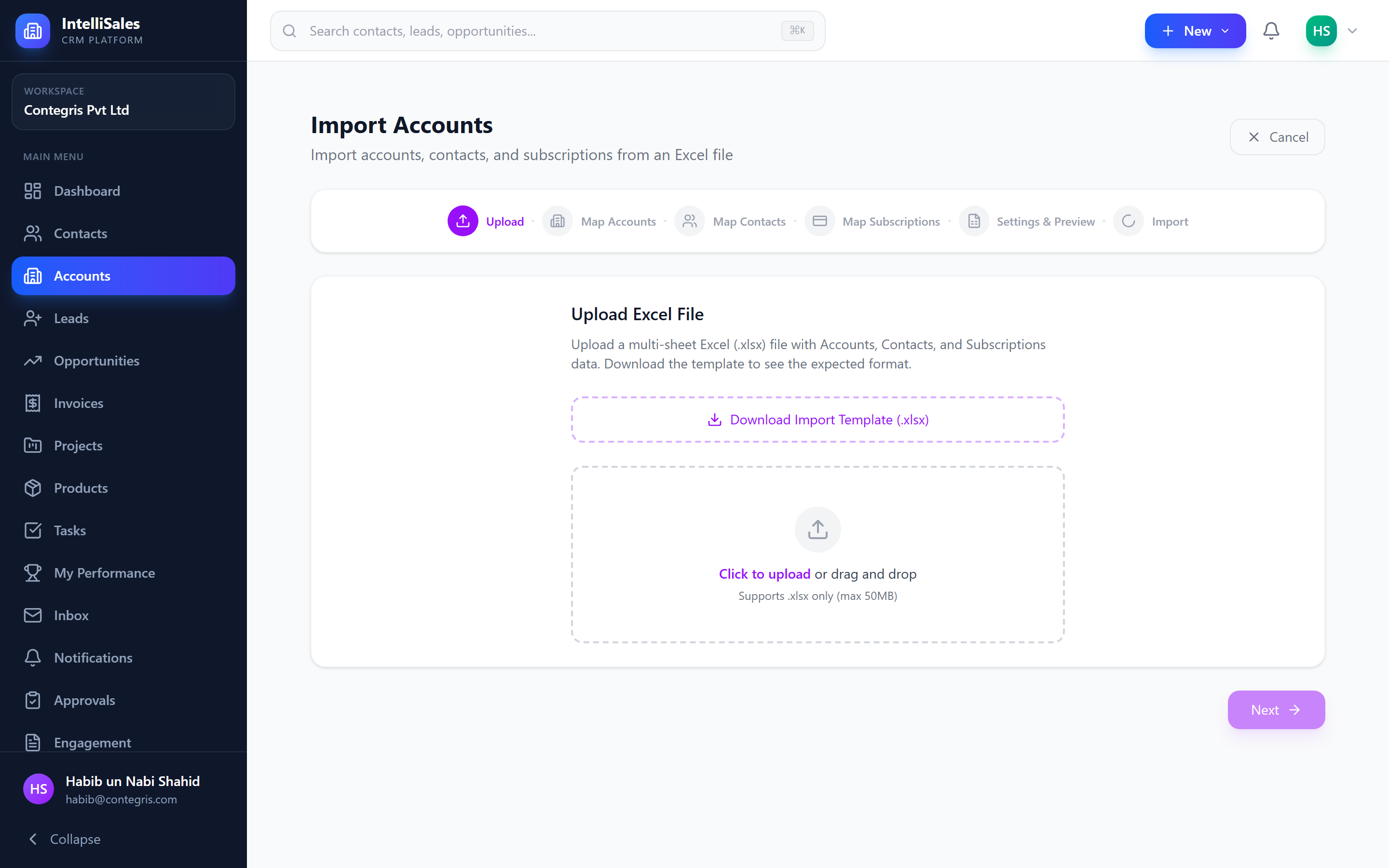
IntelliSales CRM provides a powerful multi-sheet import wizard purpose-built for onboarding entire customer datasets at once. Unlike the standard single-module import, the Account Import handles accounts, contacts, and subscriptions in a single operation from one Excel workbook.
Navigate to Accounts and click the Import button to launch the wizard.
When to Use Account Import
Use this wizard when you need to:
- Migrate from another CRM or ERP system
- Onboard a partner's customer list
- Bulk-load historical account data with associated contacts and subscriptions
- Import data from a spreadsheet that contains multiple related sheets
For importing leads only, use the dedicated Lead Import wizard. The Account Import is designed for richer, multi-entity datasets.
Supported Format
| Format | Extension | Max Size |
|---|---|---|
| Excel Workbook | .xlsx | 50 MB |
The wizard expects an Excel file with one or more sheets. Each sheet can contain accounts, contacts, or subscriptions. The system auto-detects sheet types based on column headers.
The 6-Step Wizard
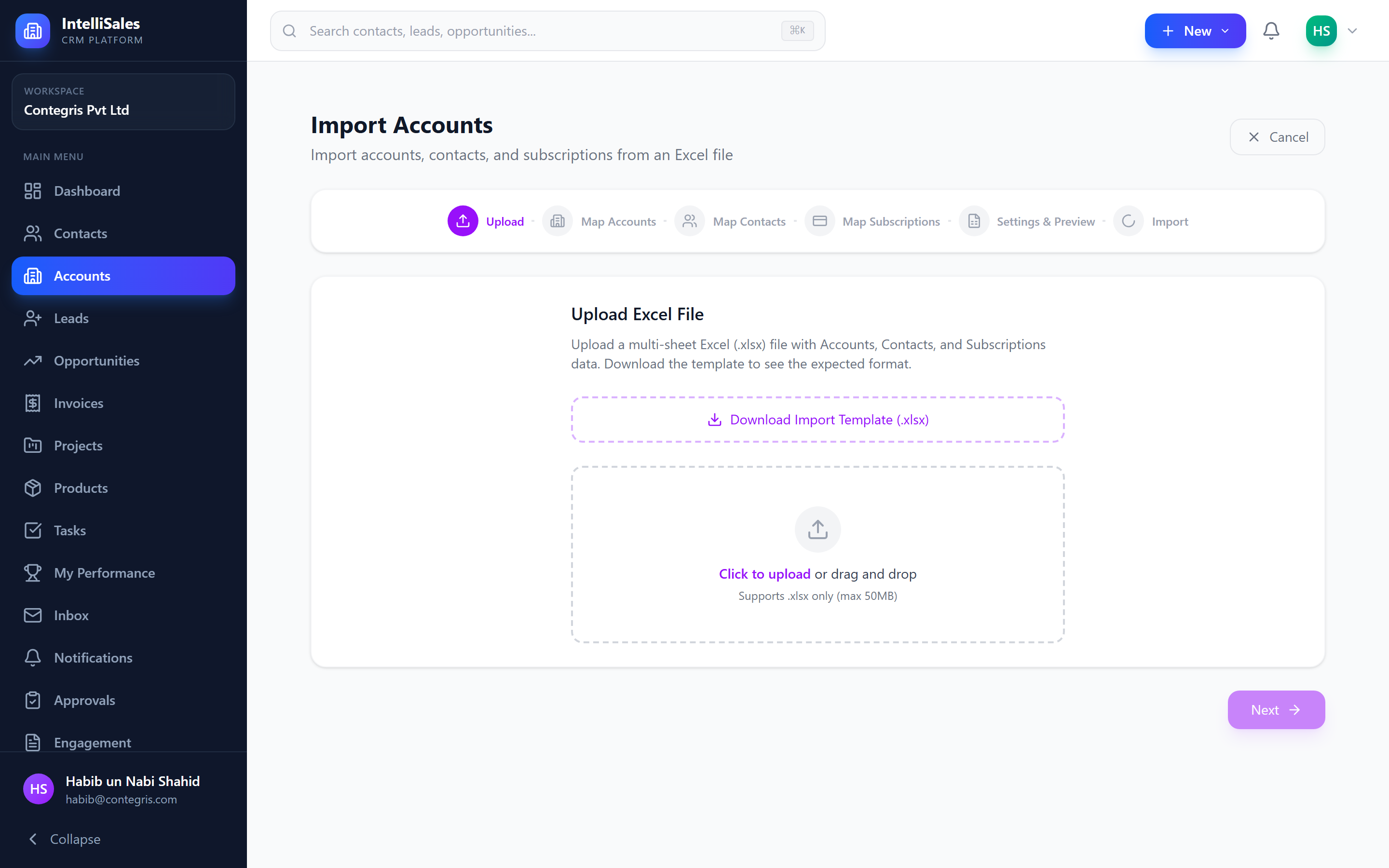
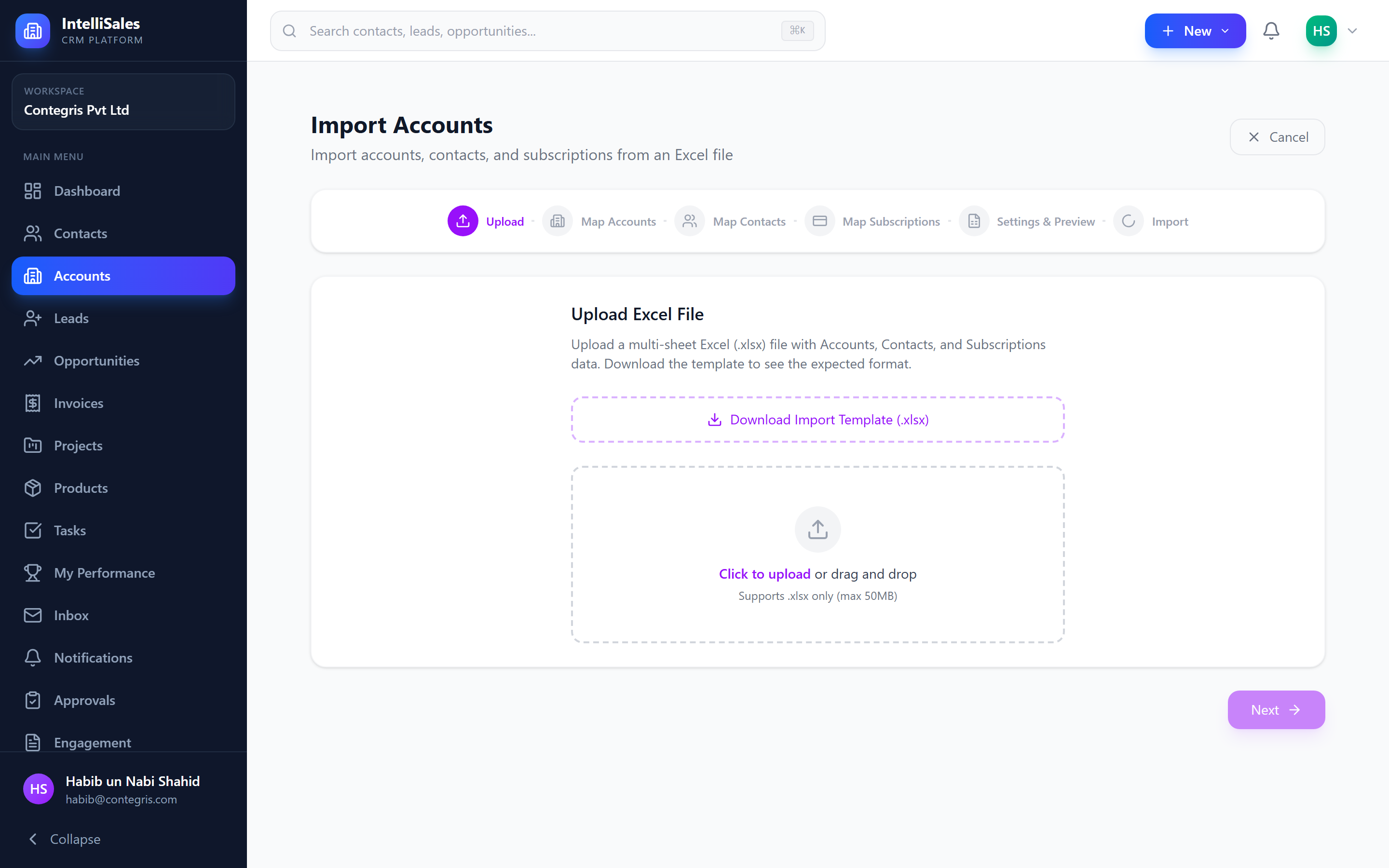
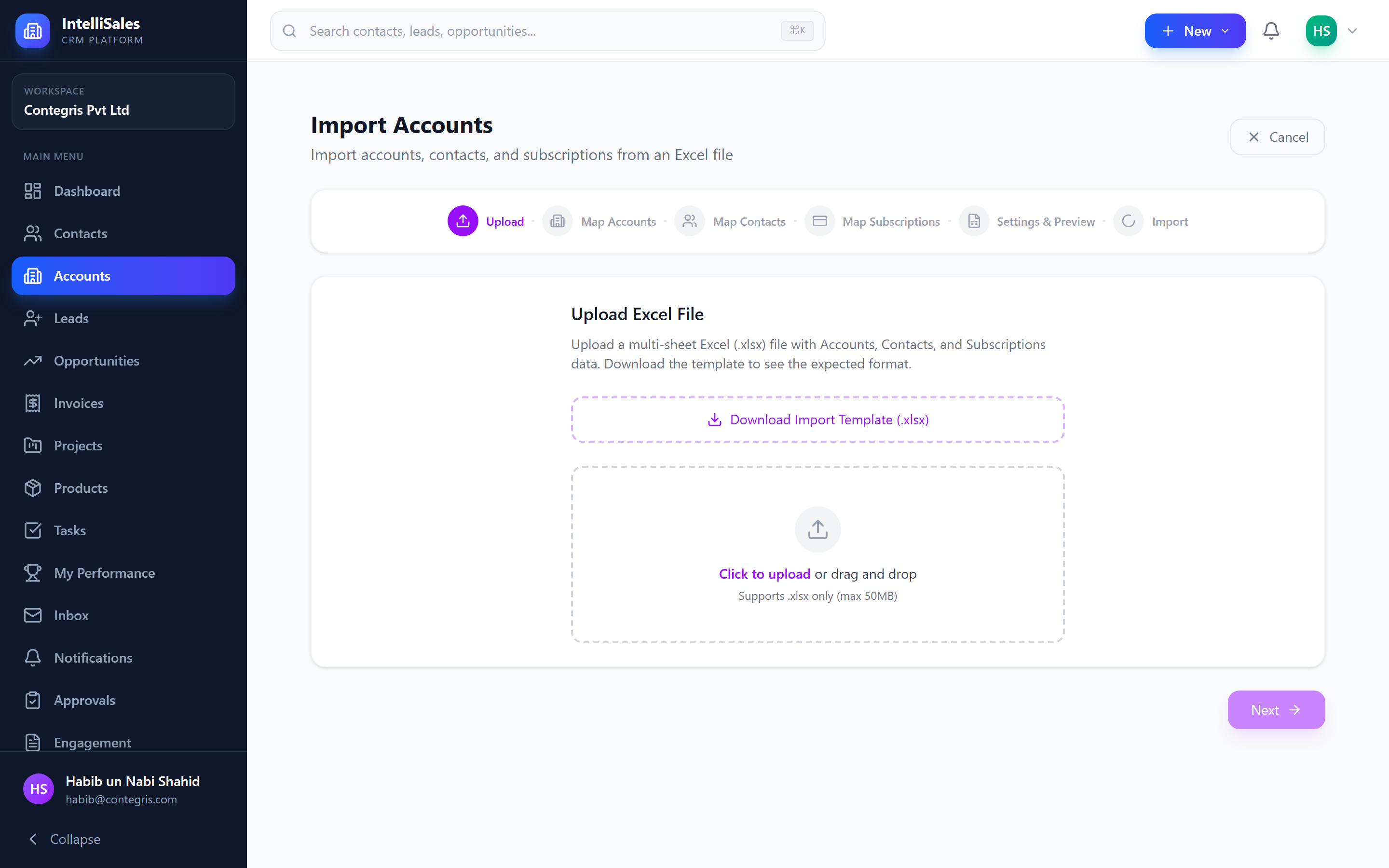
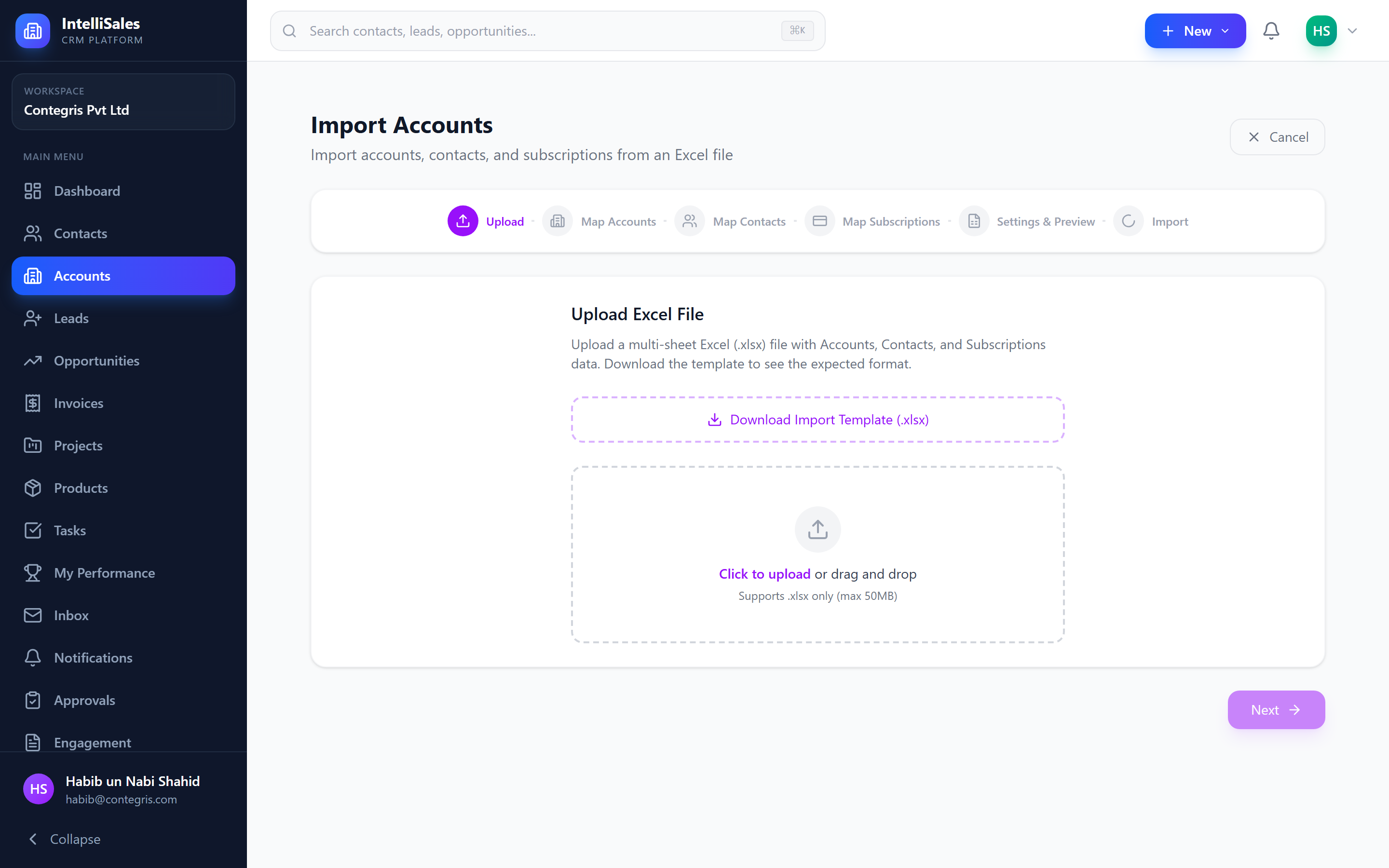
Step 1: Upload
- Click Choose File or drag and drop your
.xlsxfile. - The system reads all sheets and displays them with auto-detected types.
- Optionally, download a template file with pre-configured column headers by clicking Download Template.
- Click Next to proceed.
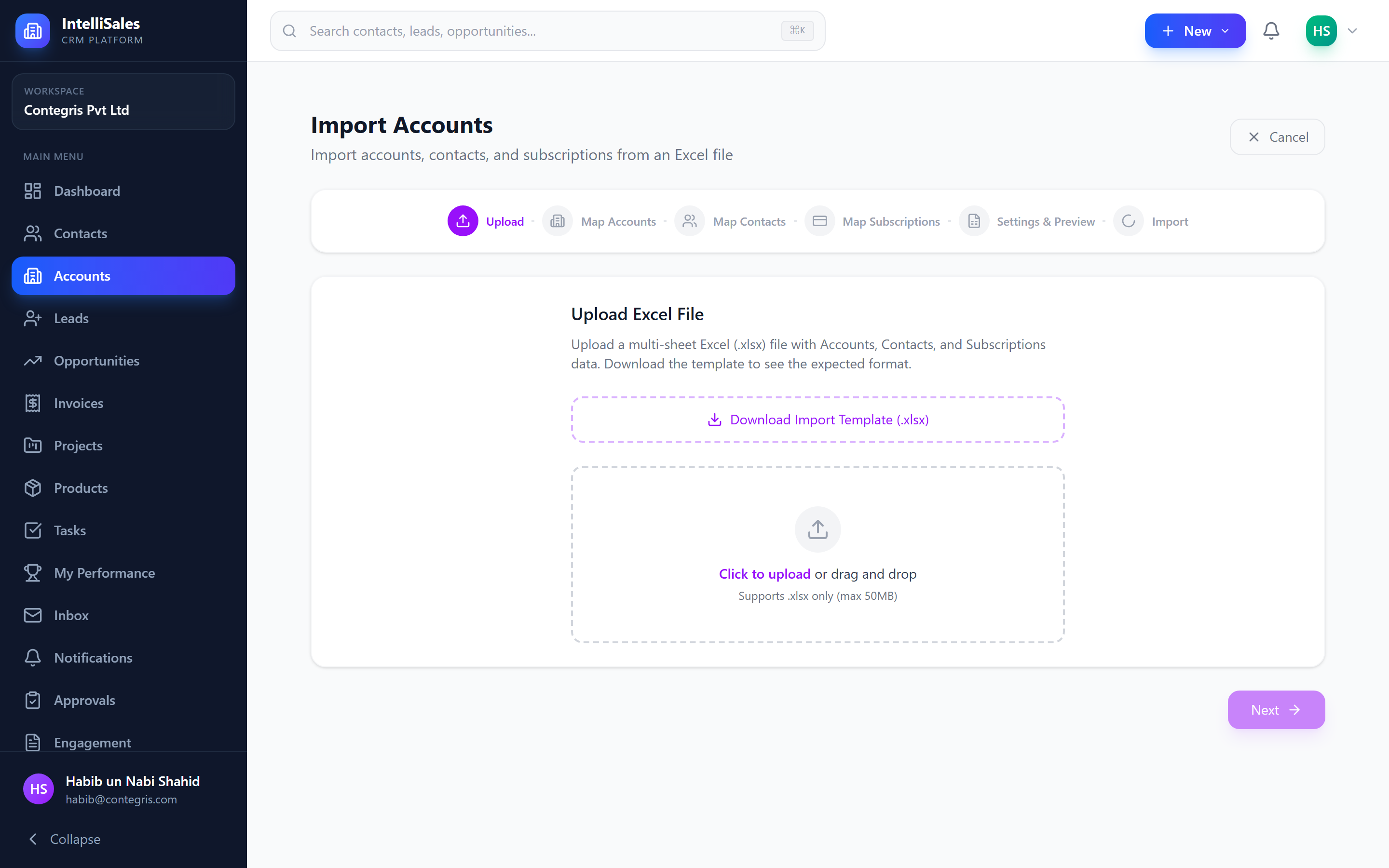
The template file includes three sheets (Accounts, Contacts, Subscriptions) with all supported column headers. Use it as a starting point and delete columns you do not need.
Step 2: Map Accounts
Map columns from your accounts sheet to CRM account fields:
| File Column | CRM Field | Notes |
|---|---|---|
| Company Name | Account Name | Required |
| Website | Website | |
| Industry | Industry | Must match configured industries |
| Type | Account Type | Customer, Prospect, Partner, Other |
| Classification | Classification | B2B or B2C |
| Phone | Phone | Supports comma-separated multiple numbers |
| Supports comma-separated multiple addresses | ||
| Address | Billing Address |
Key features:
- Auto-mapping — columns are matched automatically by header name
- Save/Load mapping template — save your column mapping for reuse with future imports from the same source
- Default Account Type — set a default B2B or B2C classification for all imported accounts when the file does not include a classification column
- Owner resolution — assign an owner by mapping an "Owner Email" or "Owner Name" column; the system matches against existing CRM users
If "Owner Email" or "Owner Name" does not match an existing user, the account is assigned to the user performing the import.
Step 3: Map Contacts
Map columns from your contacts sheet to CRM contact fields:
- First Name, Last Name, Email, Phone, Mobile, Job Title, Department
- Account link — a column (typically "Company" or "Account Name") that links each contact to an account from Step 2
Phone normalization:
The system automatically normalizes phone numbers to E.164 format (e.g., +14155551234). It handles:
- Local formats like
(415) 555-1234 - International formats like
+1 415 555 1234 - Comma-separated multiple numbers (each number is stored separately)
Email handling:
Comma-separated email addresses (e.g., john@acme.com, john.doe@gmail.com) are split and stored as separate email entries.
Step 4: Map Subscriptions
Map columns from your subscriptions sheet to CRM subscription fields:
| File Column | CRM Field | Notes |
|---|---|---|
| Account Name | Account Link | Links to imported or existing account |
| Product Name | Product | Matched against product catalog |
| Status | Status | Active, Trial, Expired, Cancelled |
| Billing Frequency | Billing Frequency | Monthly, Quarterly, Annually |
| Quantity | Quantity | |
| Unit Price | Unit Price | |
| Start Date | Start Date | |
| End Date | End Date | |
| Auto-Renew | Auto-Renew | Yes/No or True/False |
Product auto-creation:
If a product name in the file does not match any existing product in your catalog, the system automatically creates a new product with that name. This saves time when importing from systems with different product names.
Auto-created products are created with default settings. Review and update them in the Products module after import.
Step 5: Settings
Configure import behavior before execution:
- Duplicate Detection — choose how to handle accounts that already exist in the CRM:
- Skip — do not import duplicate accounts
- Update — merge imported data into the existing account
- Import as New — create a new account regardless of duplicates
- Duplicate Match Field — match on Account Name, Website, or Email
- Default Account Type — set B2B or B2C for accounts that do not specify a classification
- Default Owner — assign a default owner when no owner mapping is provided
Step 6: Progress
- Click Start Import to begin processing.
- A real-time progress bar shows the status:
- Accounts imported (e.g., "142 of 150 accounts")
- Contacts imported
- Subscriptions imported
- Errors encountered
- When complete, a summary displays:
- Total records processed per entity type
- Successfully imported count
- Skipped (duplicates) count
- Failed count with downloadable error report
Multi-Sheet Auto-Detection
The wizard intelligently detects what type of data each sheet contains by analyzing column headers:
| Detected Columns | Sheet Type |
|---|---|
| Account Name, Website, Industry | Accounts |
| First Name, Last Name, Email | Contacts |
| Product, Billing Frequency, MRR | Subscriptions |
You can override the auto-detection by manually selecting the sheet type from a dropdown.
If your file has a single sheet with mixed data (accounts and contacts in the same sheet), the wizard can handle it — but the best results come from separating entities into distinct sheets.
Mapping Templates
Save time on recurring imports by saving and loading mapping templates:
- After configuring mappings in Steps 2-4, click Save Mapping Template.
- Give the template a name (e.g., "Salesforce Export", "Partner Onboarding").
- On future imports, click Load Template at the top of any mapping step.
- The saved column-to-field mappings are applied automatically.
Templates store mappings for all three entity types (accounts, contacts, subscriptions) in a single template.
Error Handling
If records fail to import:
- The progress screen shows the error count per entity type.
- Click Download Failed Records to get an Excel file with only the failed rows.
- Each row includes an error column explaining the failure reason.
- Fix the issues and re-import the corrected file.
Common error reasons:
- Missing required fields (Account Name, Contact Email)
- Invalid date formats
- Phone numbers that cannot be parsed
- Product names that could not be resolved (if auto-creation is disabled)
Best Practices
- Use the template — download and populate the provided template for cleanest results.
- Clean data first — remove empty rows, fix inconsistent formatting, and deduplicate before uploading.
- Start small — test with 10-20 rows per sheet before importing thousands.
- Set a default classification — if your file does not include B2B/B2C, set the default in Step 5 so all accounts are properly classified.
- Verify products — after import, check the Products module for any auto-created products and update their details.
- Review the error report — always download and review the failed records file, even if only a few records failed.
Related Pages
- Managing Accounts — creating and editing accounts manually
- Subscriptions & Renewals — managing imported subscriptions
- Import & Export (Admin) — general import/export administration
- Batch Jobs — monitoring import job progress