Approvals
The Approvals module manages approval workflows — requests that need to be reviewed and approved (or rejected) by designated users before a record can proceed. Common use cases include discount approvals, high-value deal sign-offs, proposal publishing, and budget authorization.
What are Approvals?
An approval is a request generated when a CRM action triggers an approval rule. The record is held in a pending state until all required approvers have made their decisions. Approvals enforce governance and ensure that important business decisions go through the proper review chain.
Trigger Events
Approval rules are triggered by specific events in the CRM:
| Trigger Event | Description | Typical Use Case |
|---|---|---|
publish | A proposal is published or sent to a client | Ensure proposals are reviewed before delivery |
close_won | An opportunity is closed as won | Executive sign-off on large deals |
discount_threshold | A discount exceeds a configured percentage | Manager approval for discounts above 20% |
manual | A user manually requests approval | Ad-hoc approval for any record |
project_created | A new project is created | Ensure projects meet criteria before starting |
project_completed | A project is marked as completed | Quality review before final delivery |
budget_exceeded | A project or deal exceeds its budget | Finance approval for overruns |
Entity Types
Approval rules can be configured for the following entity types:
| Entity Type | Example Scenarios |
|---|---|
| Proposals | Review before publishing to client |
| Opportunities | Sign-off on high-value deals, discount approvals |
| Deals | Final approval before contract execution |
| Leads | Quality review before conversion |
| Projects | Budget approval, completion sign-off |
Approval rules are configured by administrators under Admin → Approval Rules. If you think an approval rule needs adjustment, discuss it with your admin.
Tiered Discount Approvals
For discount_threshold triggers, admins can define tiered rules — each rule has a min/max discount range, and the system picks the matching tier automatically:
| Discount | Approvers |
|---|---|
| 5–10% | Sales Manager only |
| 10–25% | Sales Manager → Finance Director |
| 25%+ | Sales Manager → Finance Director → VP Sales |
So a 22% discount on a proposal goes through the medium chain; a 30% discount goes through the heavy chain. You don't have to remember the policy — the system routes the request to the right approvers automatically. See Approval Rules for the admin side.
Approval Chains (Multi-Step)
Approval rules support multi-step chains where a request must pass through several approvers in sequence.
How Chains Work
Each approval rule defines one or more steps in order:
| Setting | Description |
|---|---|
| Step Order | The sequence number (1, 2, 3...) — steps execute in order |
| Approver Type | Either a specific user or anyone with a specific role |
| Approver | The user ID (for user type) or role ID (for role type) |
Example chain:
- Step 1: Sales Manager (role) reviews the discount
- Step 2: Finance Director (user) approves the budget impact
- Step 3: VP of Sales (user) gives final sign-off
The request advances to the next step only after the current step is approved. If any step is rejected, the entire request is rejected.
Step Progress
Each approval request tracks which step it is currently on. The approval detail view shows:
- All steps in the chain
- Which steps are completed (approved)
- The current pending step
- Which steps are remaining
Approval Queue
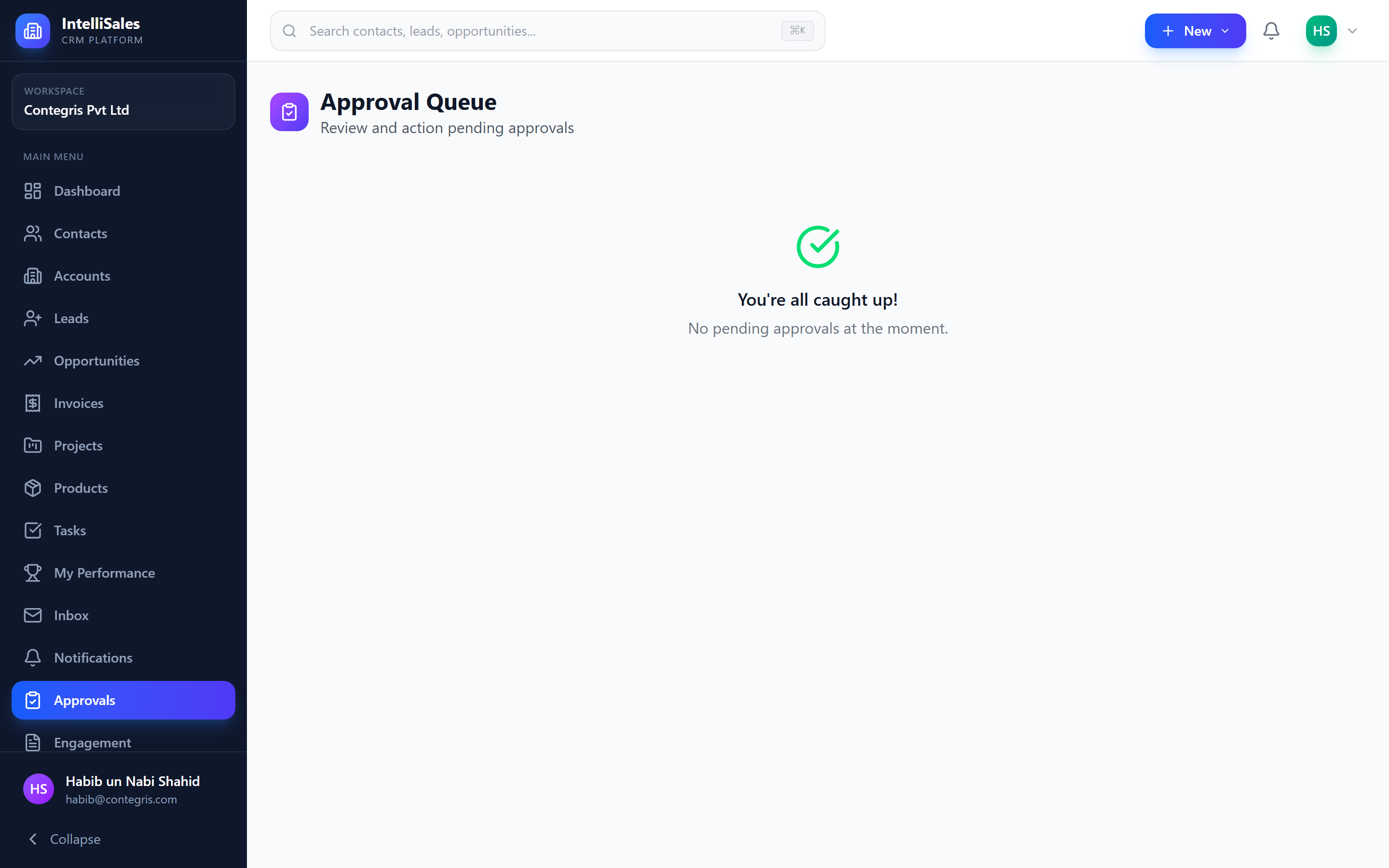
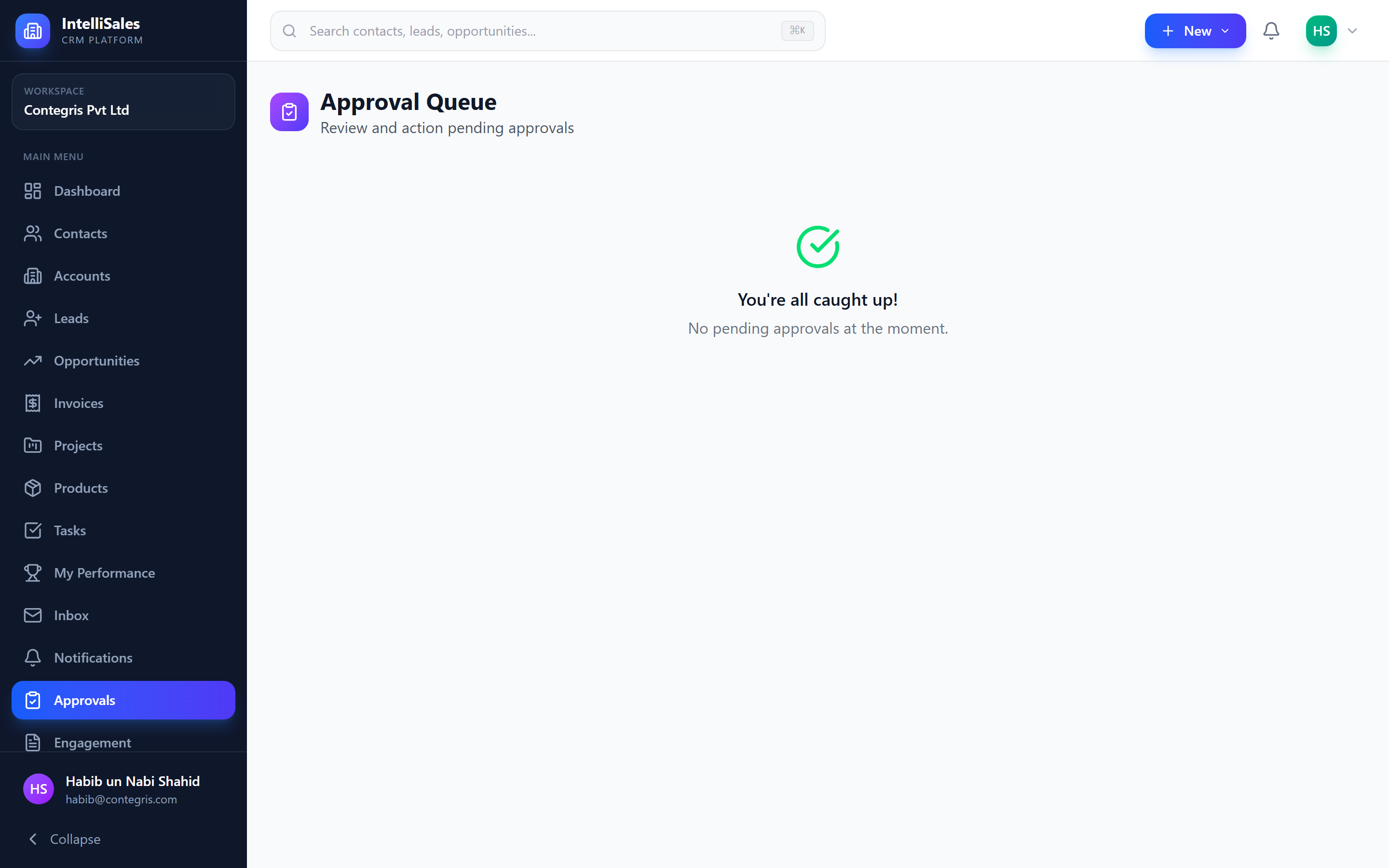
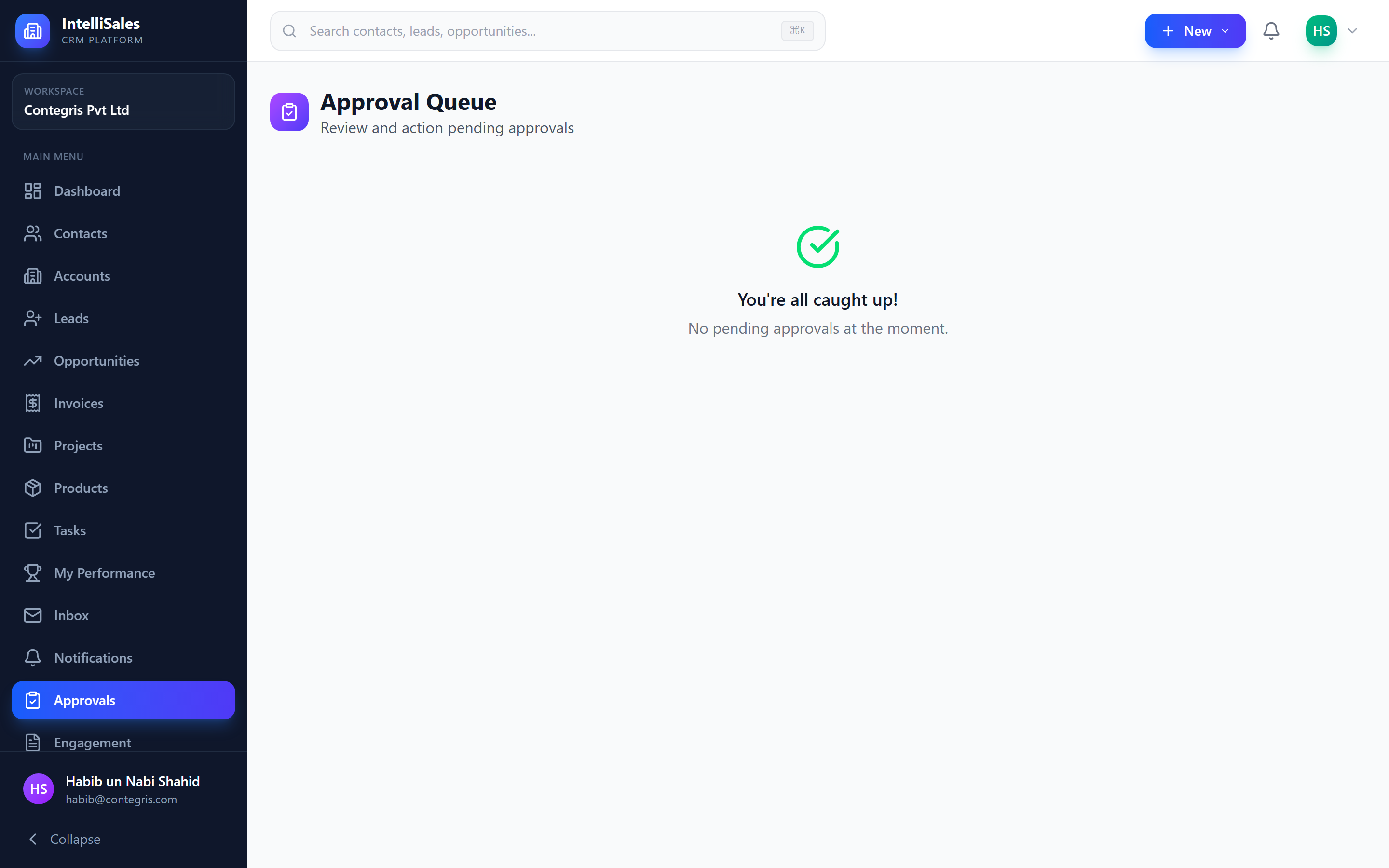
Navigate to Approvals in the sidebar to see your pending approval requests. The queue shows:
- Record name — the entity awaiting approval
- Entity type — Proposal, Opportunity, Deal, Lead, or Project
- Trigger — what caused the approval request (e.g., "Discount exceeds 20%")
- Requester — the user who initiated the action
- Date submitted — when the request was created
- Current Step — which step in the chain is pending
- Status — Pending, Approved, or Rejected
You only see approvals assigned to you (as an approver for the current step). If you are not an approver, you will see your own submitted requests and their statuses.
Approval Flow
The complete lifecycle of an approval request:
Action triggers approval rule
    → Request created (status: Pending)
        → Step 1 approver notified
            → Step 1: Approved ✓
                → Step 2 approver notified
                    → Step 2: Approved ✓
                        → ... (additional steps)
                            → All steps approved
                                → Request status: Approved
                                → Original action proceeds
If rejected at any step:
→ Step N: Rejected ✗
    → Request status: Rejected
    → Requester notified with rejection reason
    → Original action is blocked
Taking Action on Approvals
For each pending approval assigned to you, you can take one of two actions:
Approve
- Open the approval request.
- Review the record details and the reason for the approval request.
- Optionally add a comment explaining your decision.
- Click Approve.
- The request advances to the next step (or is fully approved if this was the last step).
Reject
- Open the approval request.
- Click Reject.
- Add a reason for rejection (required) — this helps the requester understand what needs to change.
- The entire request is rejected, and the requester is notified.
Rejection comments are required. You cannot reject an approval without providing a reason. This ensures clear communication and creates an audit trail.
Approval Details
Each approval request provides context to help the approver make an informed decision:
- Entity type — what kind of record this is
- Trigger rule — which approval rule was triggered and why
- Requester — who initiated the action and when
- Record summary — key fields from the record (name, amount, stage, etc.)
- Change details — what specifically triggered the approval (e.g., "Discount changed from 10% to 25%")
- Chain progress — which steps have been completed and which remain
- Link to record — click to view the full record detail page
Comments
Throughout the approval process, both approvers and requesters can add comments to the approval thread:
- Open the approval.
- Scroll to the Comments section.
- Type your comment.
- Click Post.
Comments create a conversation thread that provides context and documentation for the approval decision. This is valuable for:
- Asking clarifying questions before making a decision
- Documenting the rationale behind an approval
- Providing feedback when rejecting a request
- Creating an audit trail for compliance
Always add a comment when approving or rejecting a request. This creates a clear record of the reasoning behind each decision, which is helpful for future reference and compliance audits.
Notifications
The approval system sends notifications at each stage:
| Event | Who is Notified |
|---|---|
| Request created | Current step approver |
| Step approved (more steps remain) | Next step approver |
| Request fully approved | Original requester |
| Request rejected | Original requester |
| Comment added | All participants in the approval thread |
Notifications appear as in-app notifications and can also be sent via email depending on your notification preferences.